How to Create ZATCA-Compliant POS Invoices and Refunds in Invent ERP?
Invent ERP's Point of Sale (POS) system is fully integrated with ZATCA e-invoicing regulations, allowing businesses to issue simplified invoices and refunds directly from the POS.
Creating a POS Invoice
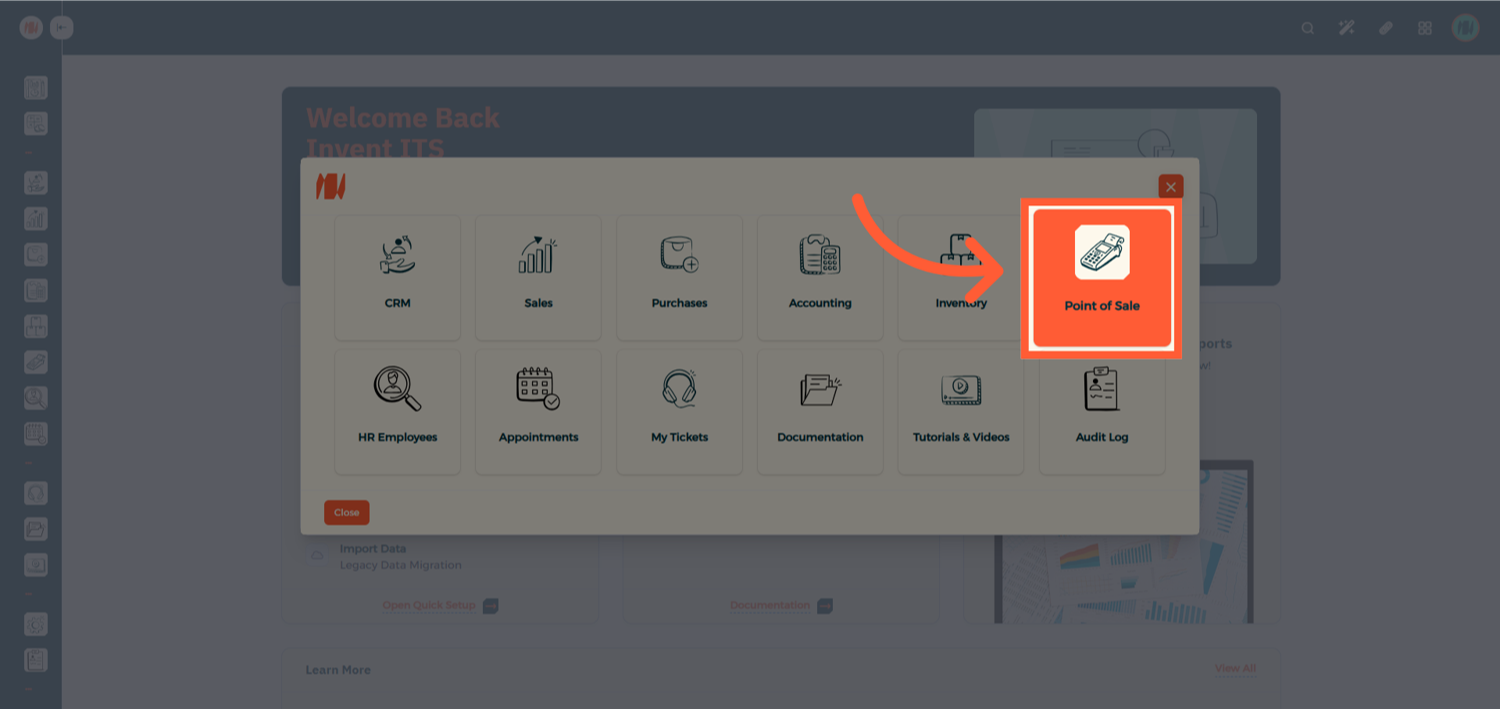
Step 1: Open the Point of Sale
From All Apps, navigate to Point of Sale.

Step 2: Enter Your POS Session
Select and enter your POS session.
Step 3: Start a New Order and Select a Customer
Before completing the order, make sure to select the customer.


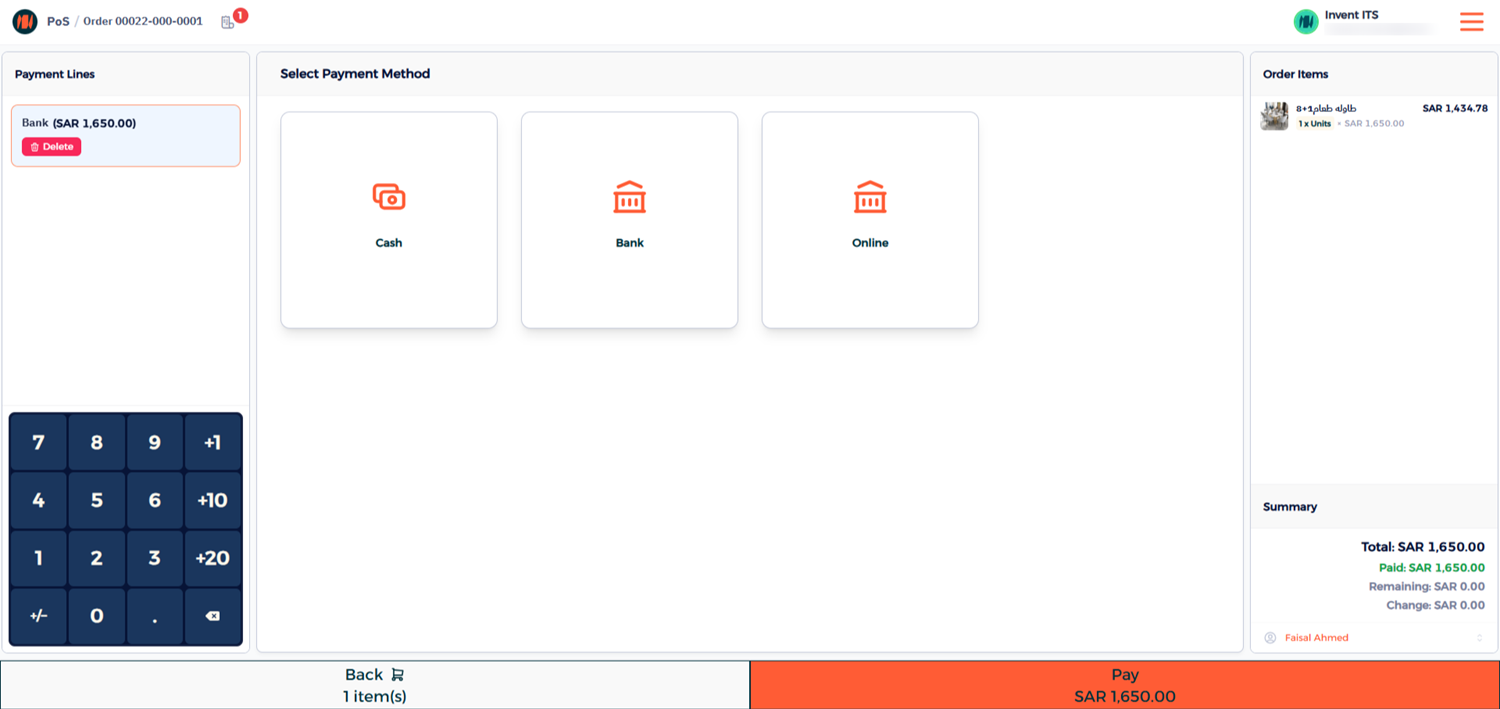
Step 4: Complete the Payment
Choose the payment method and click Pay to finalize the transaction.
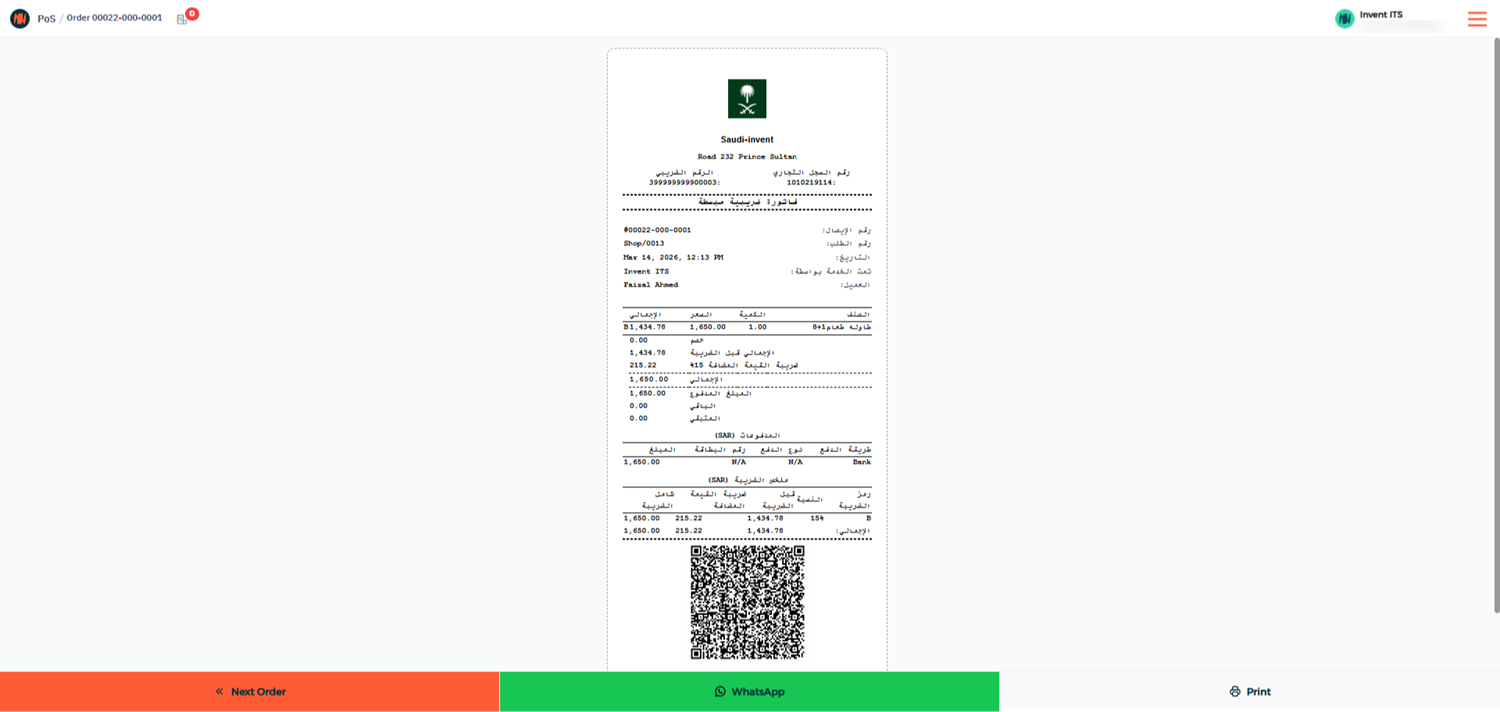
Once payment is completed, Invent ERP automatically:
- Creates a standard invoice in the backend.
- Submits the invoice directly to ZATCA for validation.

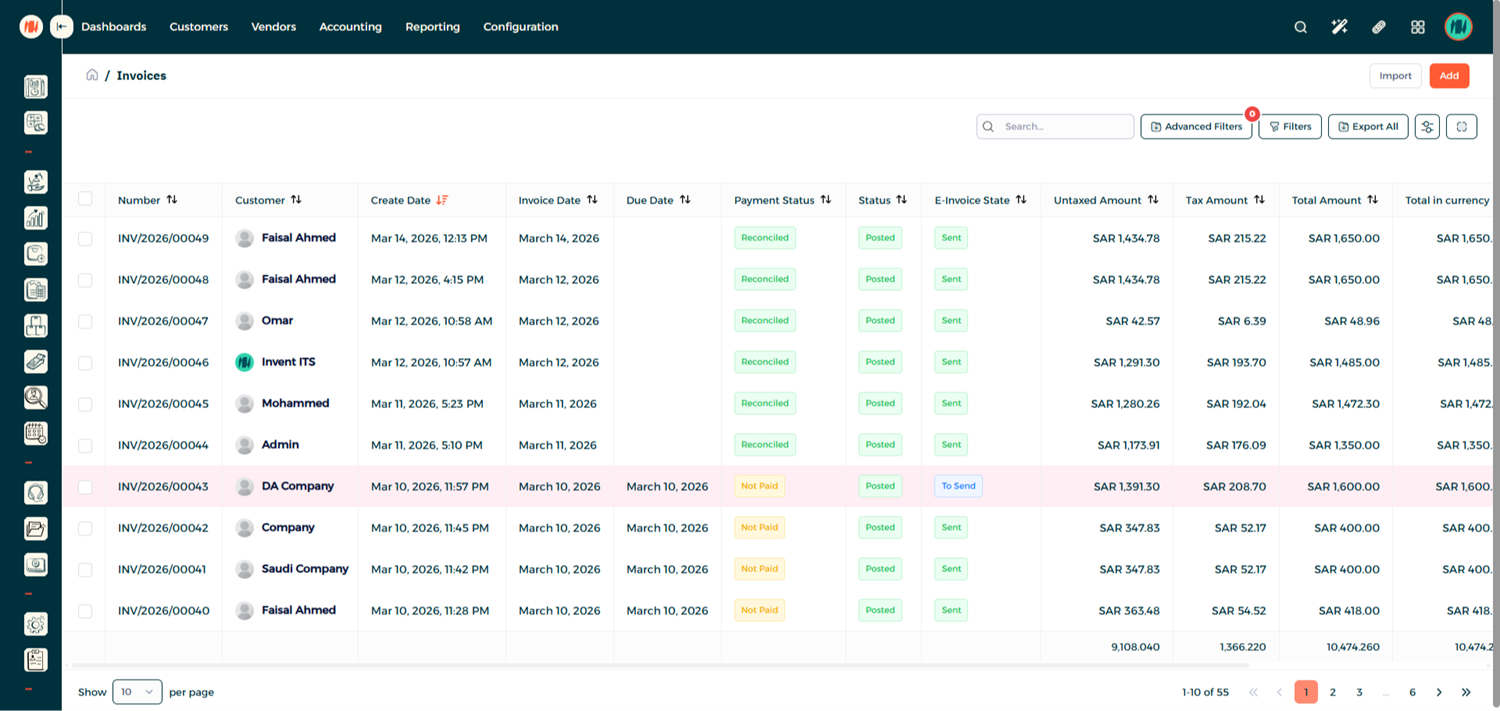
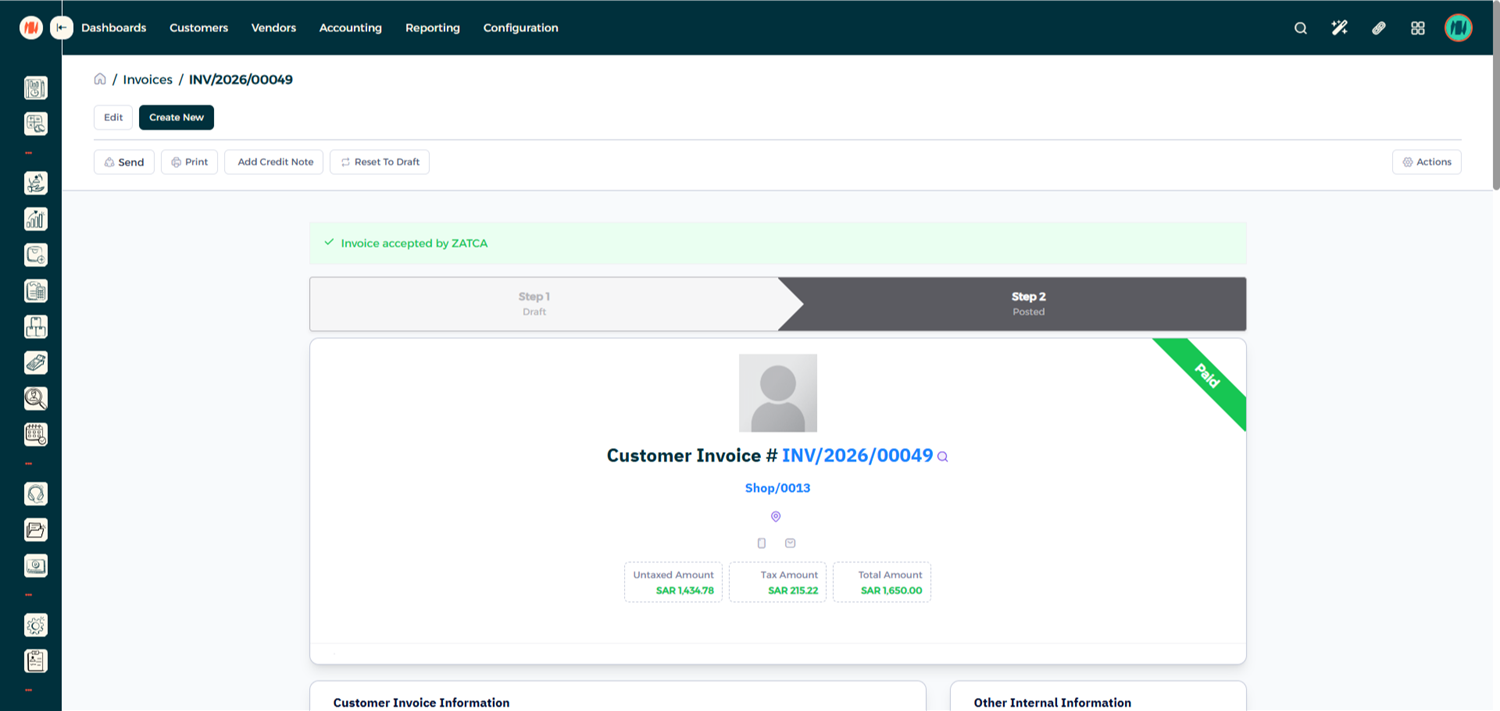
Step 5: Verify the Invoice Submission
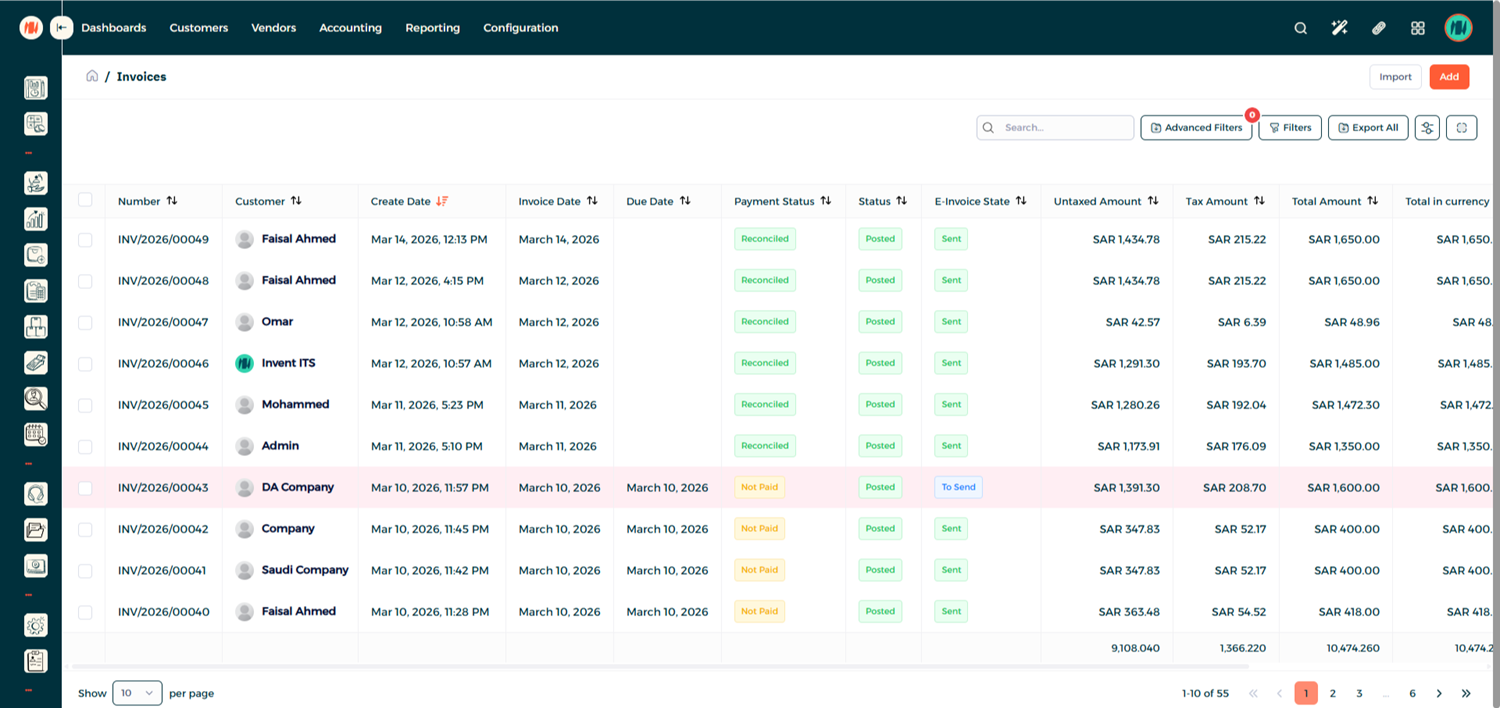
Go to the Invoice List, open the invoice, and verify it has been submitted to ZATCA.
Taxpayers must submit Simplified Tax Invoices within 24 hours.
Processing a POS Refund
Step 1: Open the Orders Menu
From the POS interface, navigate to Orders → Paid Orders.

Step 2: Select the Order to Refund
Select the order, enter the quantity of items to refund, and click Refund.

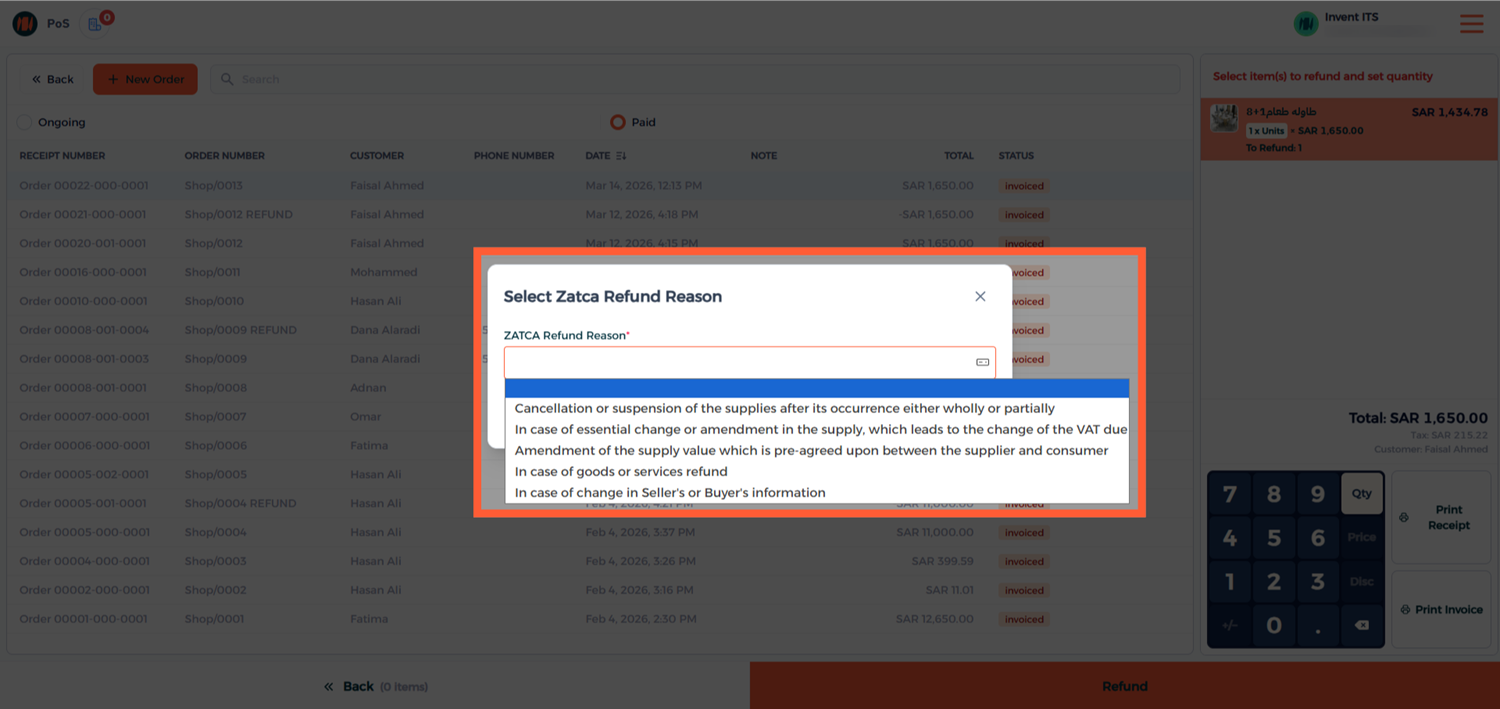
Step 3: Select the Refund Reason
A window will appear displaying ZATCA predefined refund reasons. Select the appropriate reason and click OK.
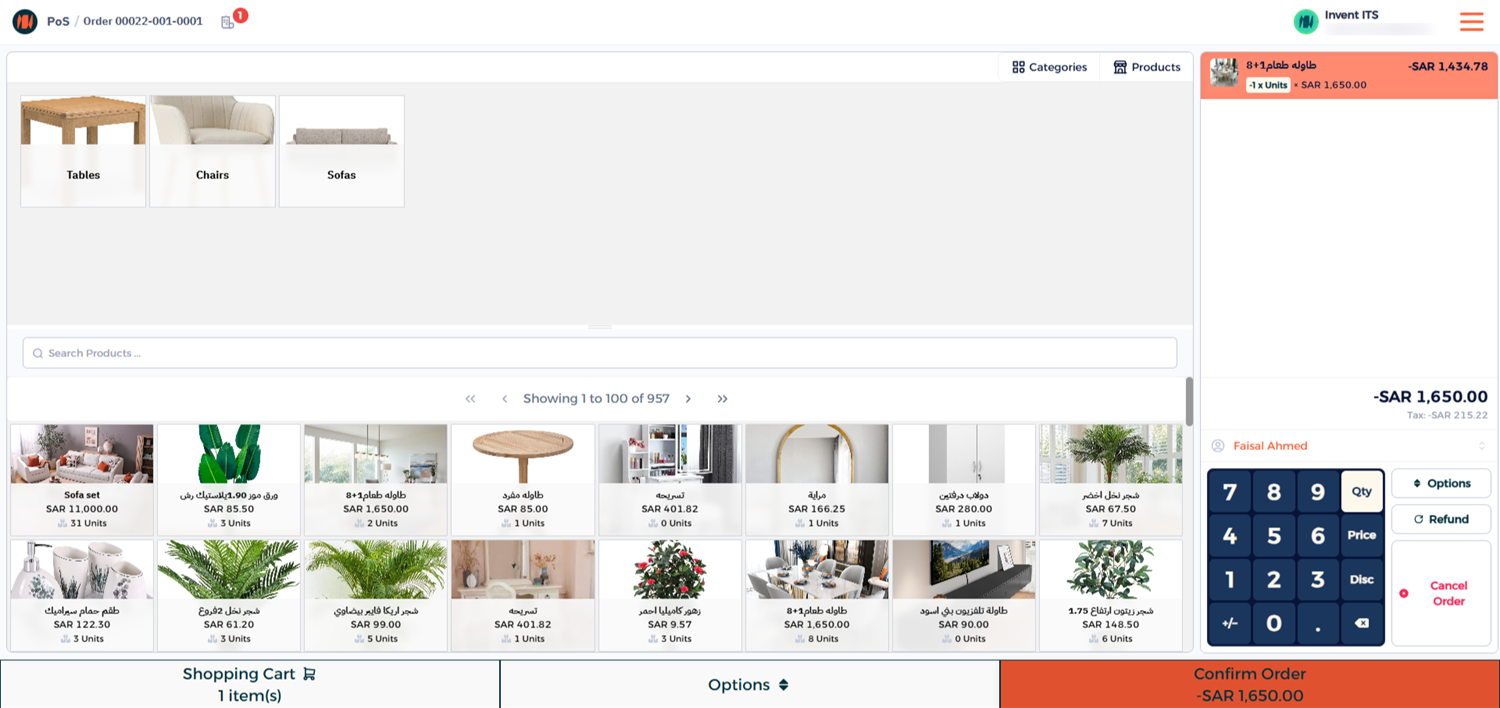
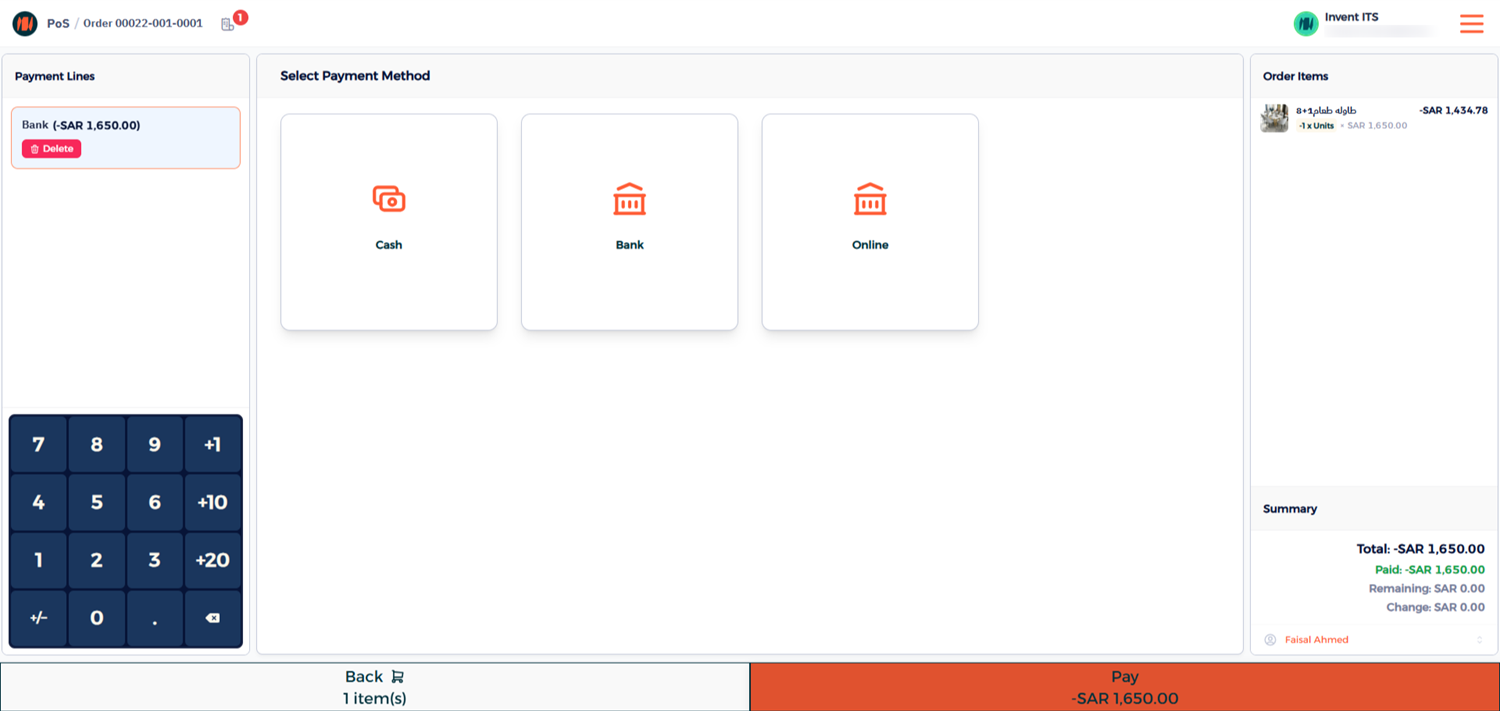
Step 4: Confirm the Refund
Confirm the refund and select the payment method.
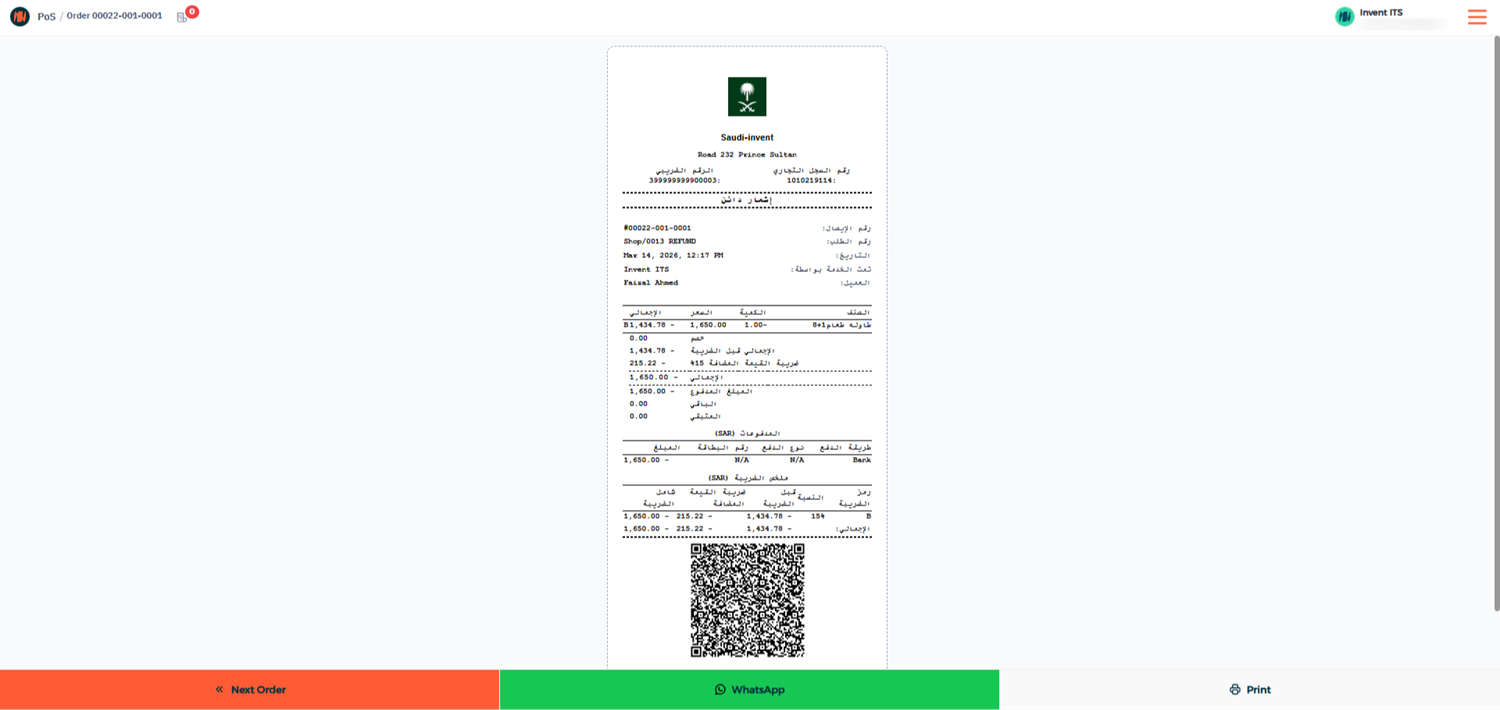
Invent ERP automatically creates a credit note in the backend and submits it to ZATCA.

Step 5: Verify the Credit Note
Go to the Invoice List, open the original invoice, and find the linked refund transaction.

Notes & Tips
- Always select the customer before completing a POS order.
- POS transactions generate simplified invoices.
- Refunds must include a ZATCA predefined refund reason for compliance.