How to Create Smart Product Bundles, Service Packages, and Promotional Offers
Learn how to combine products and services into bundles, packages, and promotions to increase sales and improve customer value.
Step-by-Step Process
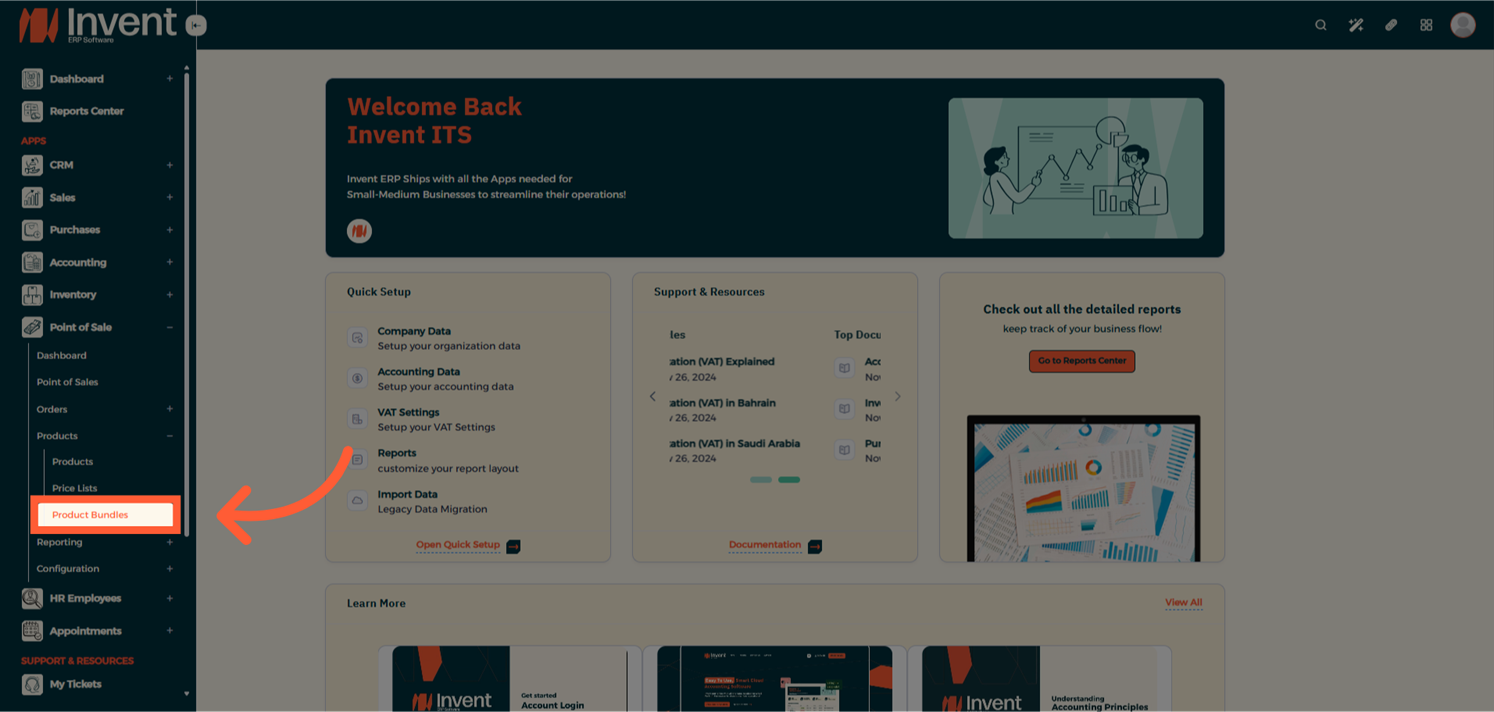
Step 1: Navigate to Product Bundles
From the Main Menu, go to Point of Sale → Products → Product Bundles.
Step 2: Add a New Bundle
From the Product Bundles List Page, click on Add to create a new bundle.
- Name — Give your bundle a clear and descriptive title.
- Products — Add multiple products to the bundle.
- Pricing — Review the original price of each item and set bundle-specific pricing if needed.

Step 3: Link the Bundle to a Product
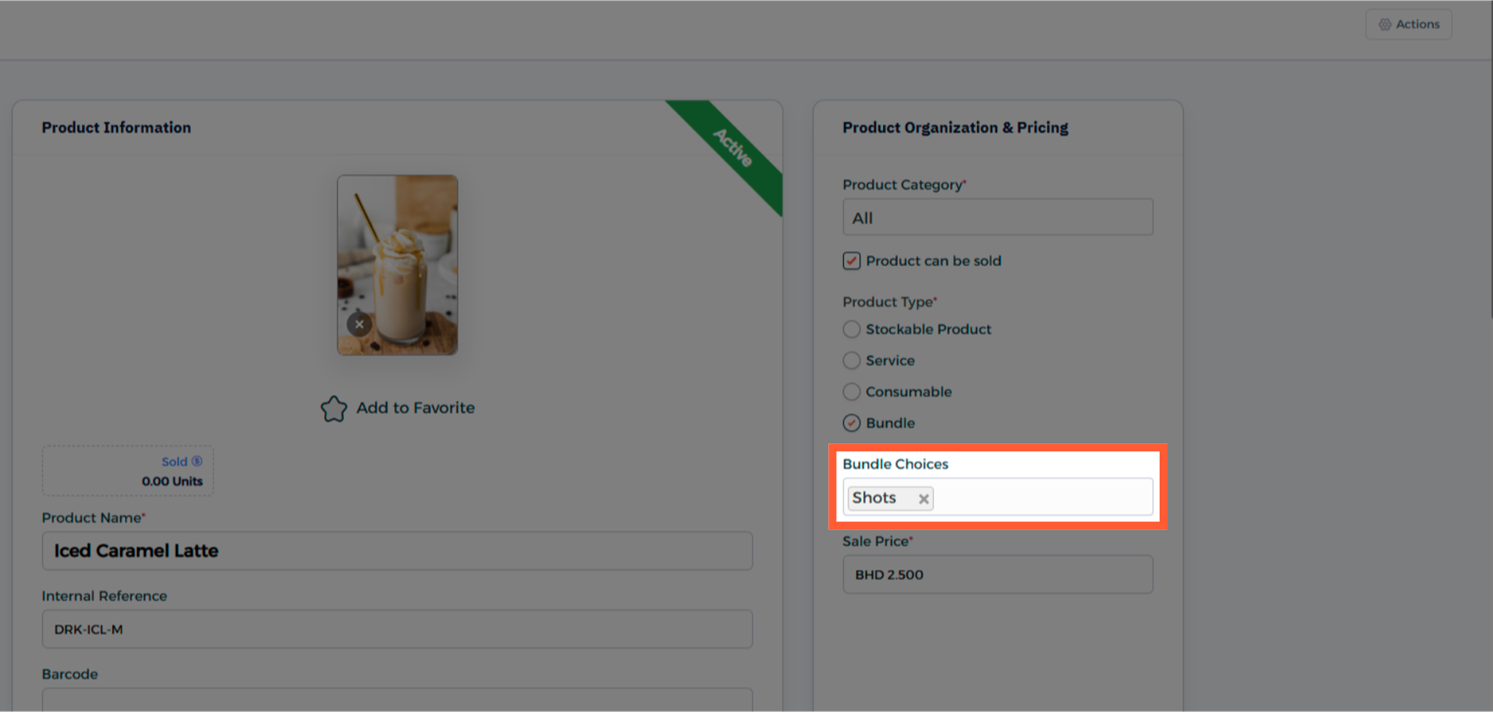
From the Product Page, open the product you'd like to associate with the bundle, or you can add a new product.
In the Bundle Choices select the bundle you just created and click Save.
Step 4: Use the Product in POS
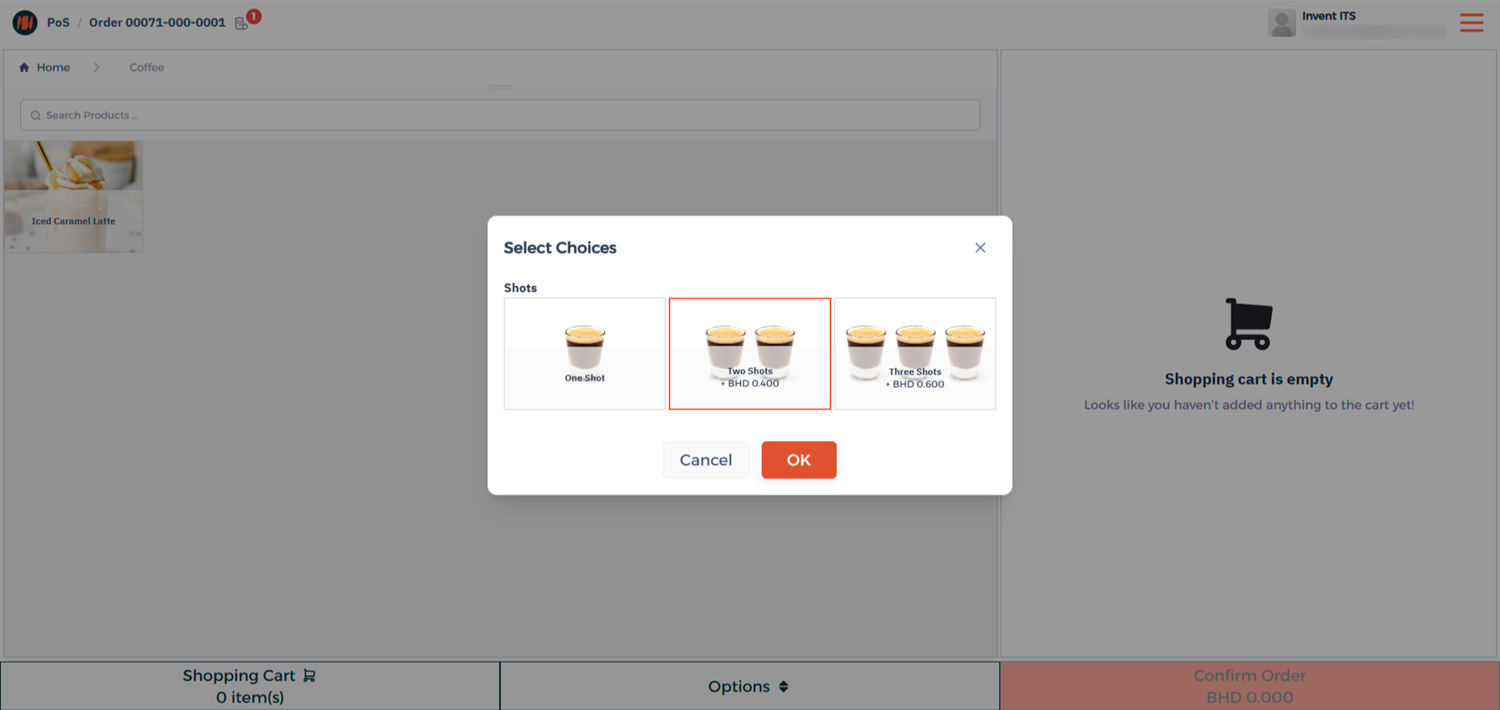
Now, head to your Point of Sale session. When you add the product linked to your bundle, you'll see the bundle options appear automatically. Select the desired item in your bundle, complete the order, and process payment as usual.
Notes & Tips
- Use clear and simple bundle names
- Adding attractive visuals for your bundle helps it stand out in the POS screen and improves recognition.
- You can update or replace products in an existing bundle if your offering changes without recreating it form scratch.
FAQ
Q: Can a product be part of more than one bundle? Yes, a product can be included in multiple bundles.
Q: Can I offer discounts on products with bundle items? Yes, you can adjust bundle prices manually or apply discount on your order
Q: Are Products Bundles available only in POS? Yes, product bundles are designed specifically for use within the POS module to simplify and speed up the sales process.
Q: Can I edit or delete a Product Bundle after creation? Yes, you can always return to the Product Bundles list to modify or remove bundle at any time.
Q: Will the bundle item name appear on the receipt or invoice? Yes, the order will include all the bundle items added to the product, and they will appear clearly on the printed receipt or invoice.