

How to use the Customer Wallet Feature in Invent ERP?
How to use the Customer Wallet Feature in Invent ERP?
The Customer Wallet is a useful feature in Invent ERP. It lets customers store prepaid credit so they can complete purchases instantly using the customer's wallet balance. This ensures faster, smoother checkouts and simplifies the business processes. For example, customers can pay in advance, and this allows the business to complete orders quickly and streamline the process.
Step-by-Step Process
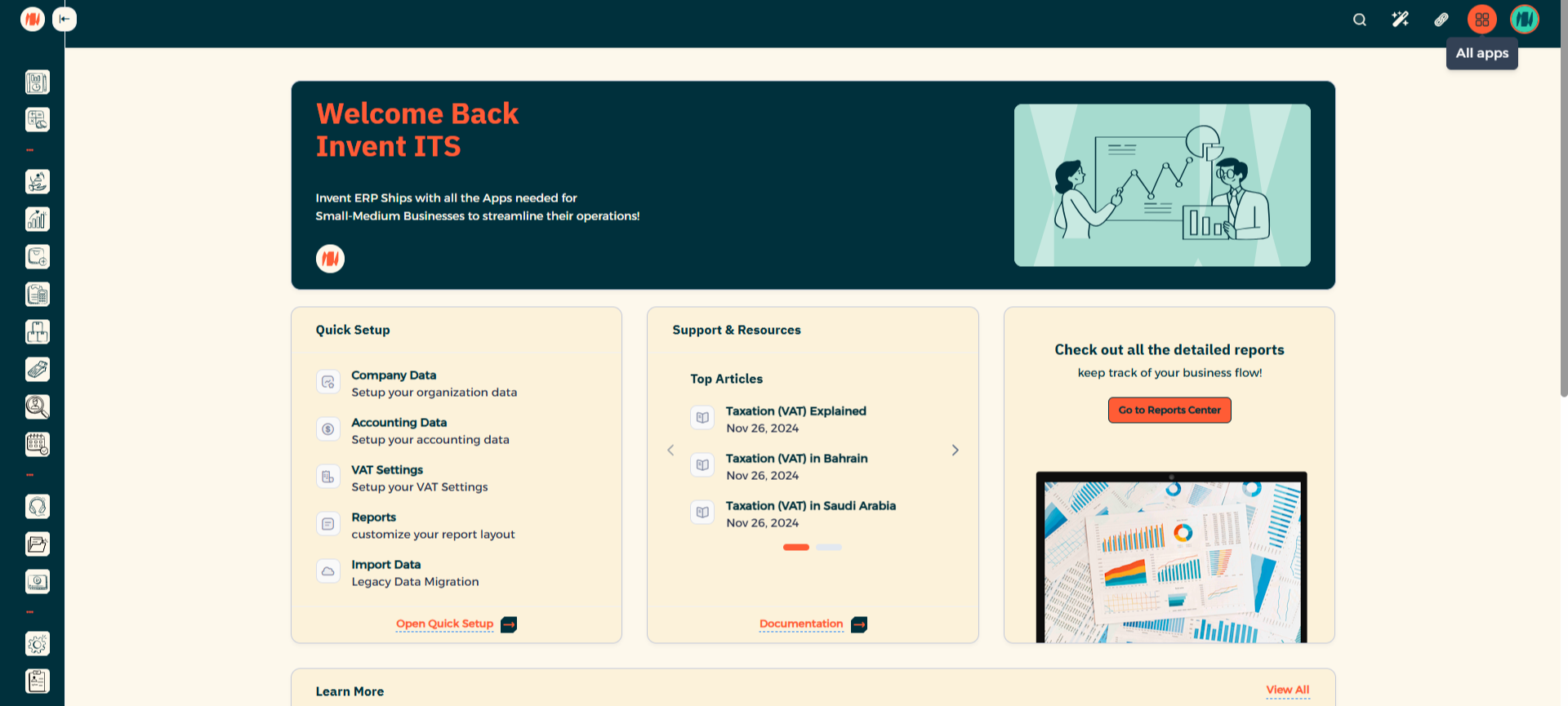
Step 1: Navigate to All Apps
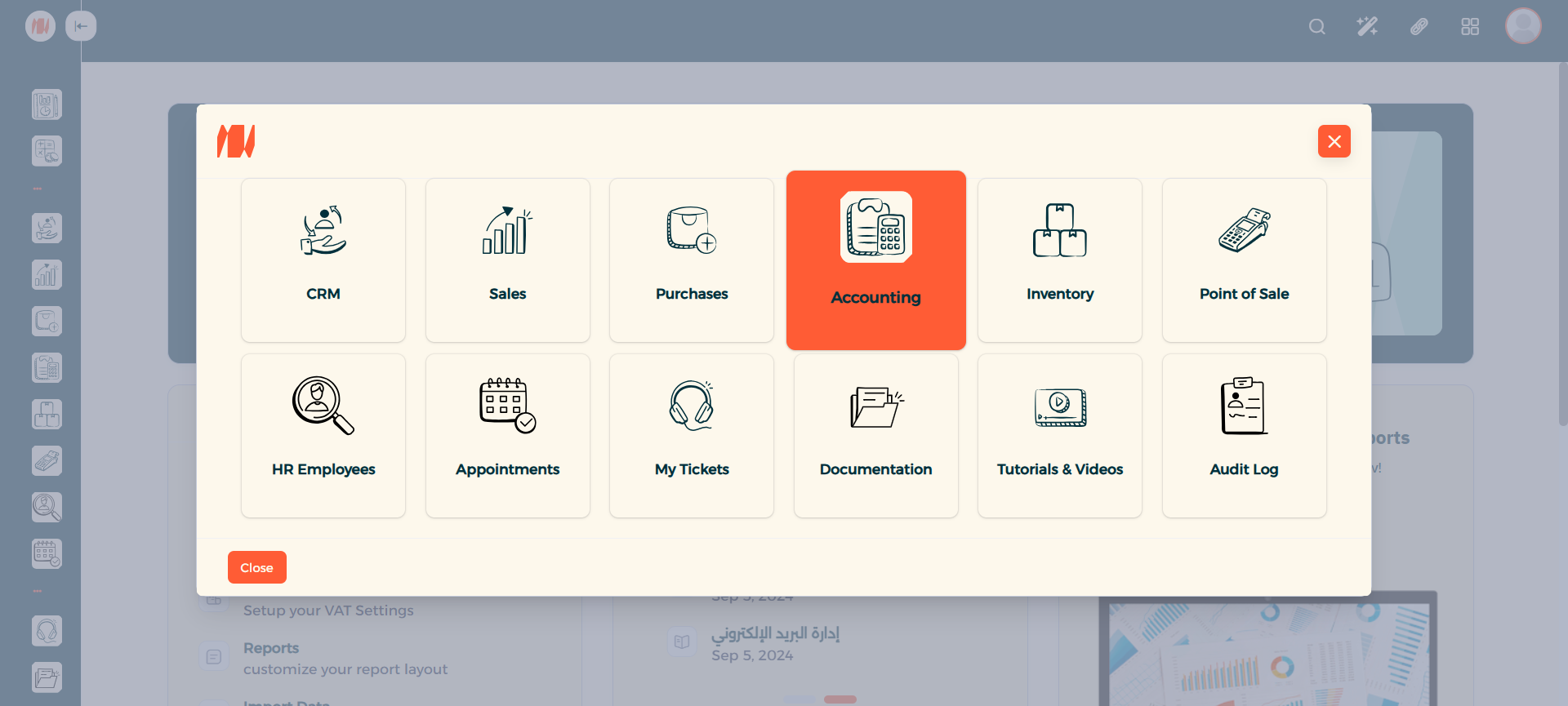
Step 2: Select Accounting
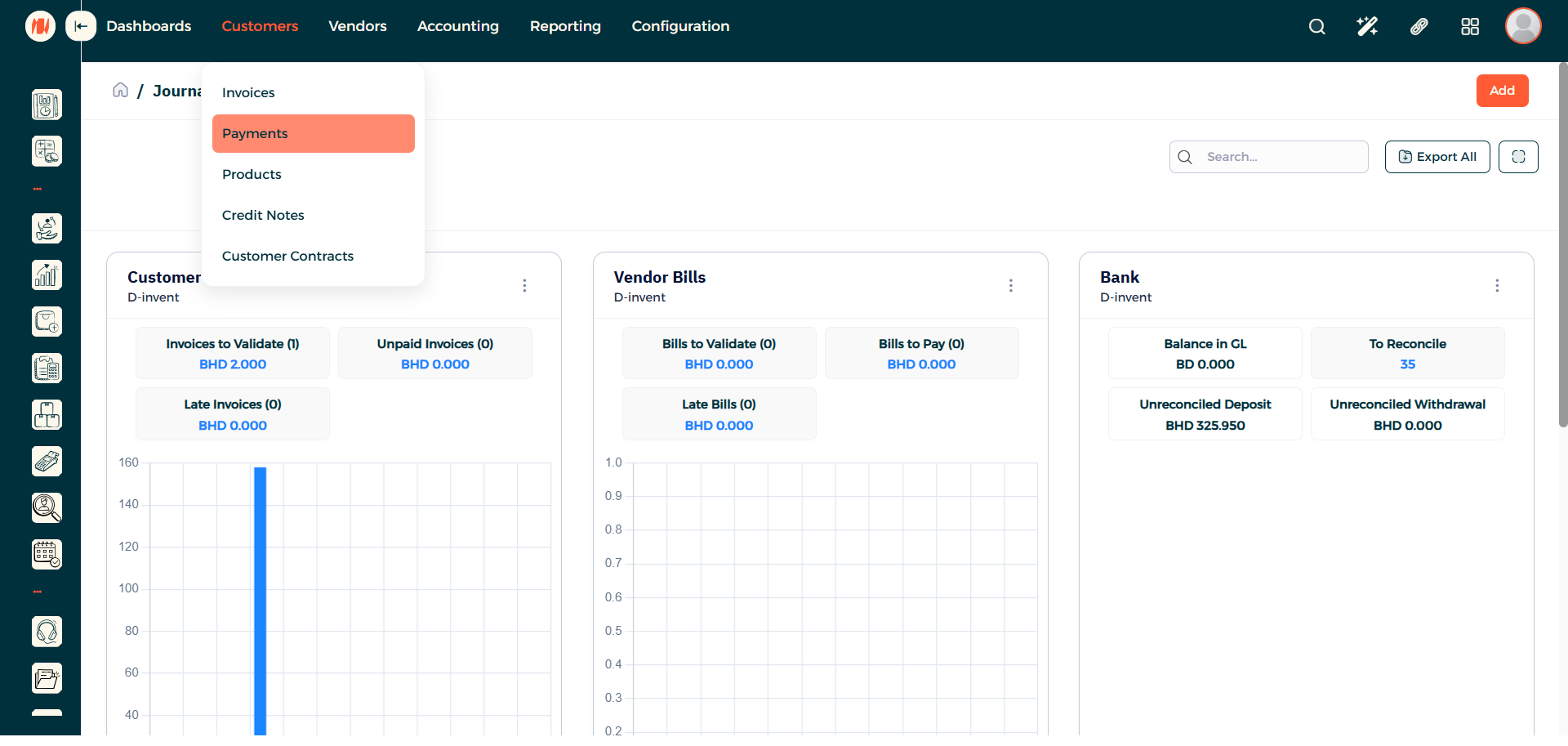
Step 3: Go to Customers then Payments
Click on Customers then under that click on Payments.
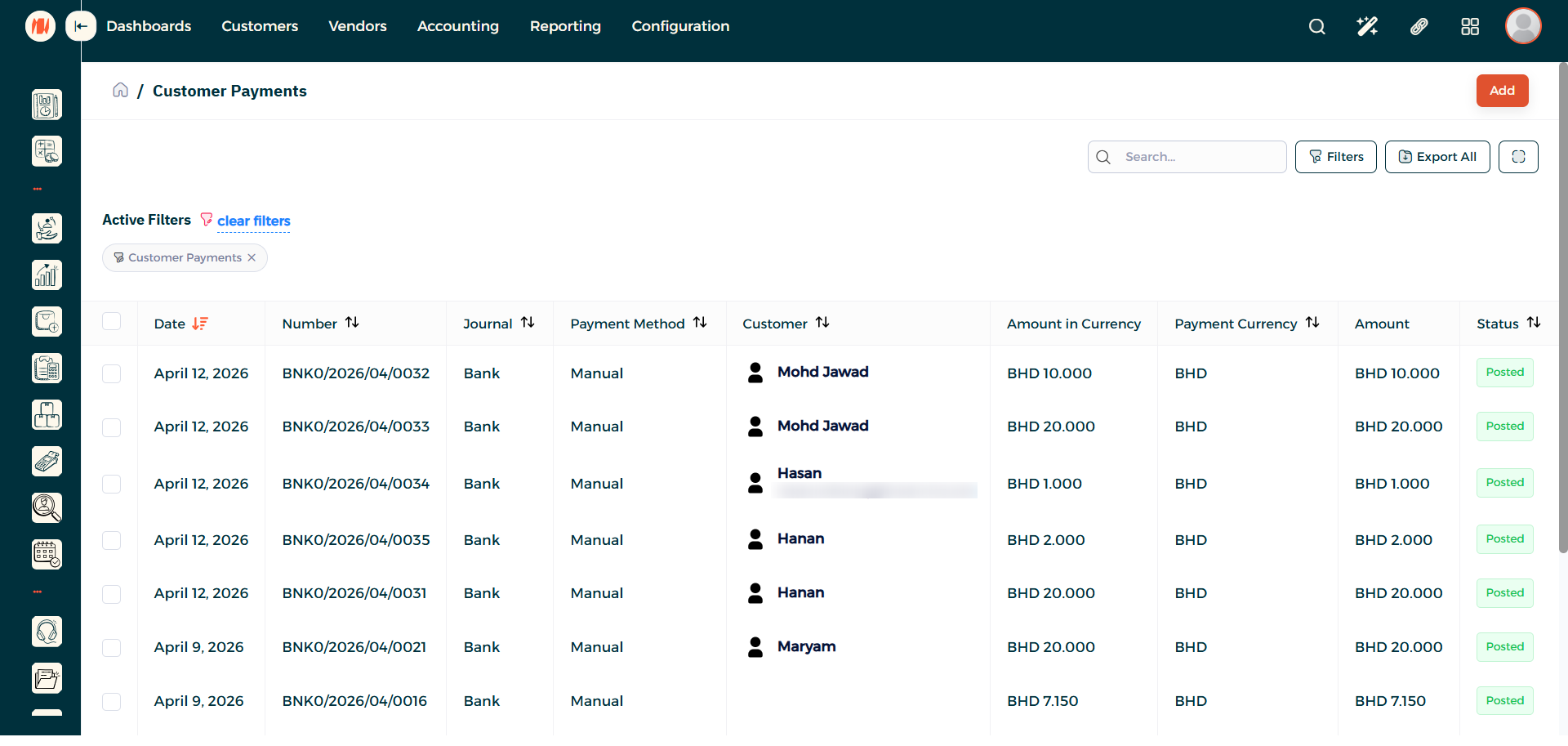
Step 4: Add New Payment
On the top right corner press on add.
Step 5: Select Payment Type
Select the payment type as receive payment.
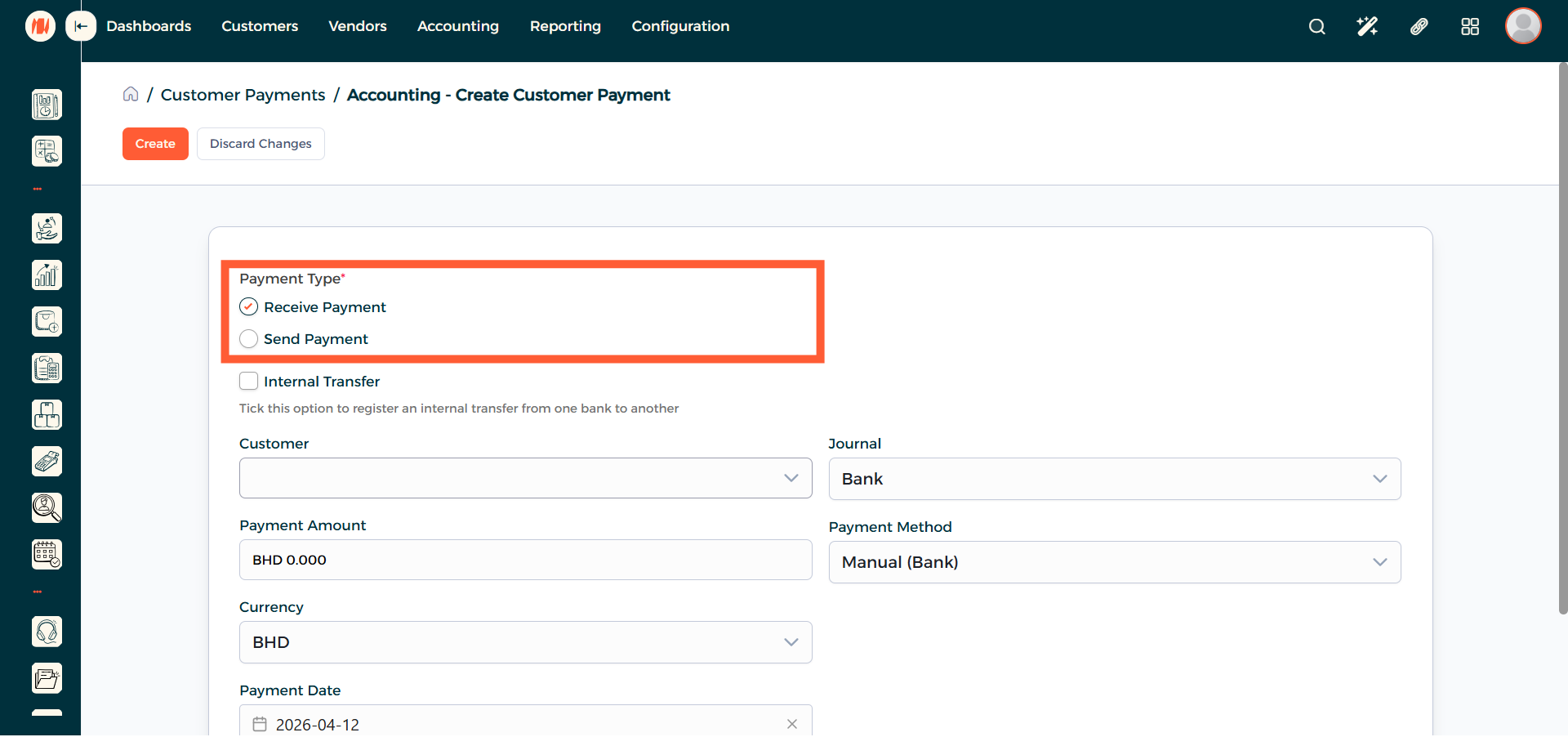
Use Receive Payment to get the payment from a customer. Use the Send Payment to give a customer funds.
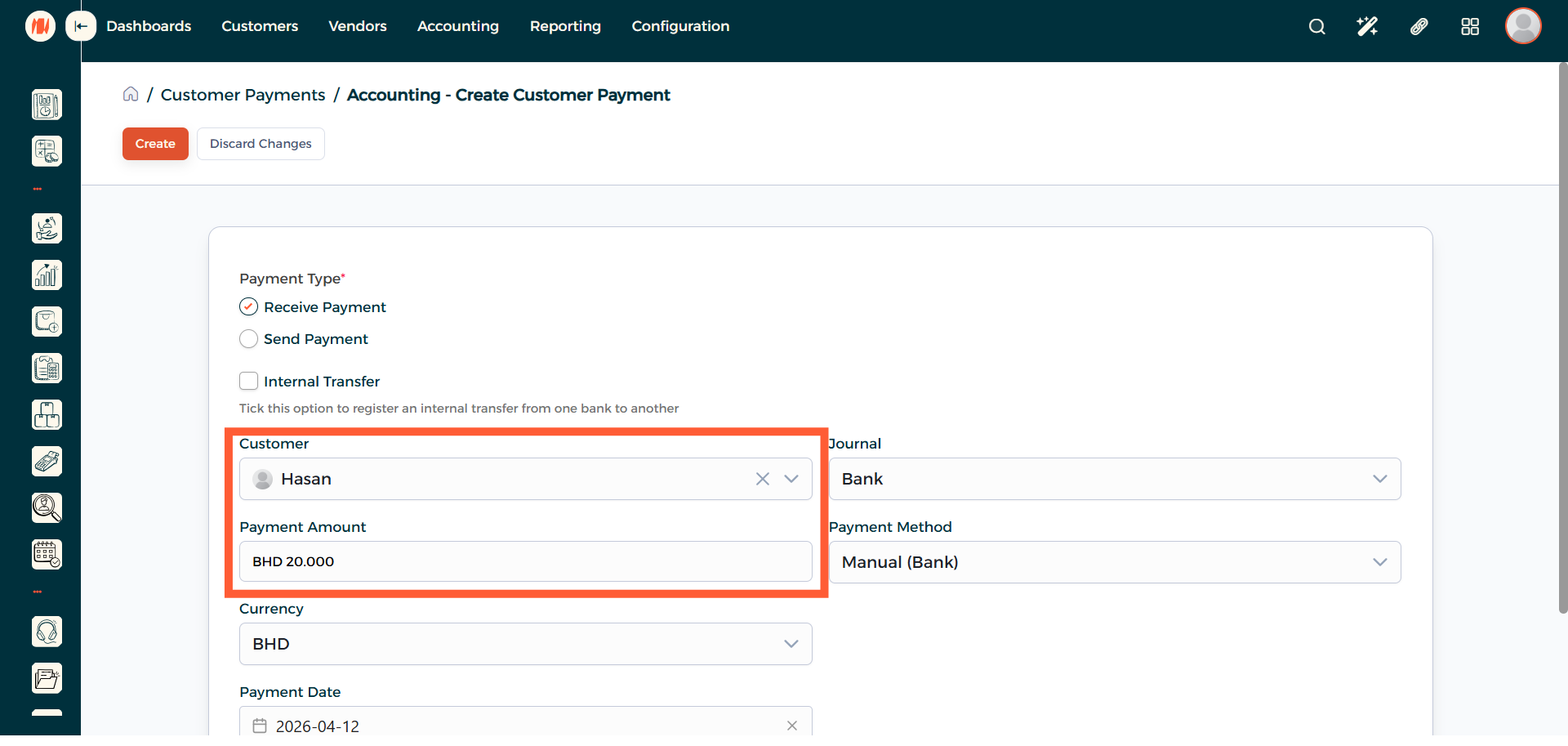
Step 6: Fill out Customer Payment
Choose the customer alongside the payment amount. After that click on create.
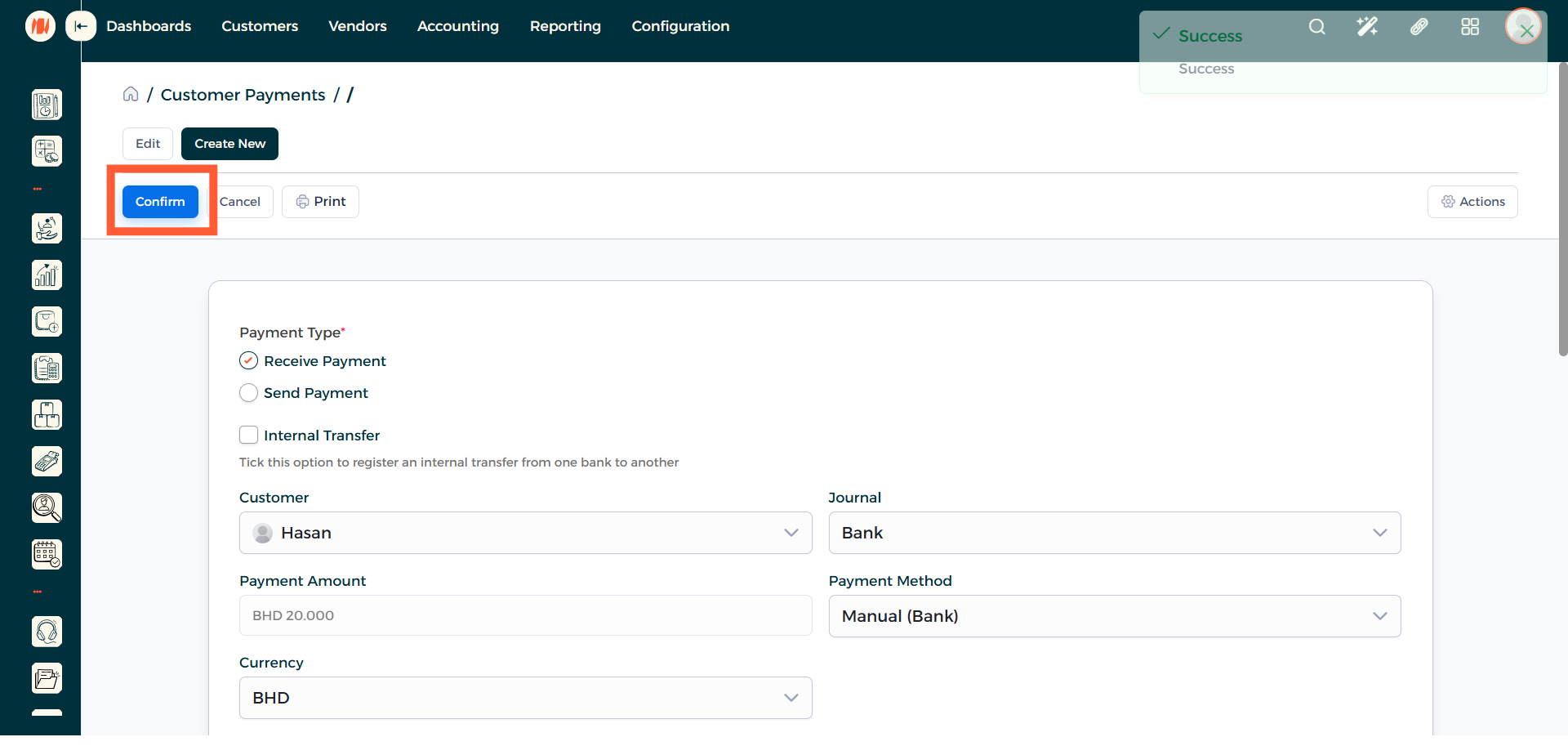
Step 7: Confirm Customer Payment
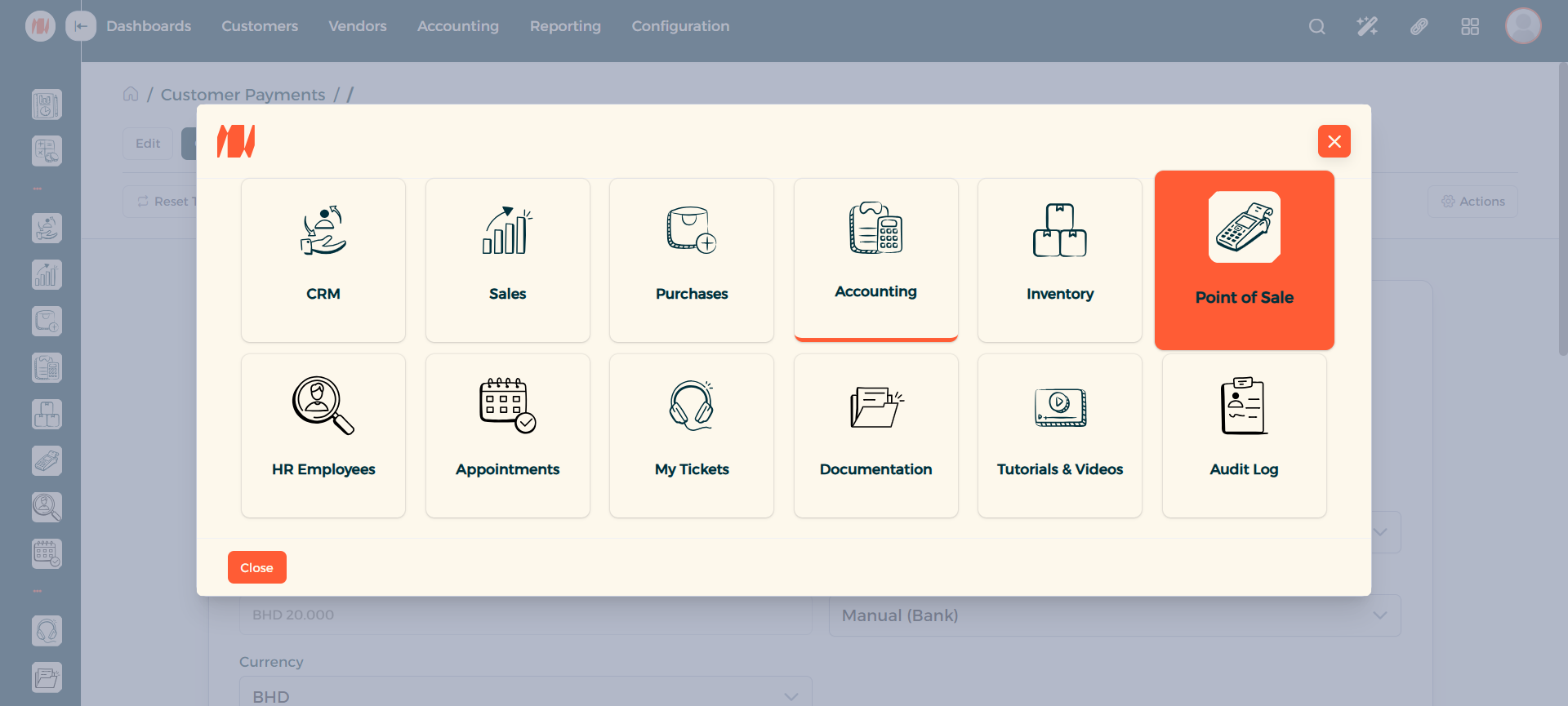
Step 8: Head to Point of Sale
After that click on All Apps then head to point of sale.
Step 9: Initiate New Point of Sale Session
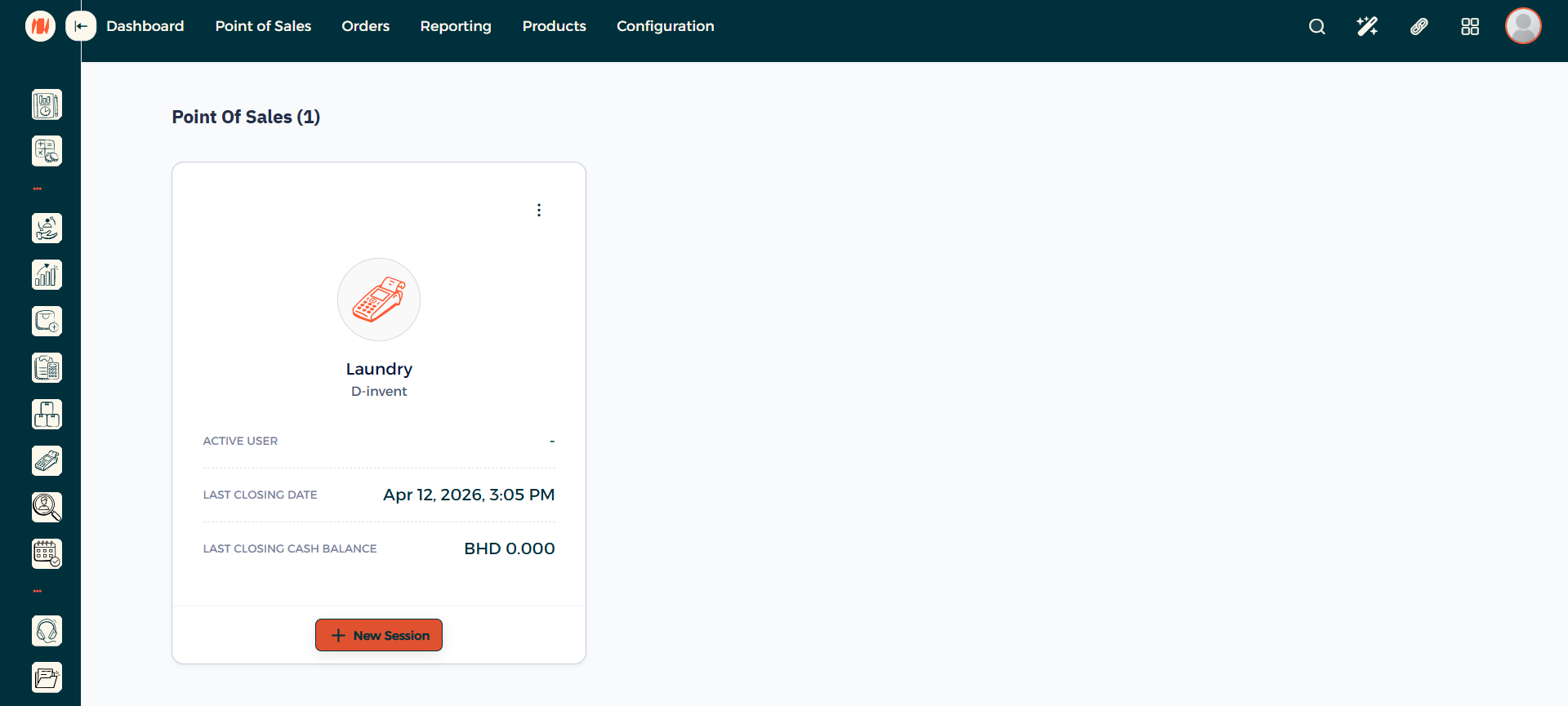
Step 10: Select Product and Confirm Order
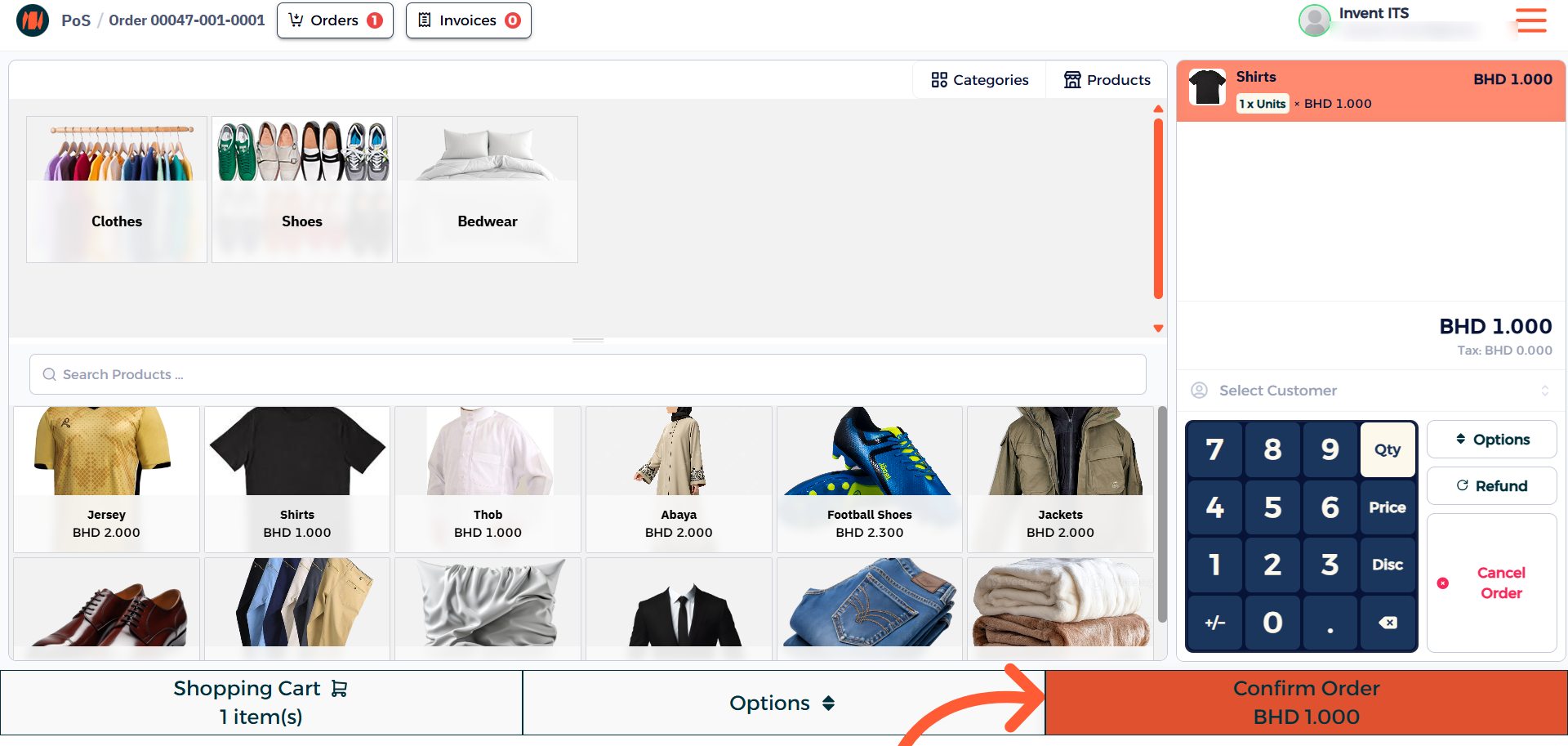
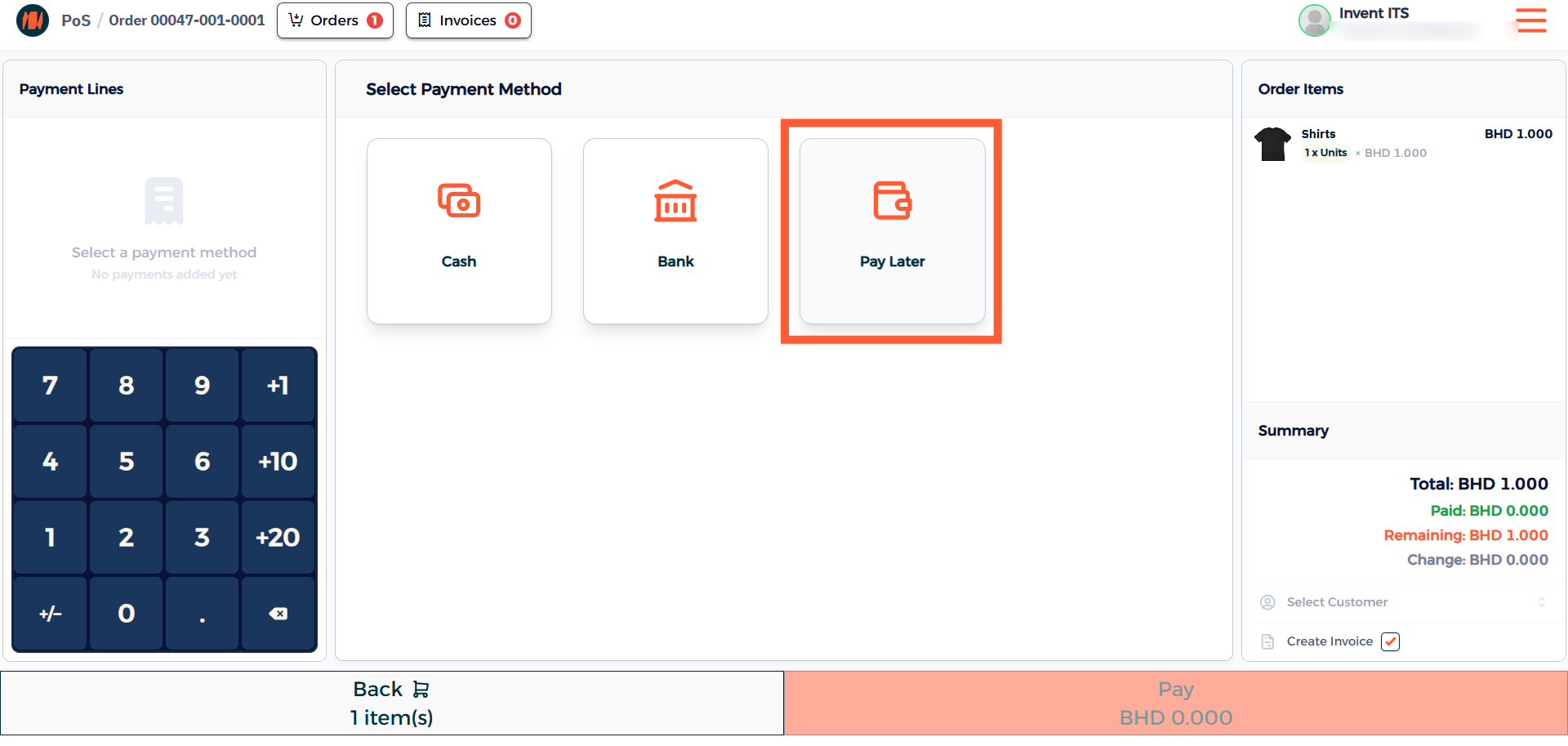
Step 11: Select Payment Method
Choose the Pay Later option from the payment methods.
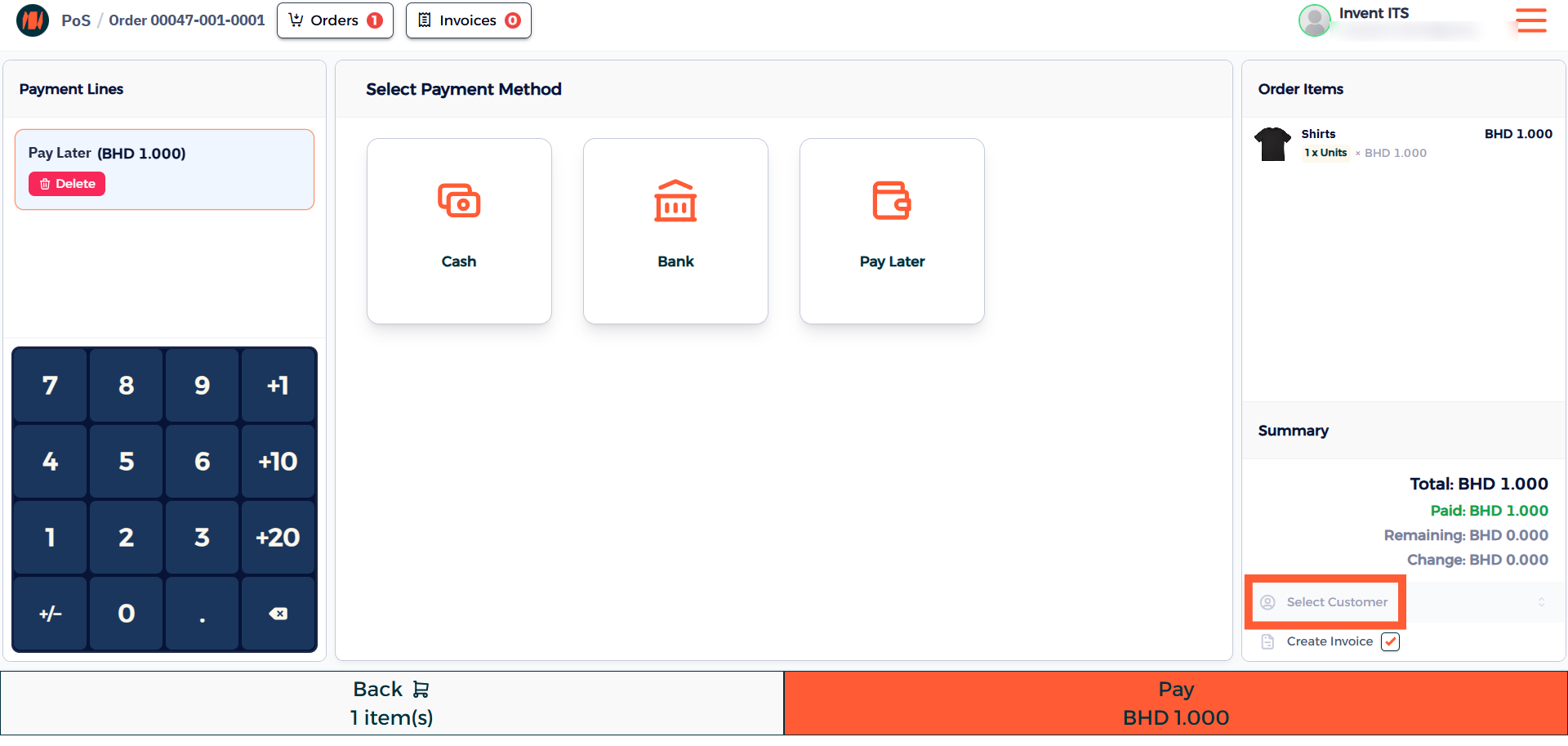
Step 12: Select Customer and Pay
In the bottom right corner select a customer then when selected press on pay.
Step 13: Navigate to Invoices
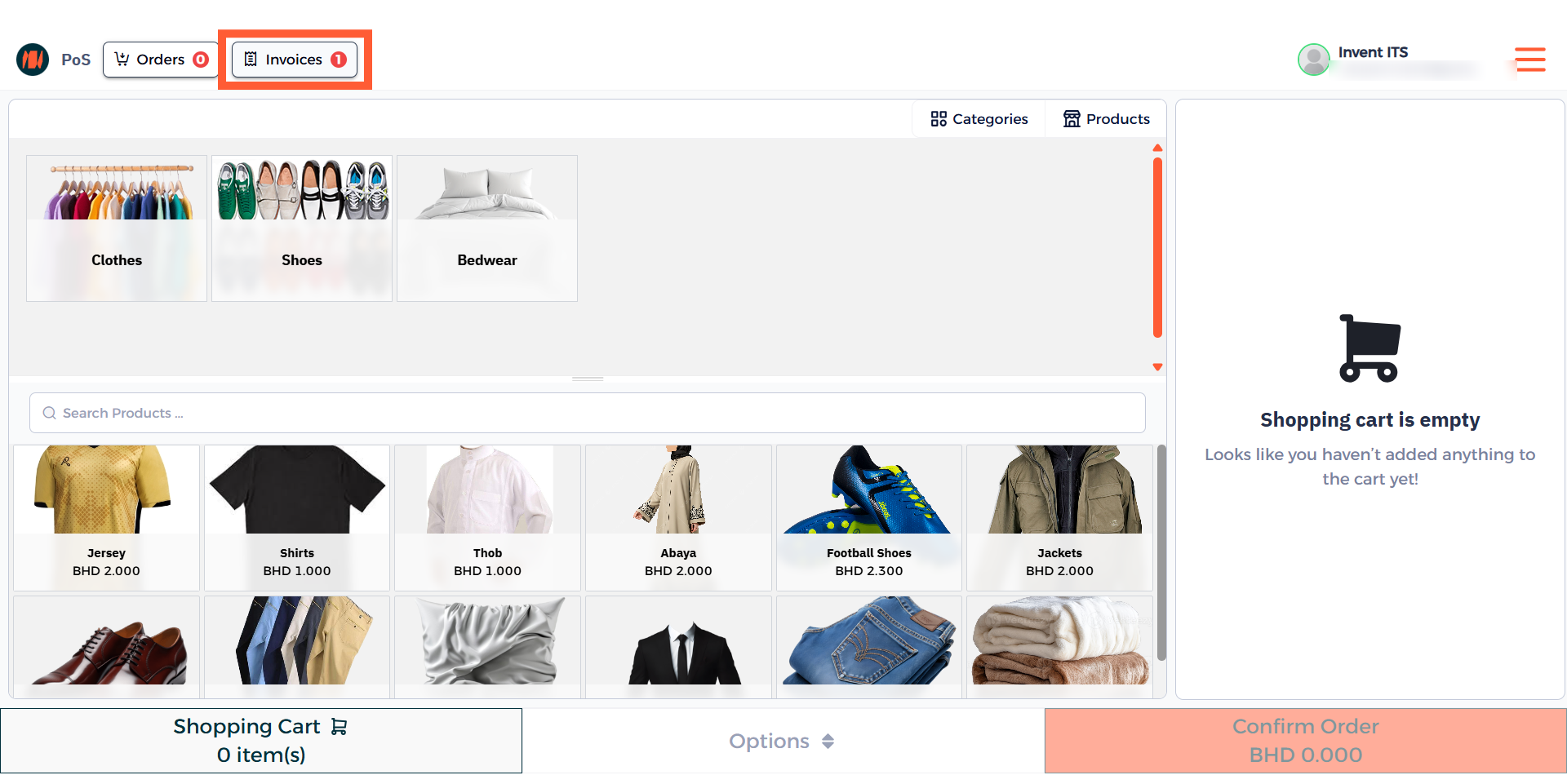
After the order is complete, head over to invoices.
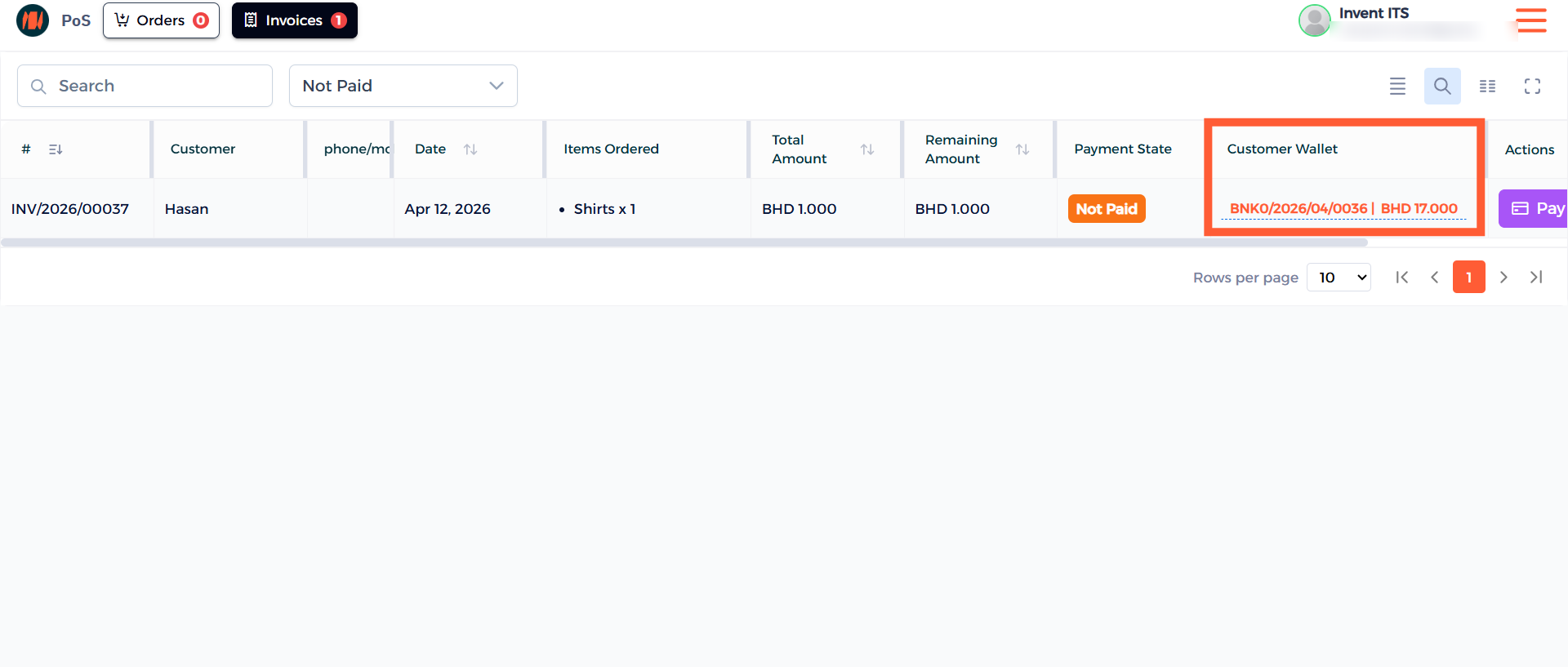
Step 14: Customer Wallet
Here you can see the customer wallet section alongside the balance in your invoices page. Click on it to allocate the funds to complete the purchase.
Another Method
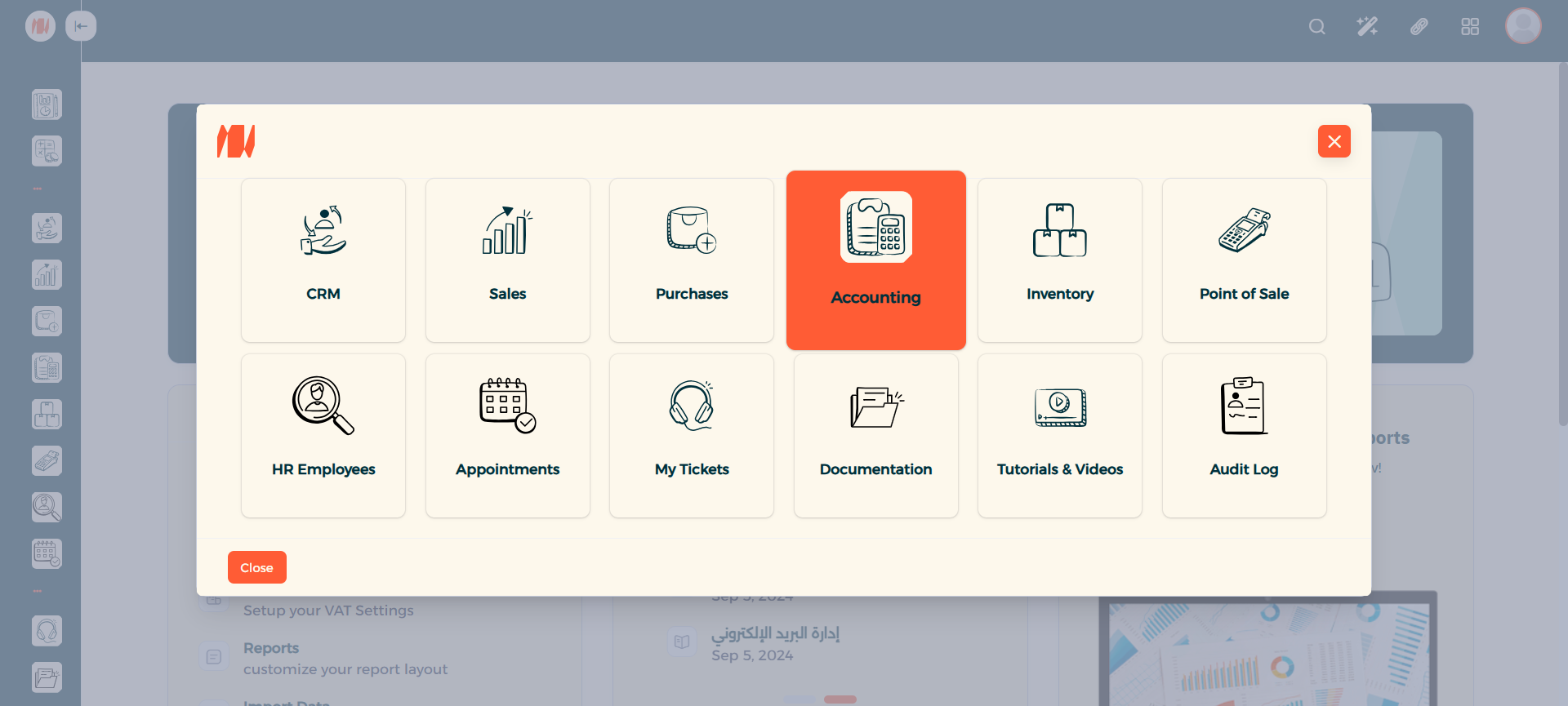
Step 16: Navigate to Accounting
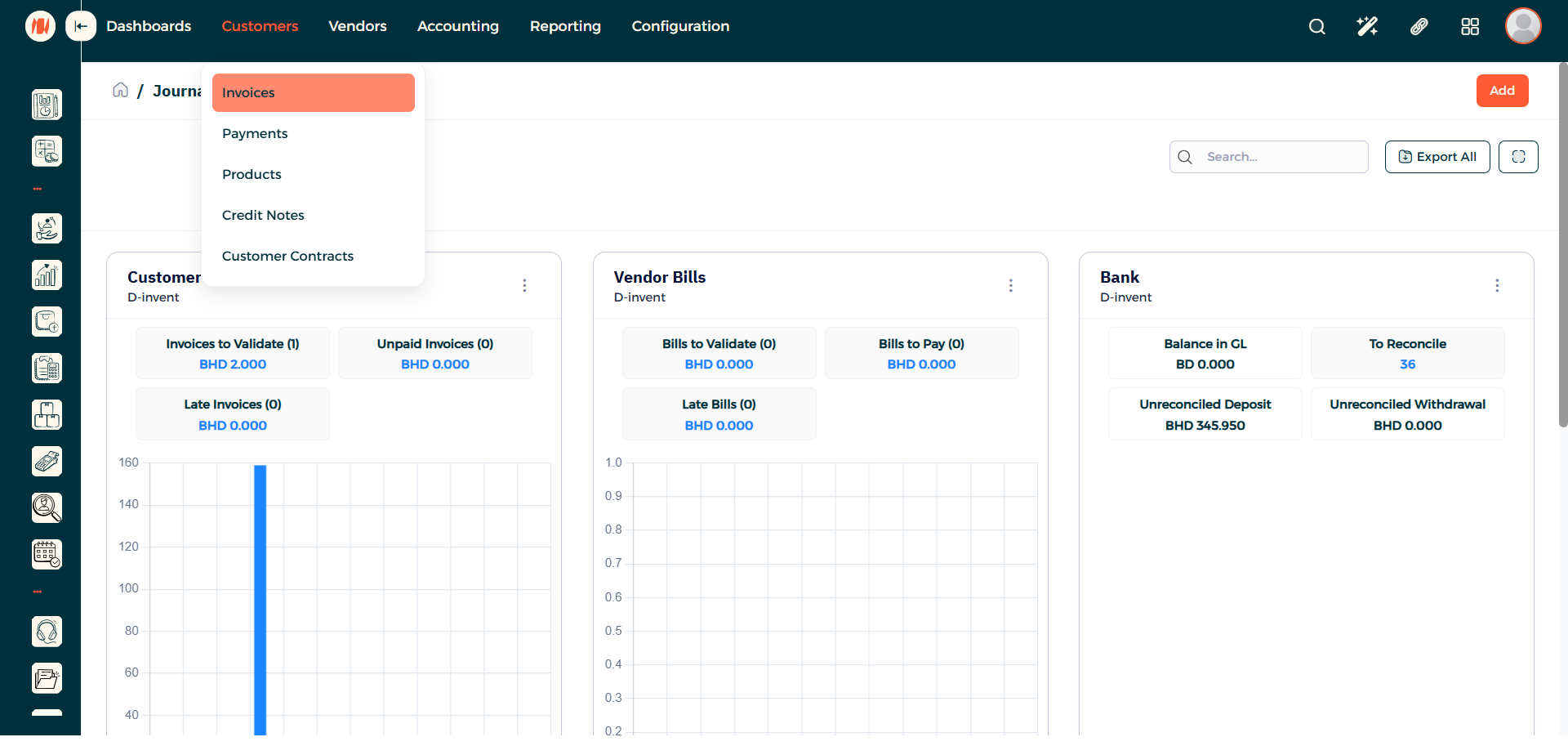
Step 17: Go to Customers then invoices
Click on Customers then under that click on Invoices.
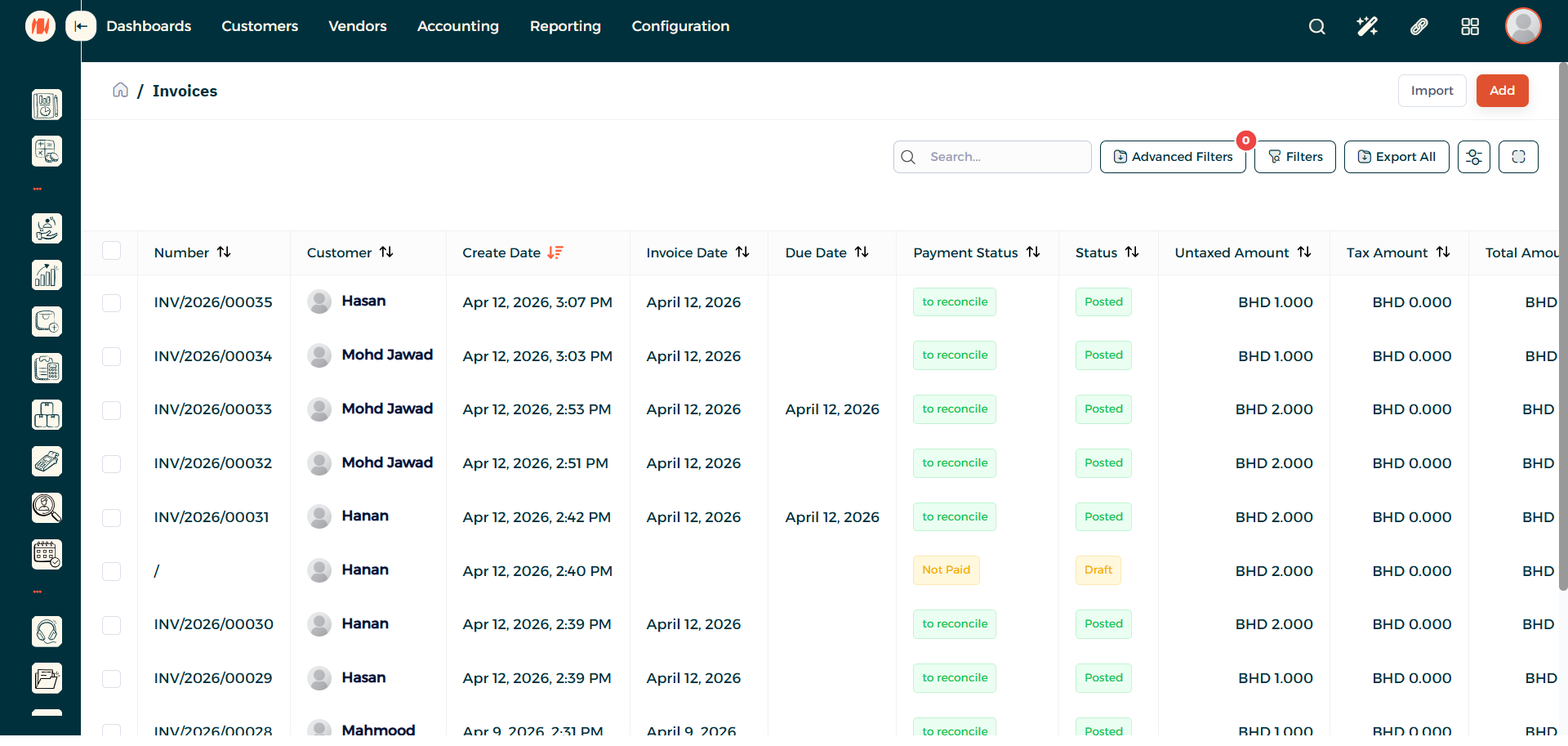
Step 18: Add an Invoice
On the top right corner you can see the add button, click on it.
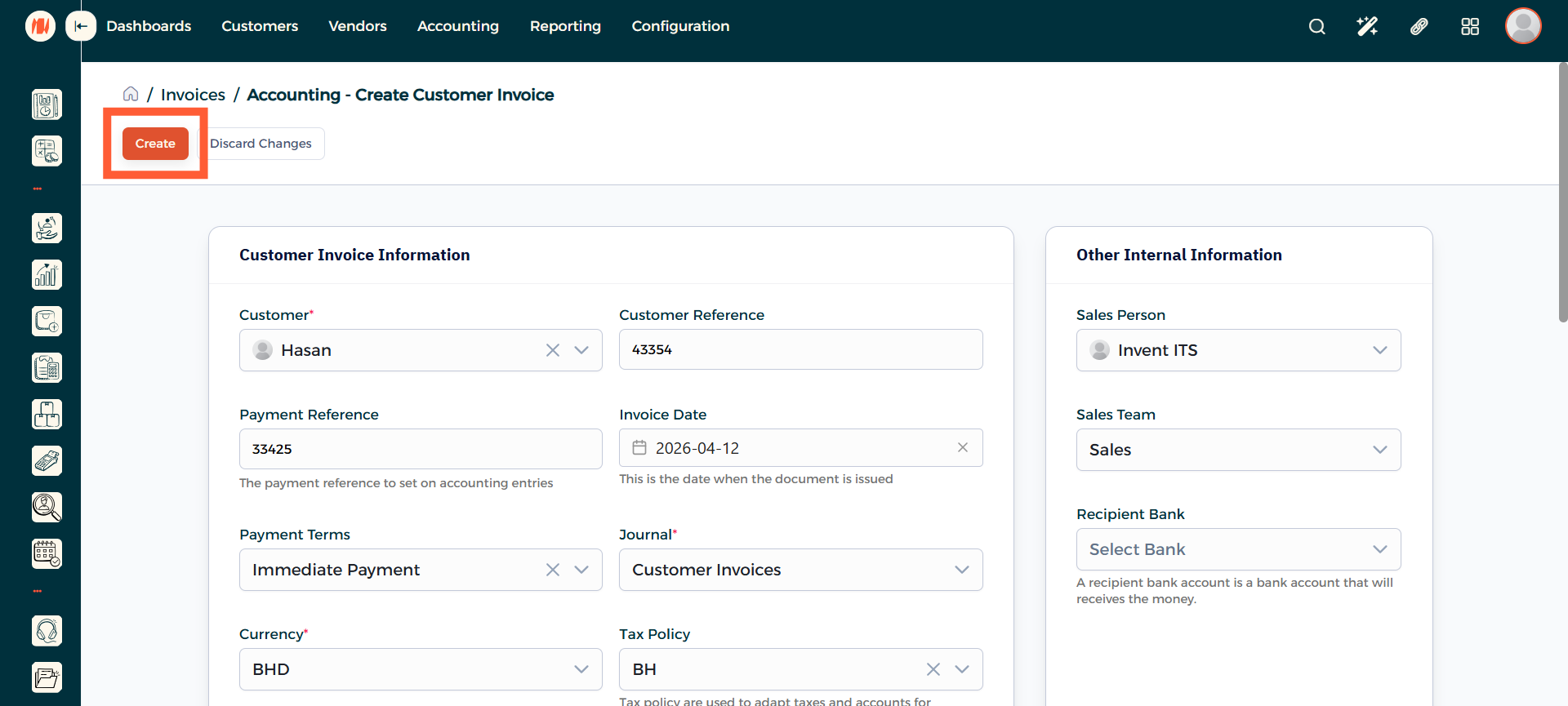
Step 19: Create Customer Invoice
Here select the customer and then fill out all the details. After that scroll down choose a product and then the final step is to press create.
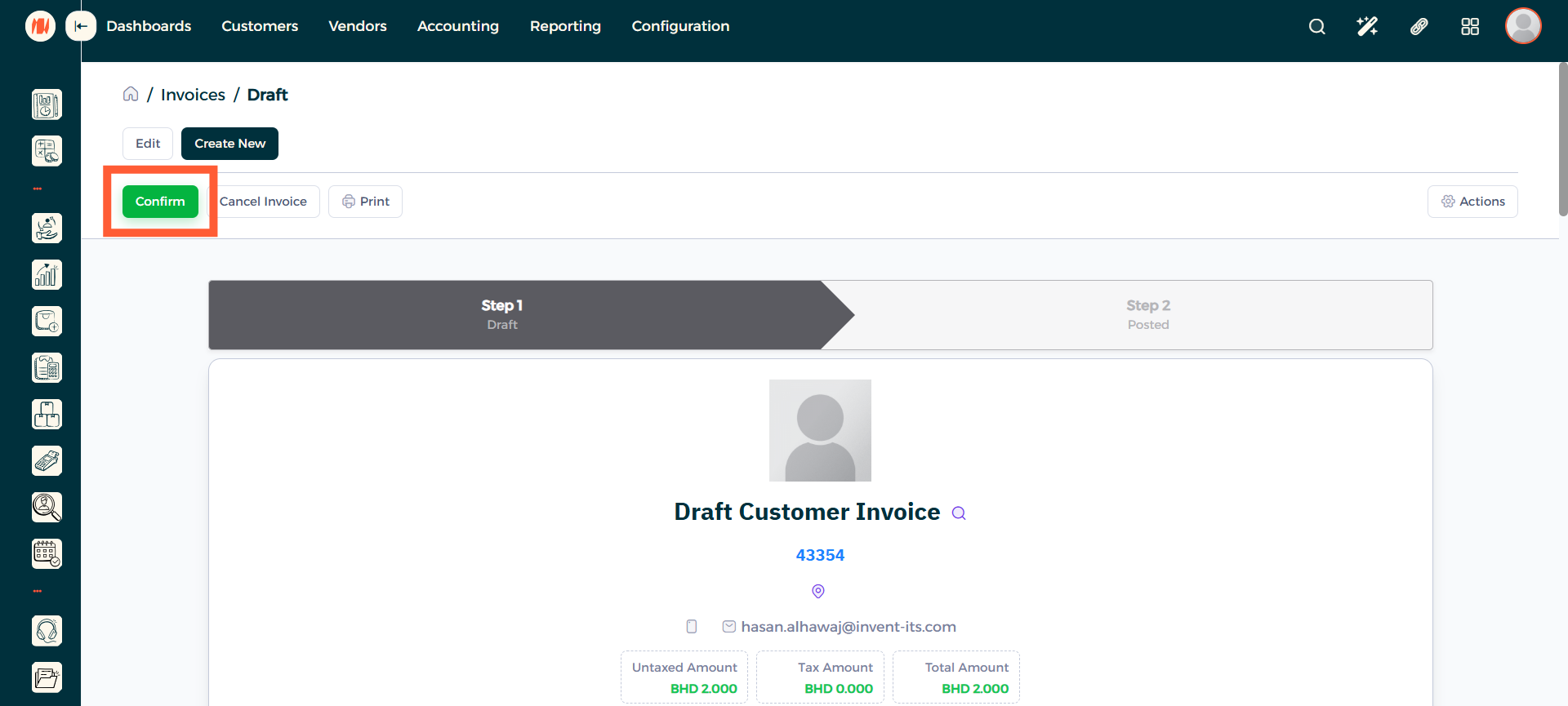
Step 20: Confirm Invoice
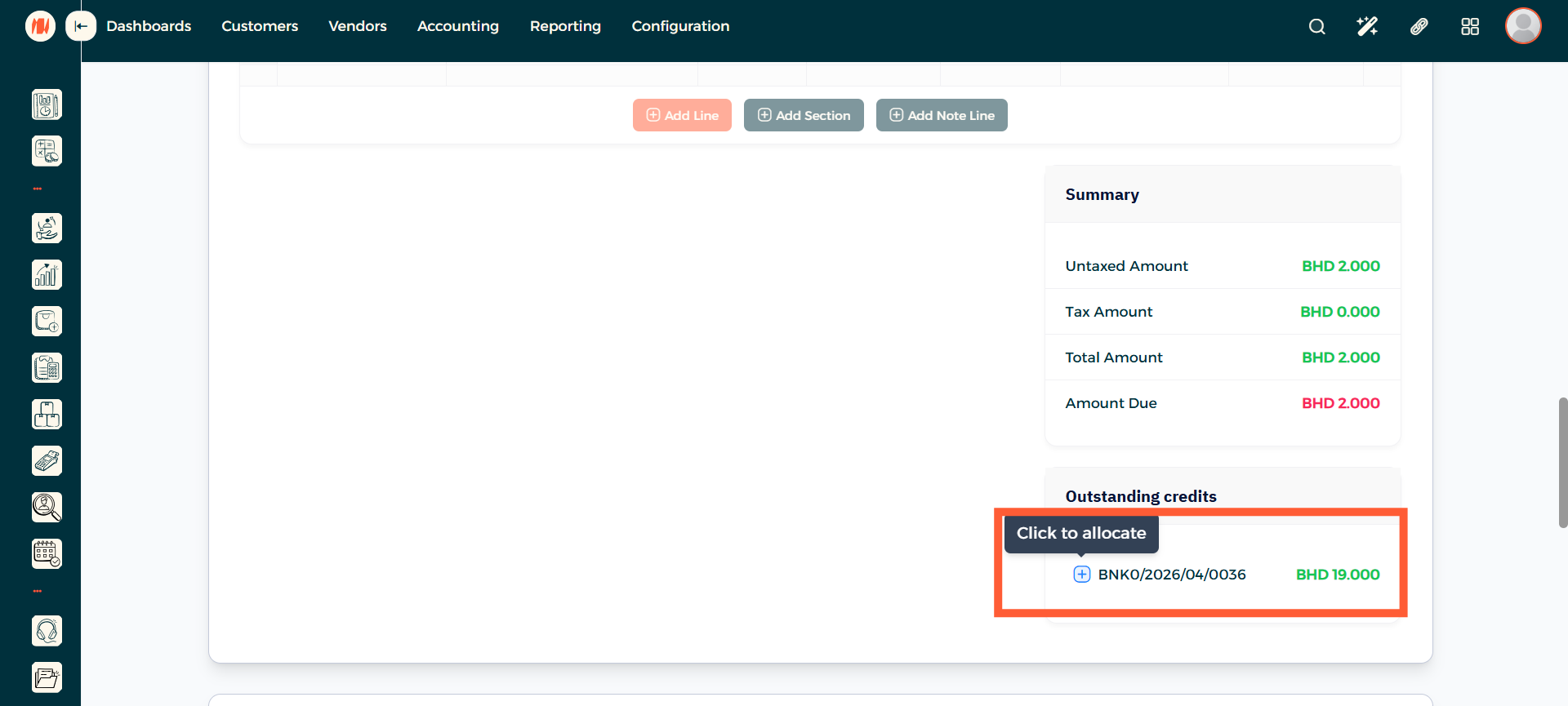
Step 21: Use Customer Wallet
After confirming the invoice, scroll down and see the customer wallet. Press on the small blue icon allocate the funds and complete the order.
Notes & Tips
- Always verify the customer’s wallet balance and contact details before adding or using funds. Accurate information allows for a smooth business workflow alongside avoiding issues.
Frequently Asked Questions
Q: Why should we use the Customer Wallet feature?
A: Use the Customer Wallet feature to let customers store prepaid credit for instant checkout, streamline refunds and store-credit handling, and encourage repeat purchases through easy top-ups and promotions.
Q: Are there limits on the customer wallet balances?
A: There is no limit to your customer wallet.