

How to add a Vehicle in Invent ERP?
How to add a Vehicle in Invent ERP?
Vehicles are the assets you bring into your garage for inspection and repair. In Invent ERP you can add a vehicle with all the necessary information you require for your garage management. Using vehicle records ensures clear job tracking, accurate parts allocation, efficient workflow, and better customer communication resulting in your complete repairs on time and keep reliable service records.
Step-by-Step Process
Step 1: Navigate to Garage Management
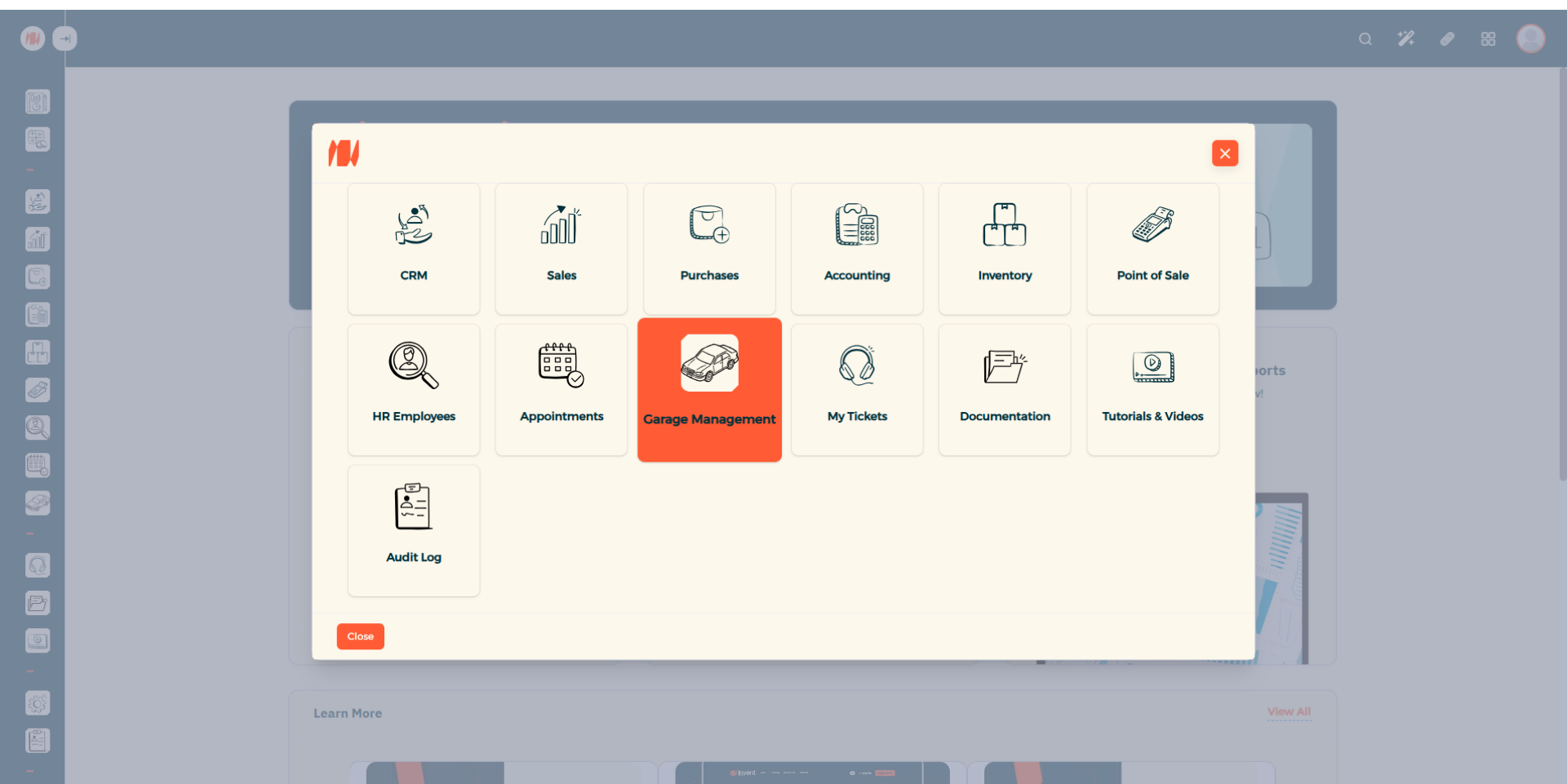
Step 2: Add a Vehicle
To add a new vehicle, in the top right corner press add.
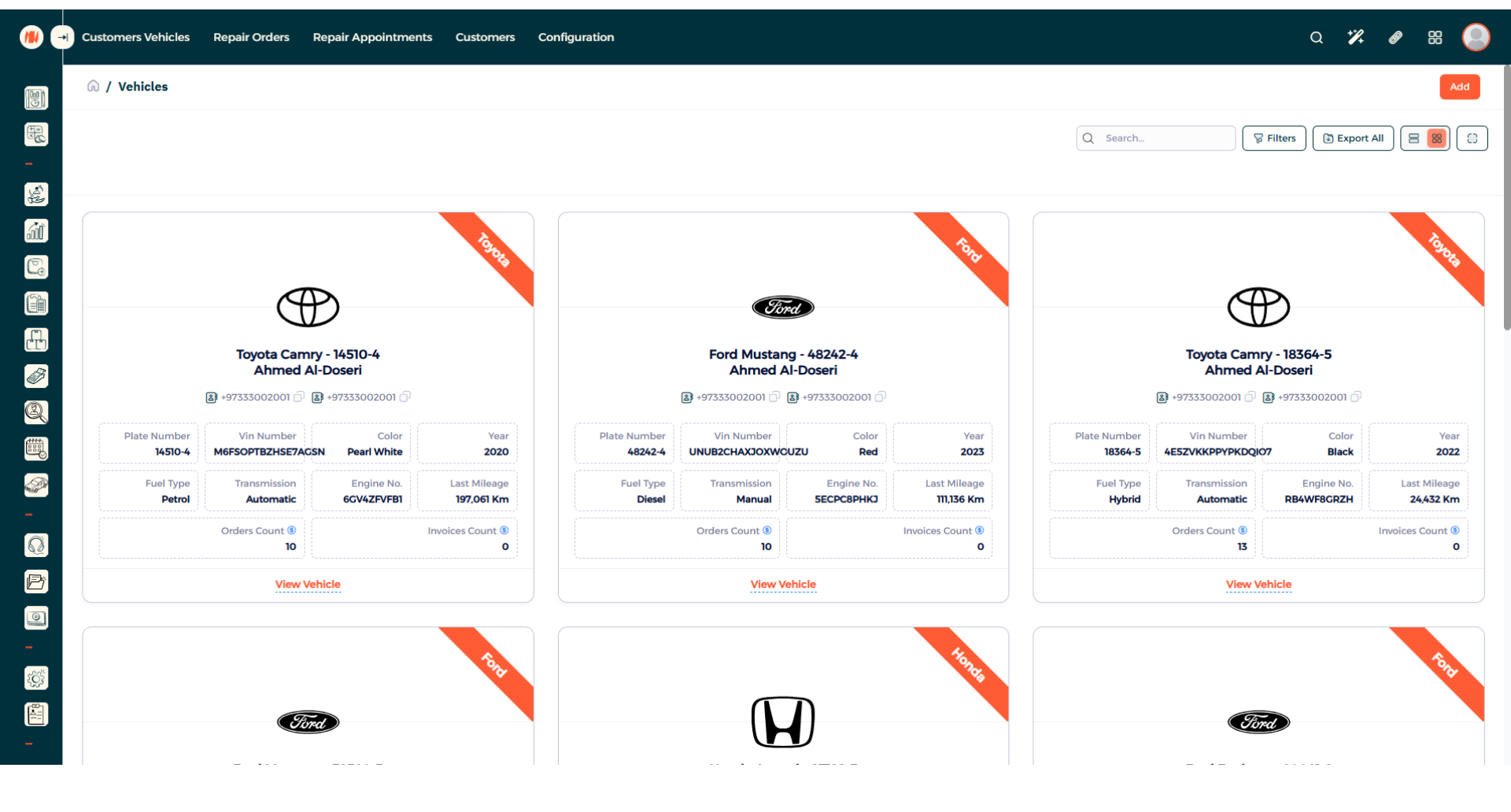
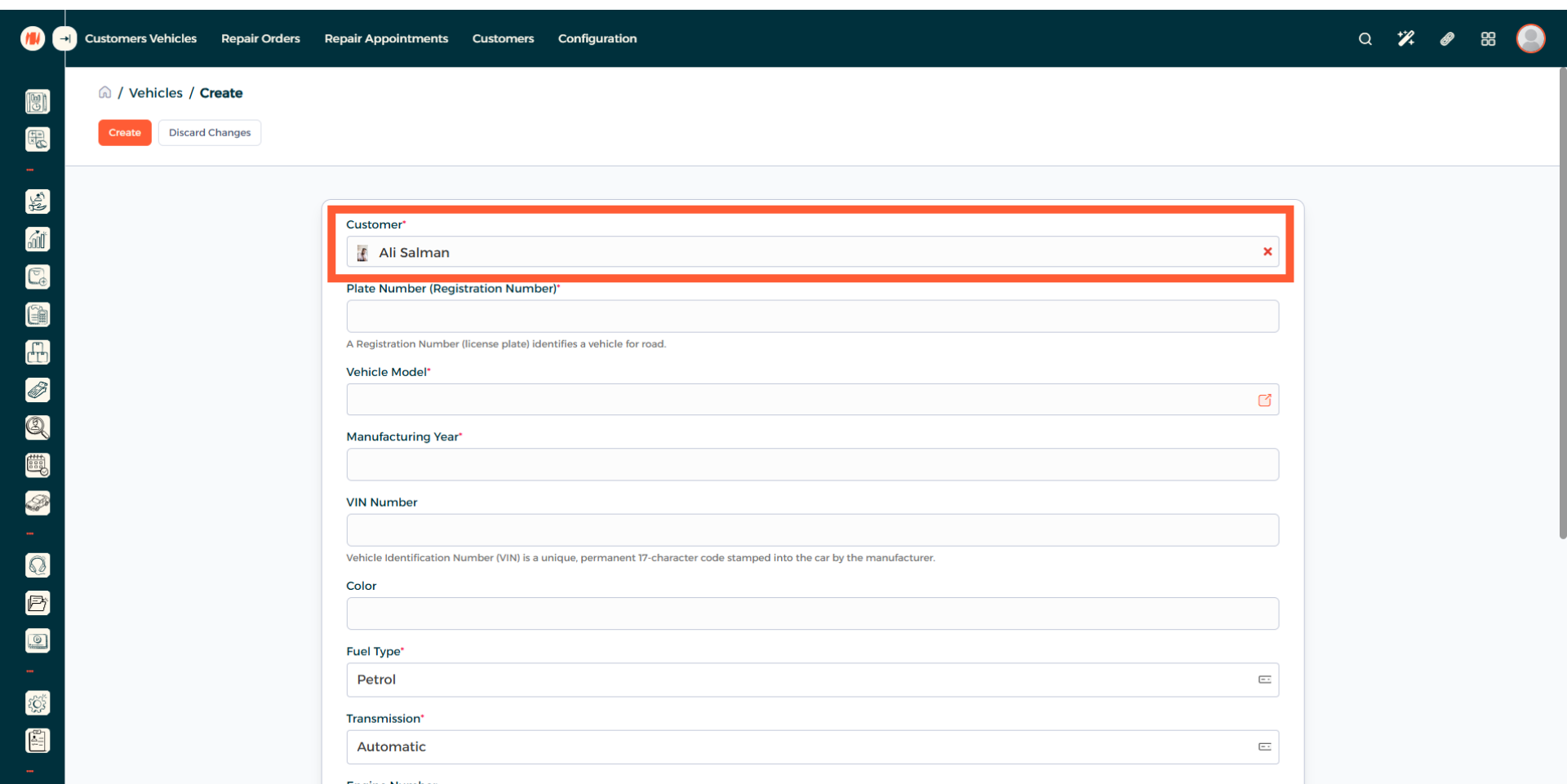
Step 3: Select Customer
Now you can see the vehicle creation page. Begin by adding a customer.
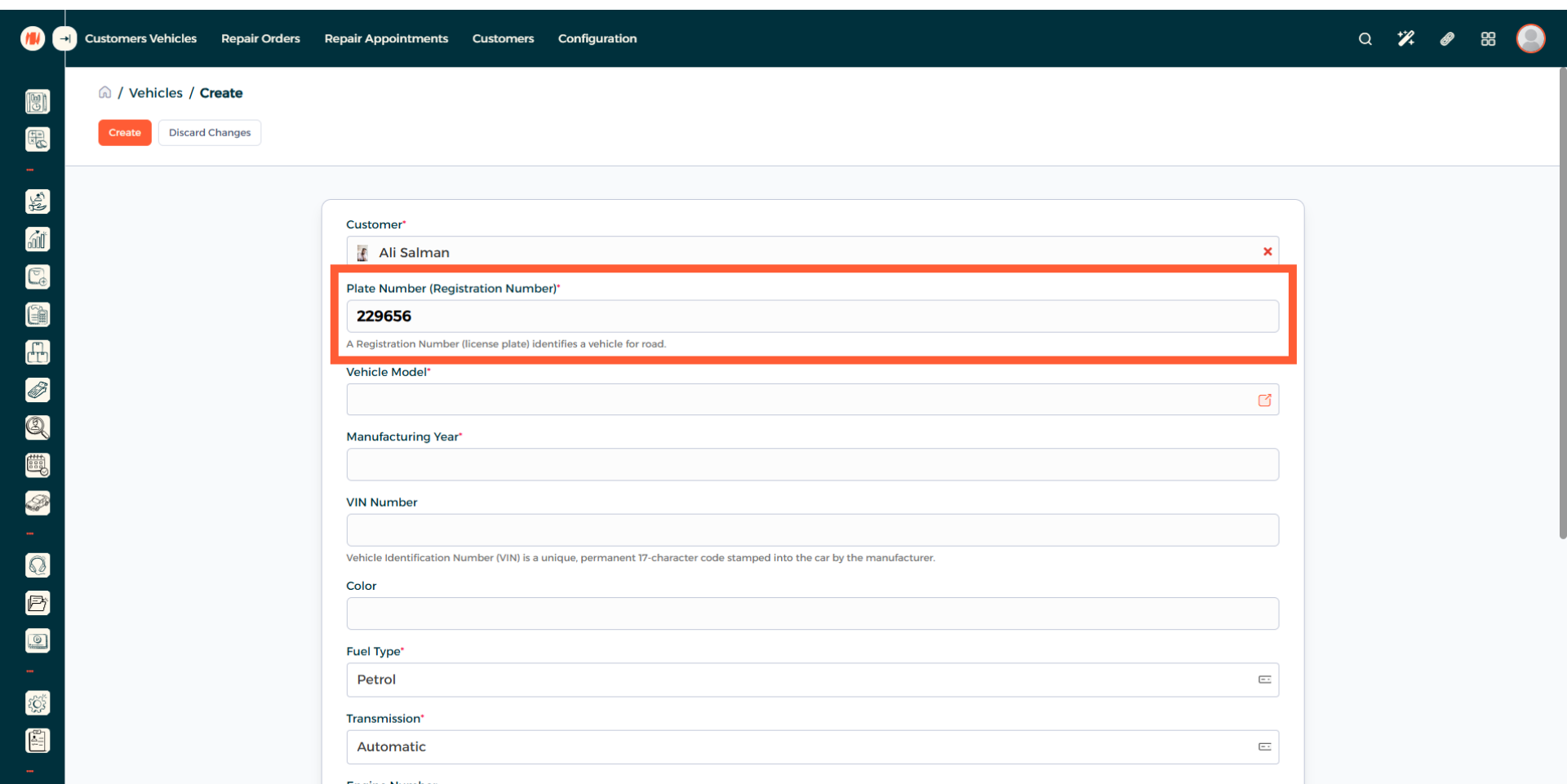
Step 4: Enter Vehicle Plate number (Registration Number)
Step 5: Choose Vehicle Model
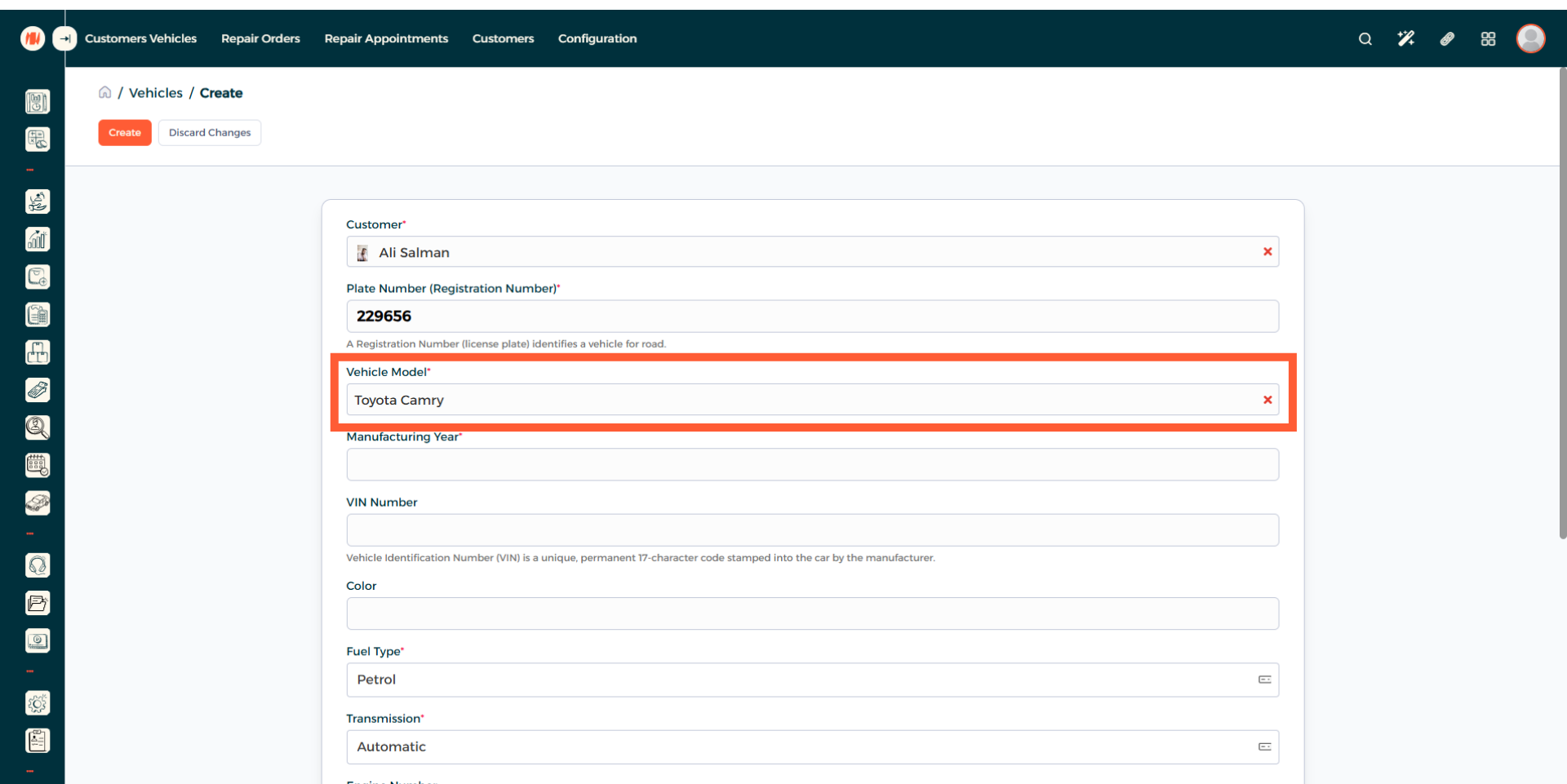
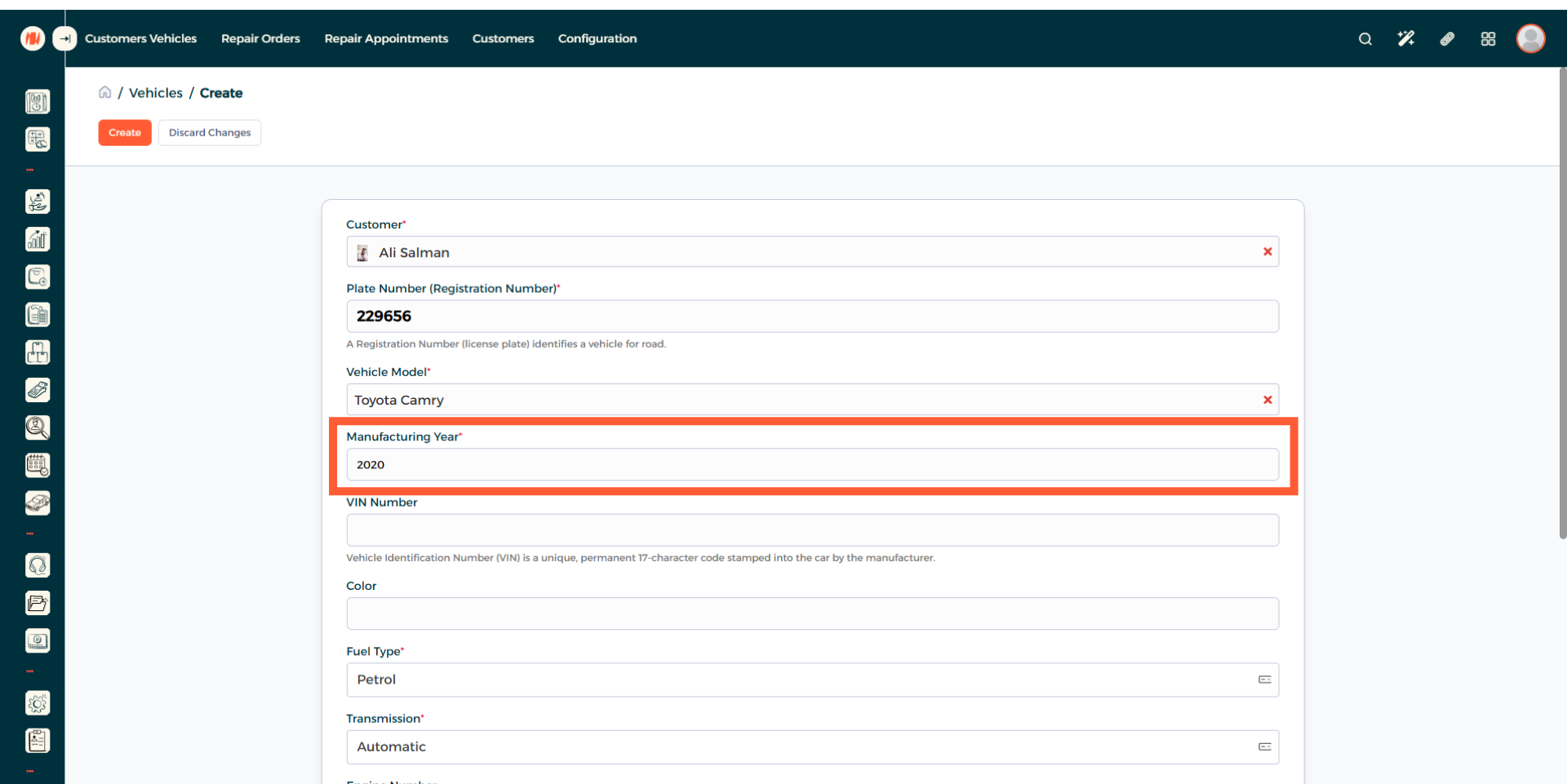
Step 6: Enter Manufacturing Year
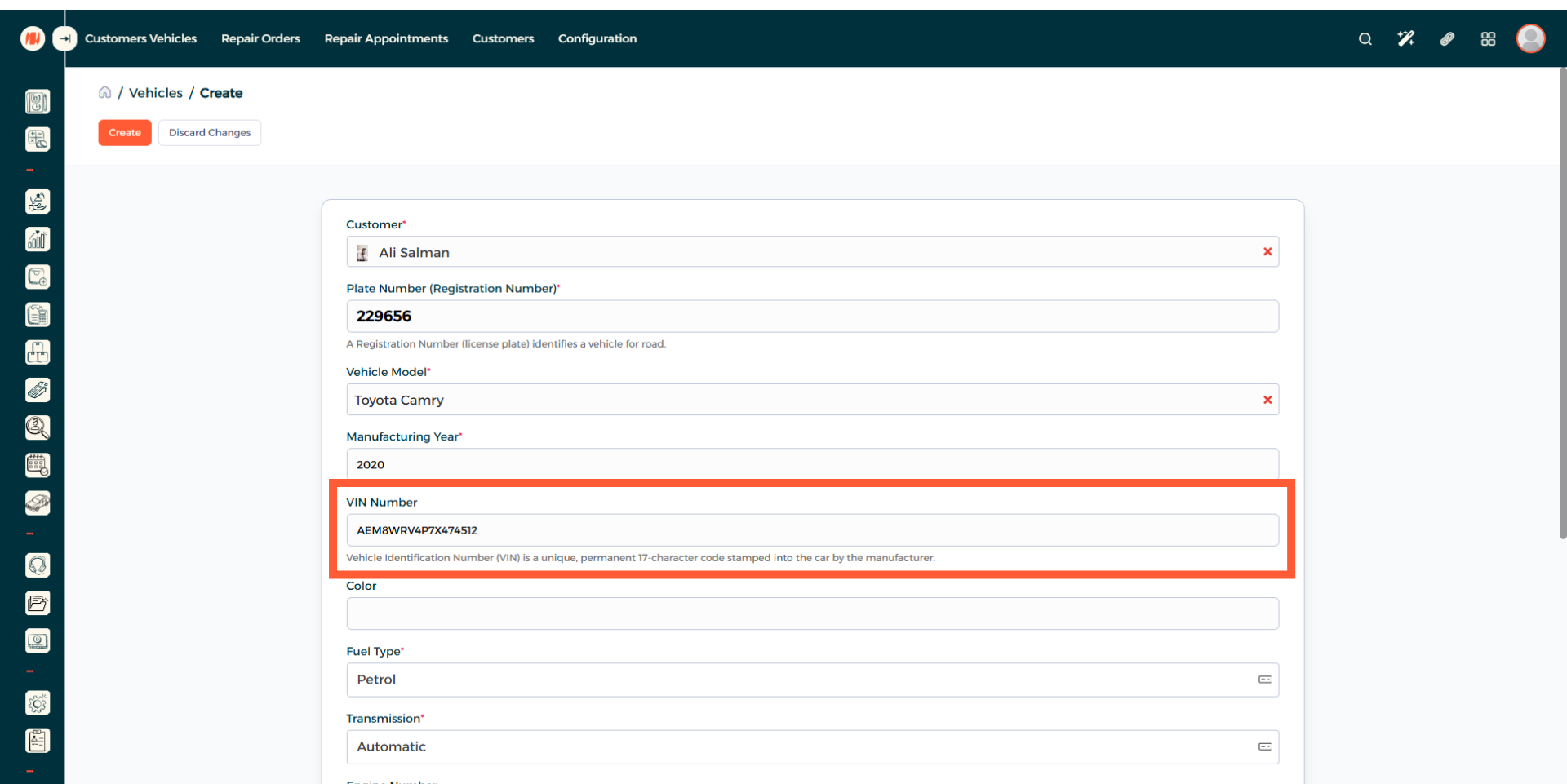
Step 7: Enter VIN Number
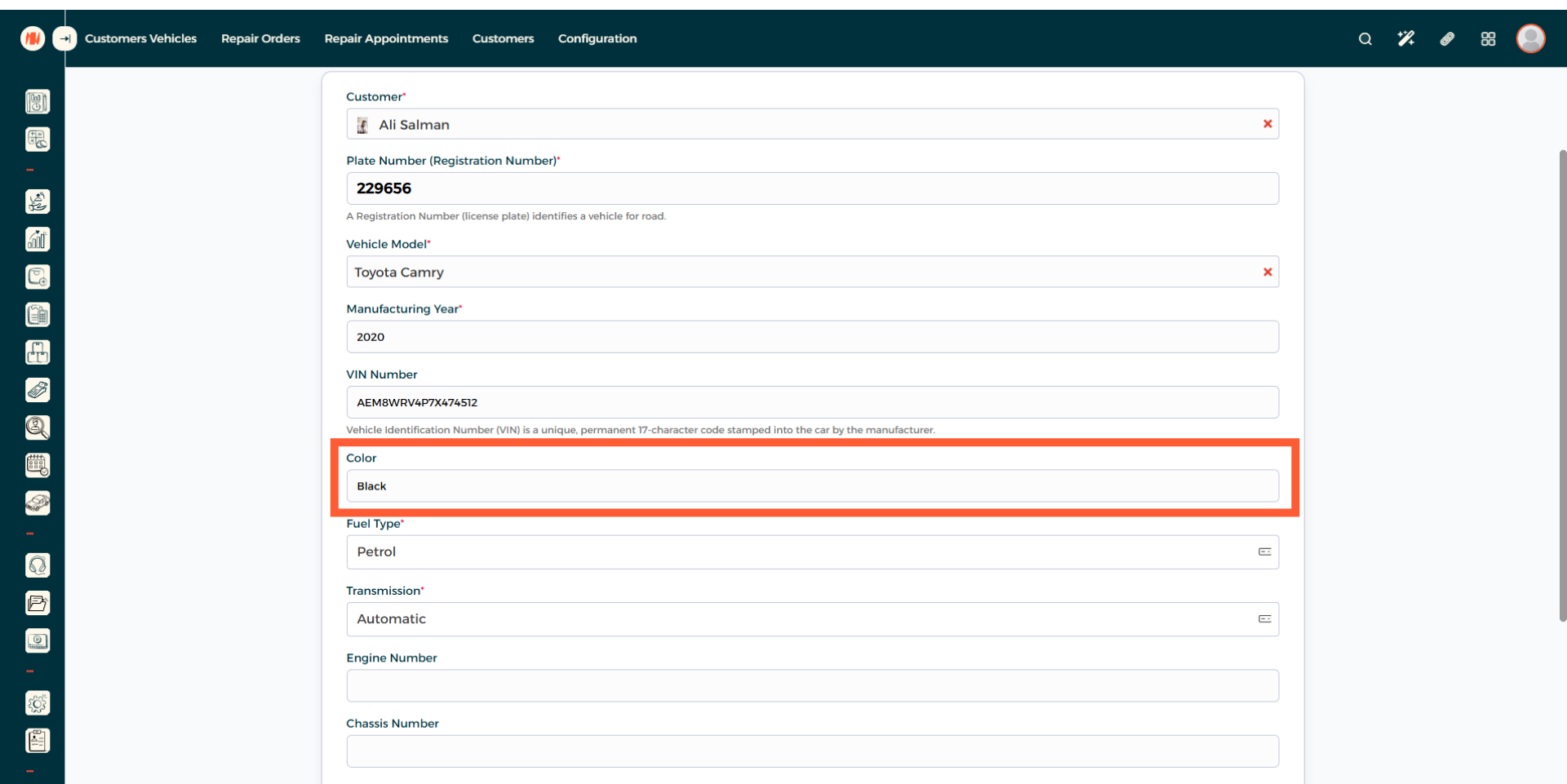
Step 8: Specify Vehicle Color
Step 9: Choose the Fuel Type
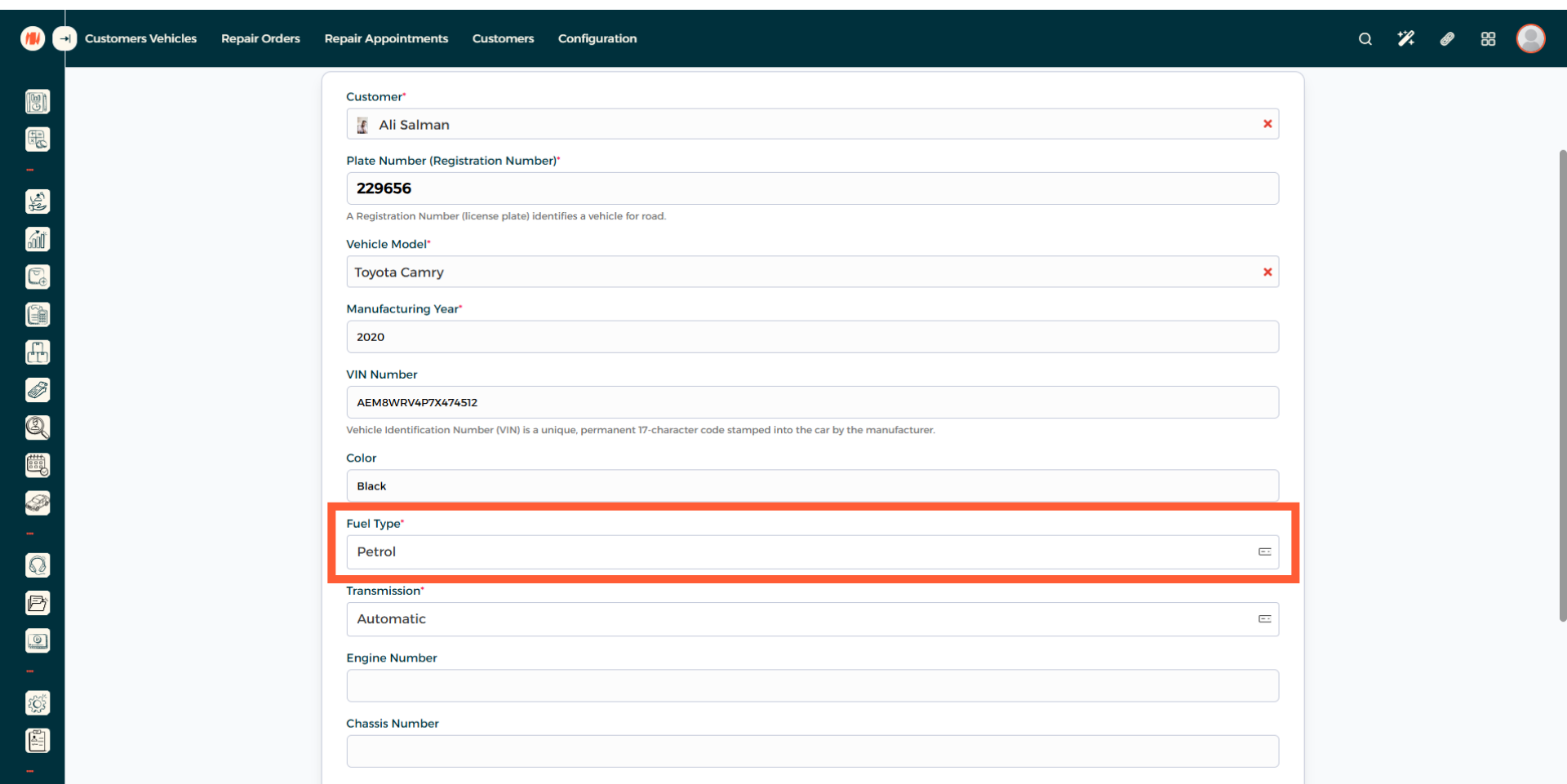
Step 10: Select Vehicle Transmission
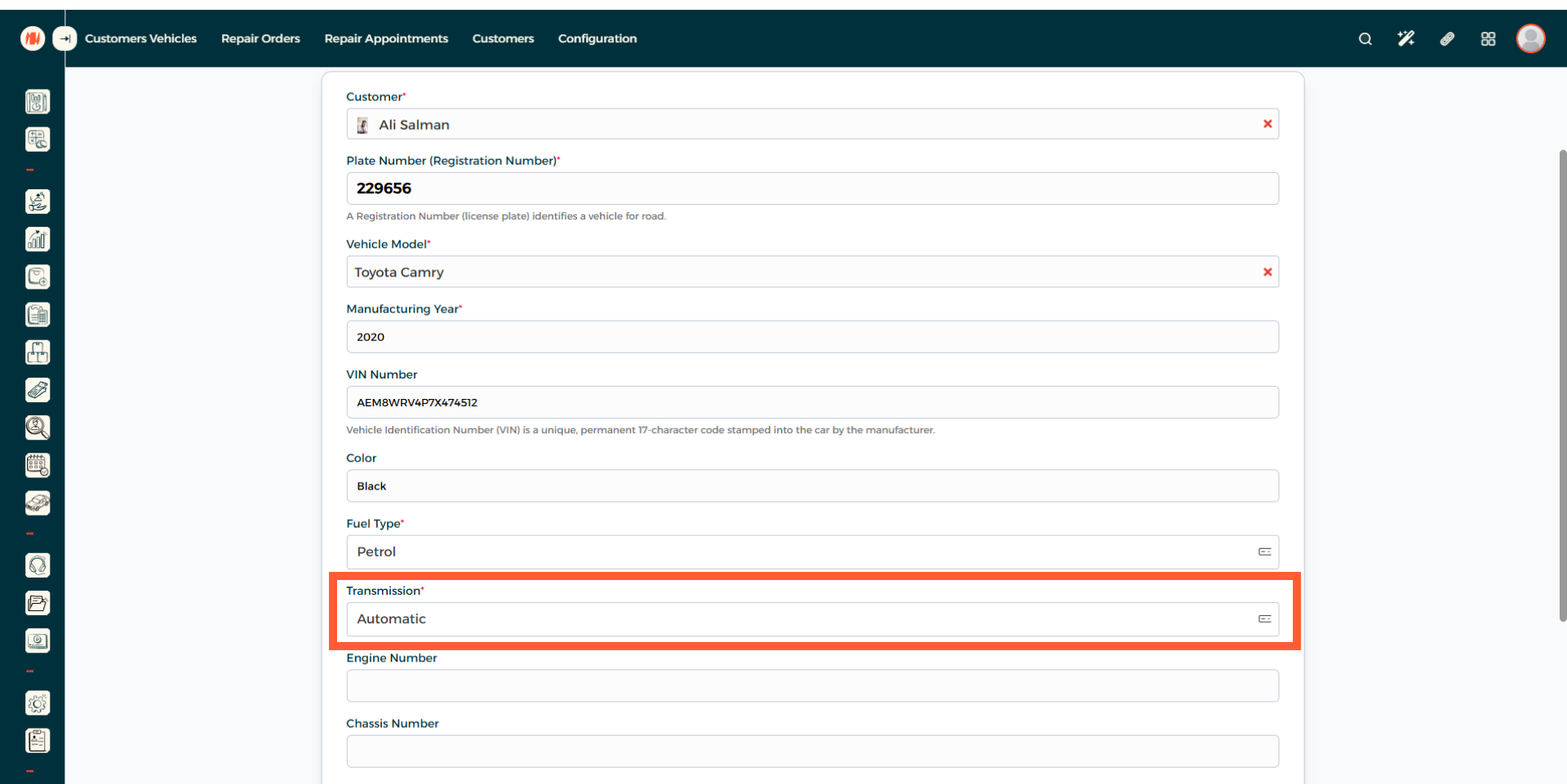
Step 11: Enter Engine Number
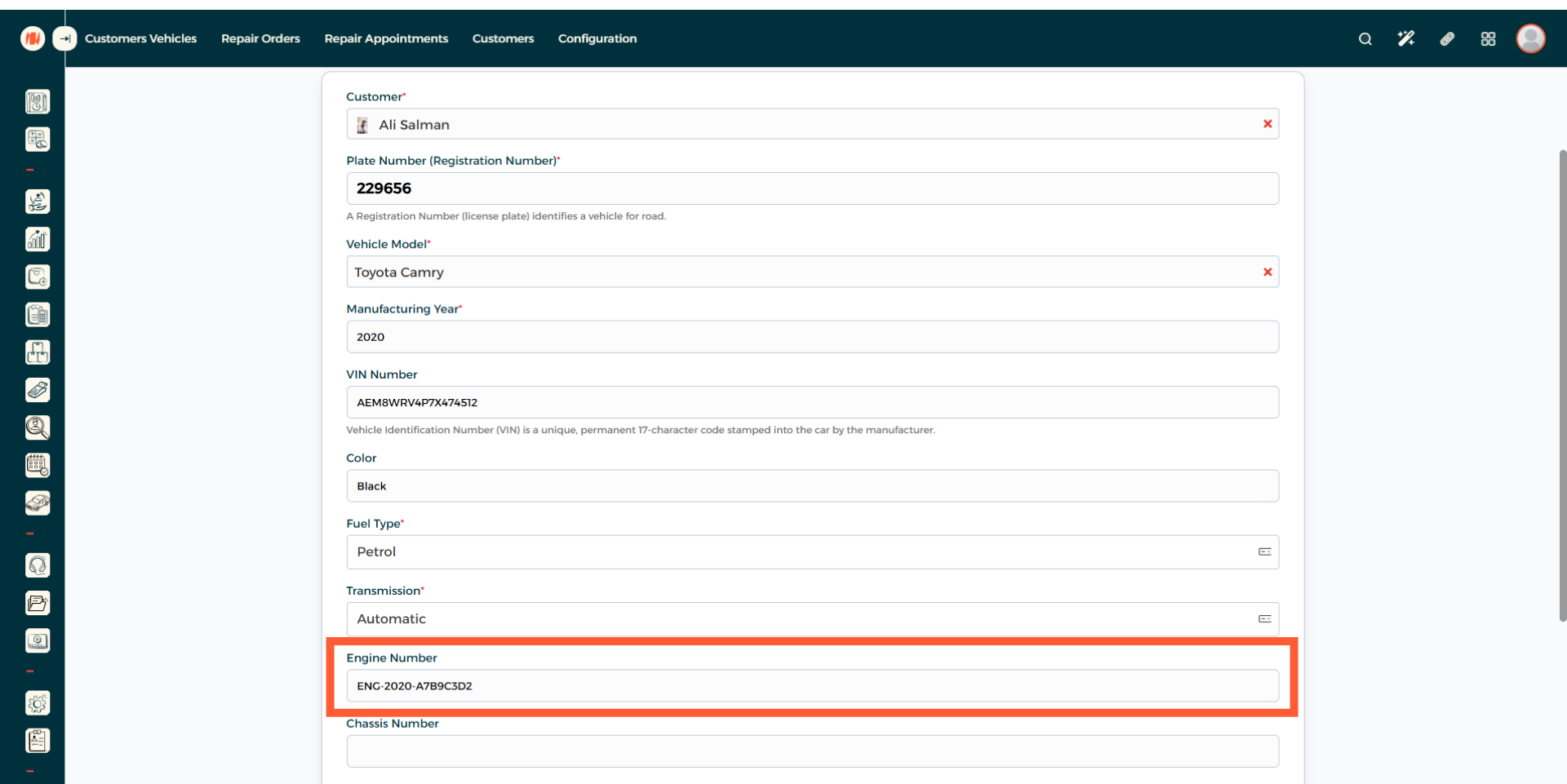
Step 12: Enter Chassis Number
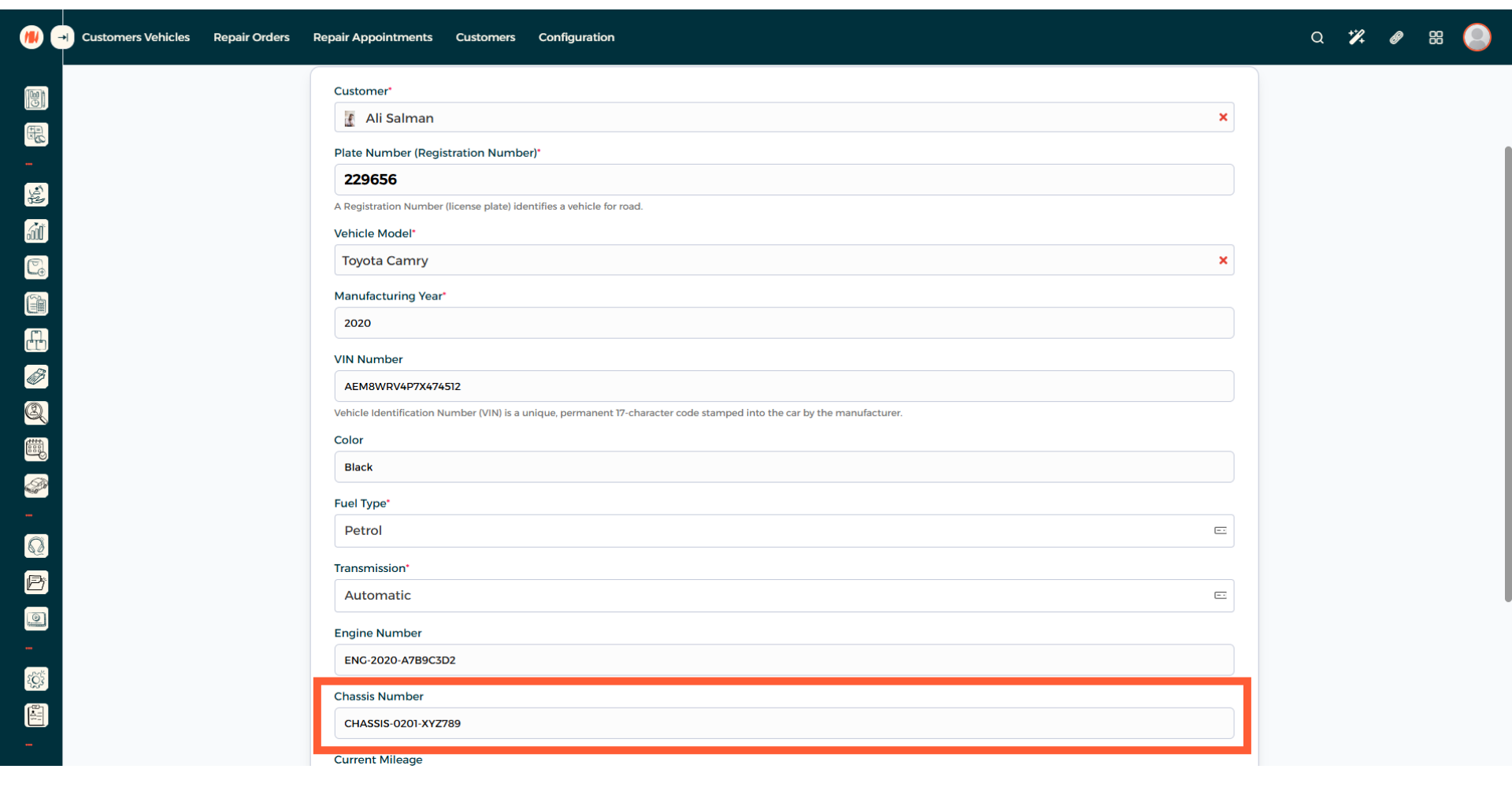
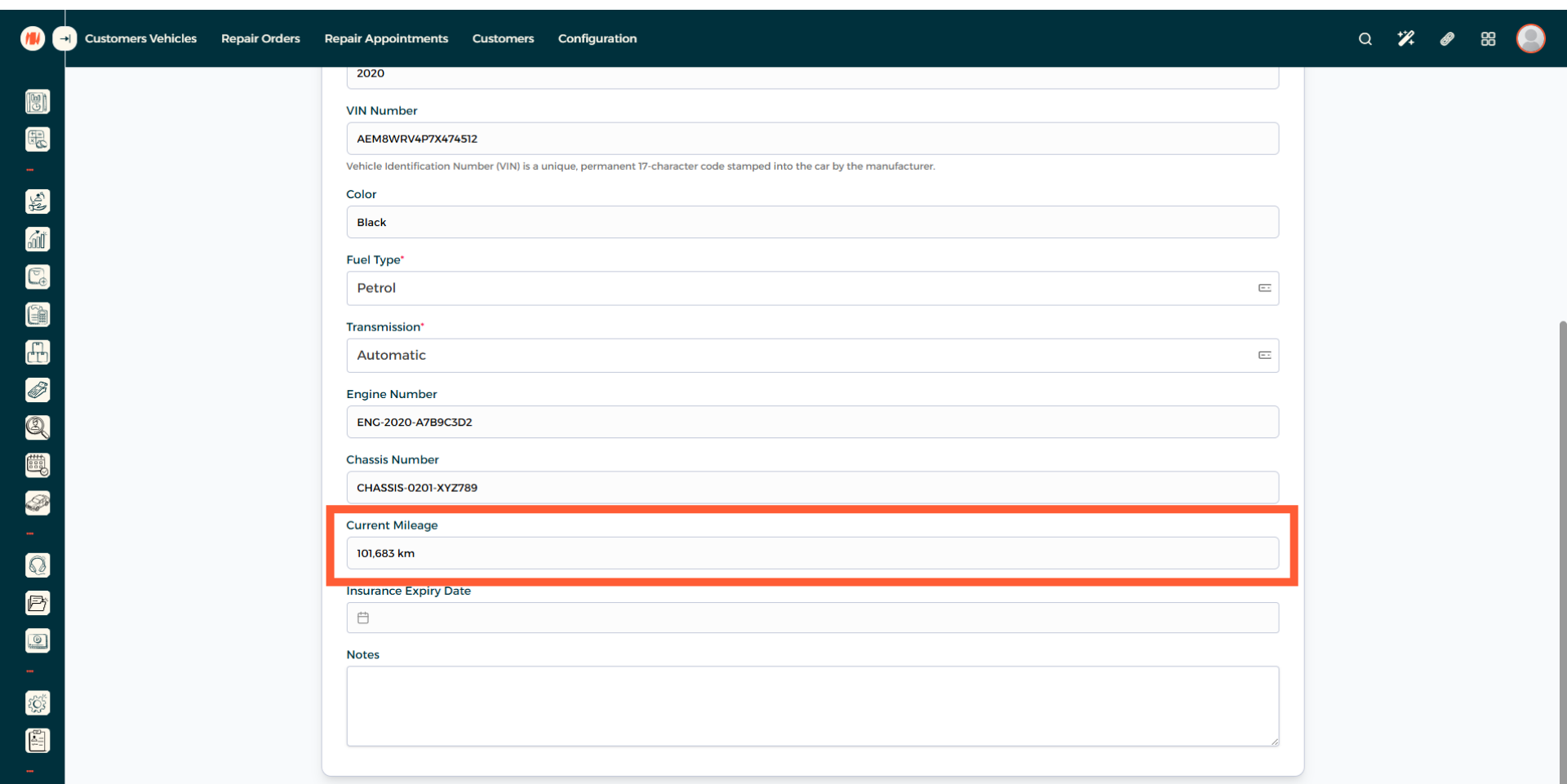
Step 13: Add Current Mileage
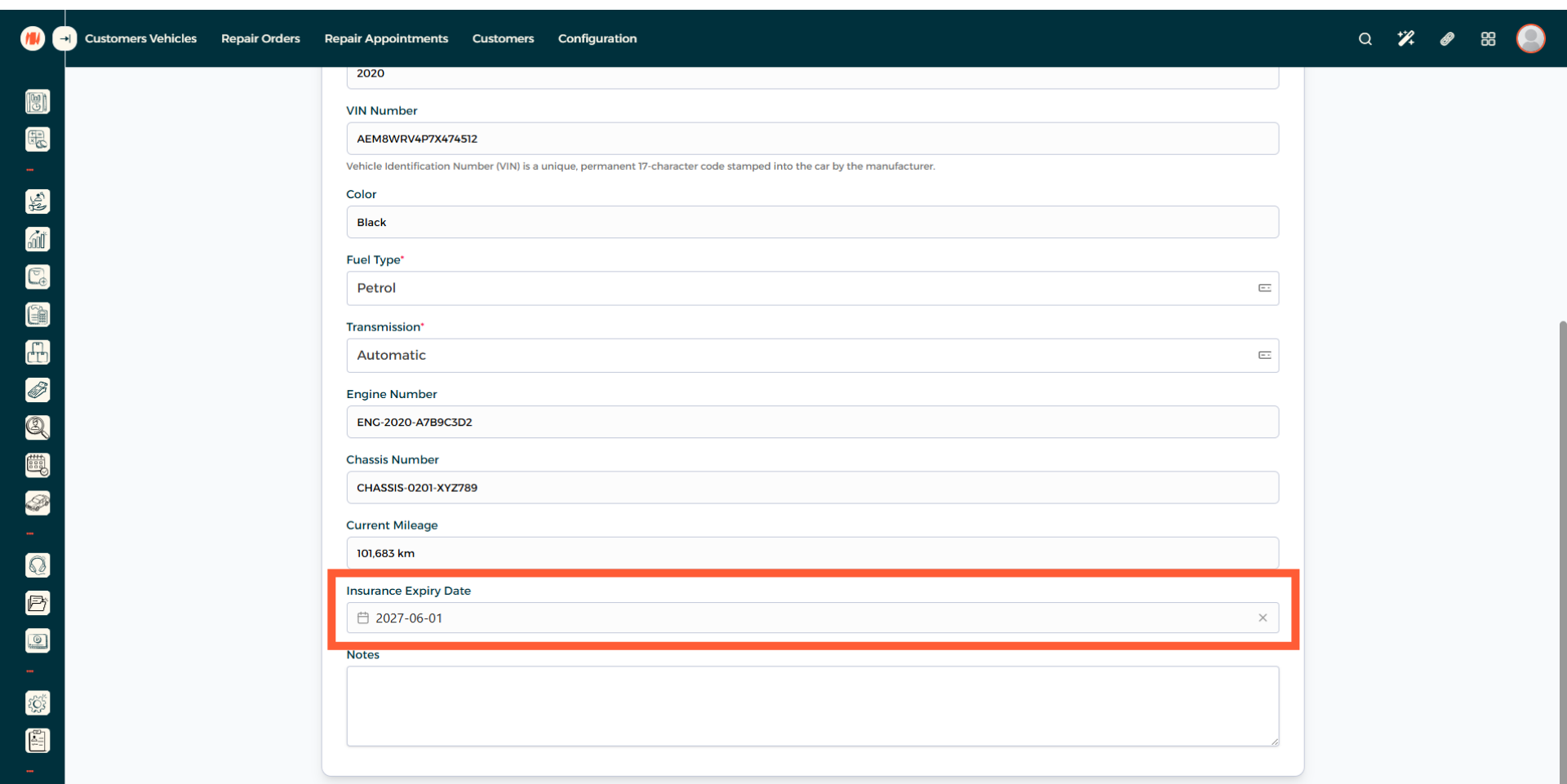
Step 14: Input Insurance Expiry Date
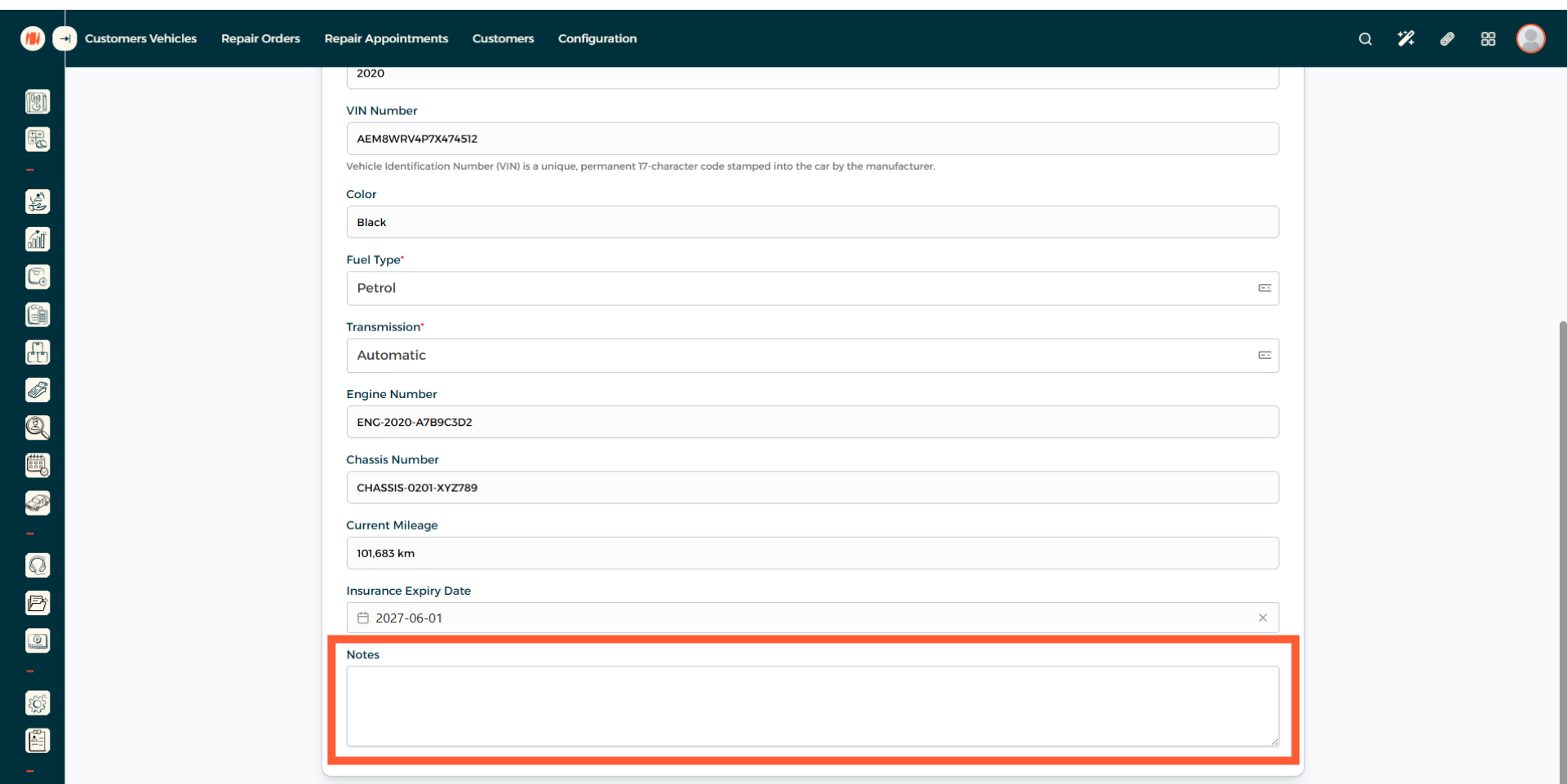
Step 15: Add Notes
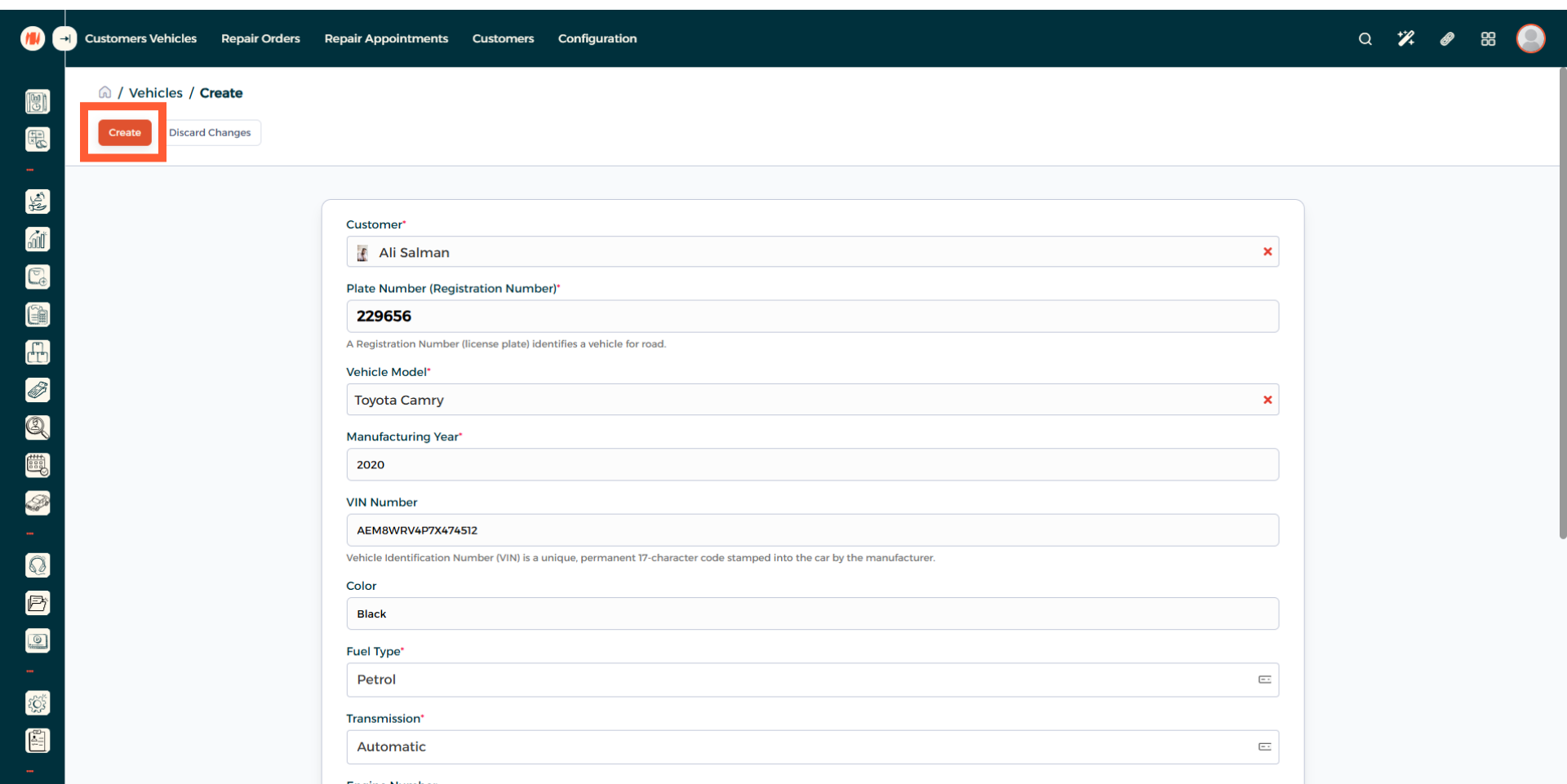
Step 16: Vehicle Creation
Review all the information, when everything looks correct create the vehicle. That's It! you have successfully created a vehicle in Invent ERP.
Notes & Tips
- Always double check your information before creation especially VIN number, engine number, chassis number, and registration number before saving to prevent record errors or issues in the future.
- It is recommended to add detailed customer concerns or doubts in the notes section for more focused and efficient work.
Frequently Asked Questions (FAQ)
Q: Can a customer have more than one vehicle?
A: Yes, you can add multiple vehicles under a single customer record and manage each vehicle’s work.
Q: How do I search for a vehicle after I created one?
A: In the vehicle's page, you can search by plate number, customer's mobile number, customer's name, VIN number, or just use the filter option available.