

How to add Service Packages and Products in Invent ERP?
How to add Service Packages and Products in Invent ERP?
Creating service packages and products in Invent ERP helps you standardize offerings, so pricing and tasks are consistent. Standardized packages make garage workflows clearer and improve customer satisfaction by ensuring proper vehicle care. The primary goal is to speed up workflow, reduce errors, and improve service consistency.
Step-by-Step Process
Step 1: Navigate to Garage Management
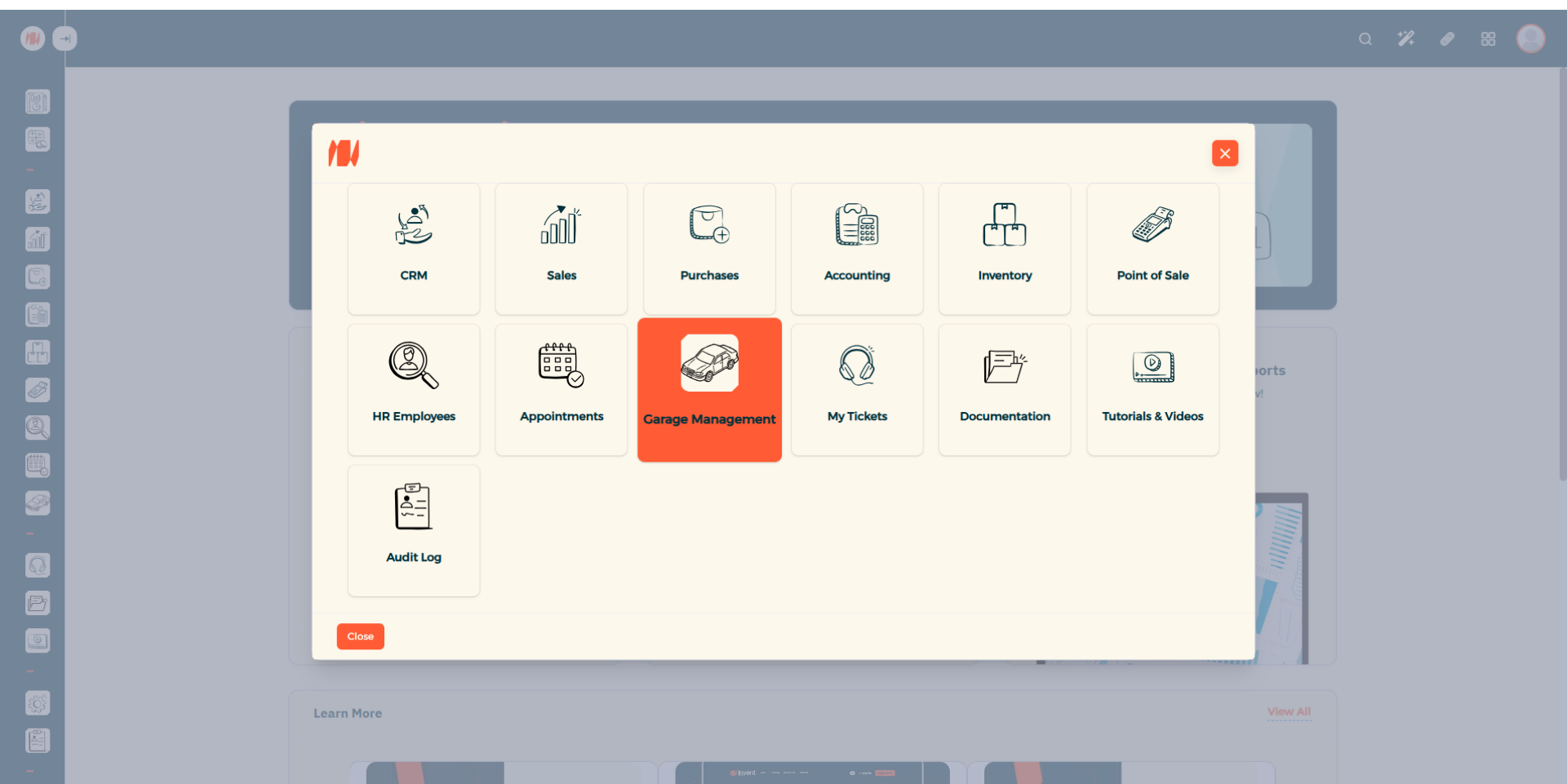
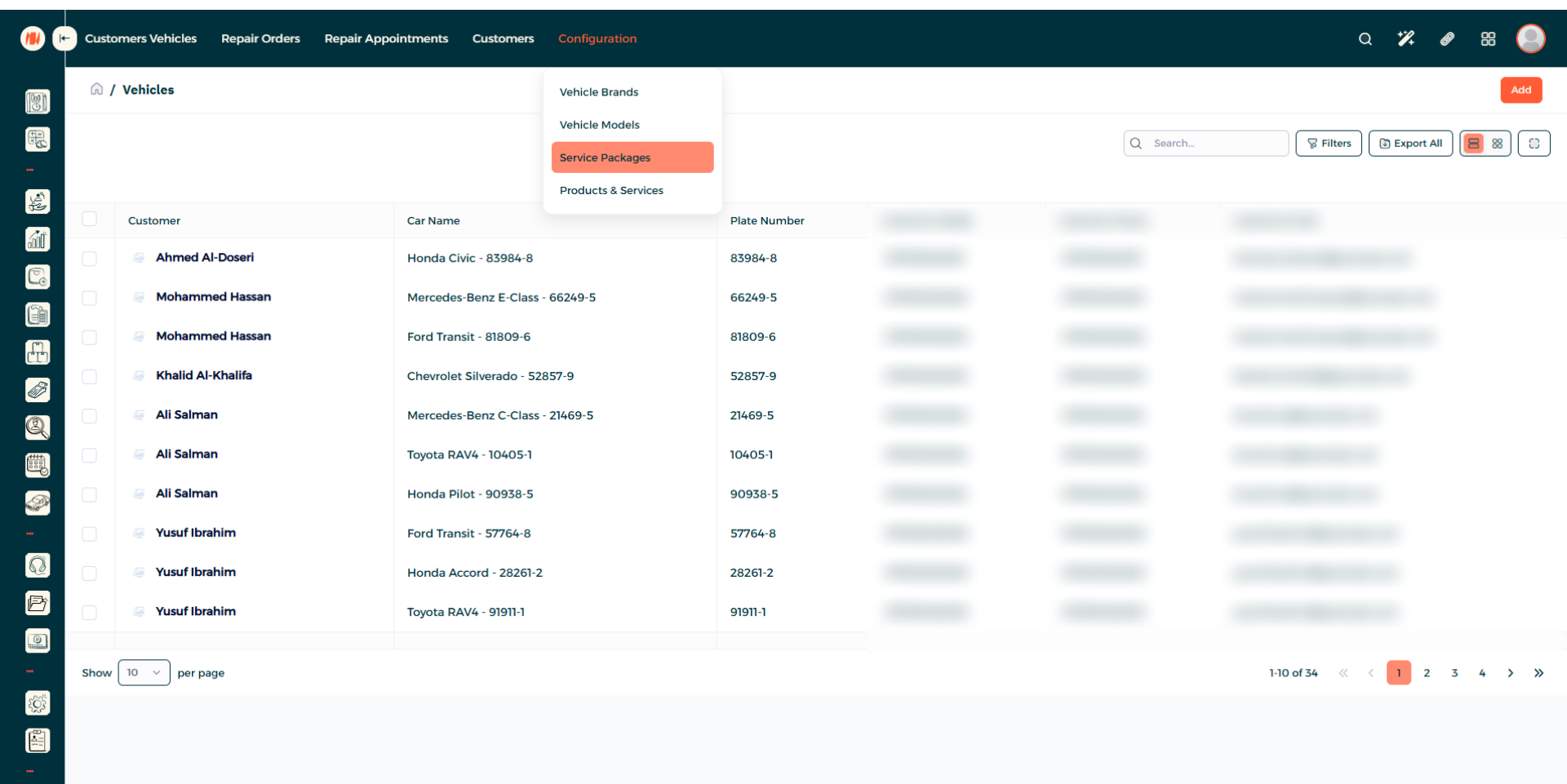
Step 2: Navigate to Service Packages
Under configuration, click on Service Packages.
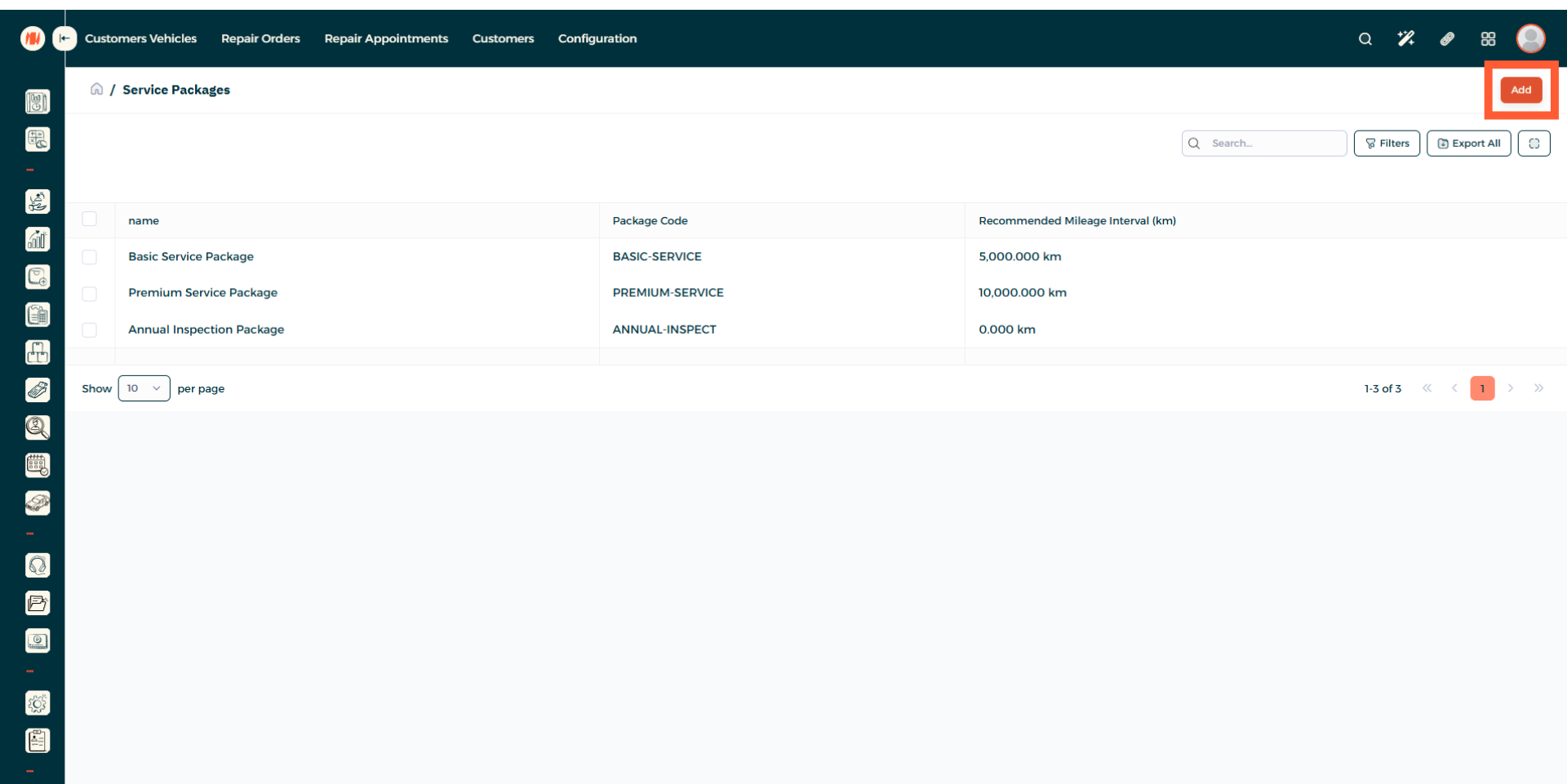
Step 3: Add a Service Package
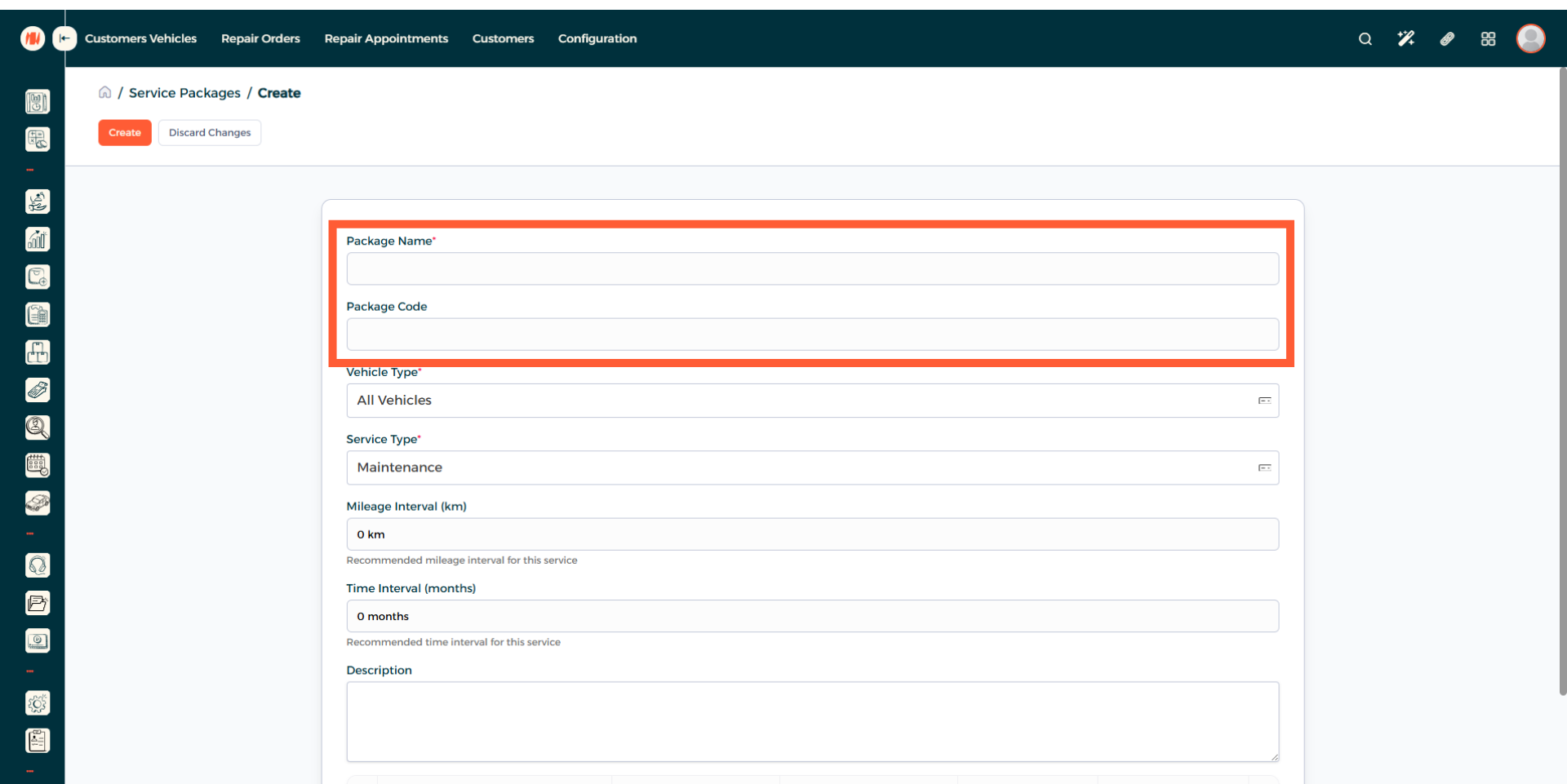
Step 4: Enter Package Name and Code
Step 5: Select Vehicle Type
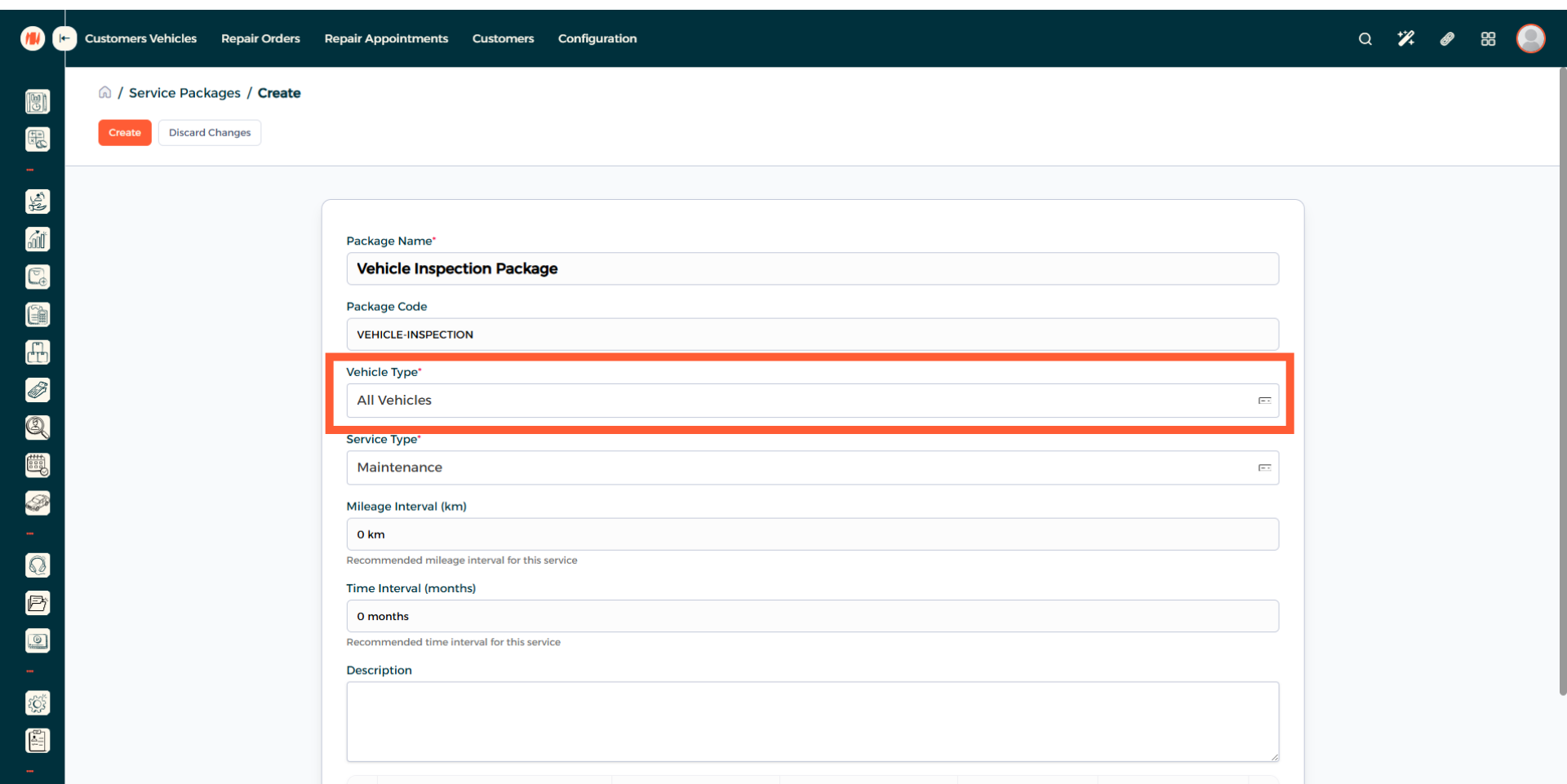
Step 6: Choose Service Type
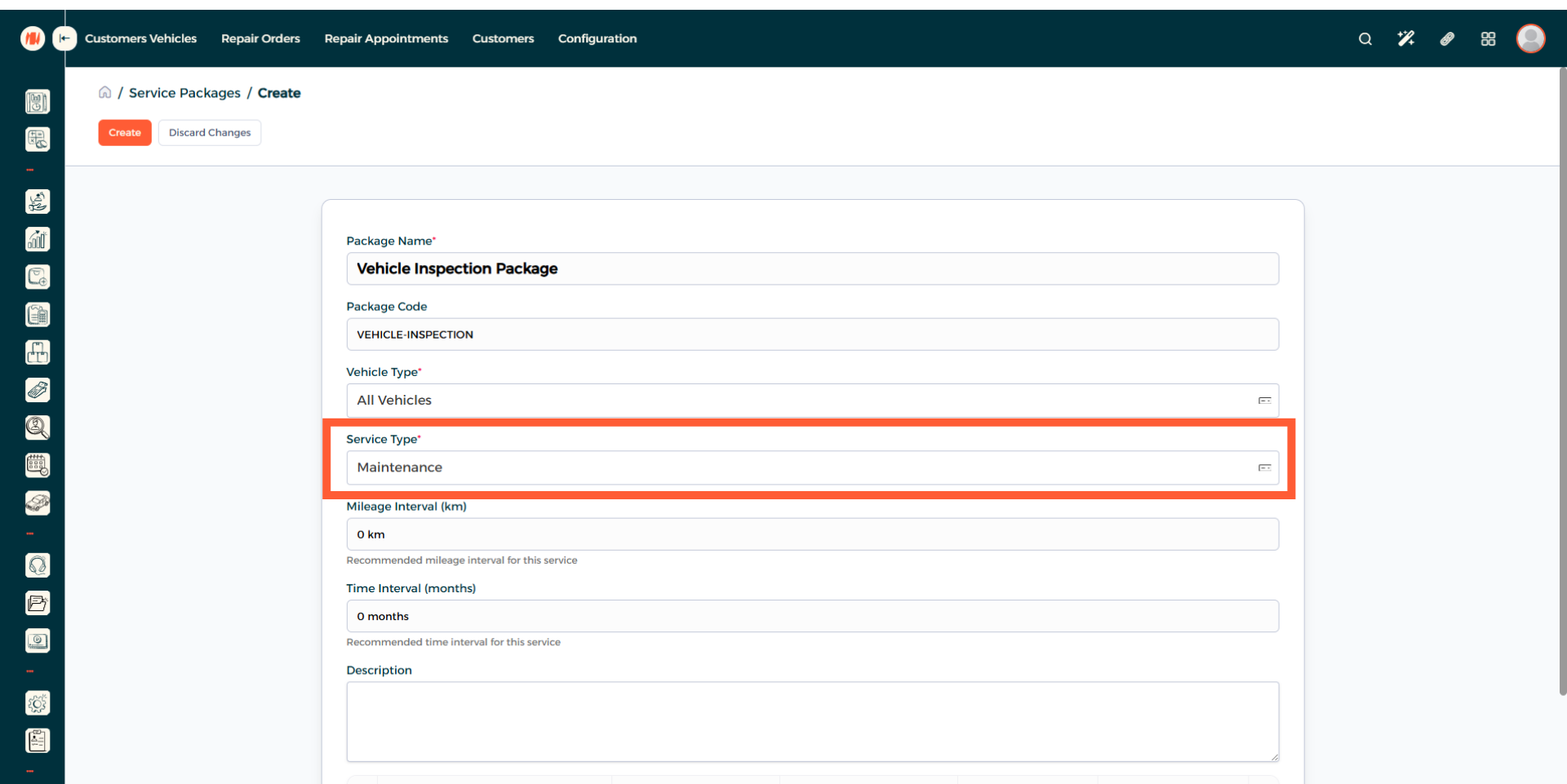
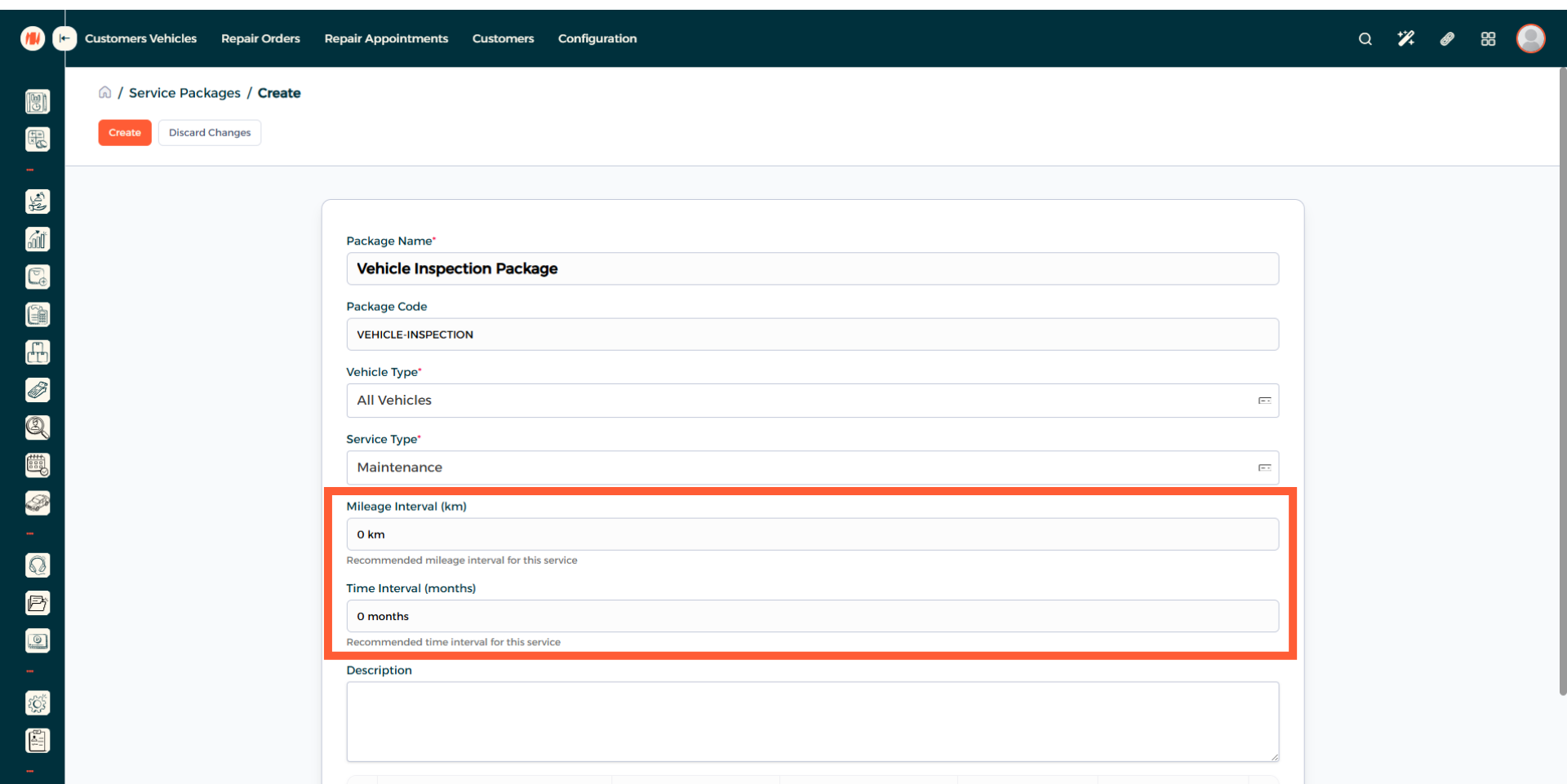
Step 7: Enter Mileage and Time Interval (Recommended)
If it is suitable for the service package. It is recommended to add a mileage interval in kilometers (km). And a time interval in months.
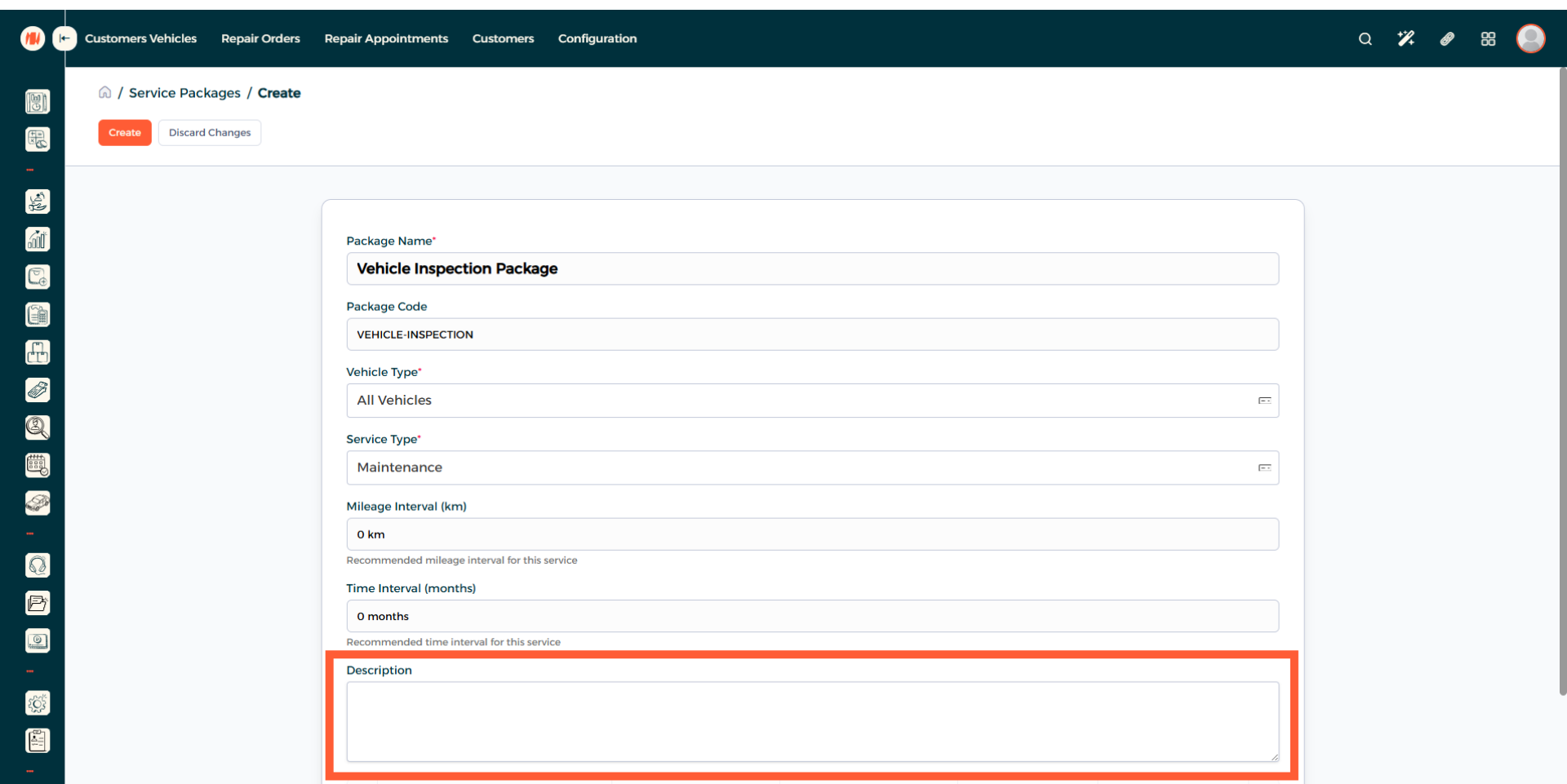
Step 8: Add a description
Step 9: Add a Product
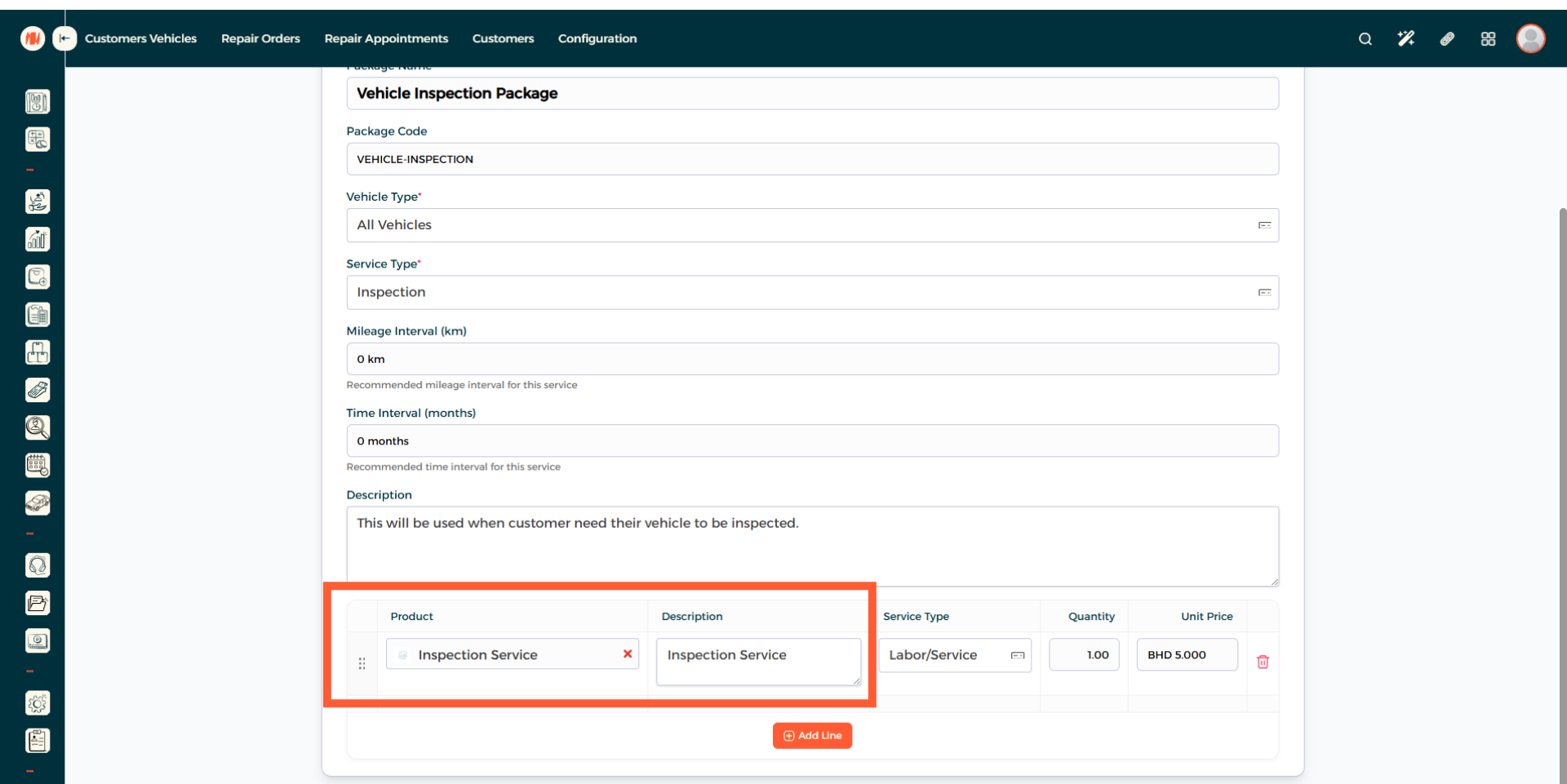
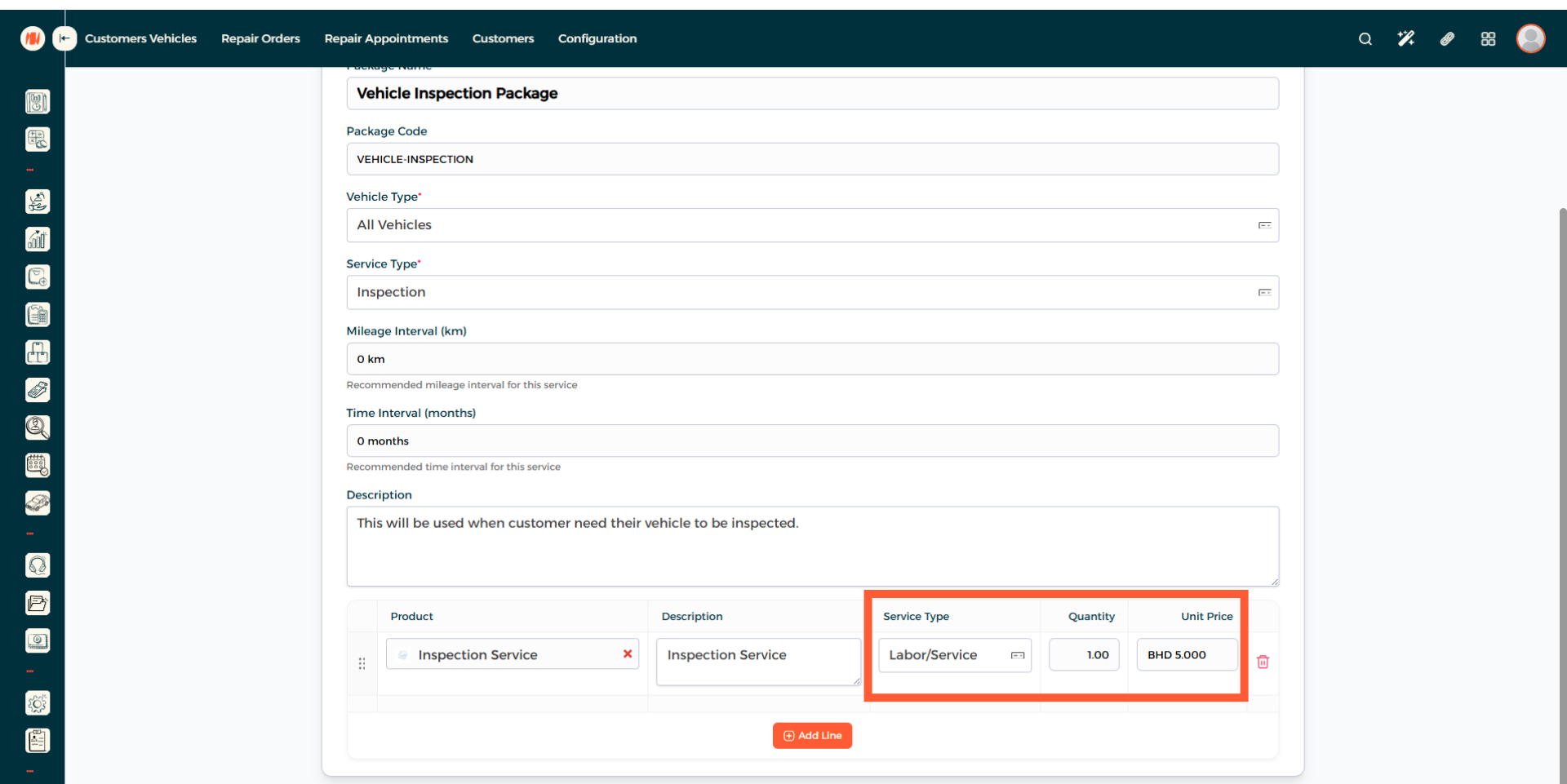
Step 10: Confirm Product Details
Clarify if it is a part/product or a labor/service. Afterward, enter the quantity and price.
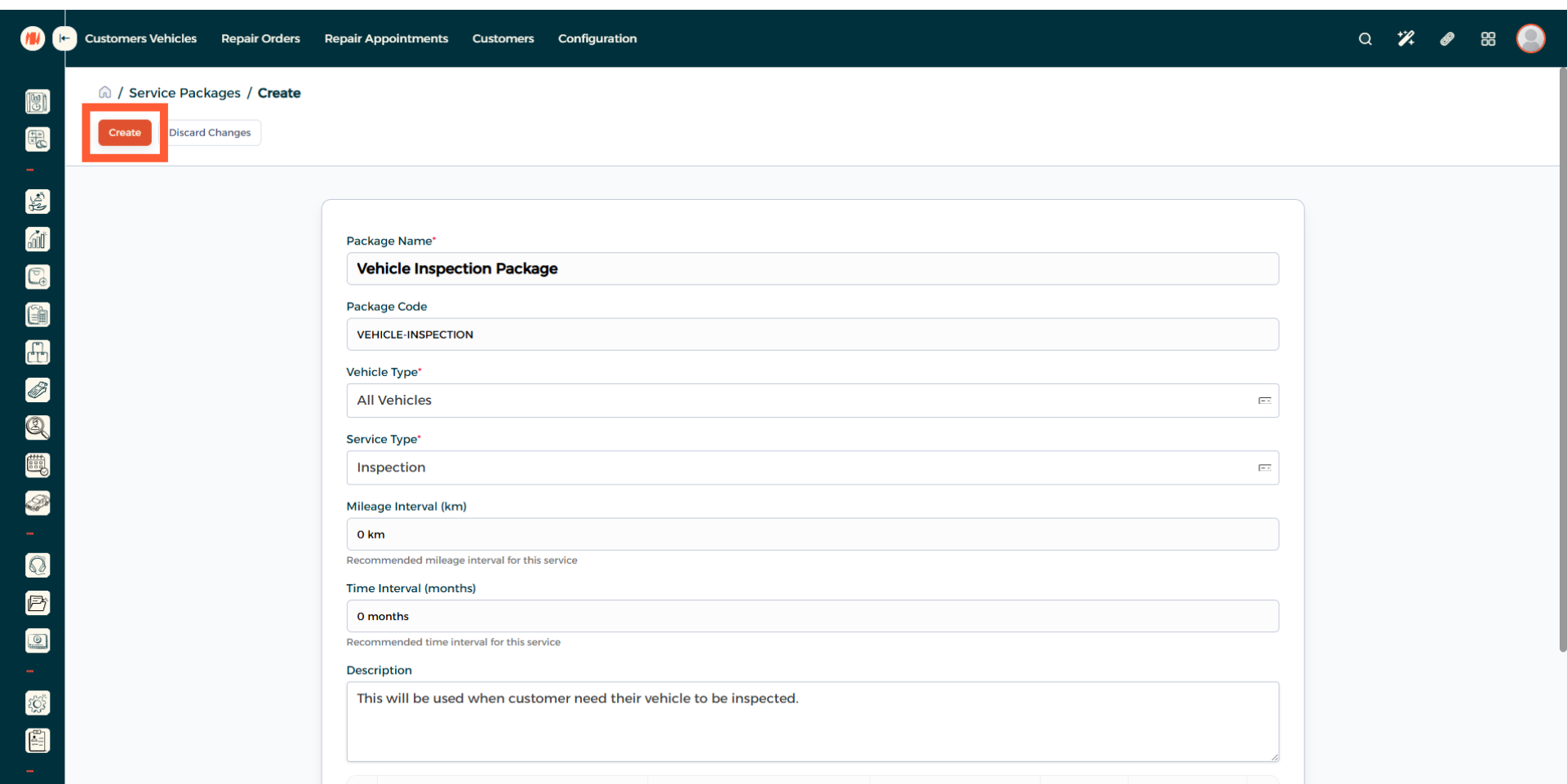
Step 11: Create Service Package
Review all the information, then go ahead and create your Service Package.
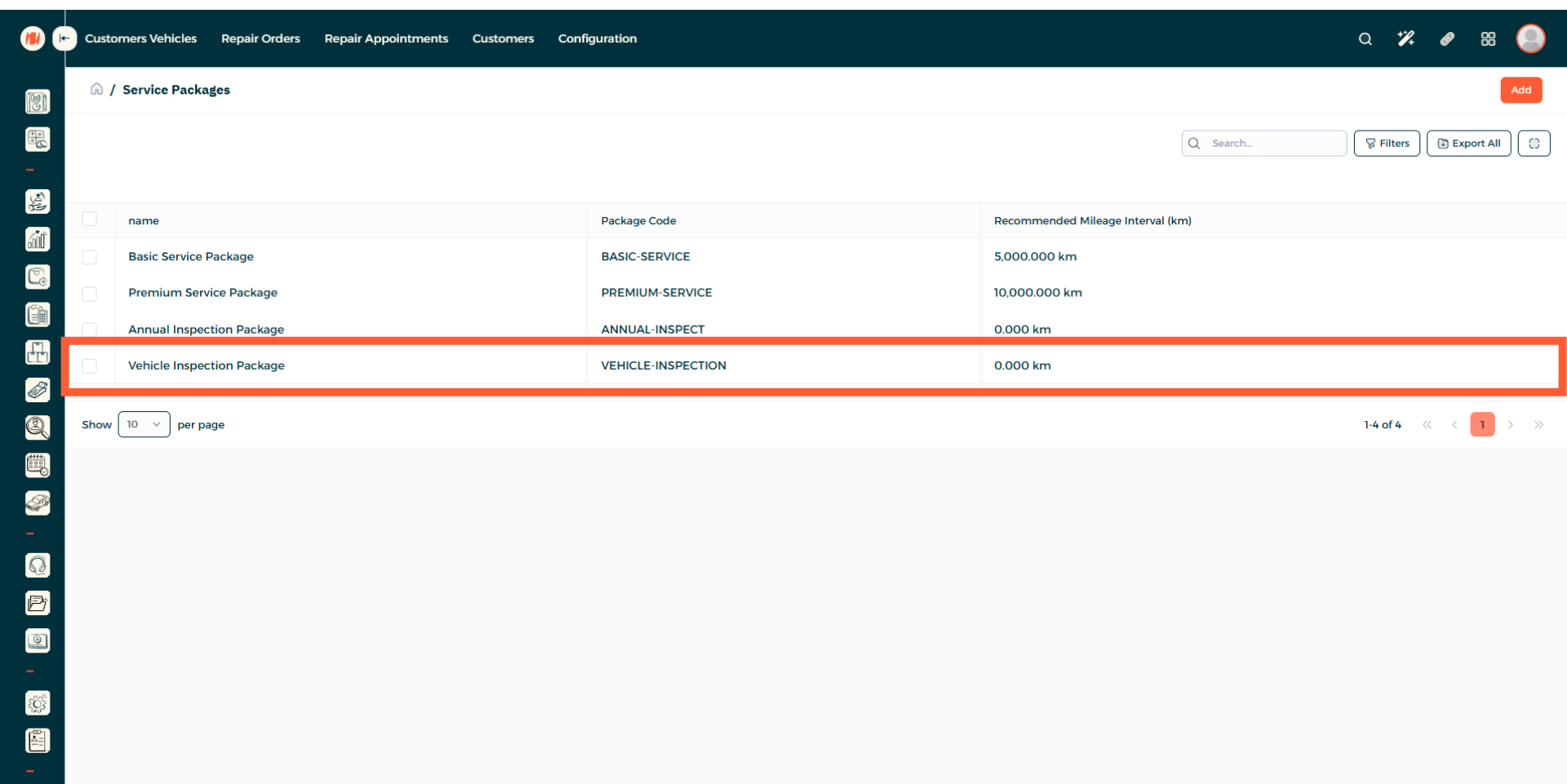
Step 12: View Service Package
Step 13: Navigate to Product and Services
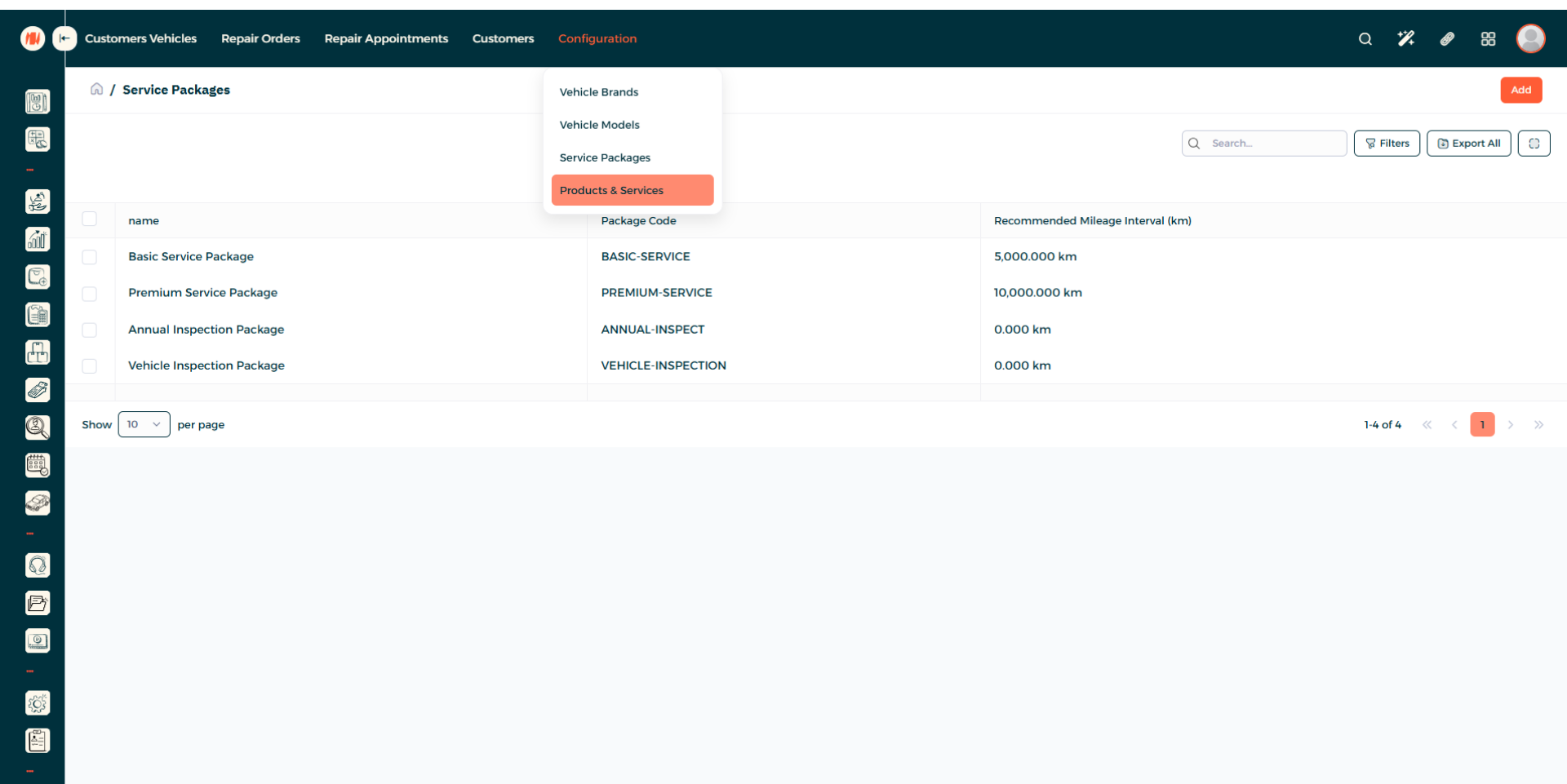
Step 14: Add a Product or Service
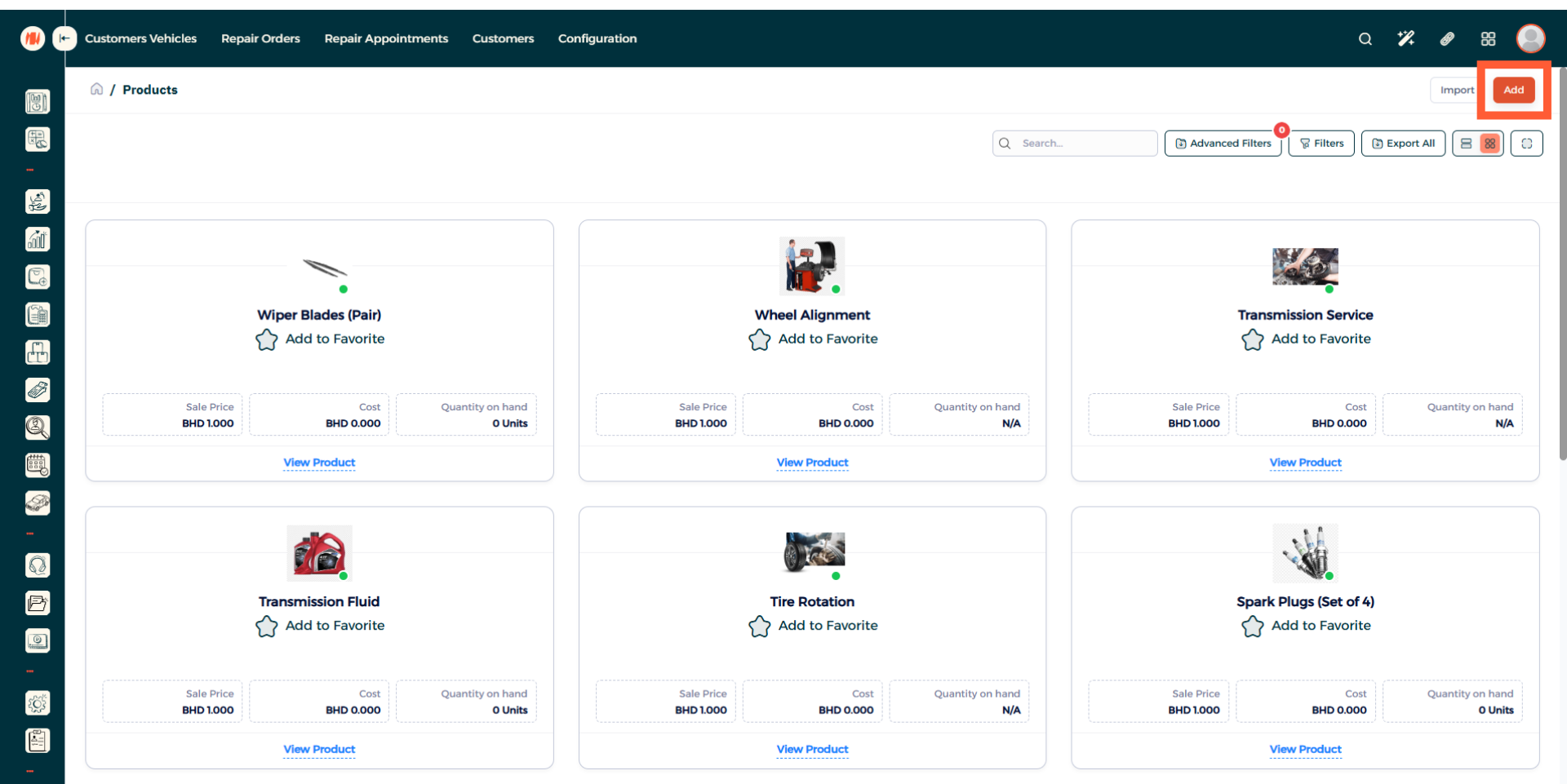
Step 15: Enter Product Name
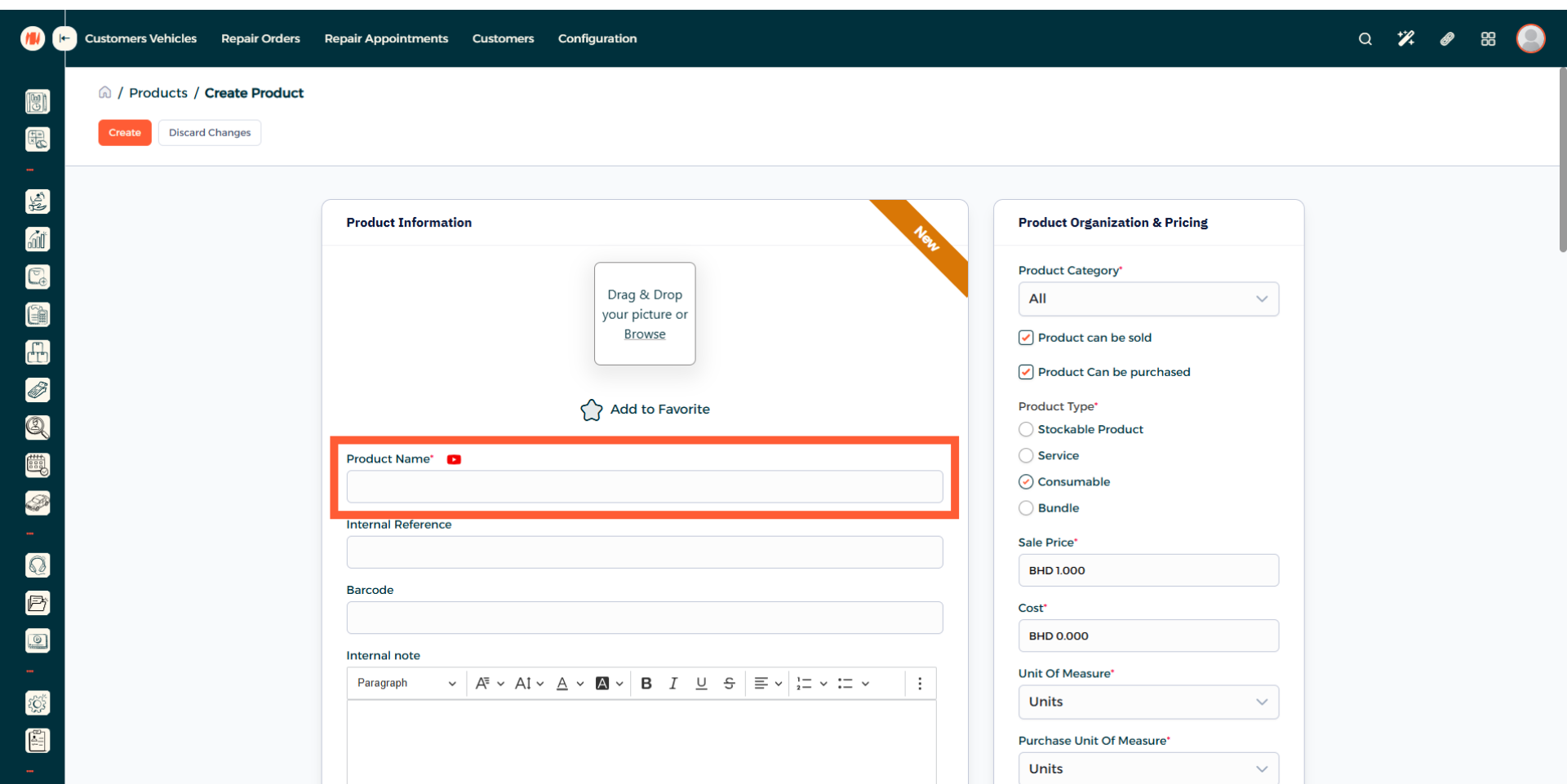
Step 16: Specify Product Type
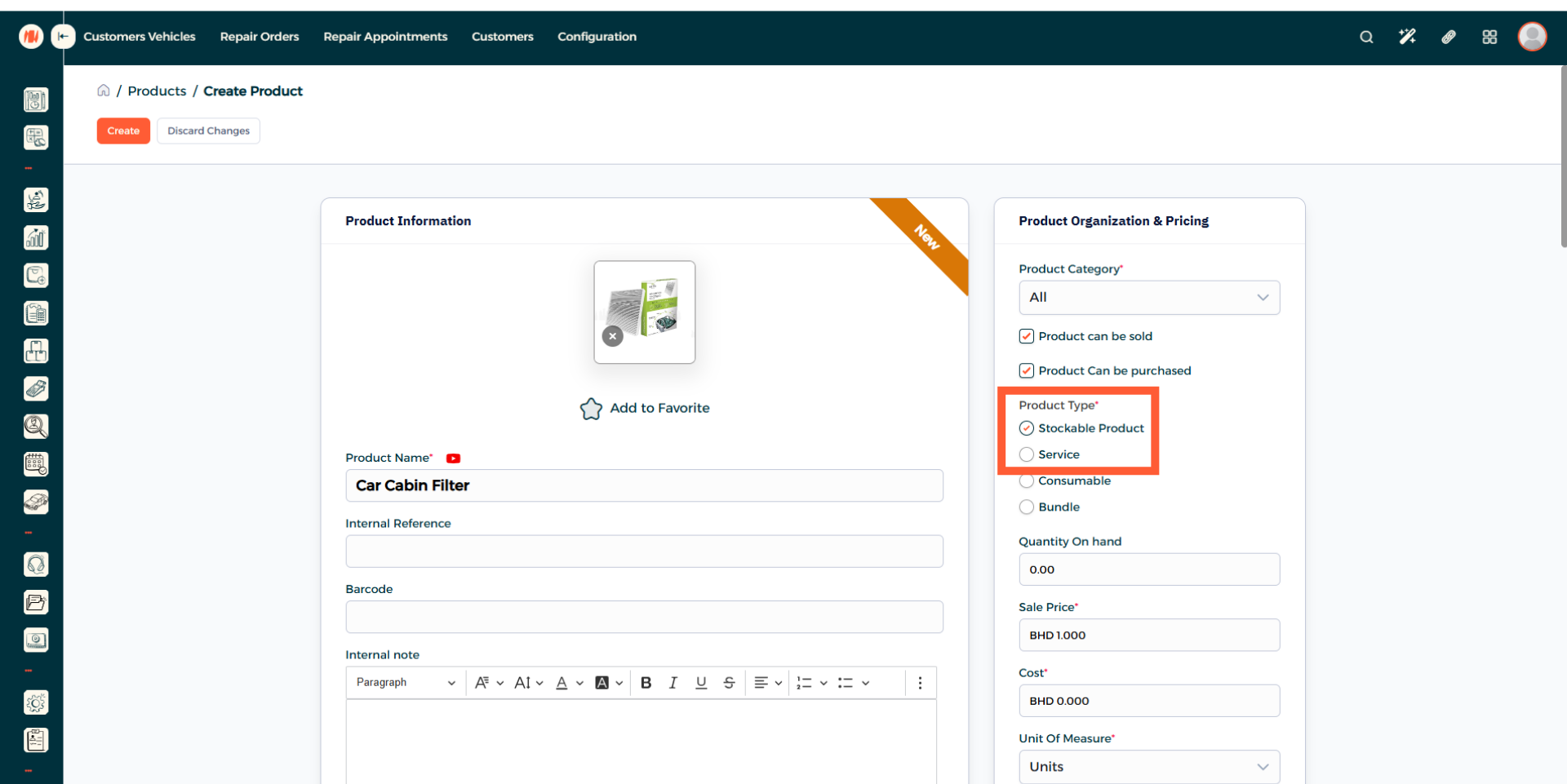
Step 17: Enter Quantity
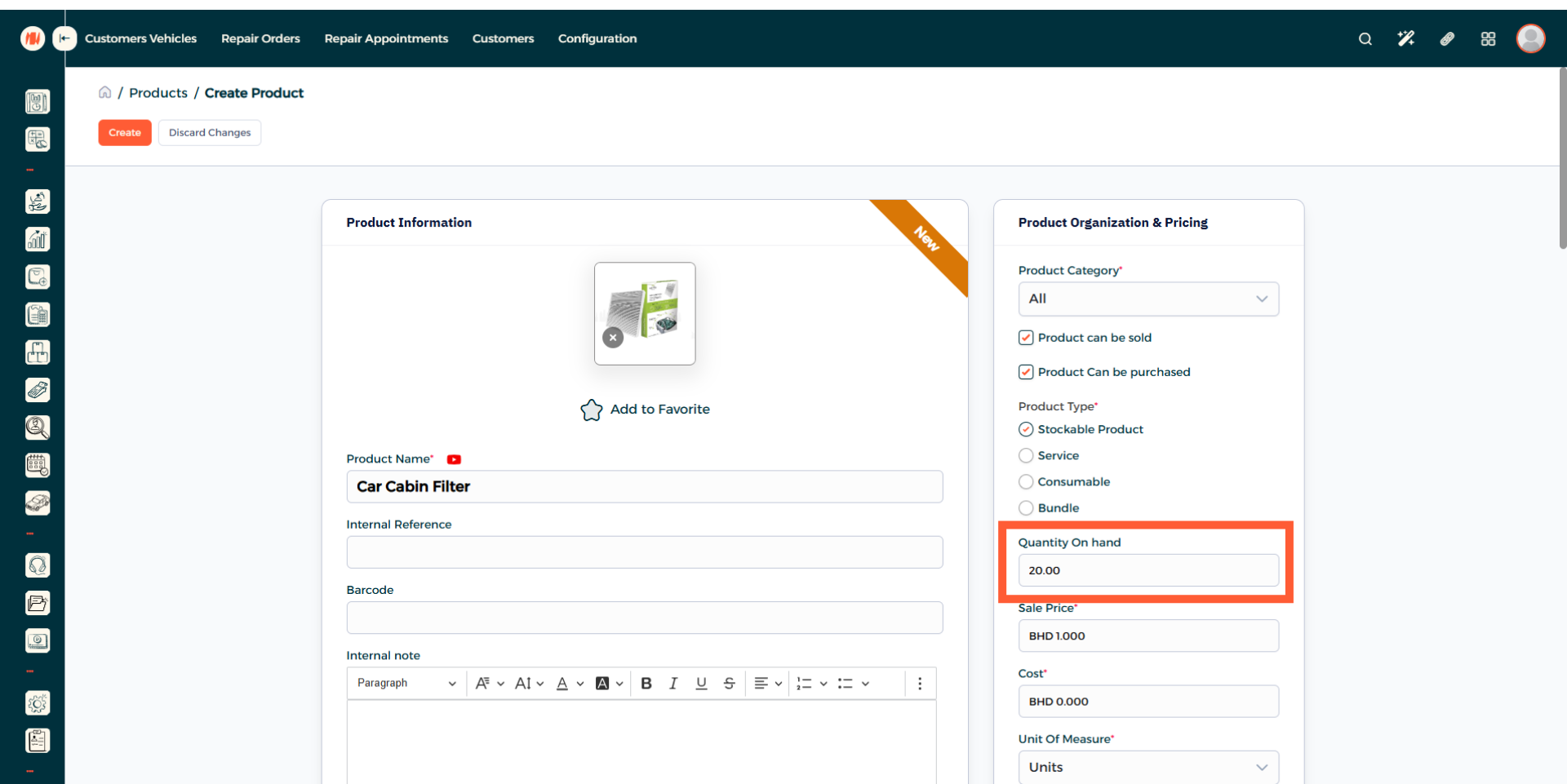
Step 18: Set Product Price and Cost
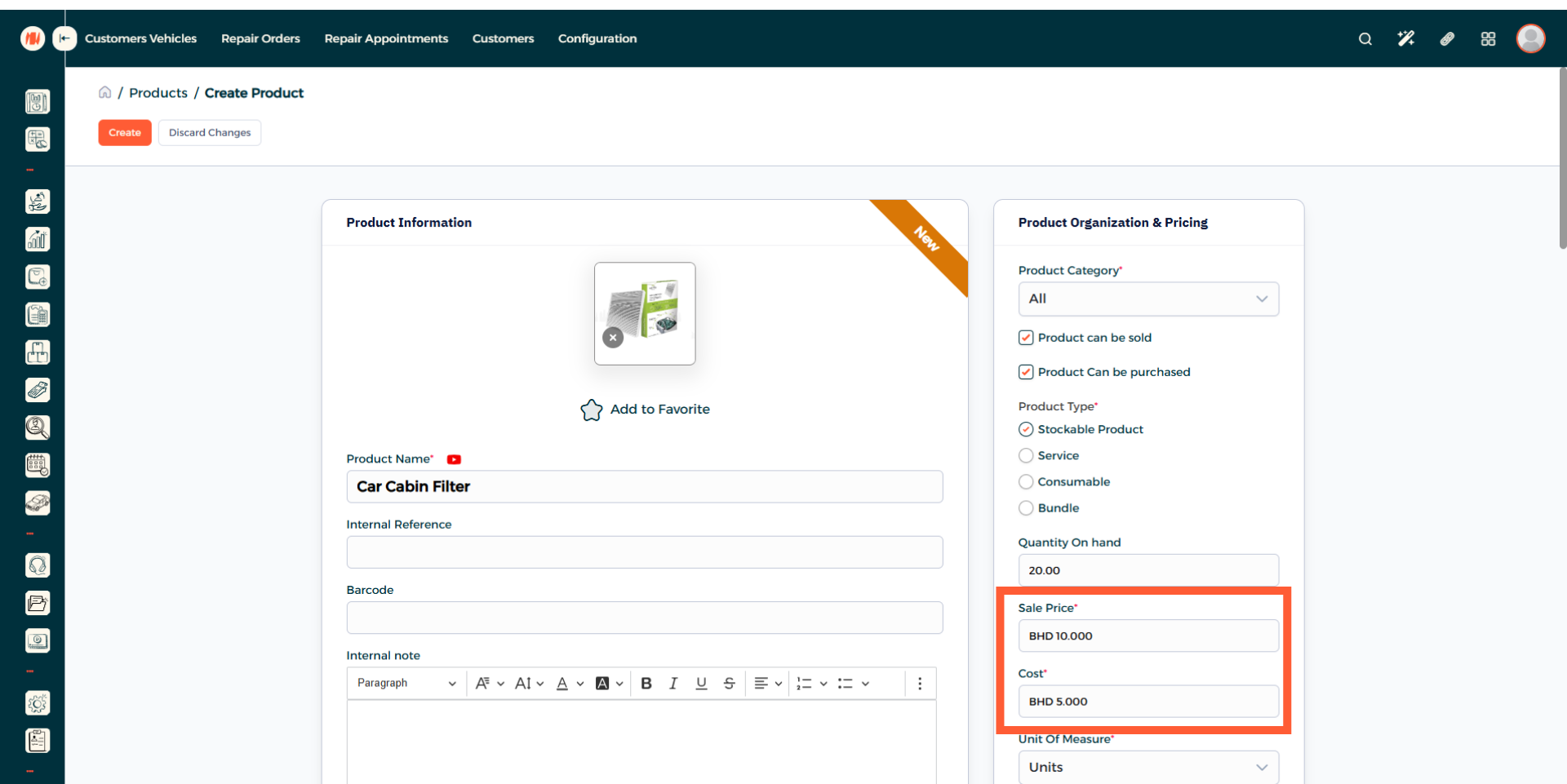
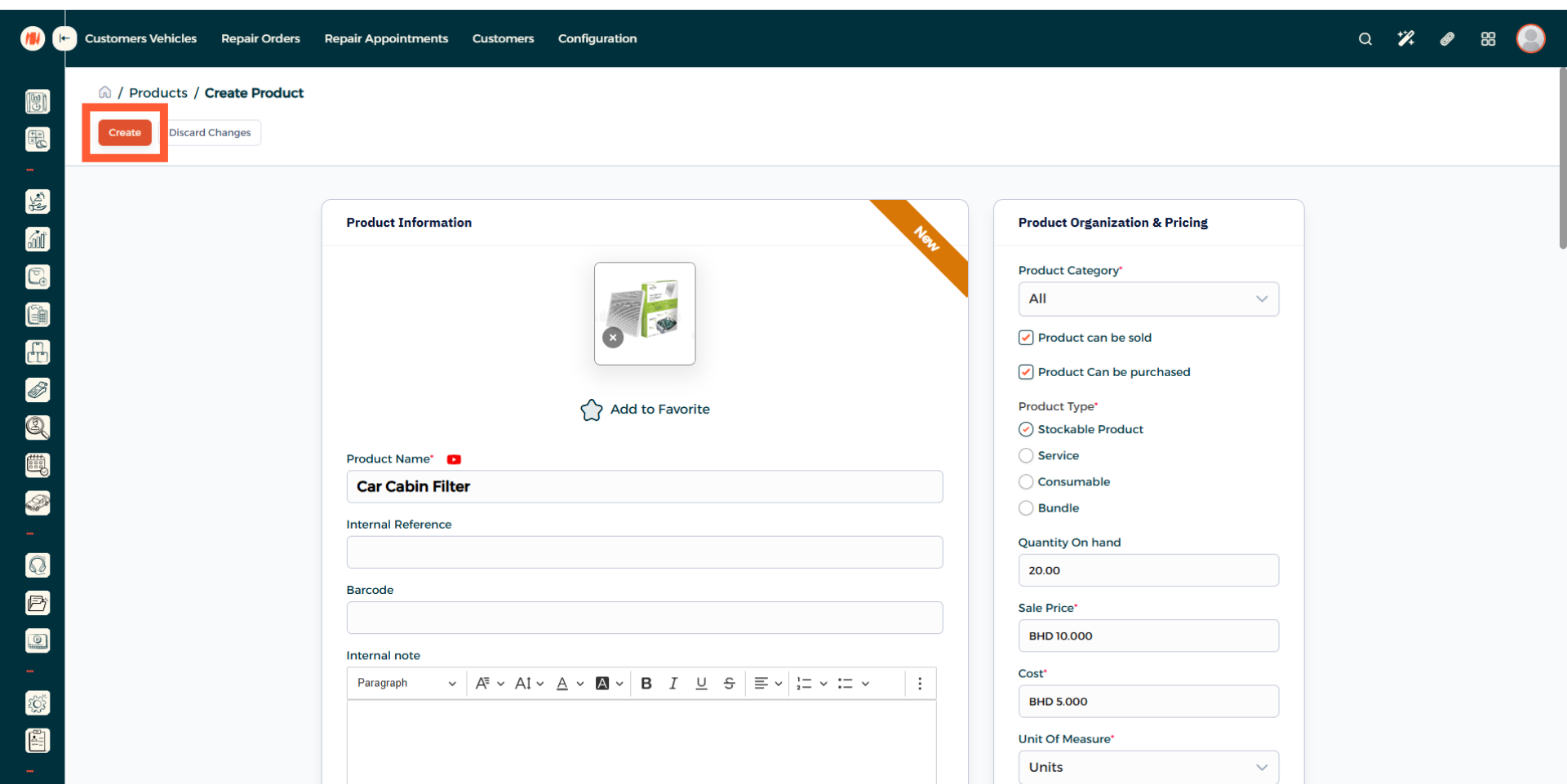
Step 19: Create Product
When everything looks good, create product. That's it! you know now how to create a product or service in Invent ERP.
Notes & Tips
-
Add service packages to streamline workflow and reduce manual entry when creating orders.
- Keep products and service packages up to date, as regular reviews leads to accurate pricing and overall ensure consistent garage management.
Frequently Asked Questions (FAQ)
Q: When should I use a service package?
A: Use a service package whenever you offer a repeatable, consistent service because creating one speeds up quoting, reduces manual entry, and reduces time wastage.
Q: Can packages be limited to a certain vehicle type?
A: Yes, when creating a service package, select the applicable vehicle types to restrict the package only to that vehicle type.