

How to create a Repair Order in Invent ERP?
How to create a Repair Order in Invent ERP?
The purpose to create a repair order in Invent ERP is because vehicles and jobs are accurately recorded and tracked. The repair order will contain all the details needed to complete the job. When creating a repair order think of this as the backbone of your garage management required to complete any task. The overall goal is to ensure efficient workflow, smooth garage management, and better customer satisfaction.
Step-by-Step Process
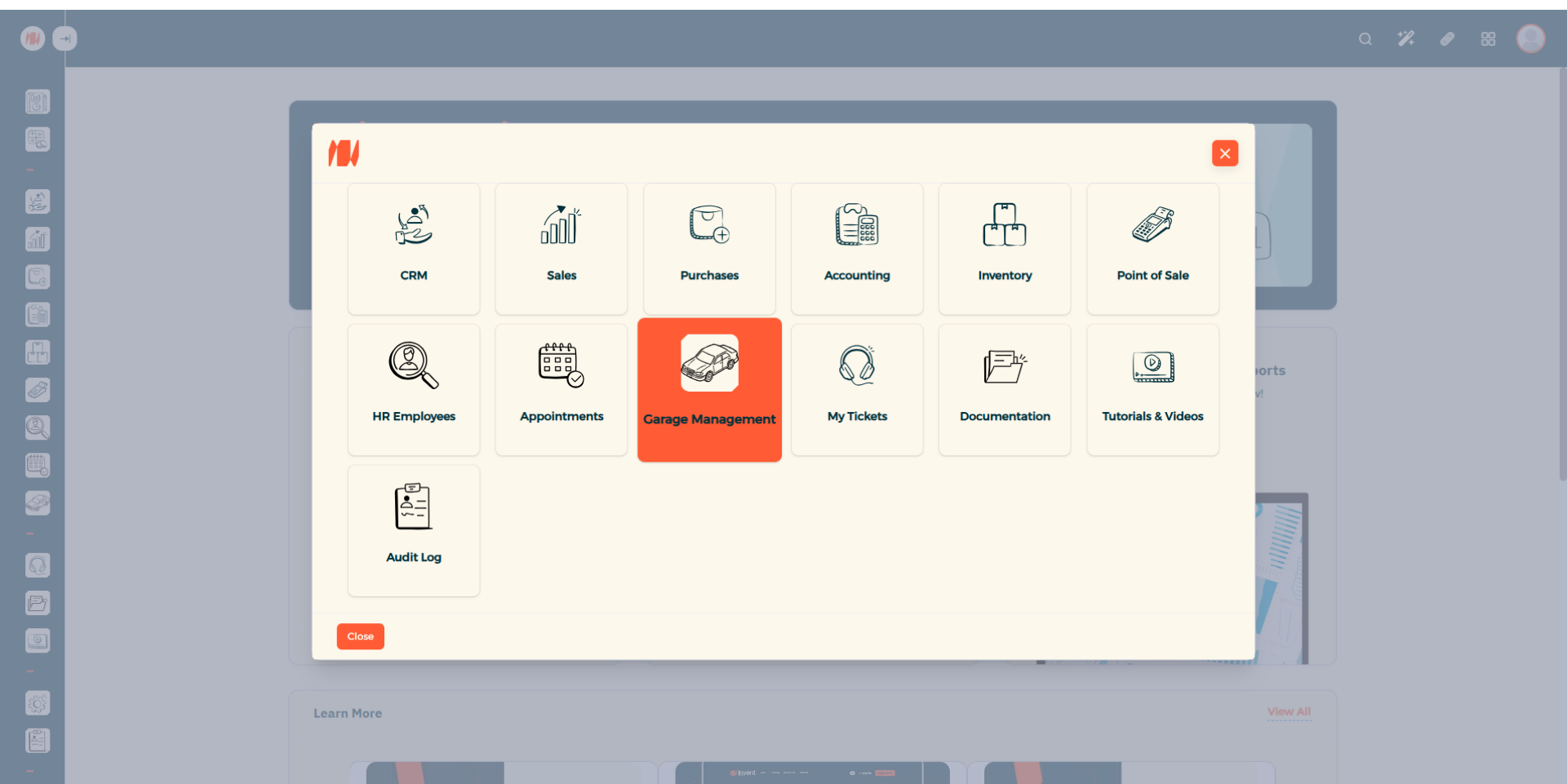
Step 1: Navigate to Garage Management
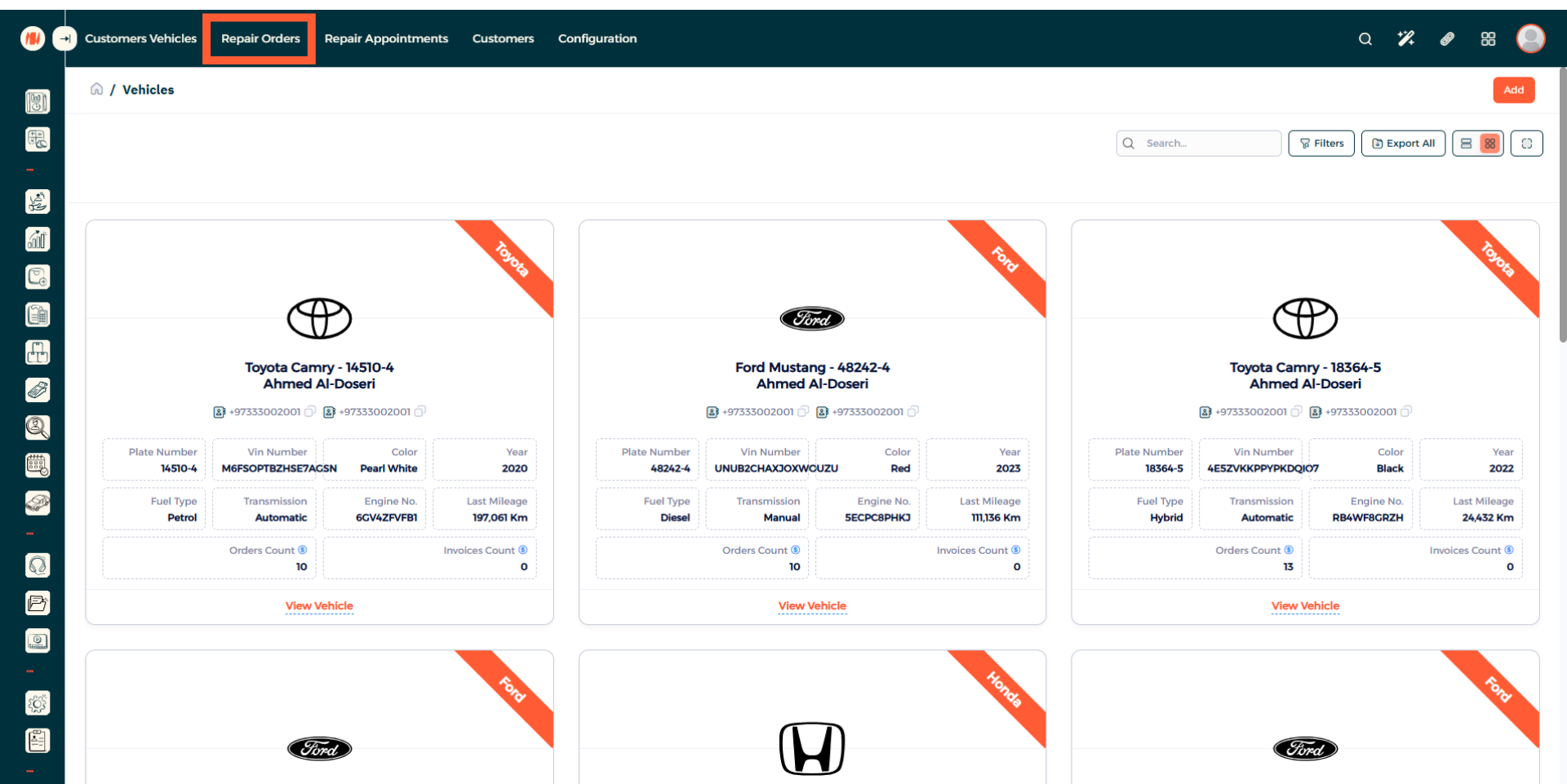
Step 2: Navigate to Repair Orders
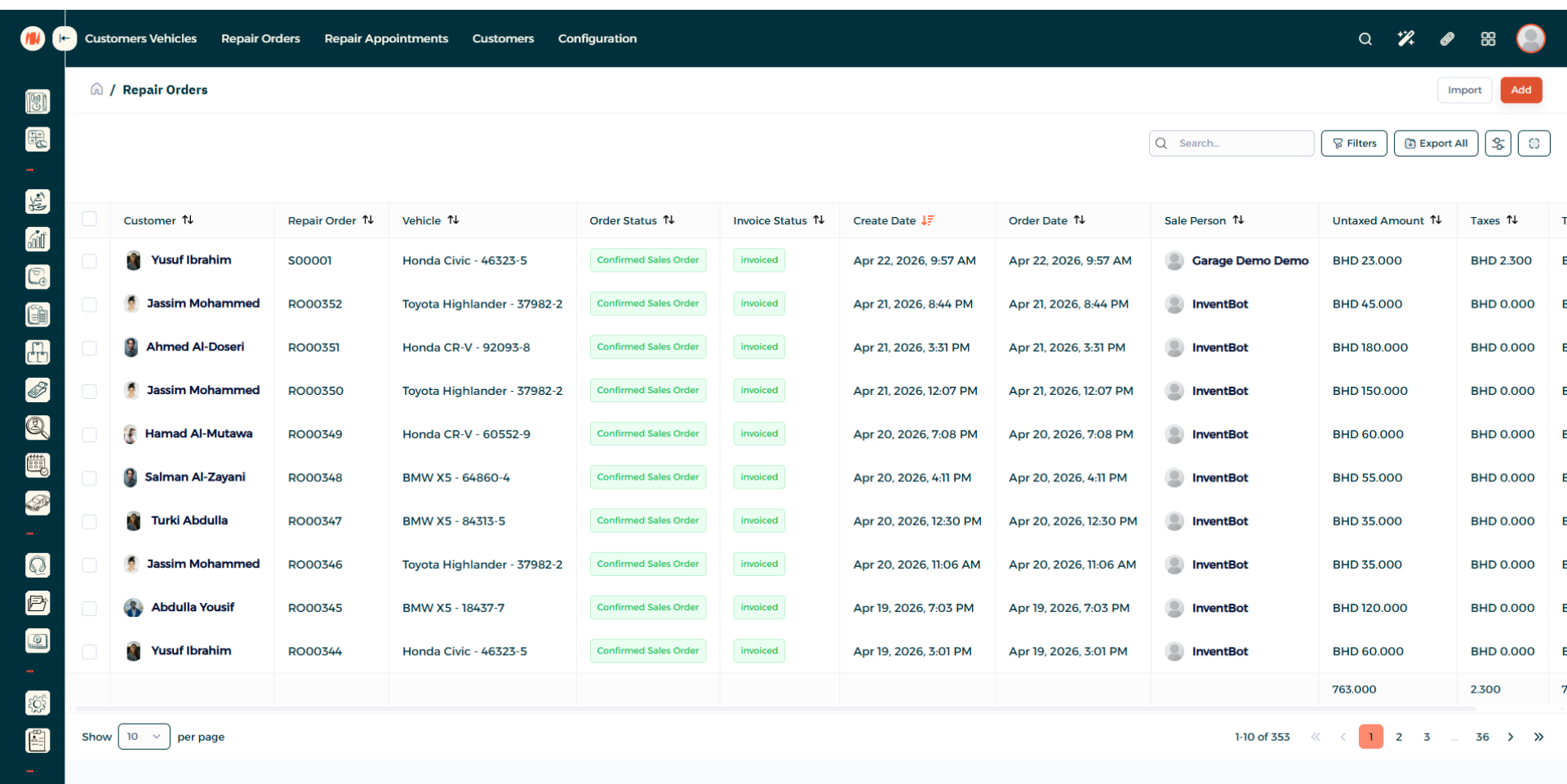
Step 3: Add a Repair Order
When you arrive to the repair orders, press on add in the top right corner.
Step 4: Create a Repair Order
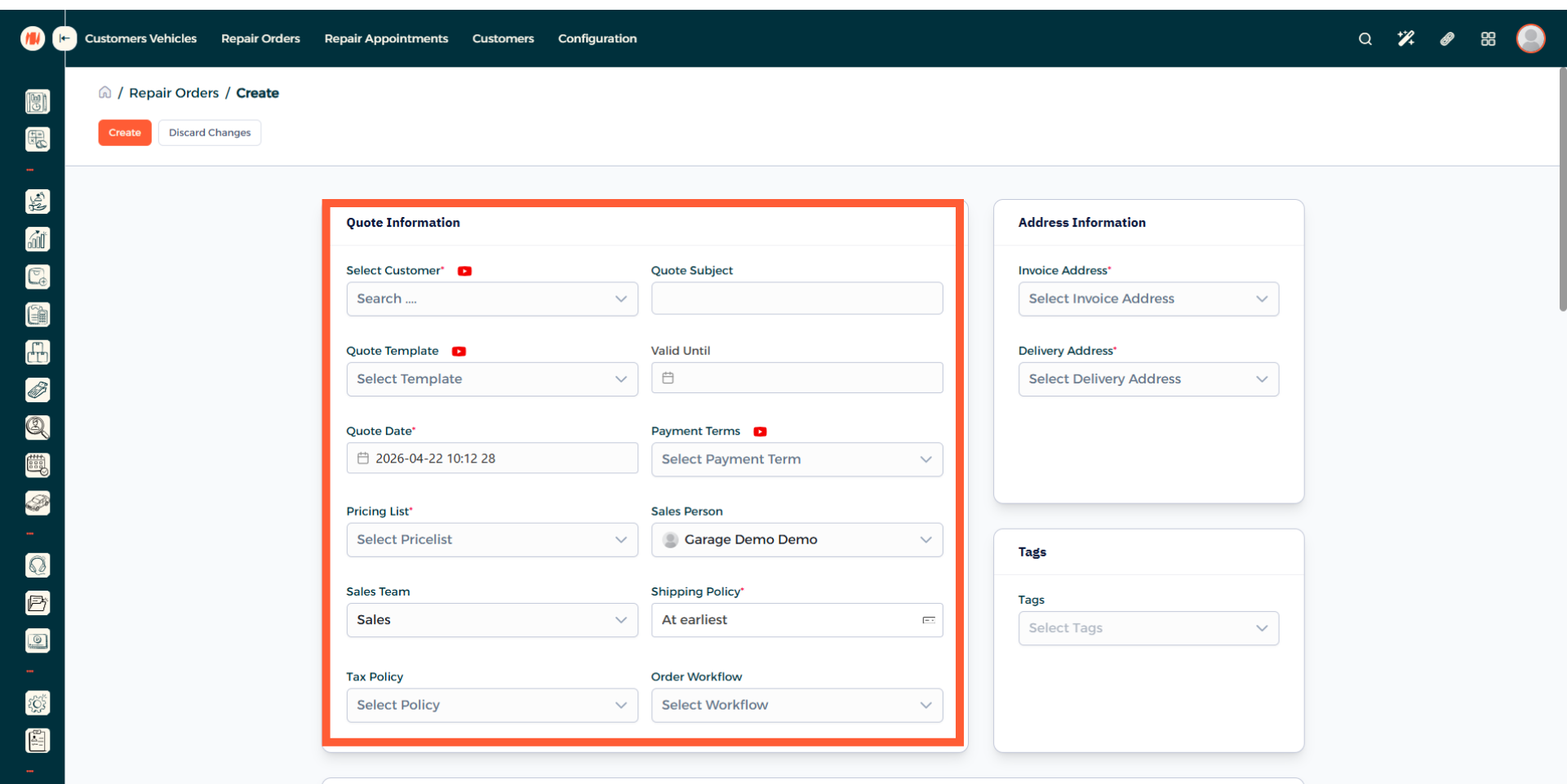
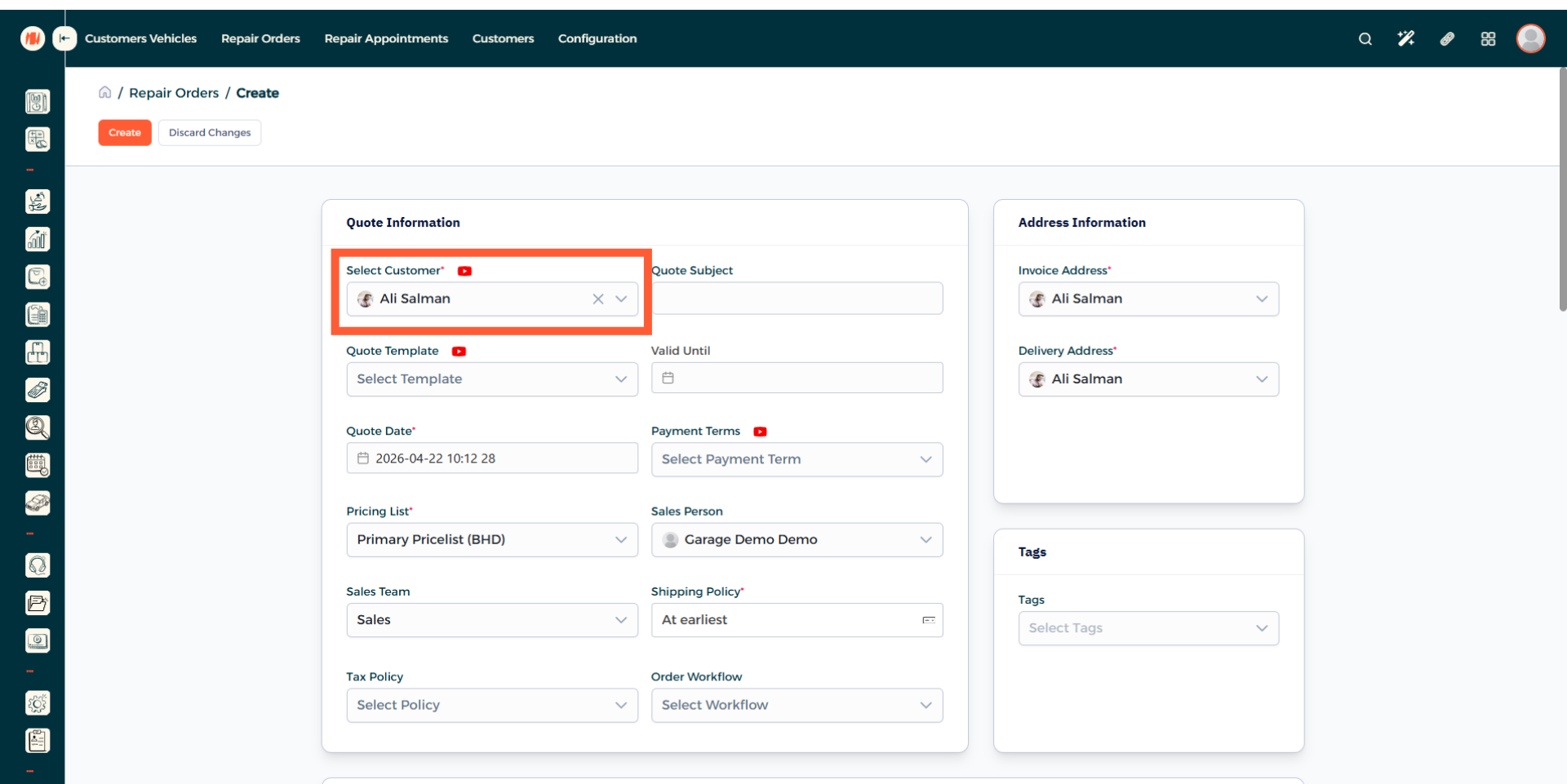
Step 5: Select customer
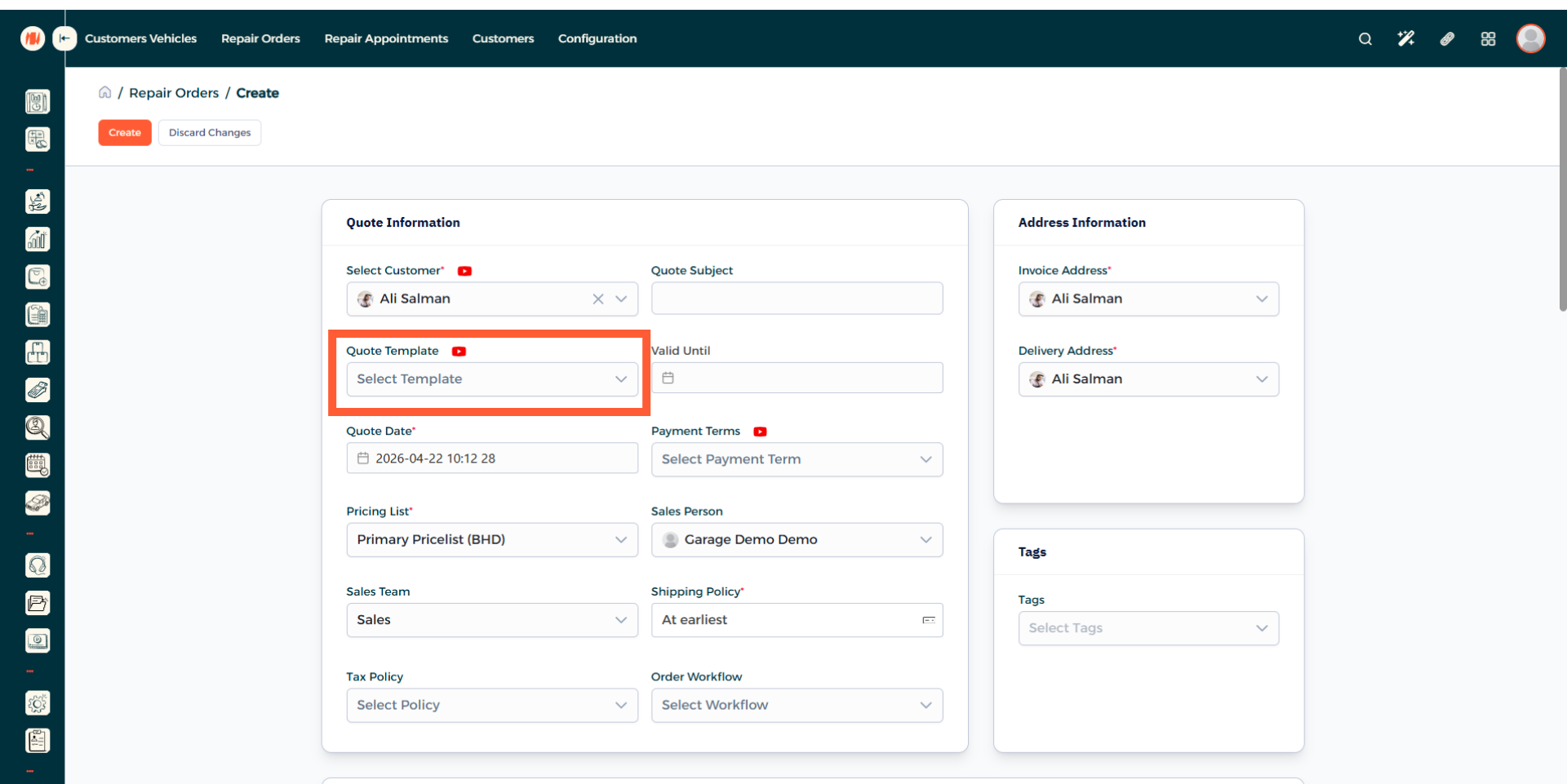
Step 6: Add a Quote Template
Add a quote template, this speeds up quoting and avoids re-entering details every time. If you do not have one you can create one.
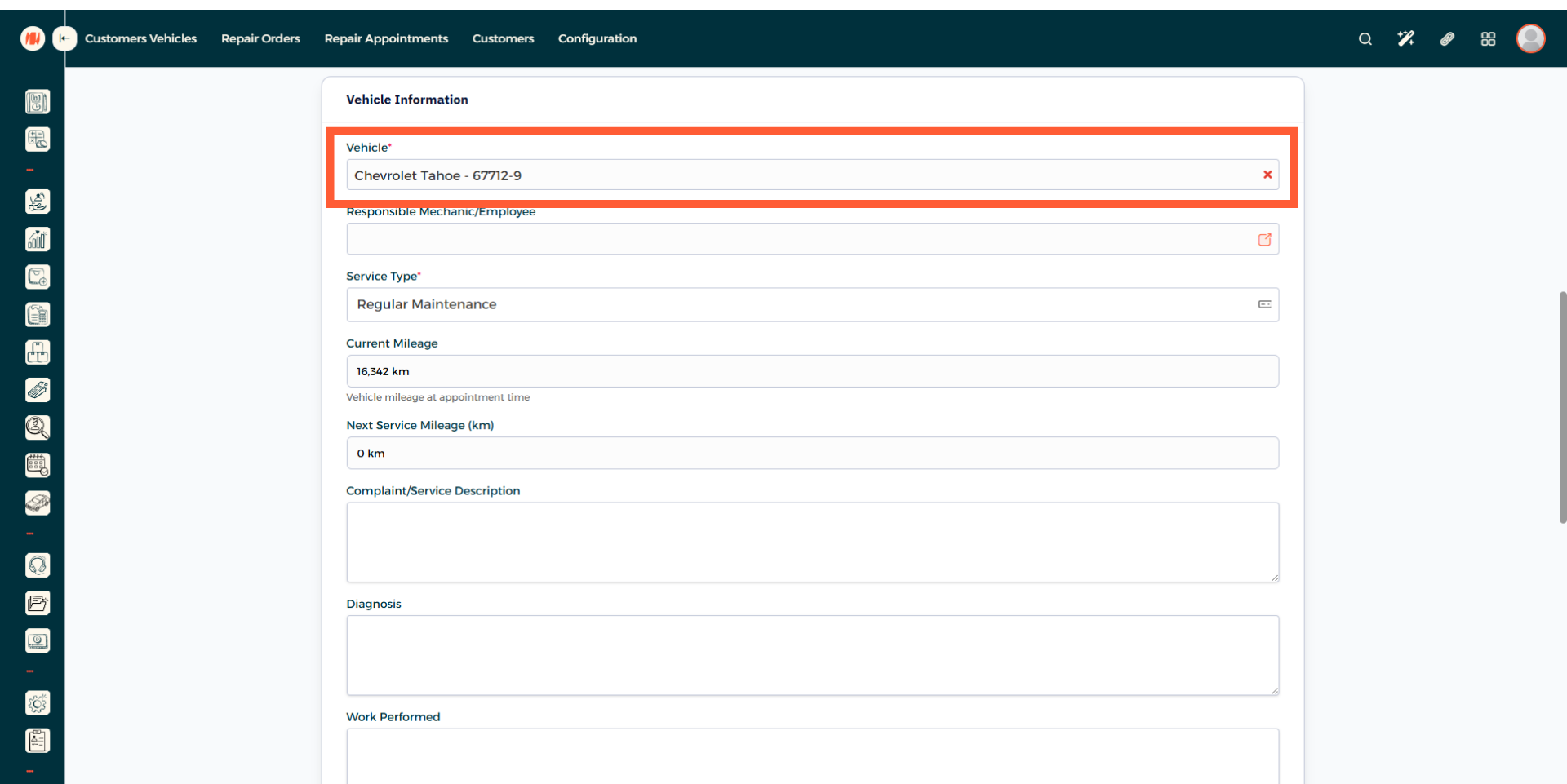
Step 7: Select Vehicle
This field will be filled automatically based off the customer you chose. but if the customer has multiple vehicles, select the correct one.
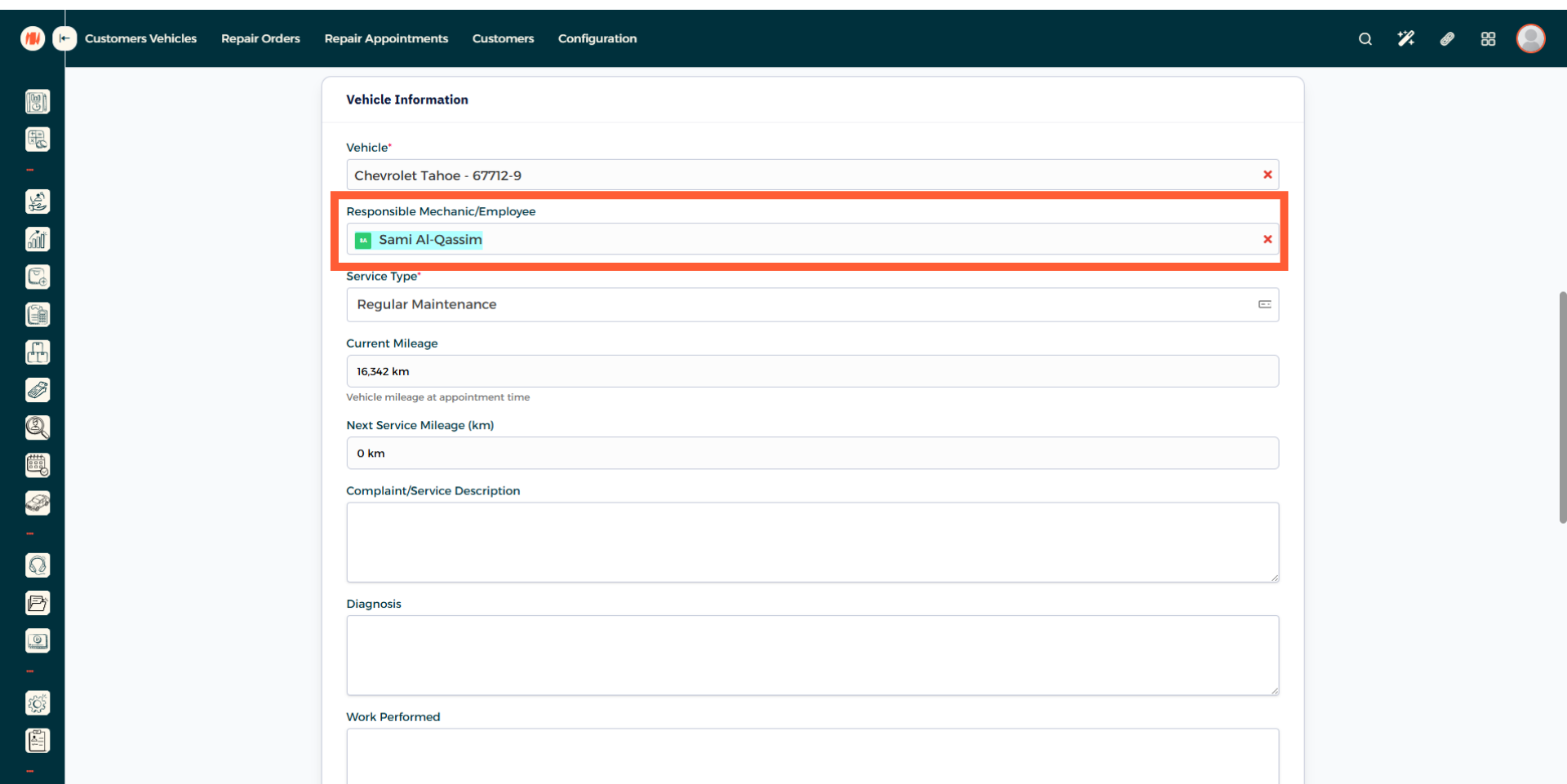
Step 8: Choose an Employee
Pick the specific employee that will complete the repair order.
Step 9: Select Service Type
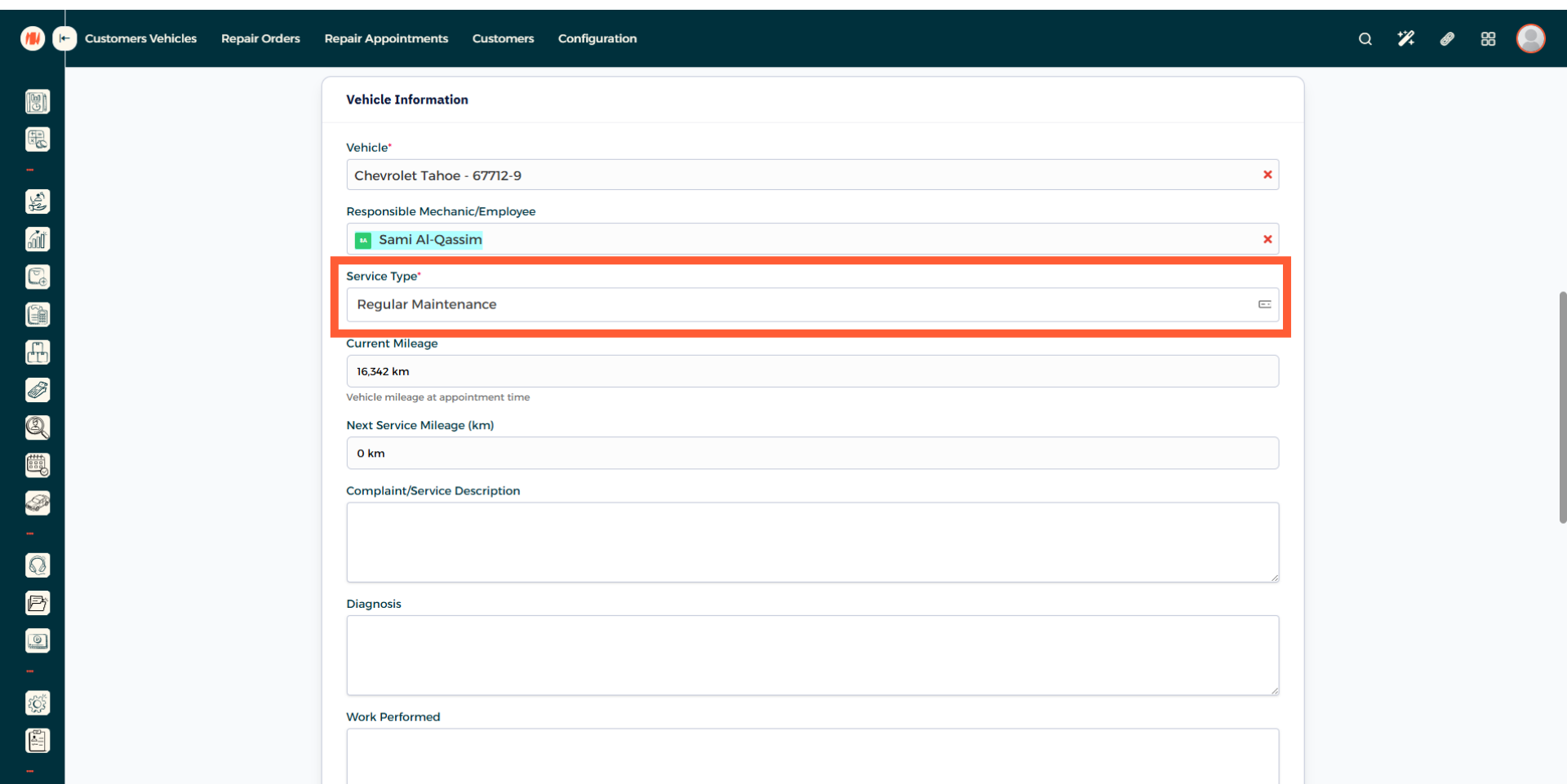
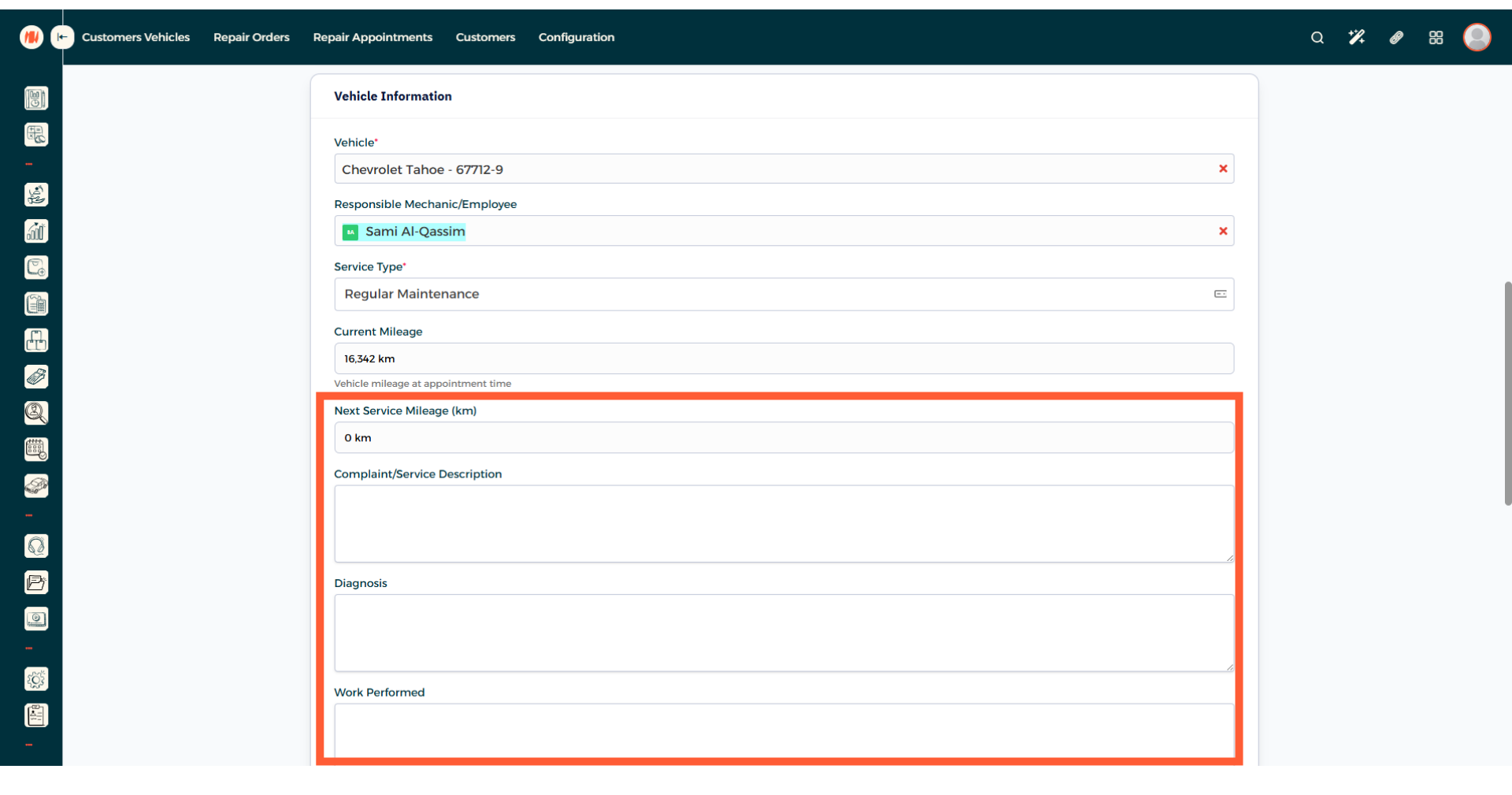
Step 10: Fill out Information
Finish this step by adding the next service mileage. If applicable, add the customer's complaints, your diagnosis, and the work performed.
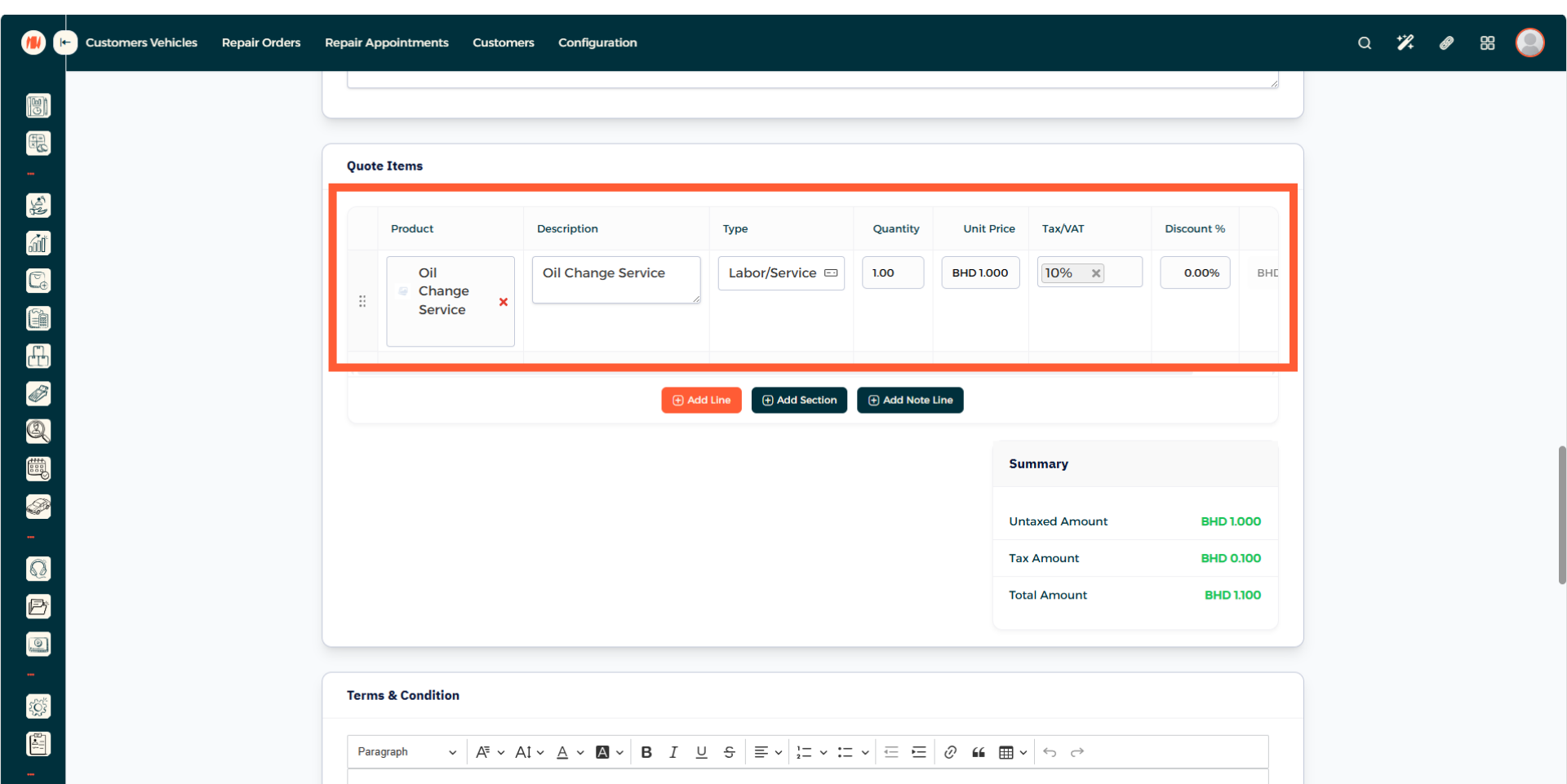
Step 11: Add Quote Items
Add any products or services that are required to complete the repair order.
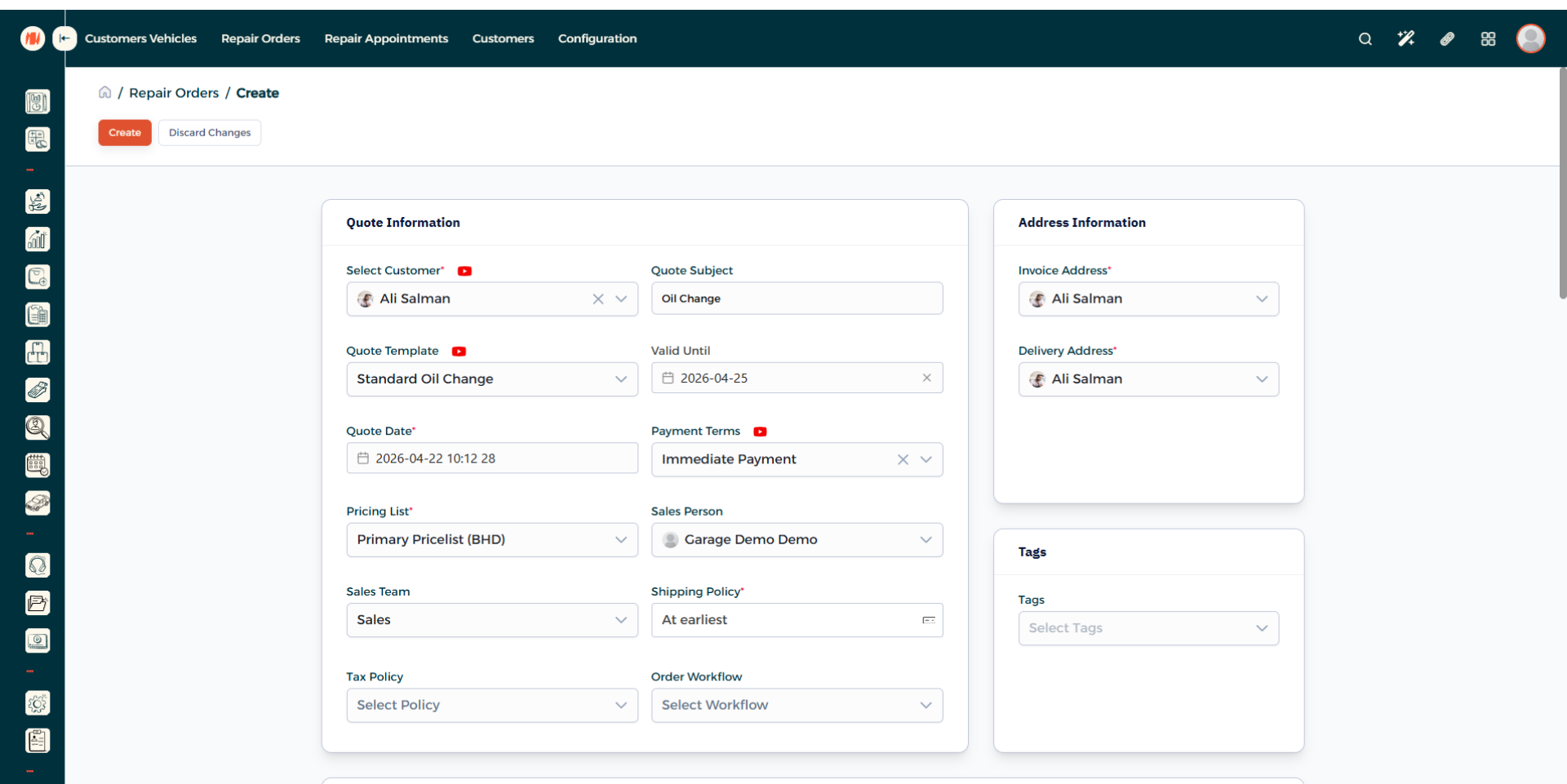
Step 12: Repair Order Creation
Review all the information, then when everything looks good create the repair order.
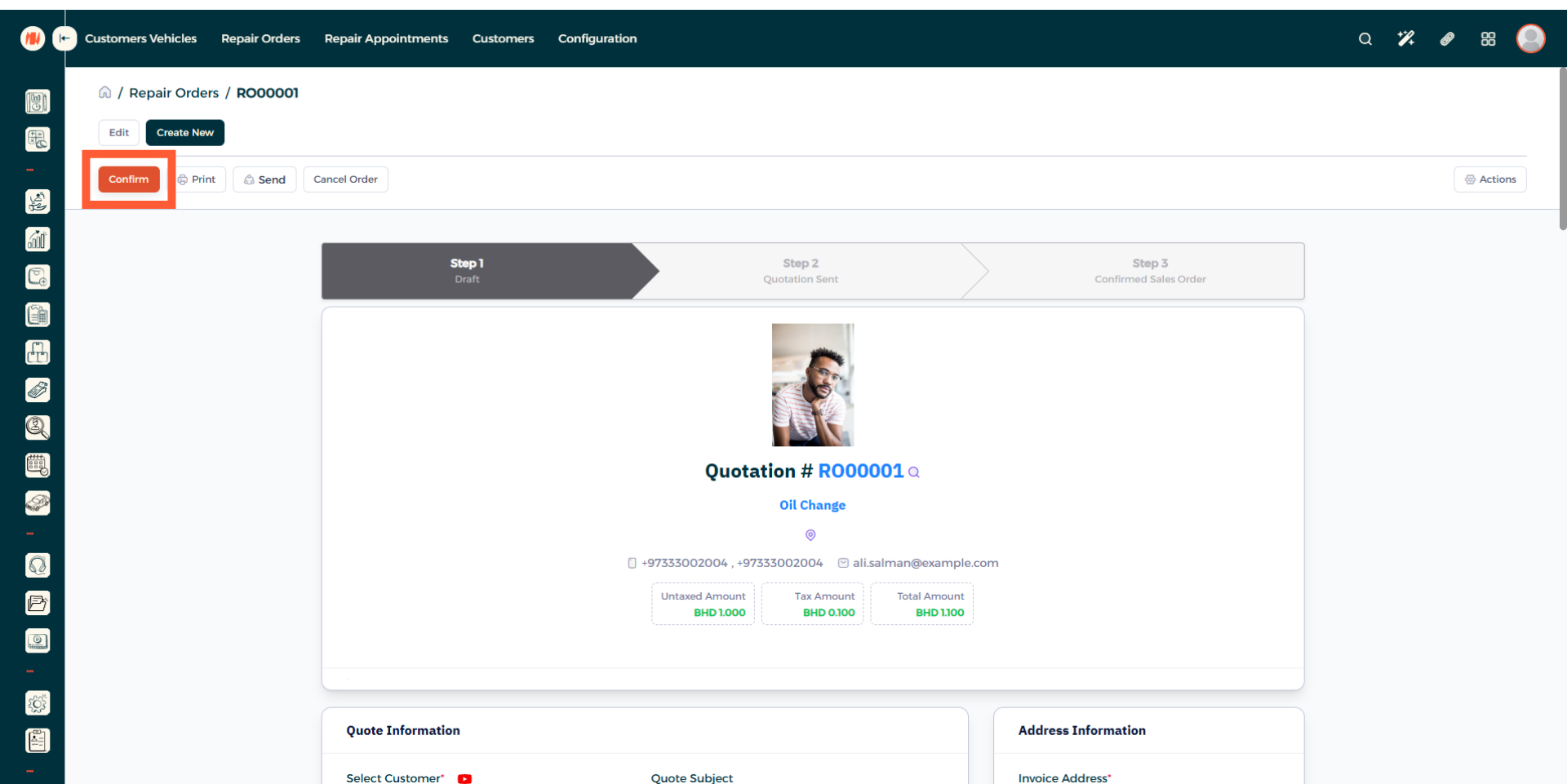
Step 13: Confirm Repair Order
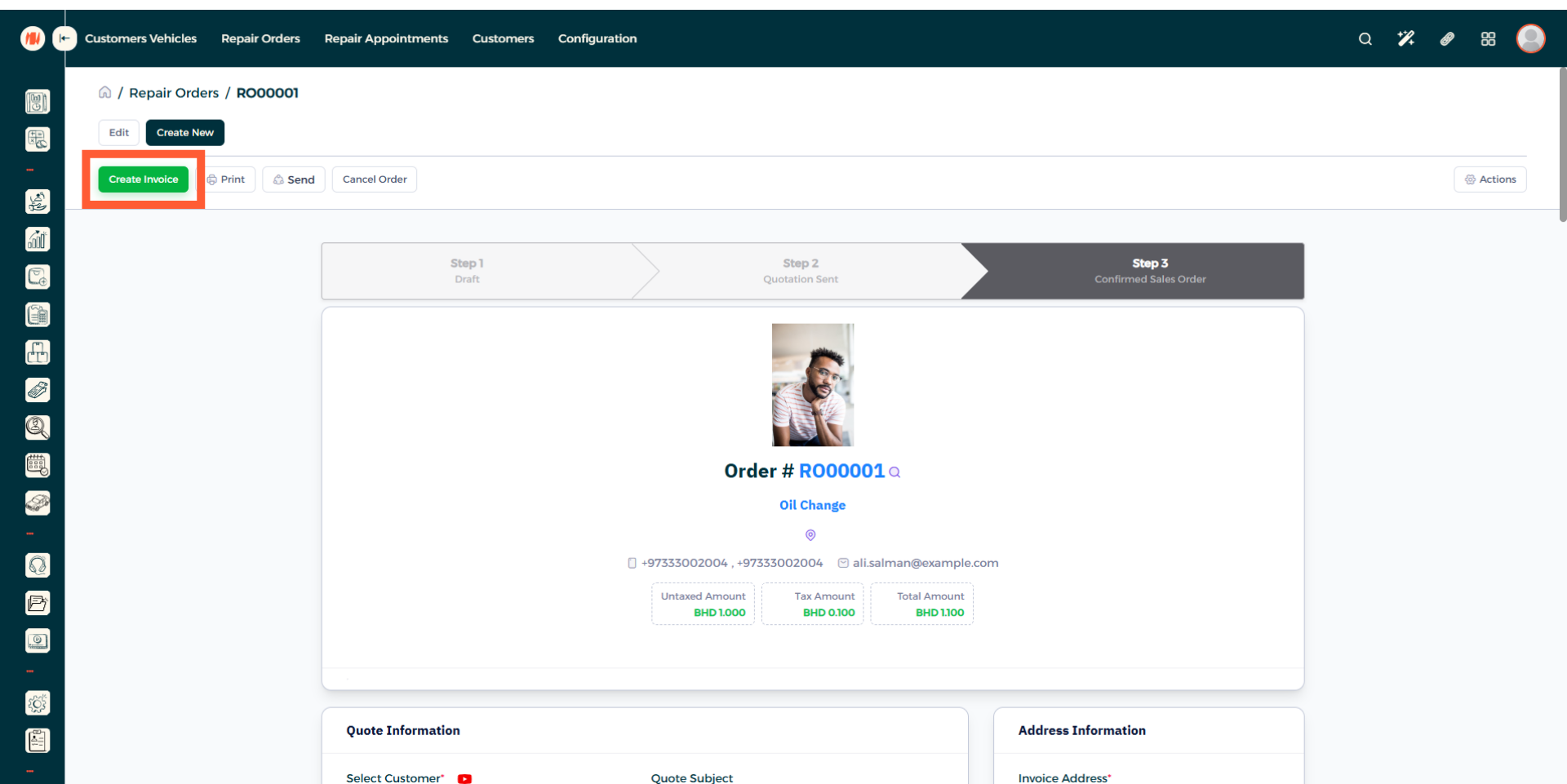
Step 14: Create Invoice
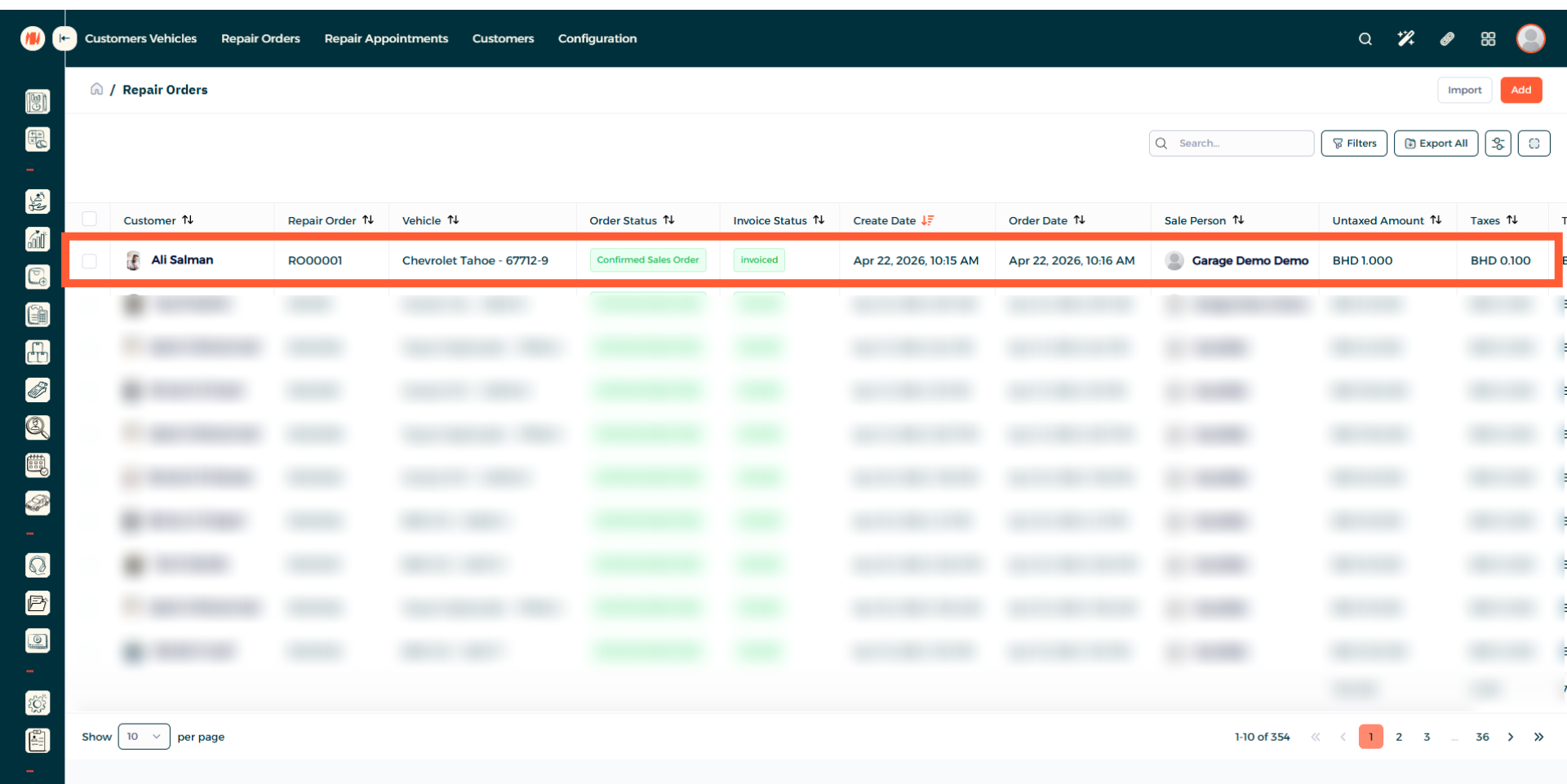
Step 15: Repair Order Complete
After following all these steps, you can see your completed repair order, alongside status and date.
Notes & Tips
- Double check owner and vehicle details. Ensures repairs are billed correctly and communications reach the right customer.
- Use clear naming for repair orders, it makes finding and filtering jobs faster and reduces errors.
Frequently Asked Questions (FAQ)
Q: How do I find a repair order?
A: Search by order number, vehicle registration, or customer name in the Repair Orders page.
Q: How do I know the repair costs?
A: It's simple, just create a repair order, add parts and labor needed to complete the job and then the total will be showcased automatically.