

How to add POS Categories in Invent ERP?
How to add POS Categories in Invent ERP?
Organizing your products with POS Categories is one of the best ways to keep your Point of Sale running smoothly. It helps your cashiers find items faster, improves accuracy during checkout, and makes the customer experience more efficient.
Step-by-Step Process
Step 1: Open POS Categories
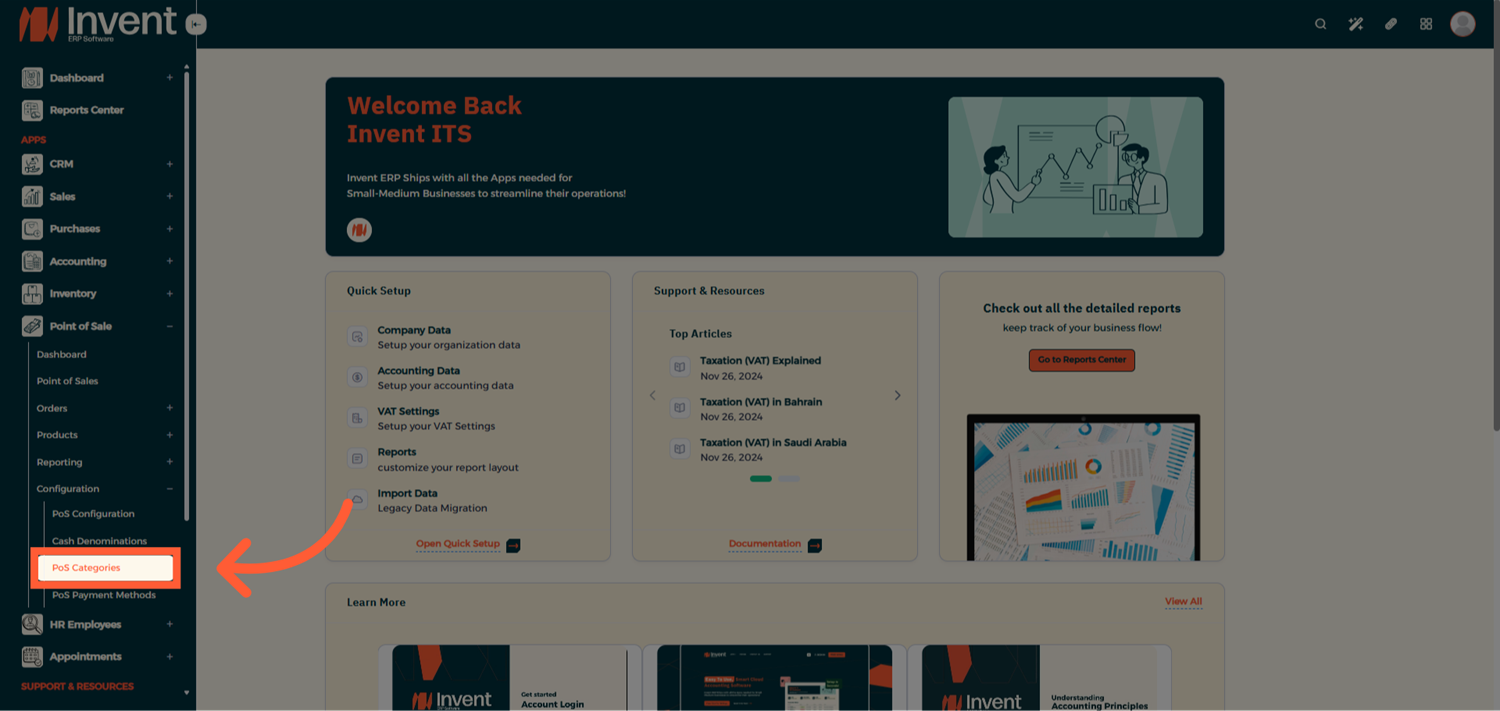
Step 2: POS Categories List
Here you will be able to view all the existing POS Categories, go ahead and click add to add a new one.
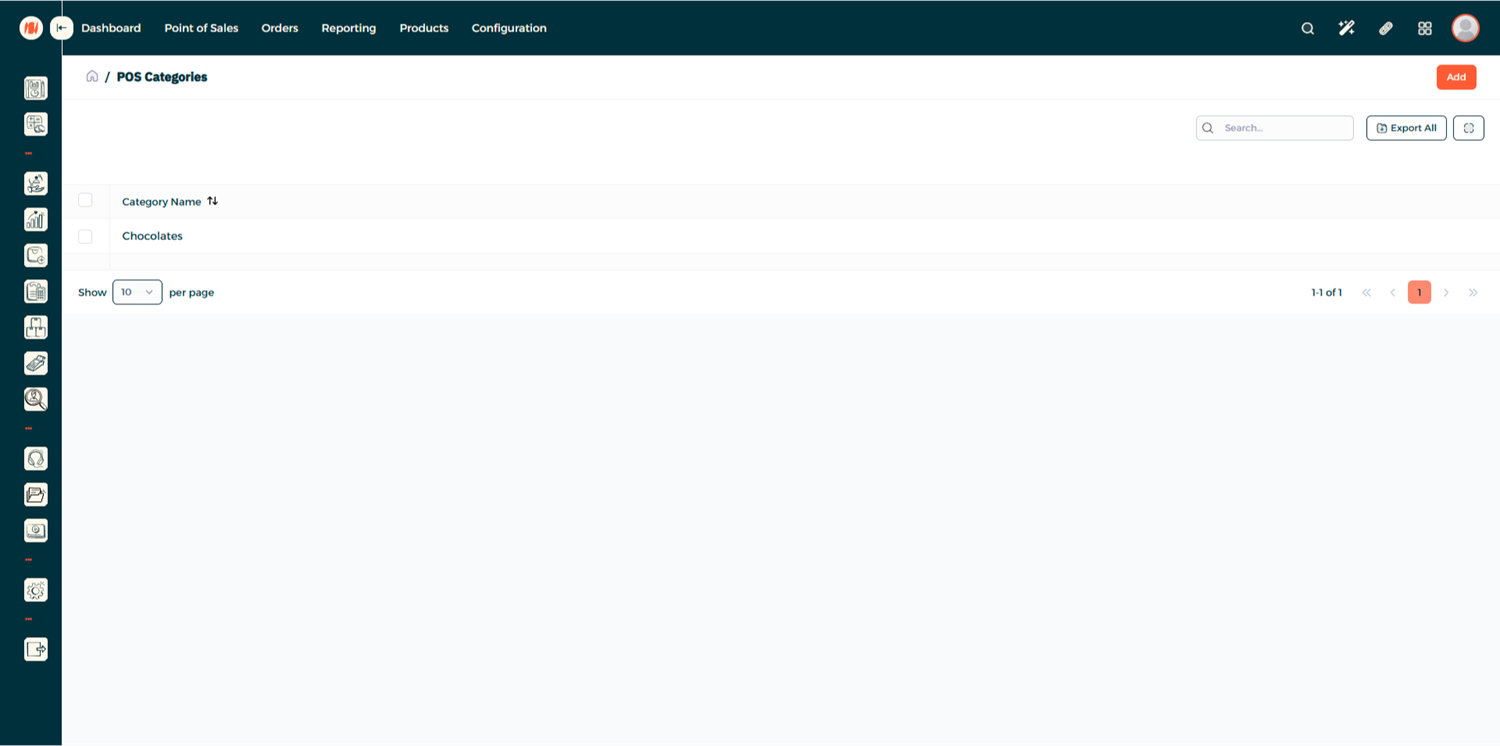
Step 3: Create a New Category
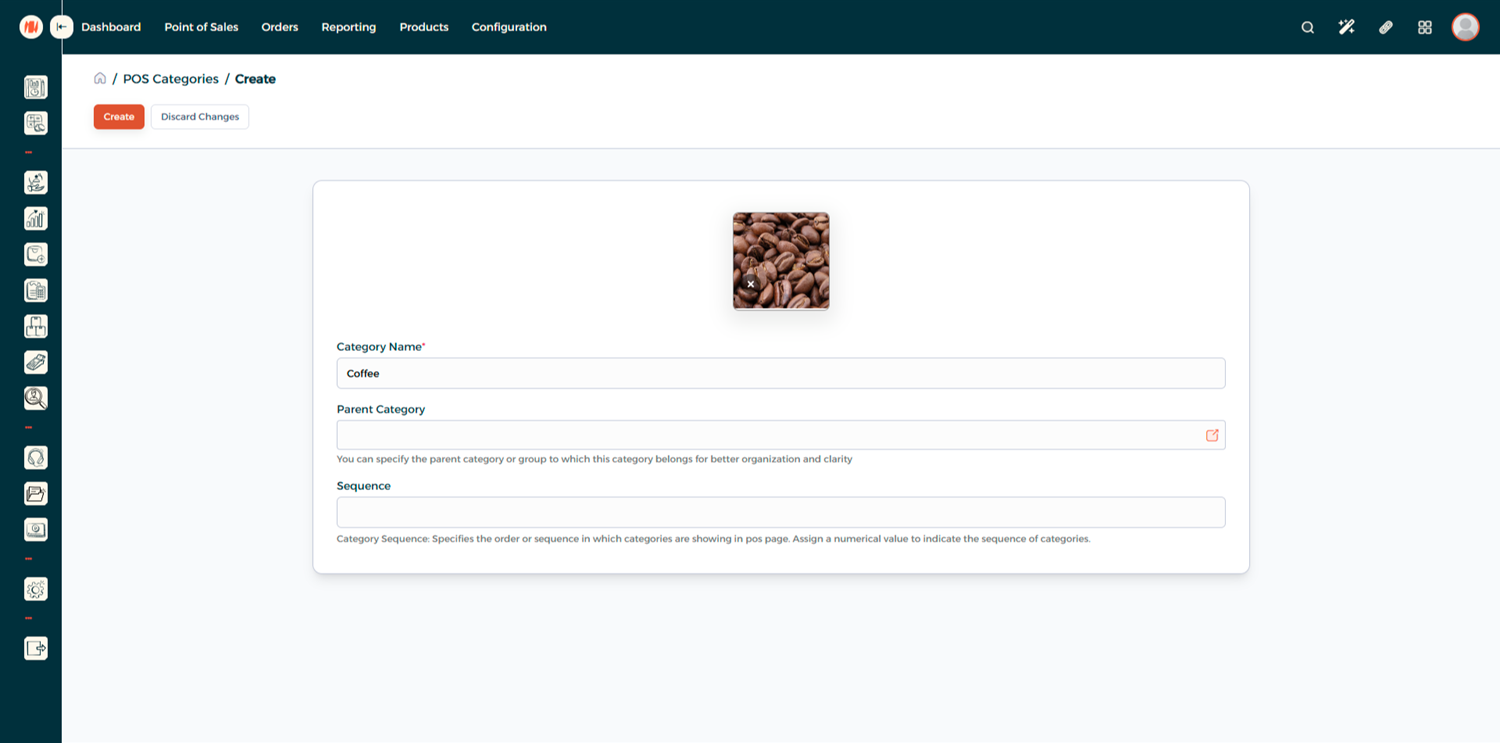
Start adding the details of the category.
- Category Name: Enter a short, descriptive name for your category
- Parent Category (Optional): You can specify the parent category or group to which this category belongs for better organization and clarity.
- Sequence: Specifies the order or sequence in which categories are showing in pos page
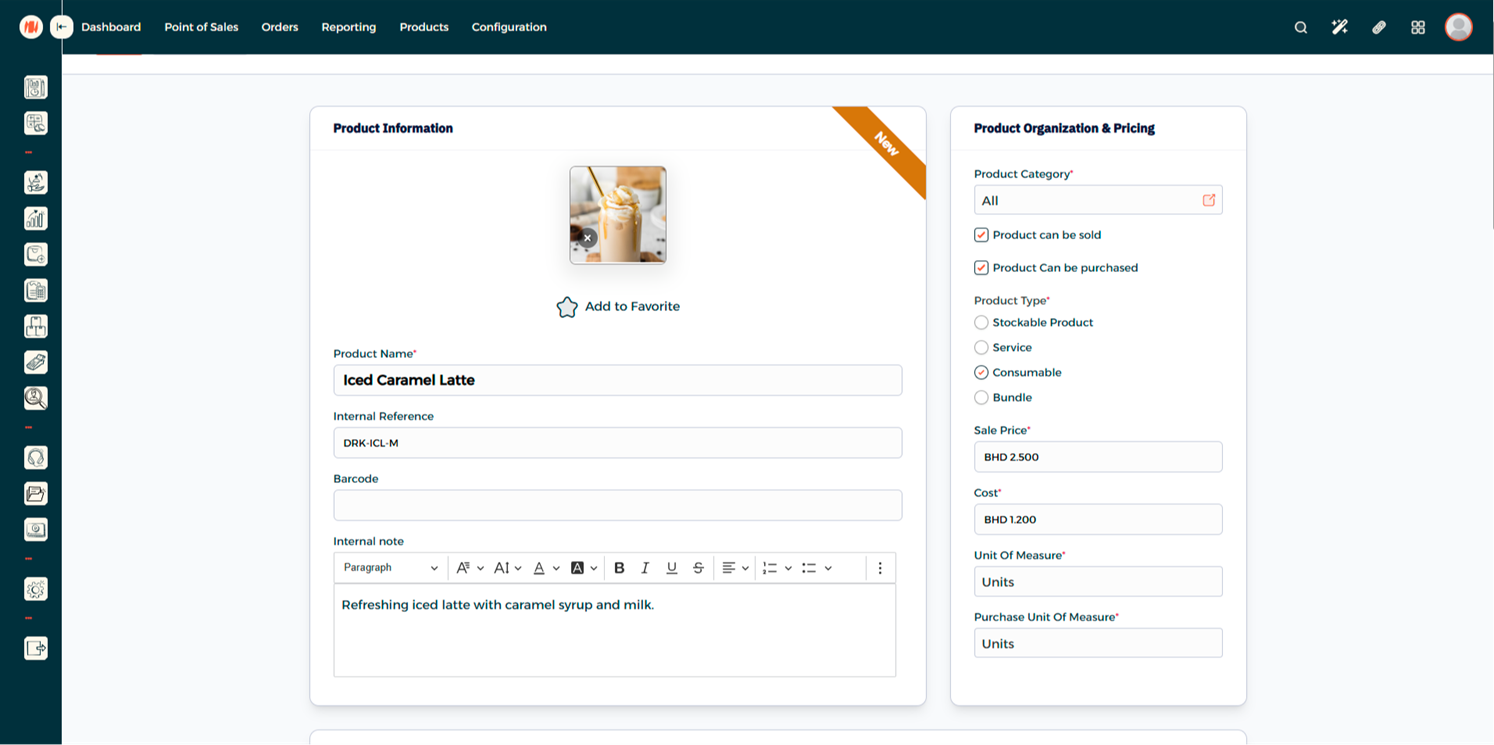
Step 4: Assign Category to a Product
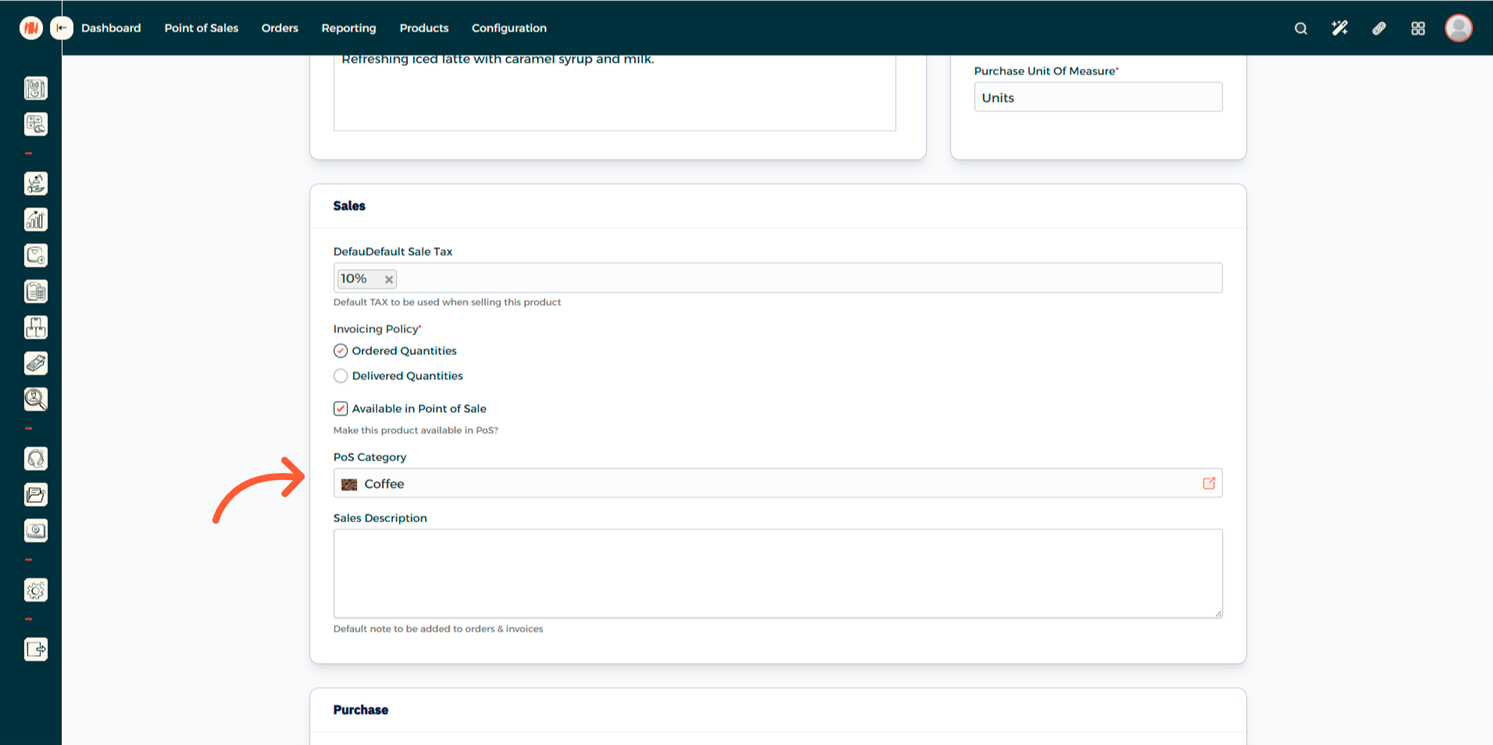
From the products page go to one of your products (or add a new product) scroll to sales and check the available in POS check box and a category under it
Step 5: Find your Category in POS
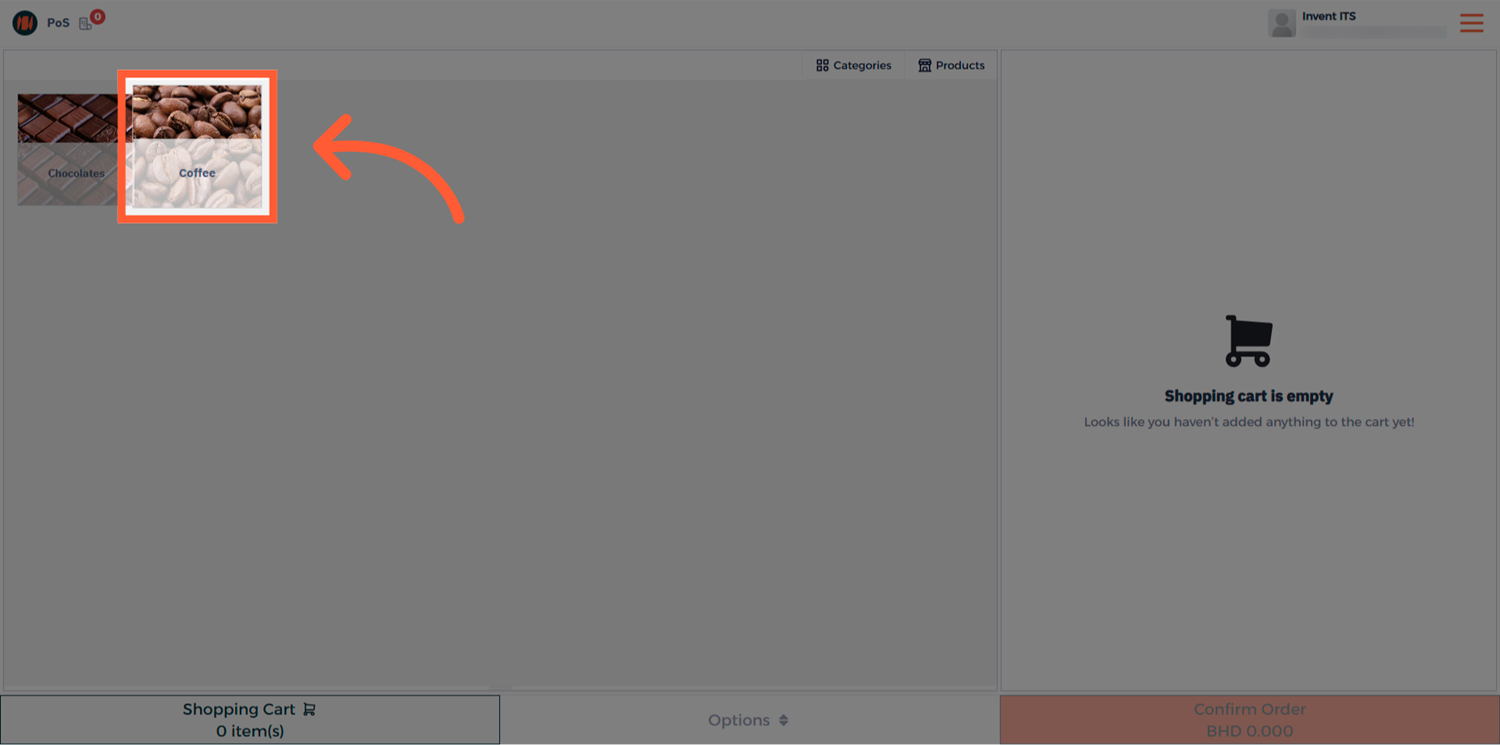
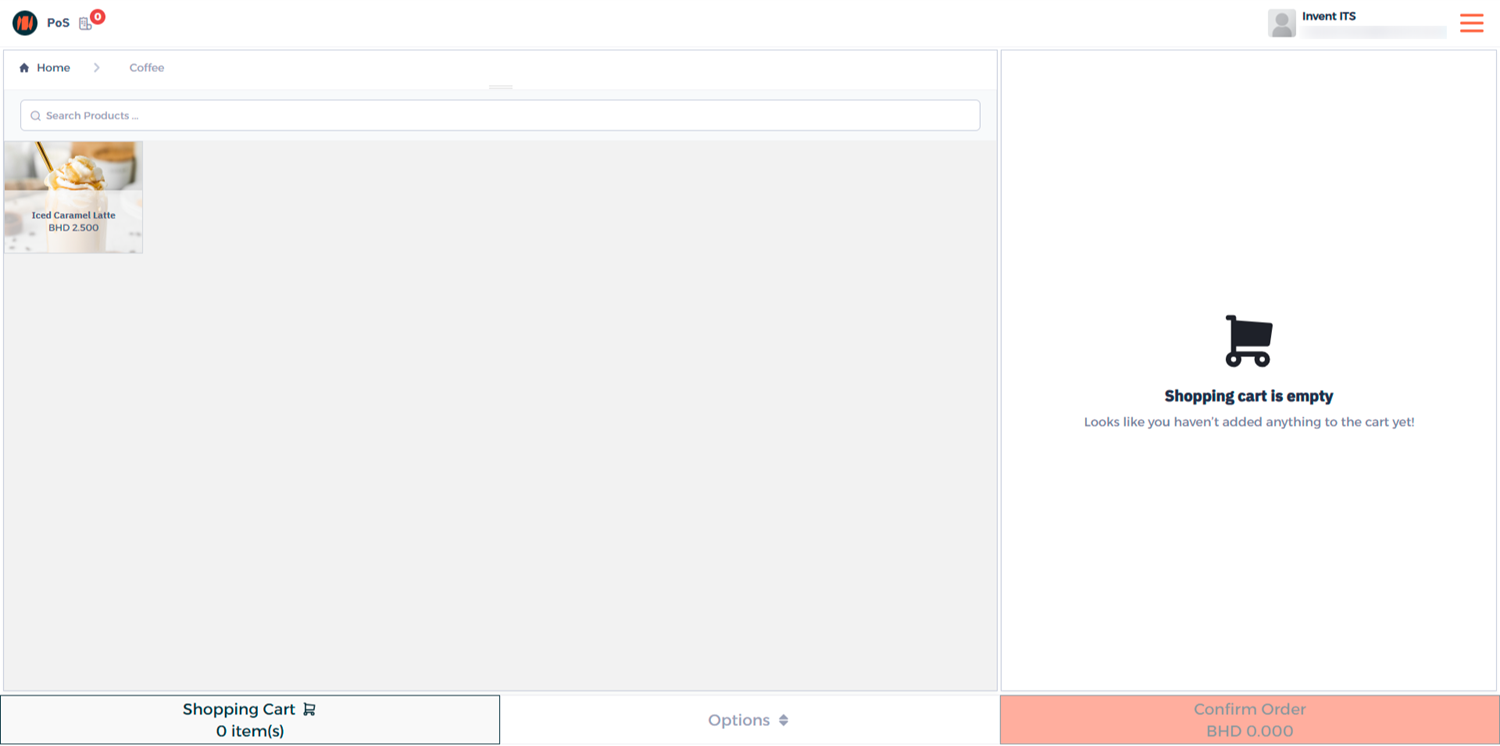
Go to Point of Sale → Point of Sales, and open your POS session. On the POS screen, locate your new category — it should now appear with its assigned image and name. Tap on it to view all products linked to this category.
Notes & Tips
- Adding icons or product-style images to each POS category helps users locate items faster.
- Limit category names to one or two words.
- Adjust the Sequence number to control the order of categories on the POS screen. Place your most popular categories first for quicker access.
Frequently Asked Questions (FAQ)
Q: Can one product belong to multiple POS categories?
A: No, each product can only belong to one POS category at a time. This ensures accurate reporting and prevents duplication on the POS interface.
Q: Will changing a category’s sequence affect all POS terminals?
A: Yes, sequence settings are shared across all POS sessions that use the same configuration.
Q: How can I hide certain categories from a POS session?
A: Go to your POS Configuration and use the Restrict POS Categories option to display only selected ones.