

How to Refund POS Orders in Invent ERP?
How to Refund POS Orders in Invent ERP?
In any retail business, handling refunds smoothly is just as important as making the sale. Customers expect quick, hassle-free returns and your team needs a system that keeps transactions accurate, inventory up-to-date, and accounting clean. That's where Invent ERP's Point of Sale module shines.
Step-by-Step Process
Method 1: Refund from an Active POS Session
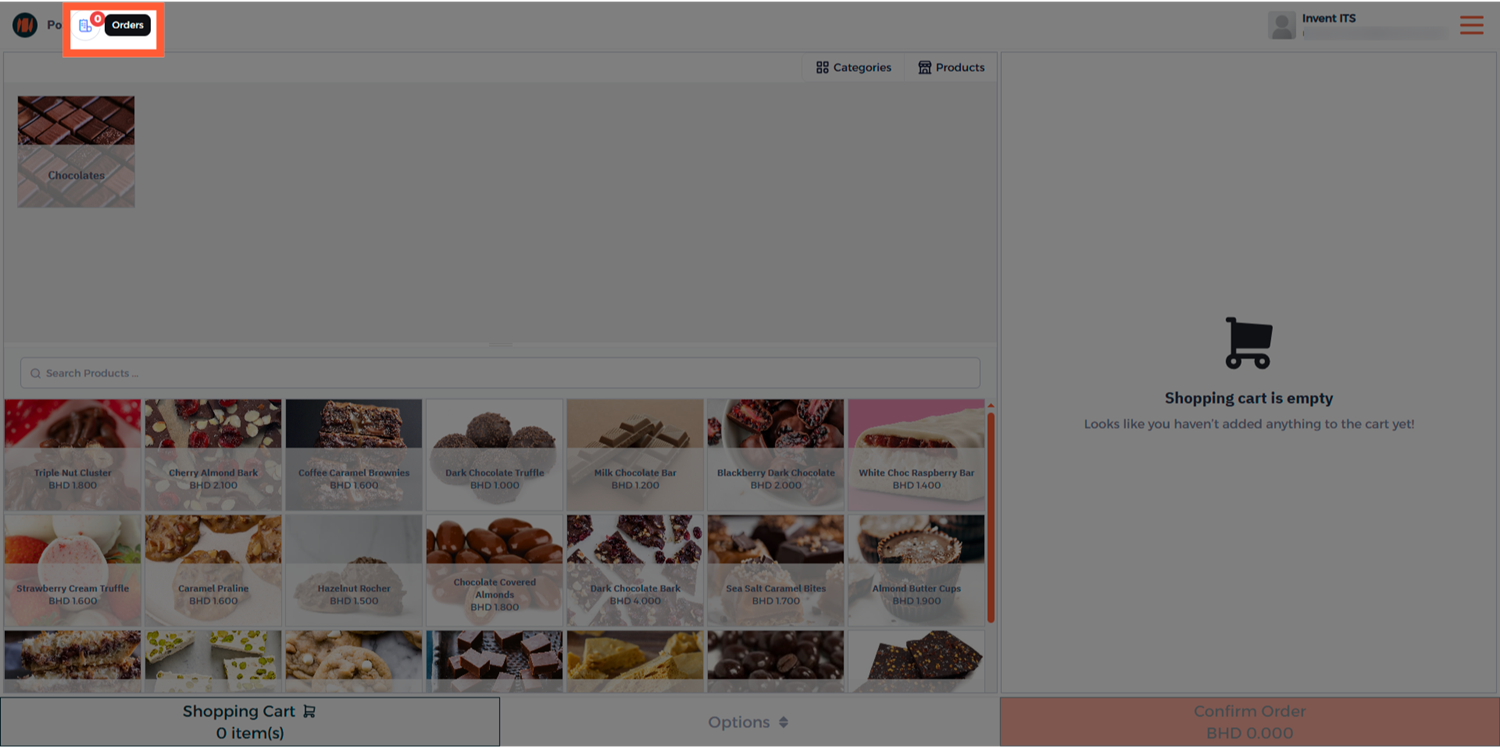
Step 1: Open POS Orders
From the Point of Sale session, head to the Orders to view all completed transactions.
Step 2: Select the Order to Refund
Choose the paid order you want to refund and open it.
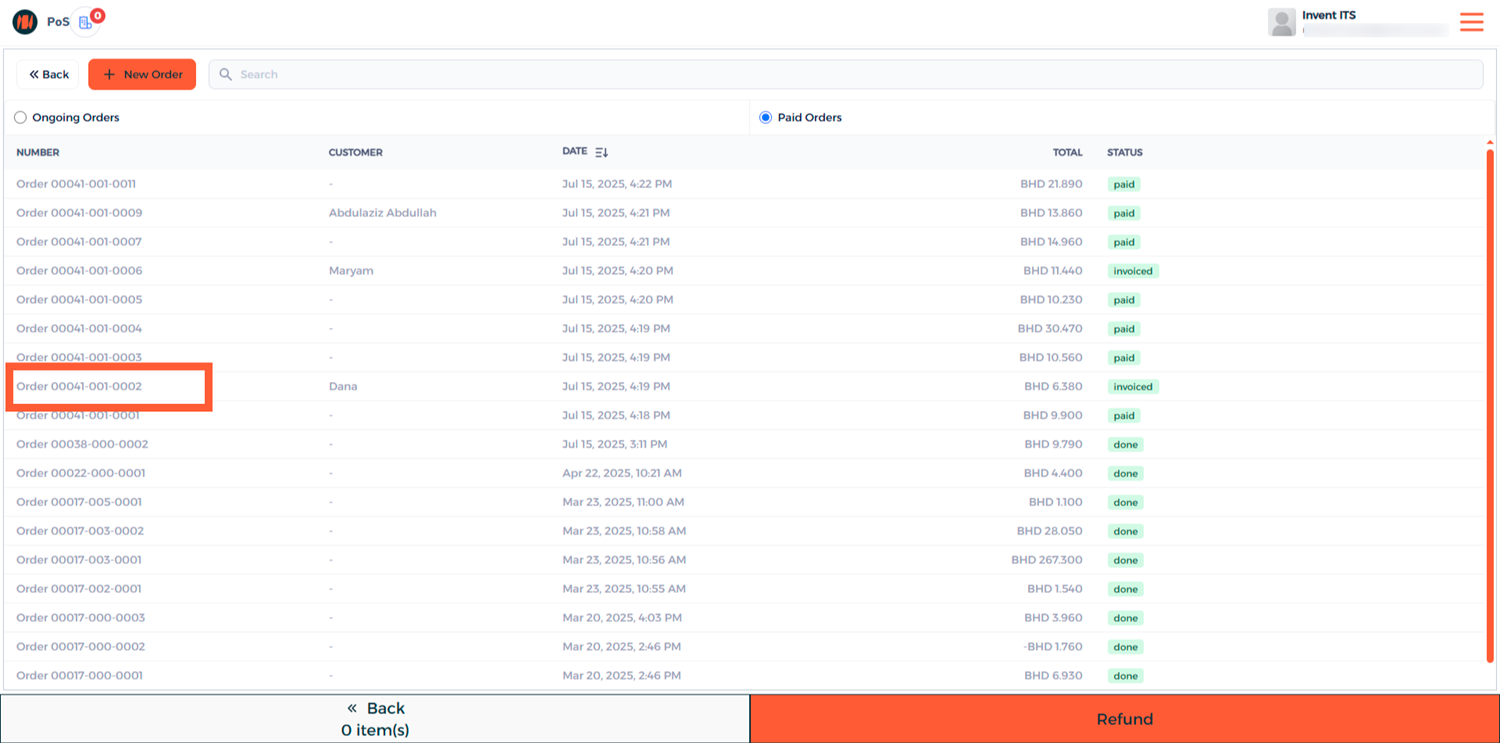
You can search by the Customer's Name, Phone Number, or Order Number.
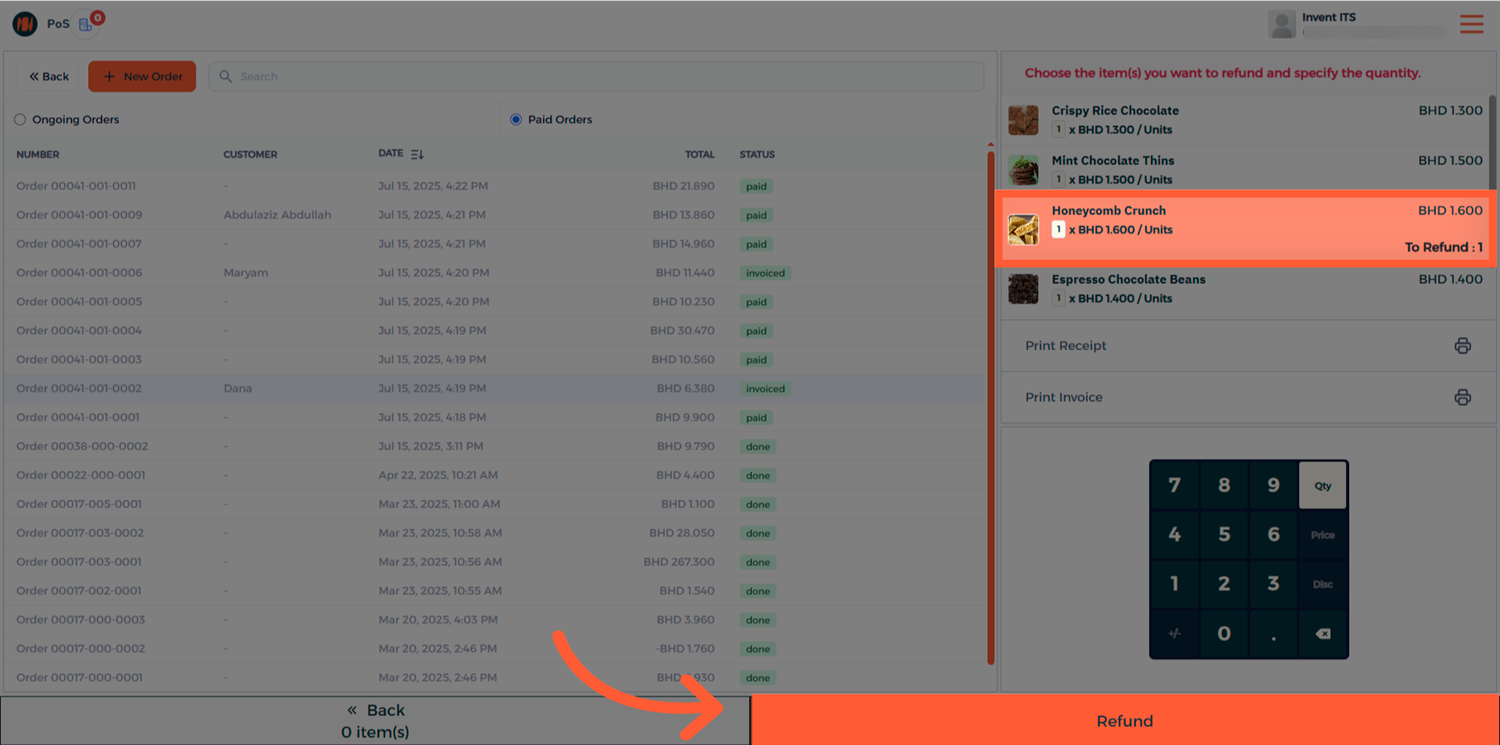
Step 3: Select Items and Quantities
Select the items you wish to refund and adjust the quantity.
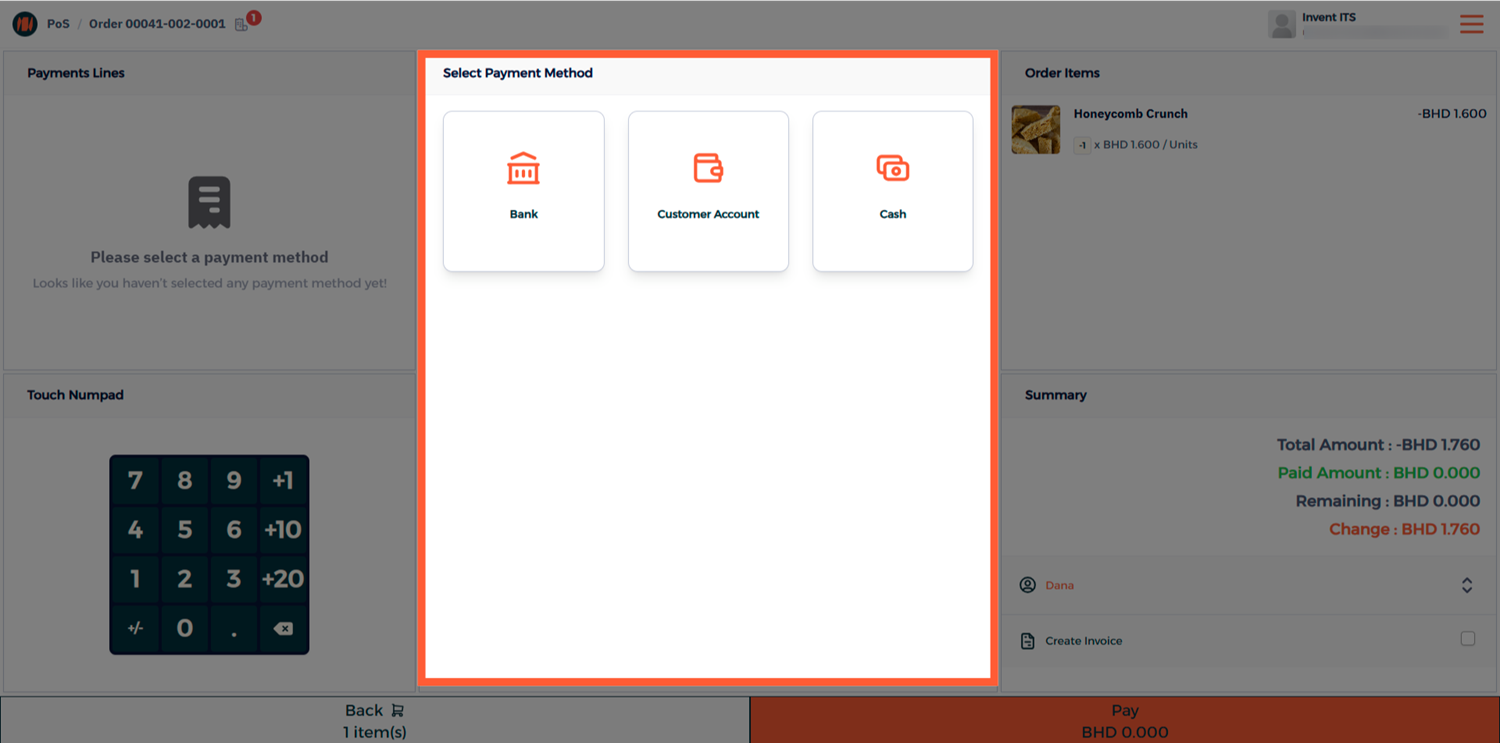
Step 4: Process the Refund Payment
Choose the payment method to use for the refund and complete the transaction.
Method 2: Refund from POS Orders List
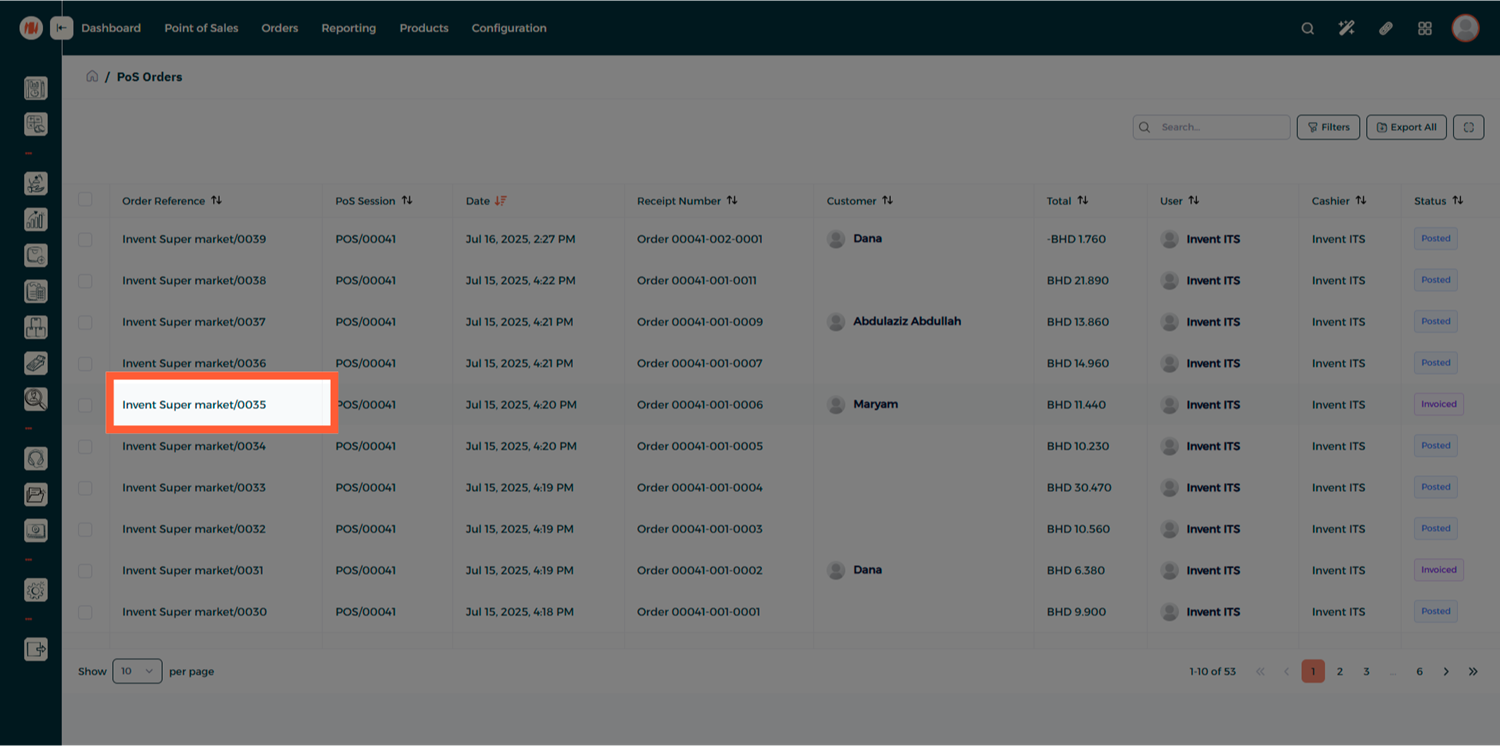
Step 1: Open POS Orders
From your POS Orders list, locate and open the order you want to refund.
Step 2: Create a Refund
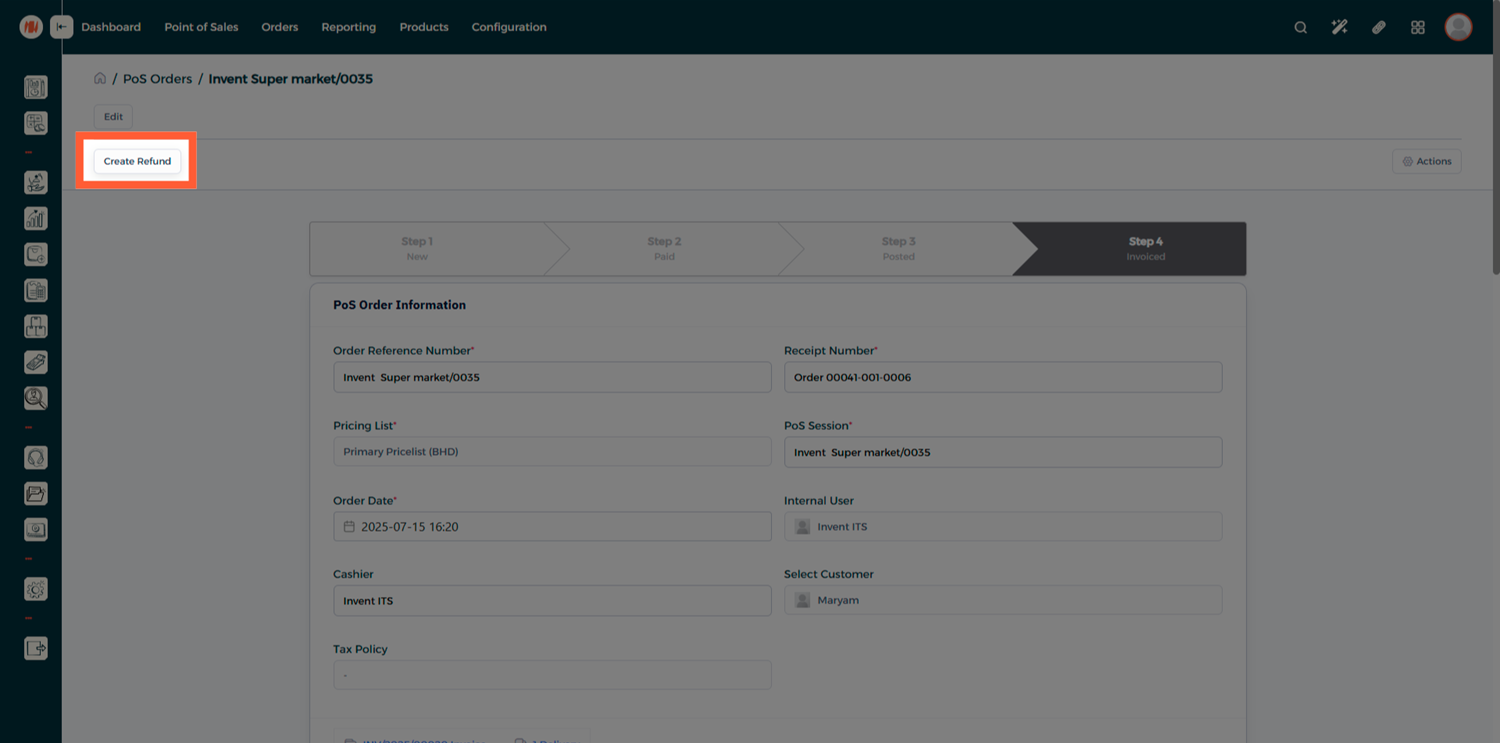
Click on Create Refund - the system will generate a new refund order linked to the original sale.
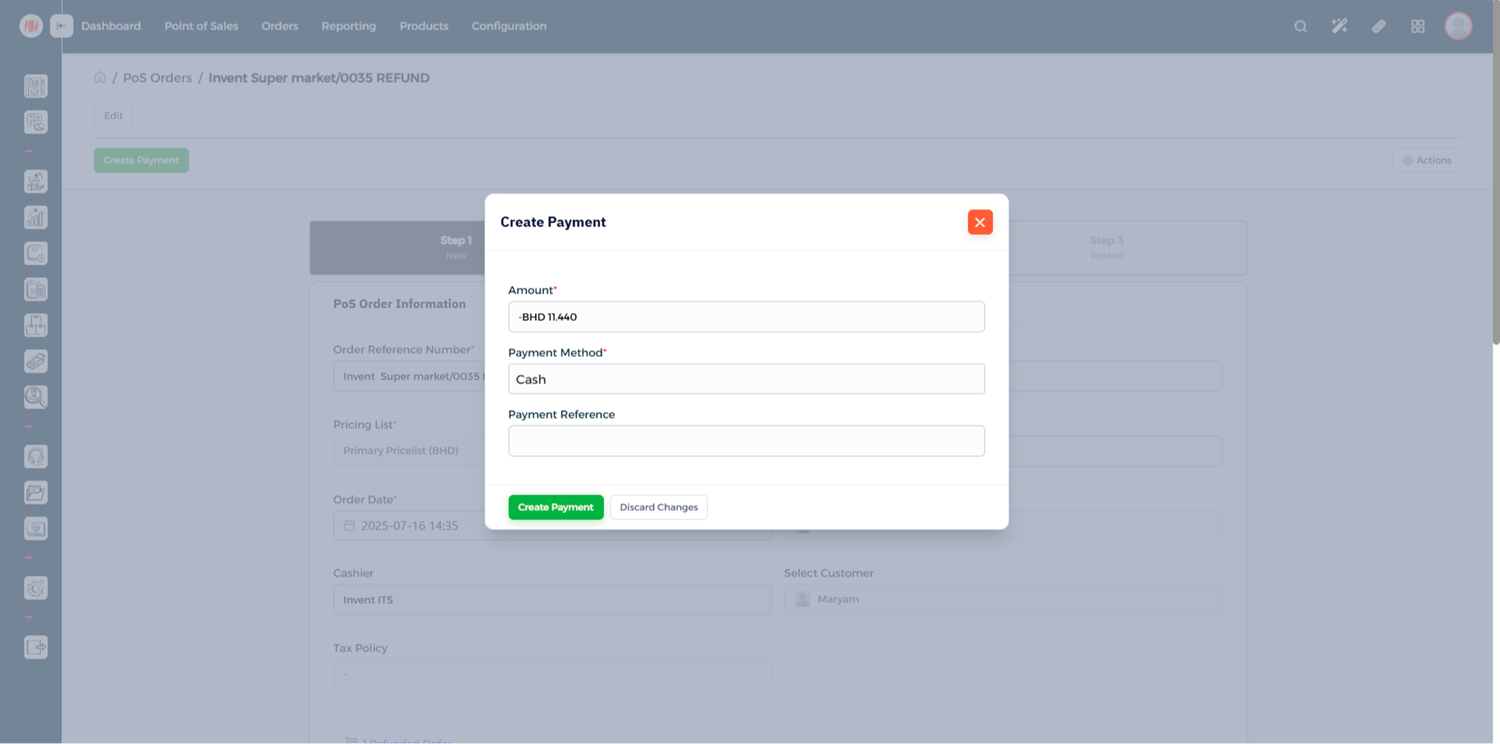
Step 3: Complete the Refund Payment
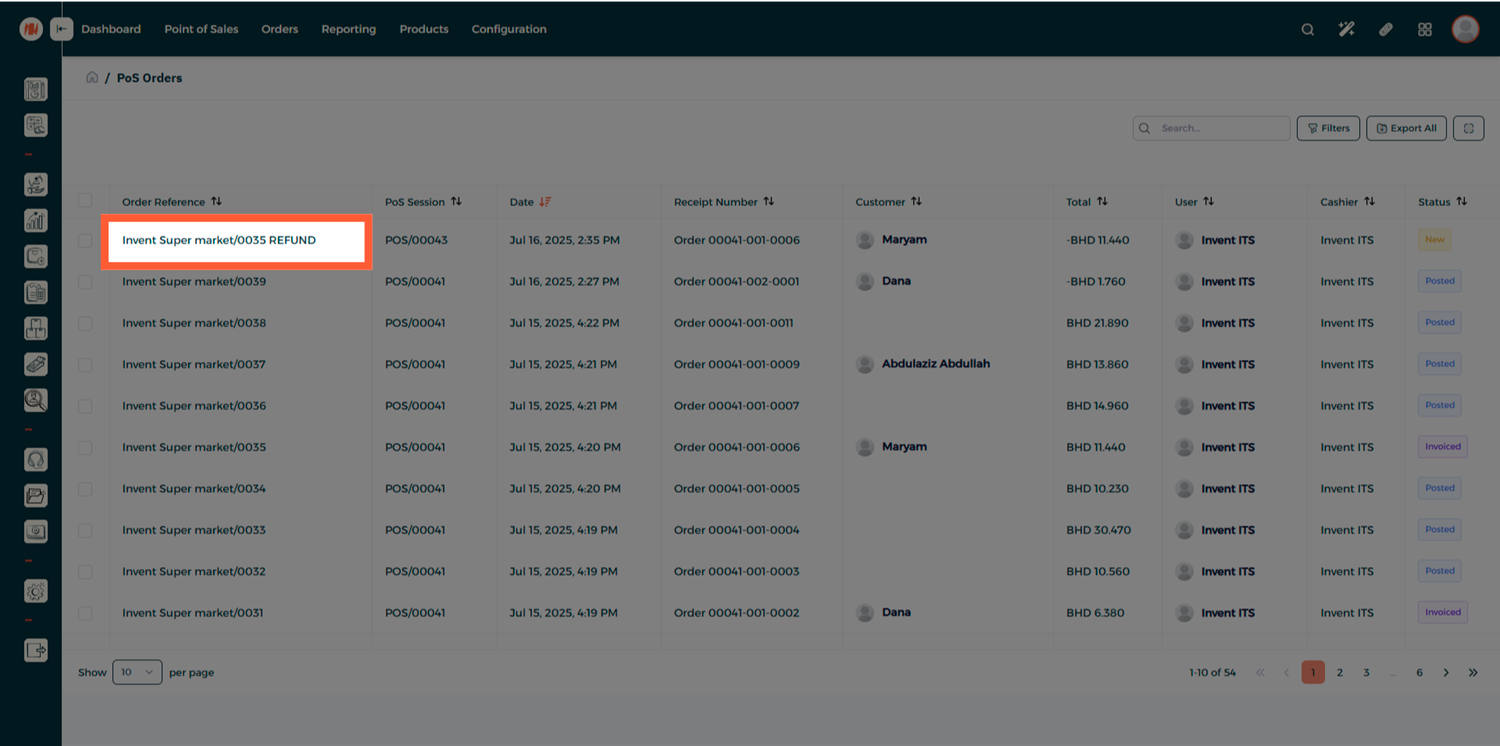
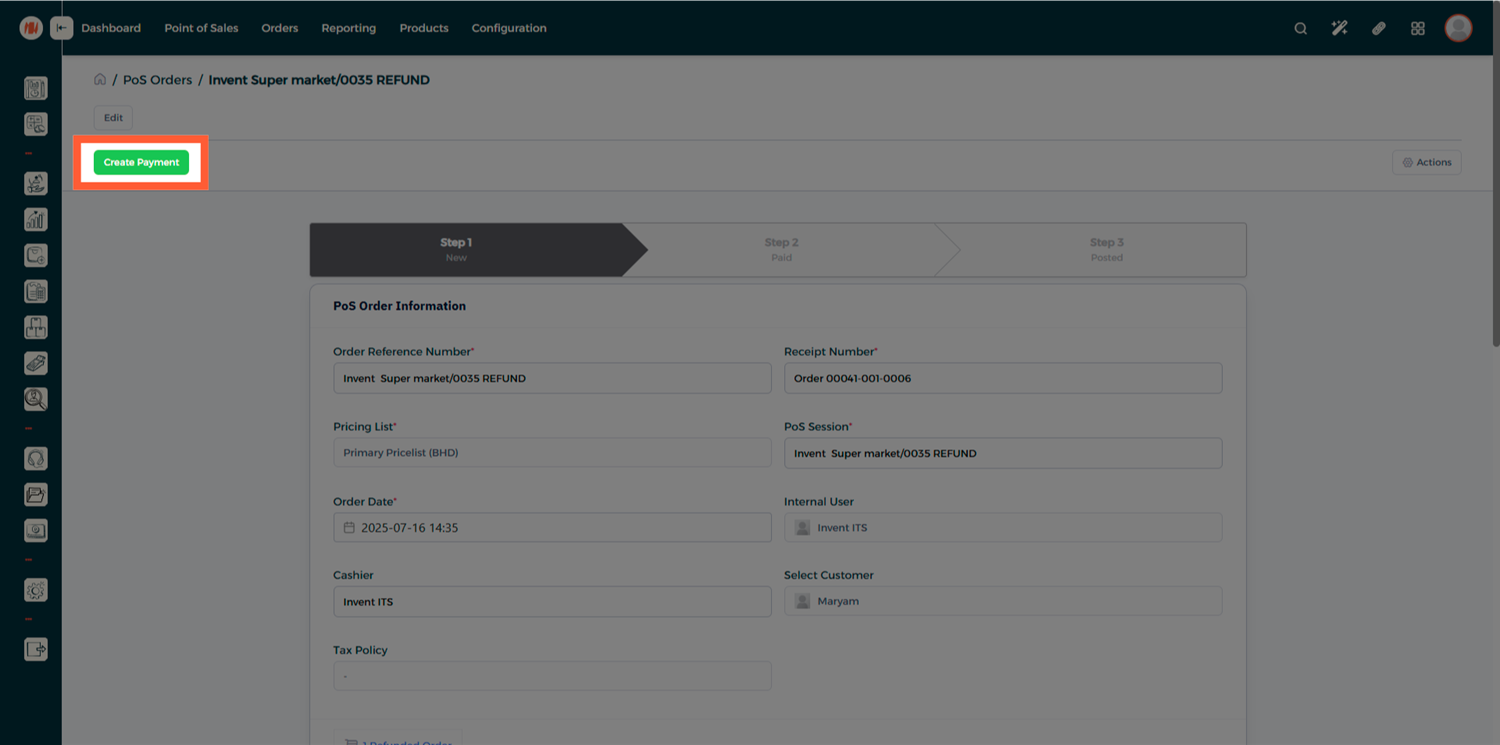
Open the refunded order and create the payment to finalize the refund.
Notes & Tips
- Always confirm the original order status before issuing a refund to avoid duplications.
- Use the correct payment method for refunds
Frequently Asked Questions (FAQ)
Q: Can I partially refund an order?
A: Yes — adjust the quantity of the item to be refunded before clicking the Refund button to issue a partial refund.
Q: Will refunds update inventory automatically?
A: Yes — refunds create the necessary stock and accounting entries so your inventory and financial records remain accurate.
Q: Can I refund a POS order created days ago?
A: Yes — use the POS Orders list and the Create Refund action to refund closed or older orders.