

How to add POS Payment Methods in Invent ERP?
How to add POS Payment Methods in Invent ERP?
Accepting the right payment options at checkout keeps customers happy and speeds up sales. Invent ERP lets you create flexible POS Payment Methods (cash, card, vouchers) and assign them to POS sessions.
Step-by-Step Process
Step 1: Open POS Payment Methods
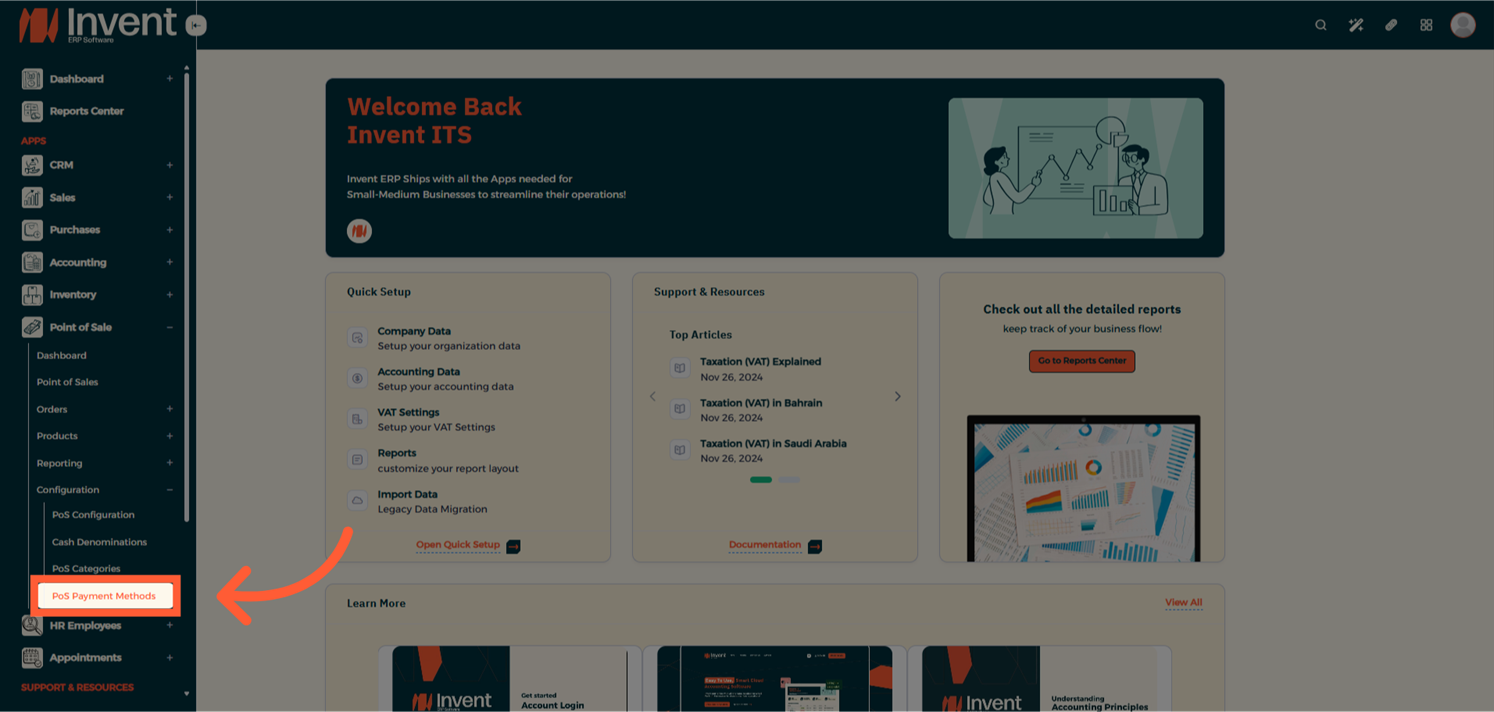
Step 2: Create a New Payment Method
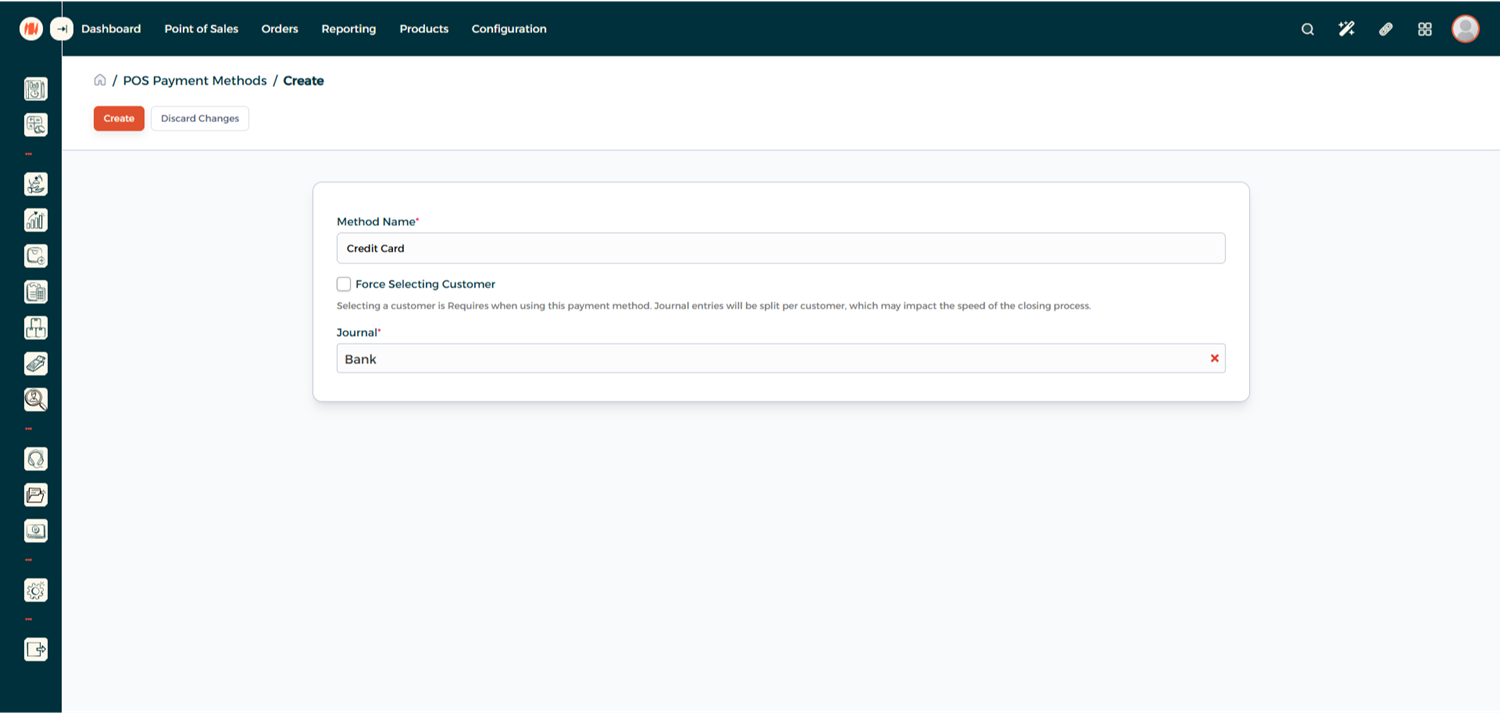
From the Payment Method List Page, click on Add to create a new Payment Method.
- Method Name: Give your Payment Method a clear name.
- Force Select Customer: Enable this if you want to require selecting a customer while using this payment method.
- Journal: Select the accounting journal where transactions made with this payment method will be recorded.
Step 3: Assign the Payment Method to a POS
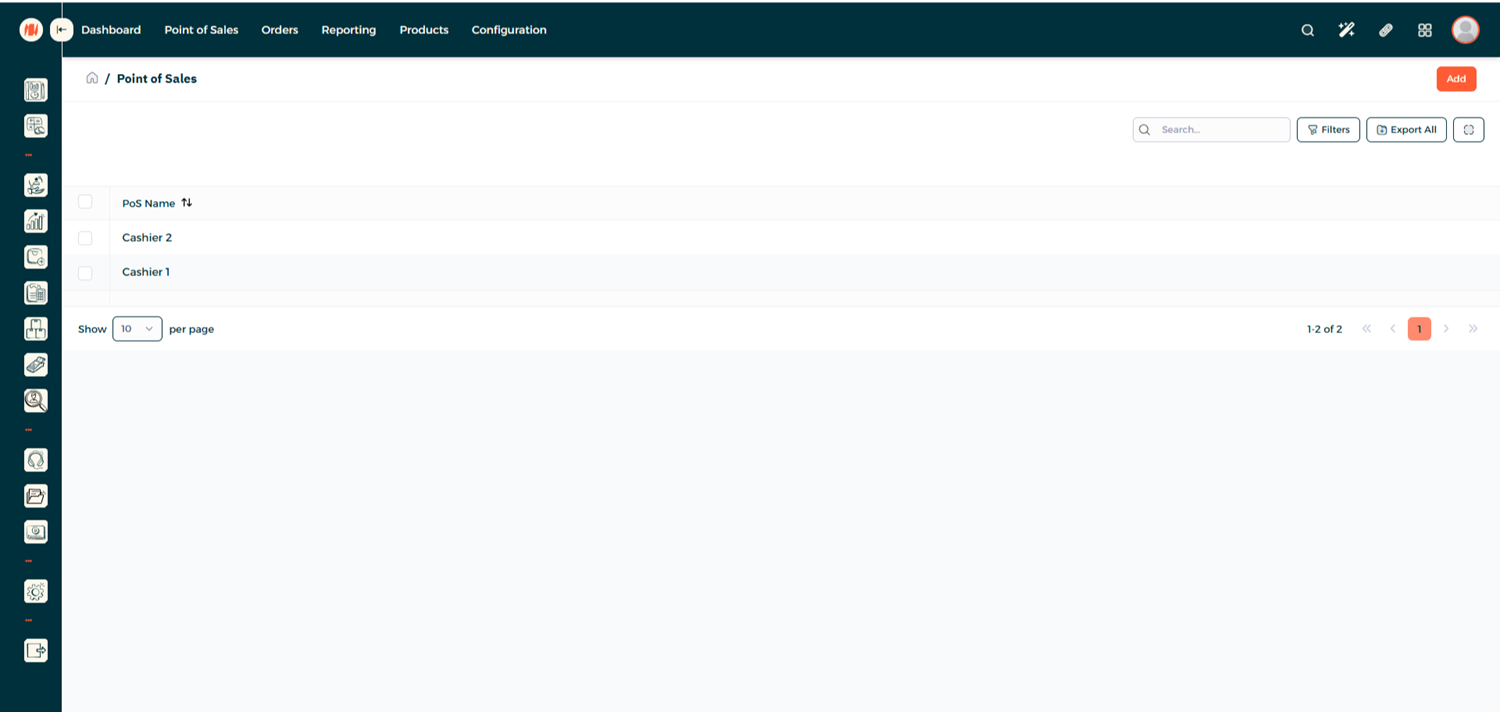
From the POS Configuration, head to your desired POS
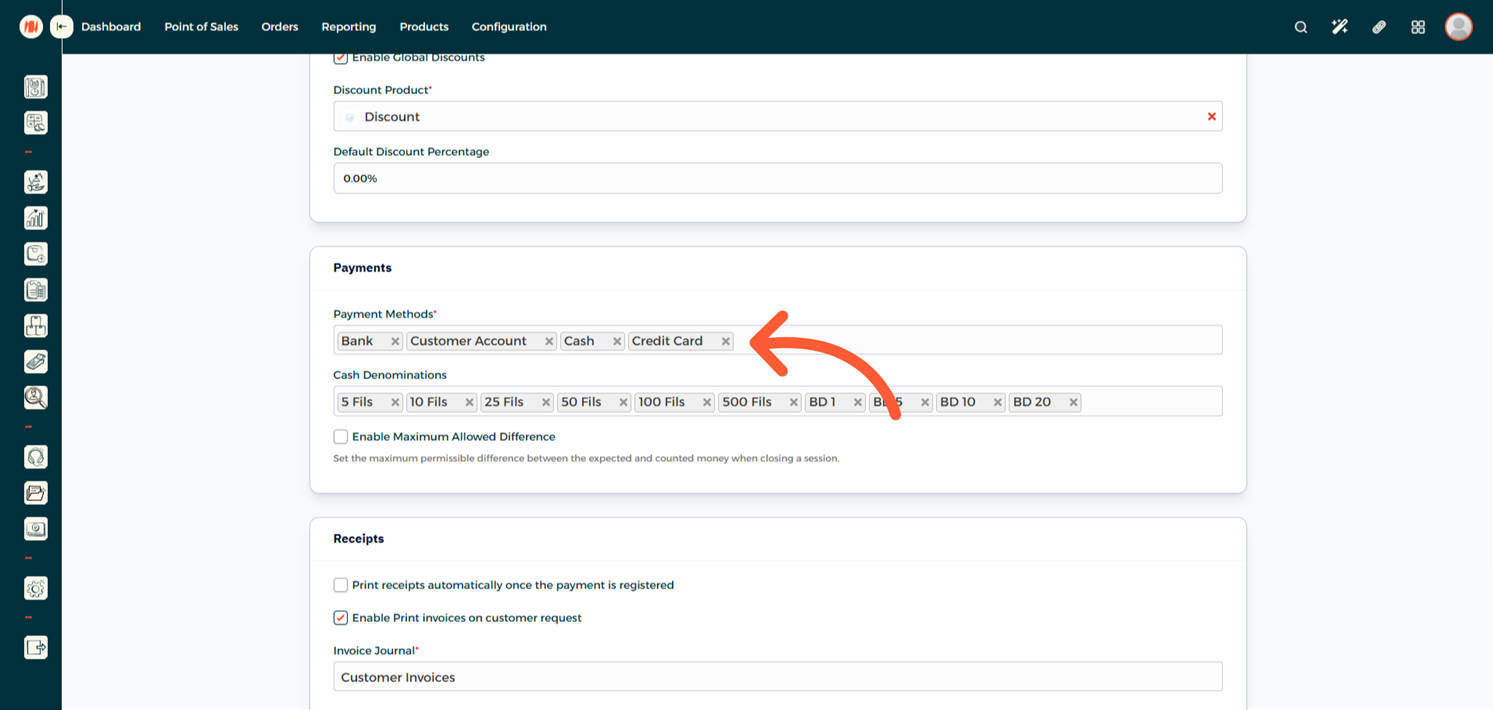
Scroll down to Payments and add your Payment Method
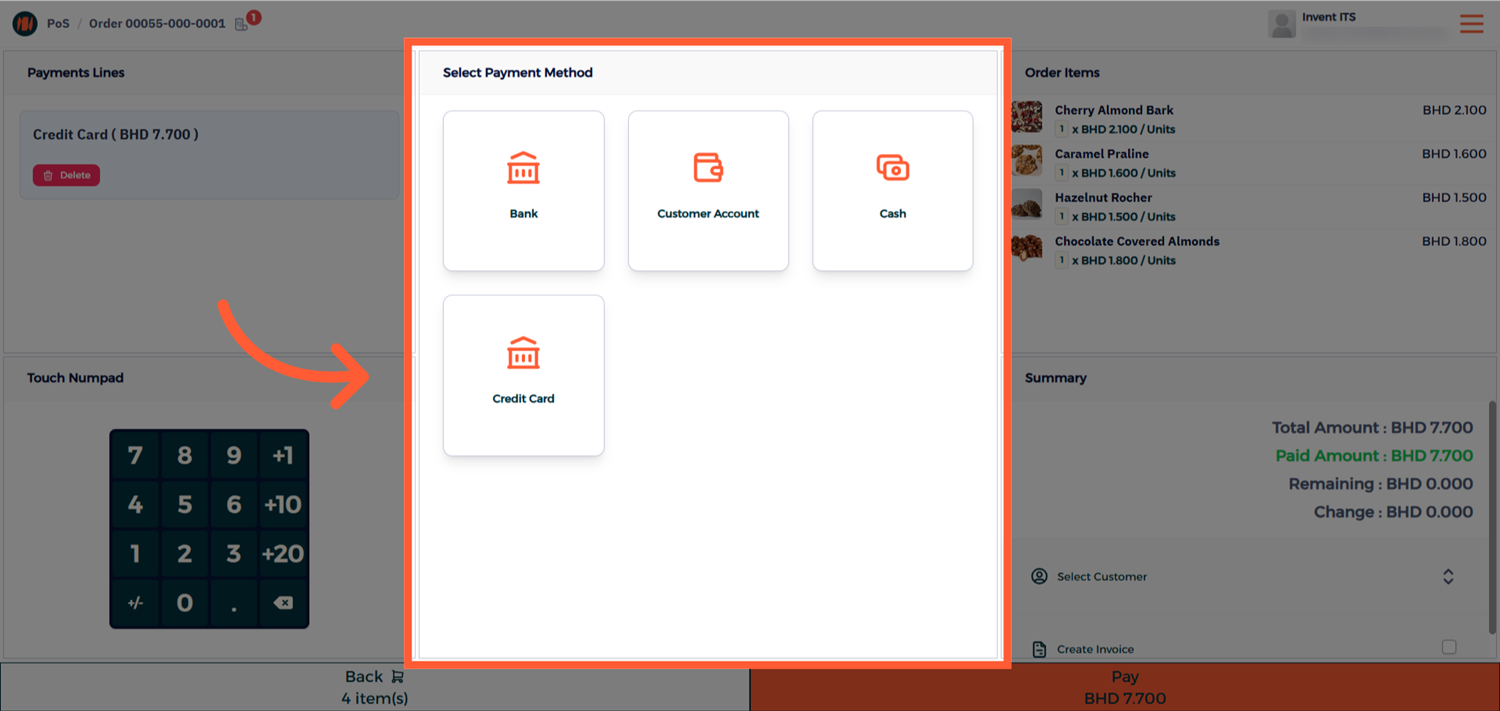
Step 4: View and Use your Payment Method
Now from your POS Session, you will be able to use your new Payment Method.
Notes & Tips
- Choose the correct journal as the selected journal determines how the payment appears in accounting reports.
- Use clear, consistent name for the Payment Method to avoid confusion on the POS screen.
Frequently Asked Questions (FAQ)
Q: Will disabling a payment method affect past transactions?
A: No, disabling only prevents future use; existing records and journal entries are preserved.
Q: Can I assign the same payment method to multiple POS sessions?
A: Yes, you can assign a payment method to multiple POS configurations. Just add it under the Payments section in each POS setup.
Q: Can I set a payment method as the default?
A: Currently, Invent ERP doesn’t allow setting a default payment method. Users can choose from the list during checkout.