

How to add a Price List In invent ERP?
How to add a Price List in Invent ERP?
Step-by-Step Process
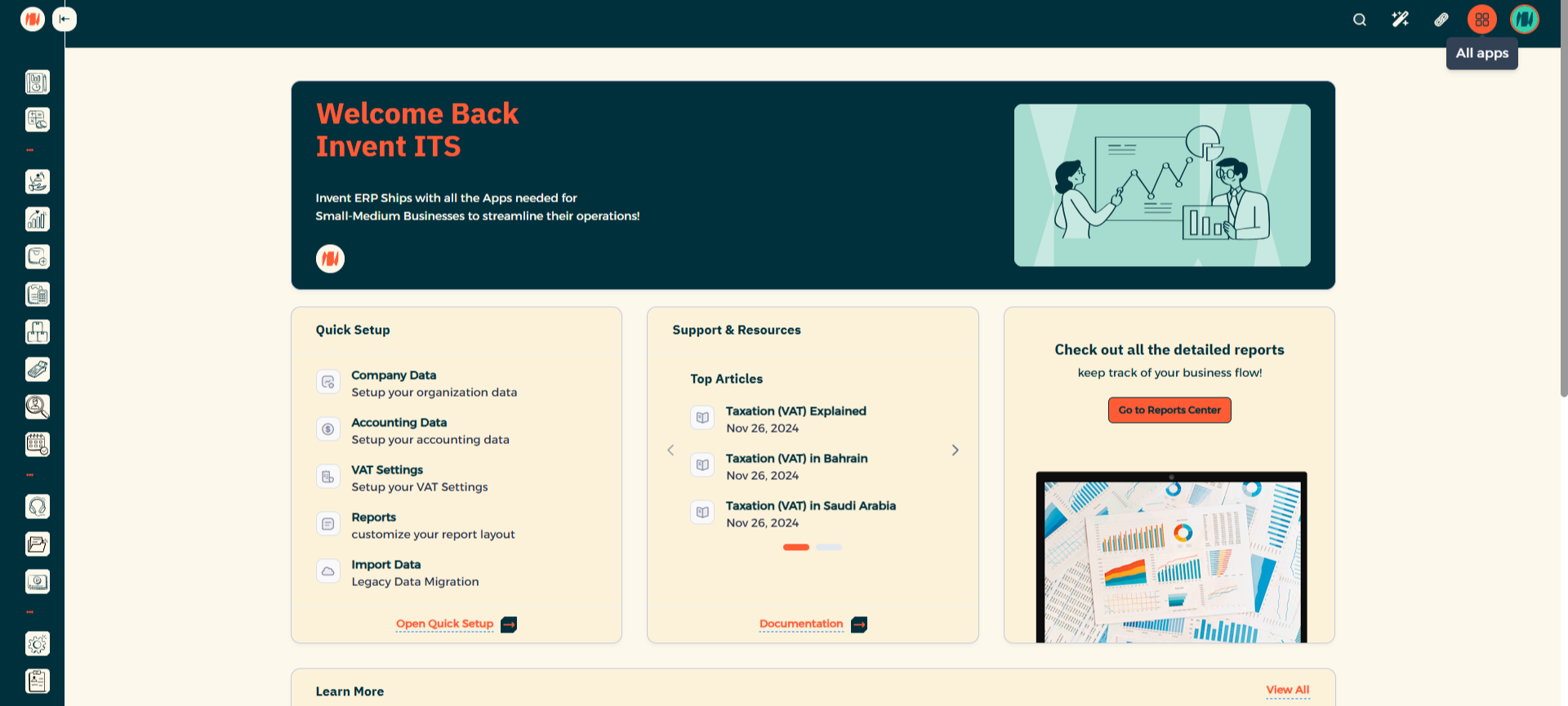
Step 1: Navigate to All Apps
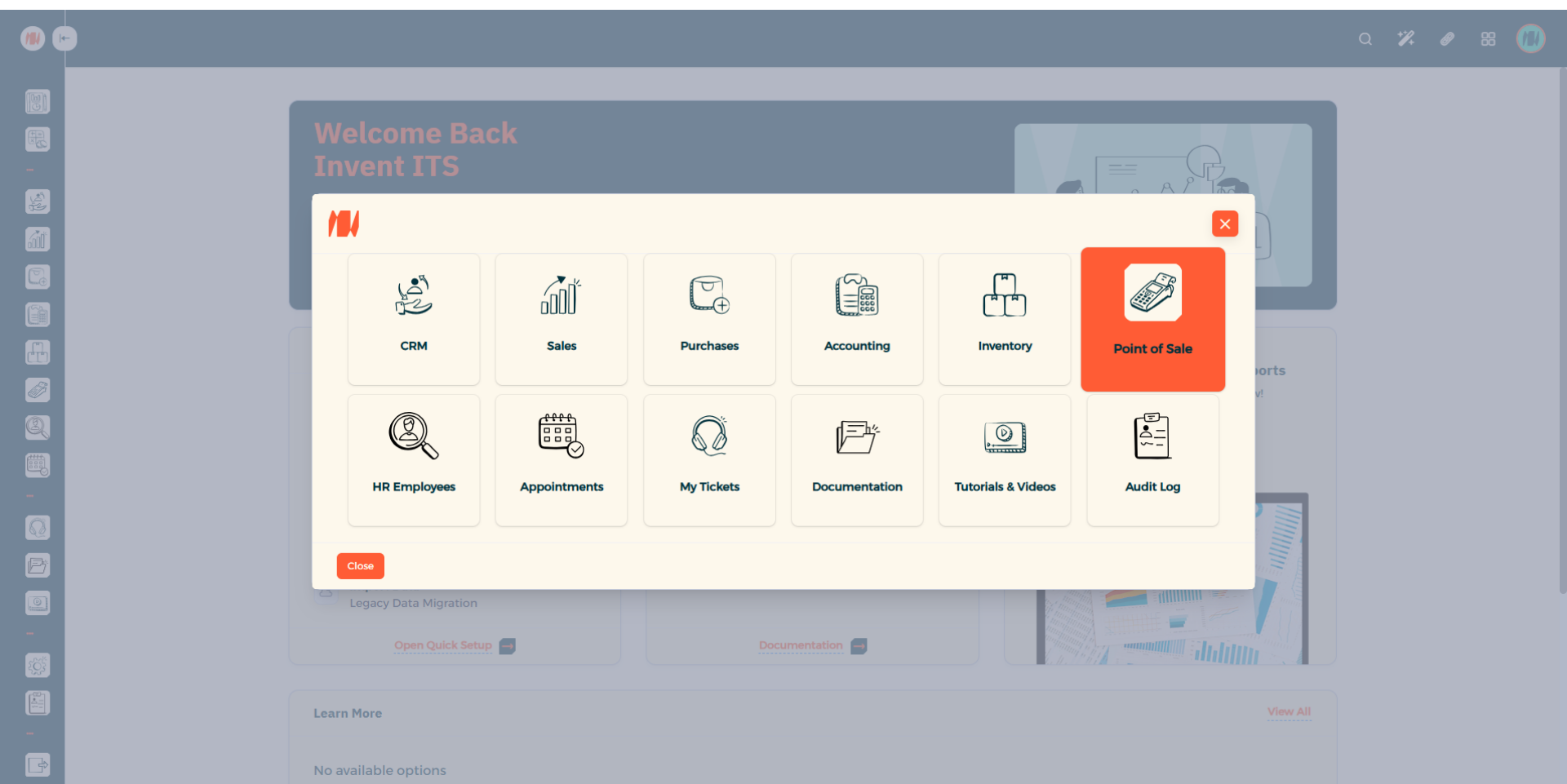
Step 2: Select Point of Sale
Choose Point of Sale.
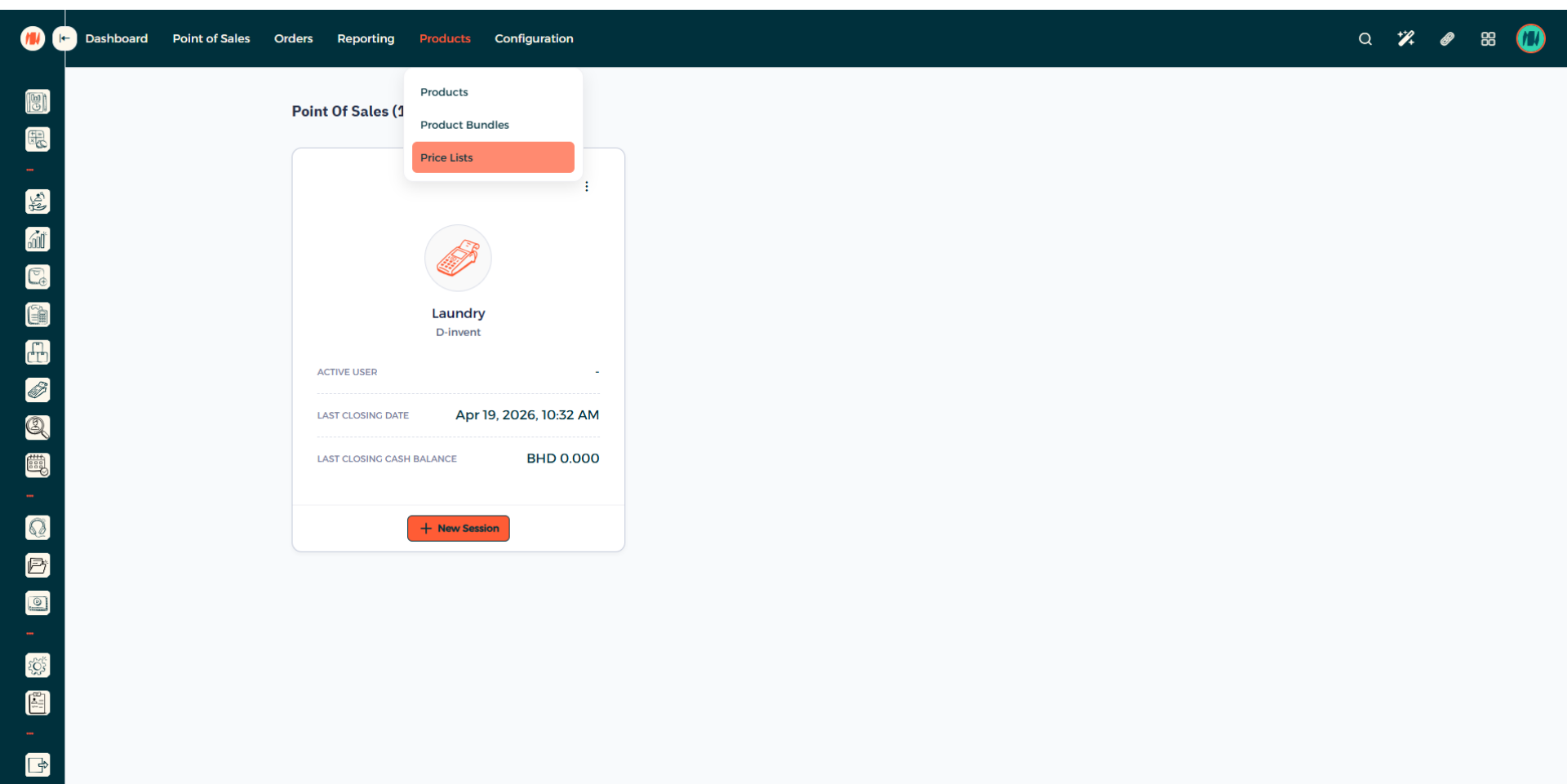
Step 3: Navigate to Price Lists
When you arrive, select products then Price Lists.
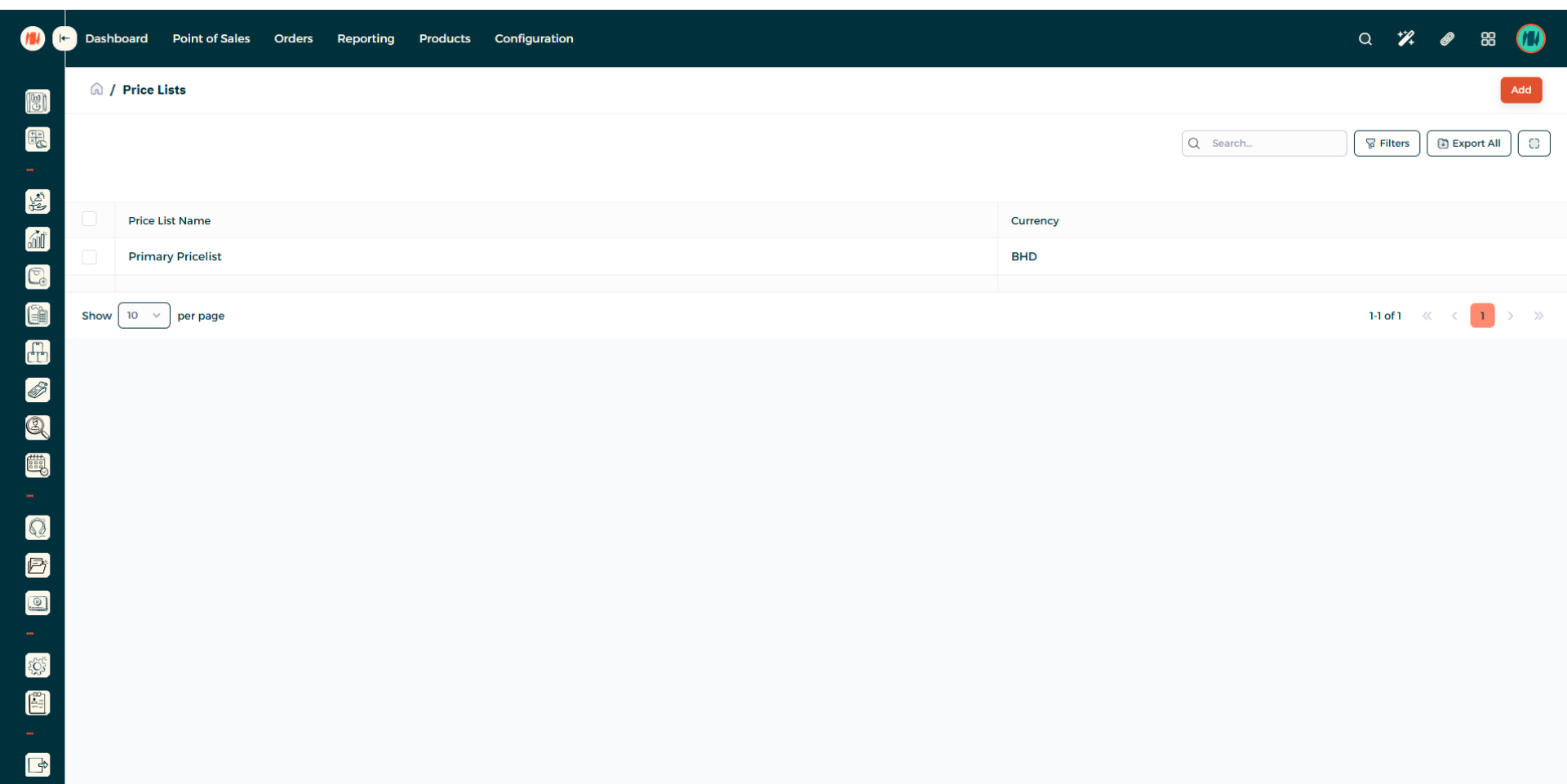
Step 4: Add a Price List
In the top right corner, Press add to create a new Price List.
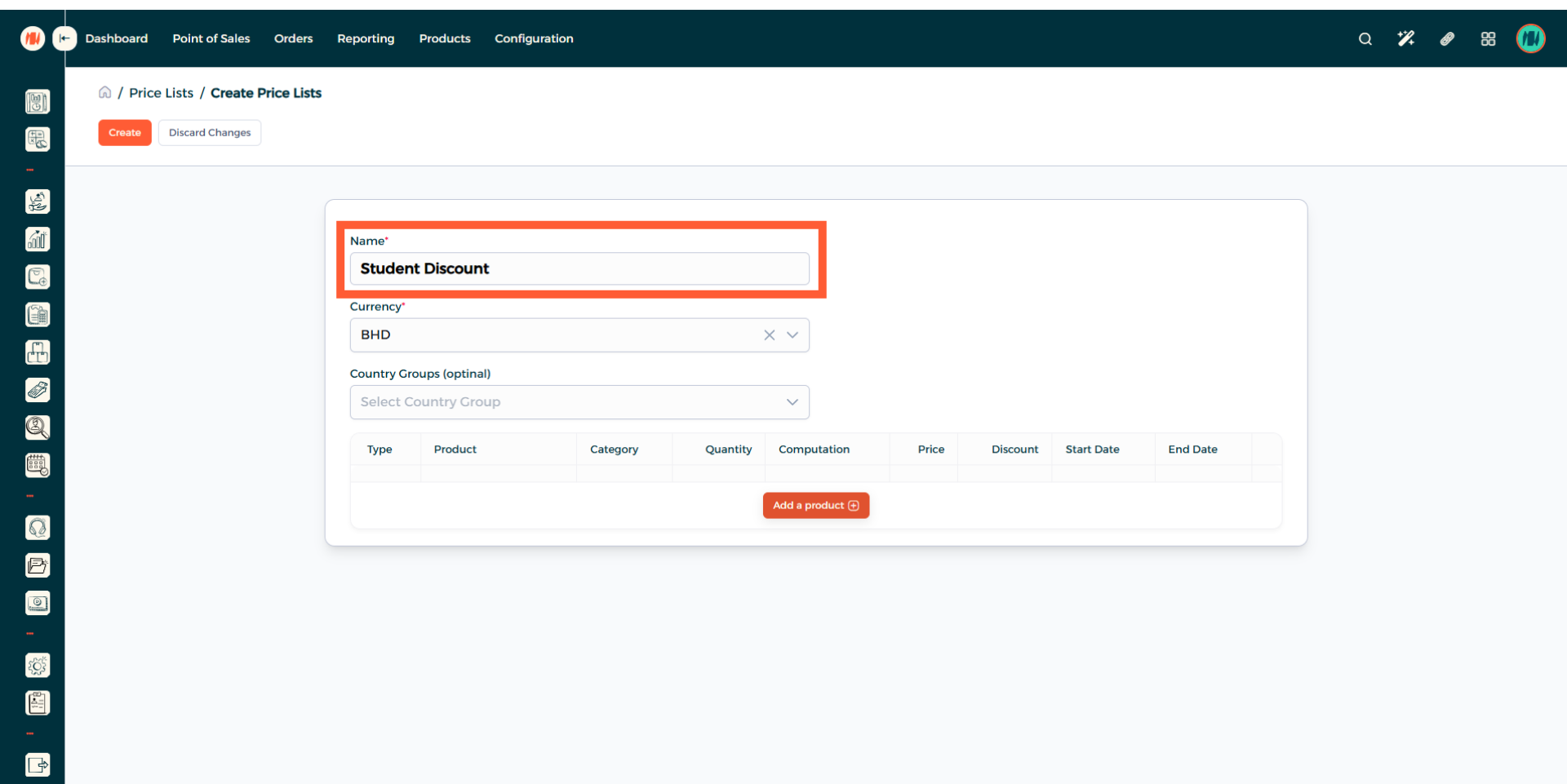
Step 5: Put a Price List Name
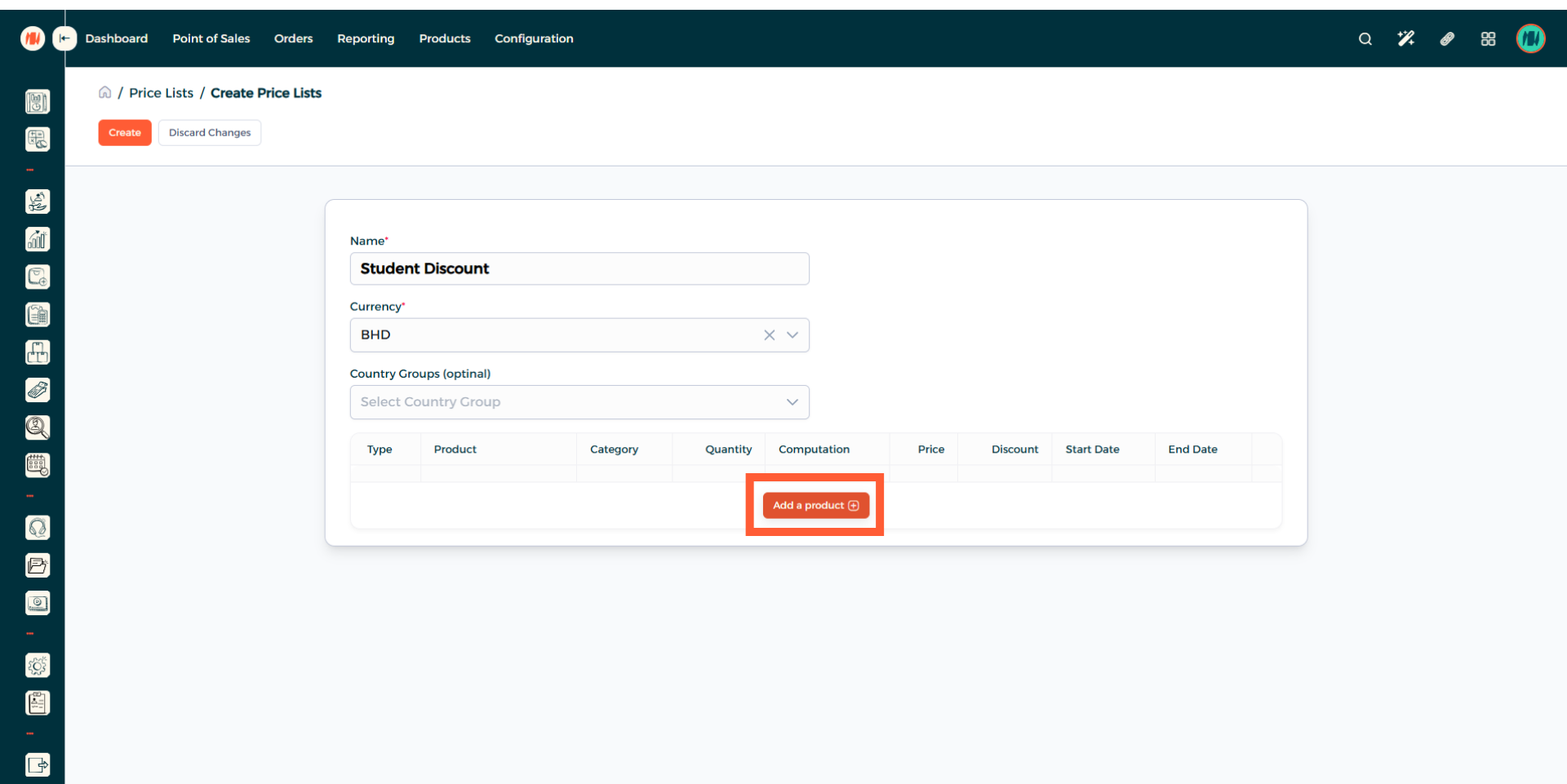
Step 6: Add a Product
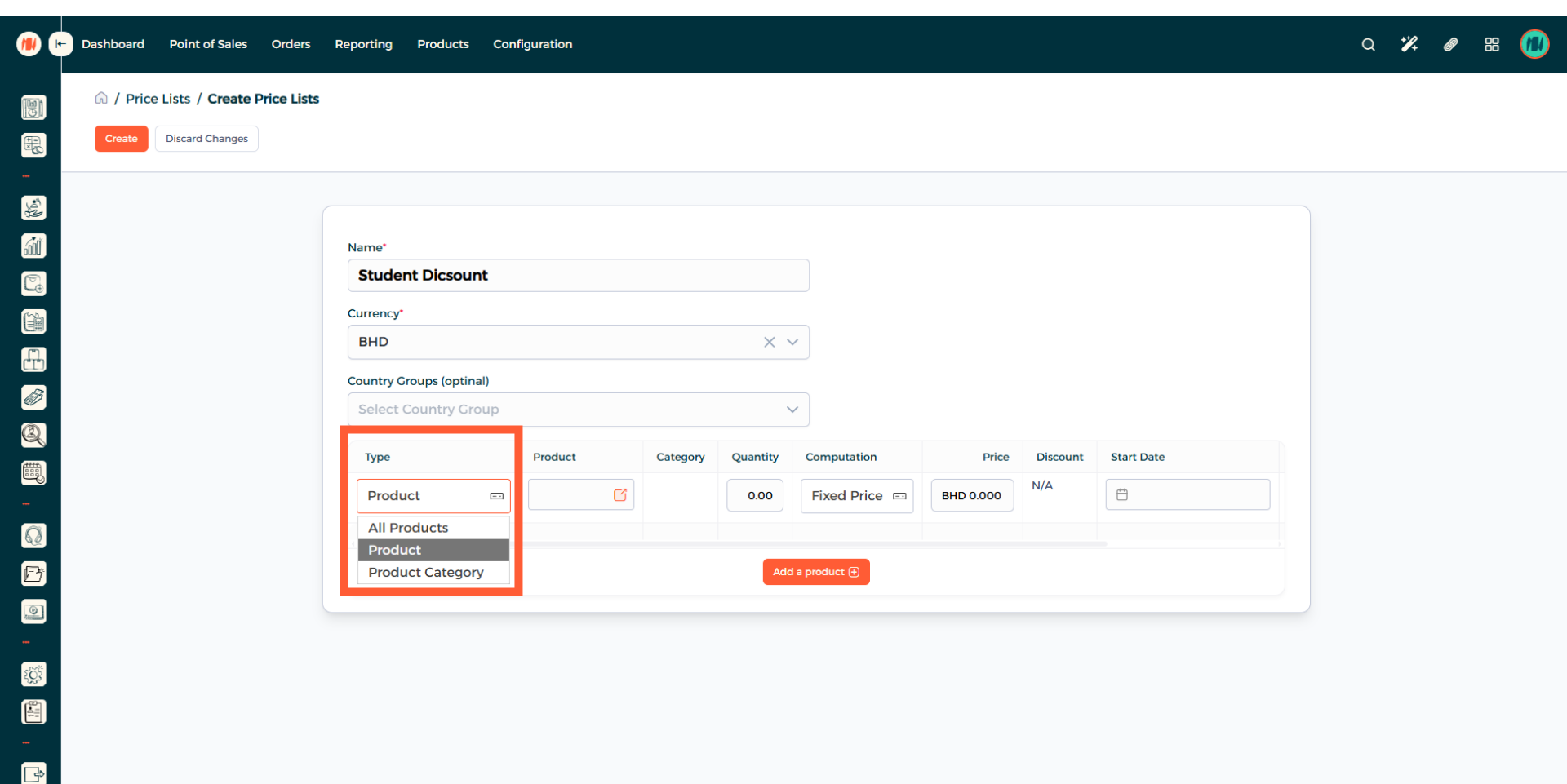
Step 7: Select Product Type
Choose your preferred product type, then add the product.
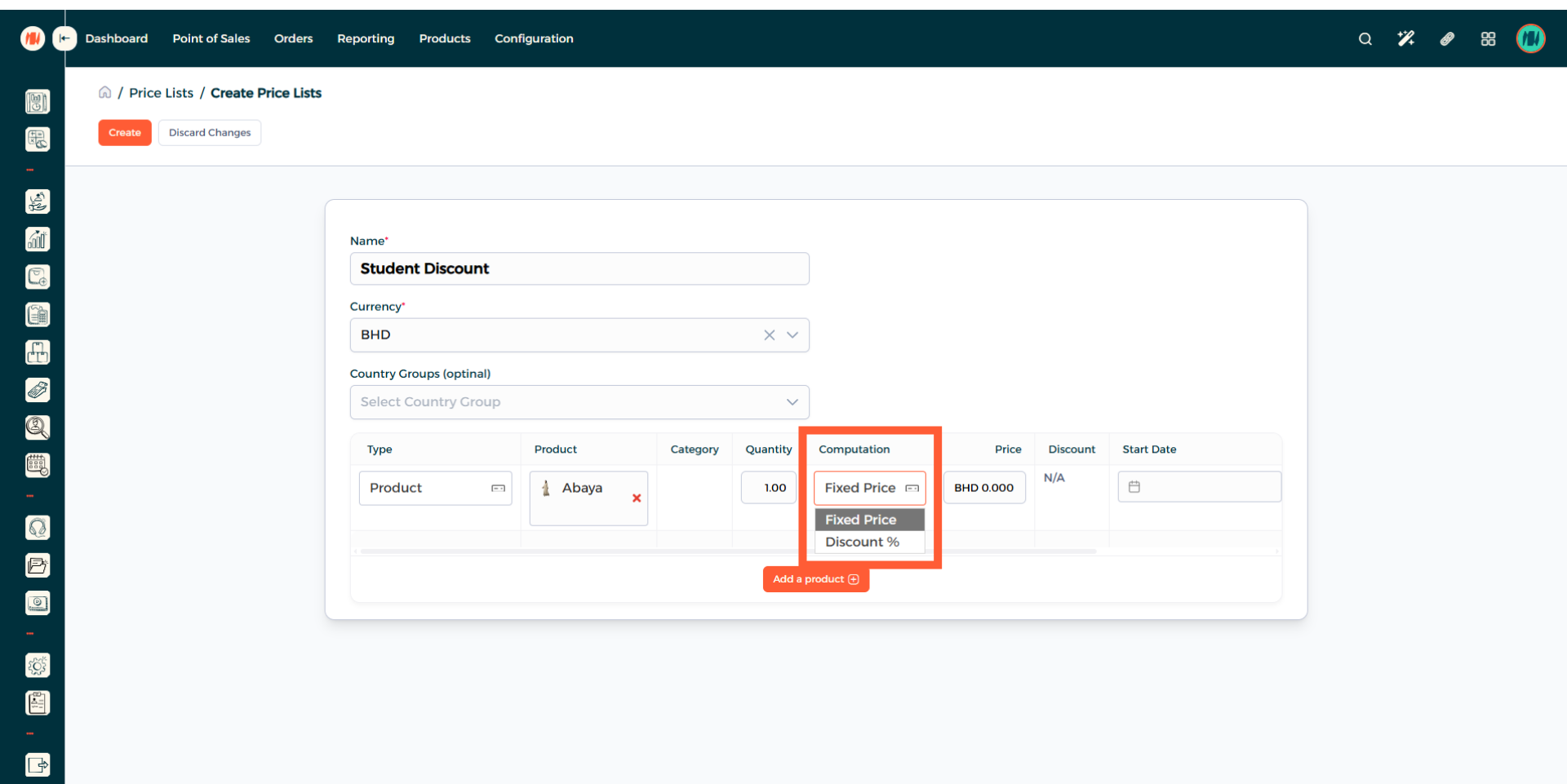
Step 8: Choose Computation
After that, choose the preferred price rule you would like. Either Fixed Price or Discount Percentage.
Step 9: Select Date Range (Optional)
You can define a Date Range to ensure the pricing only applies during a specific period
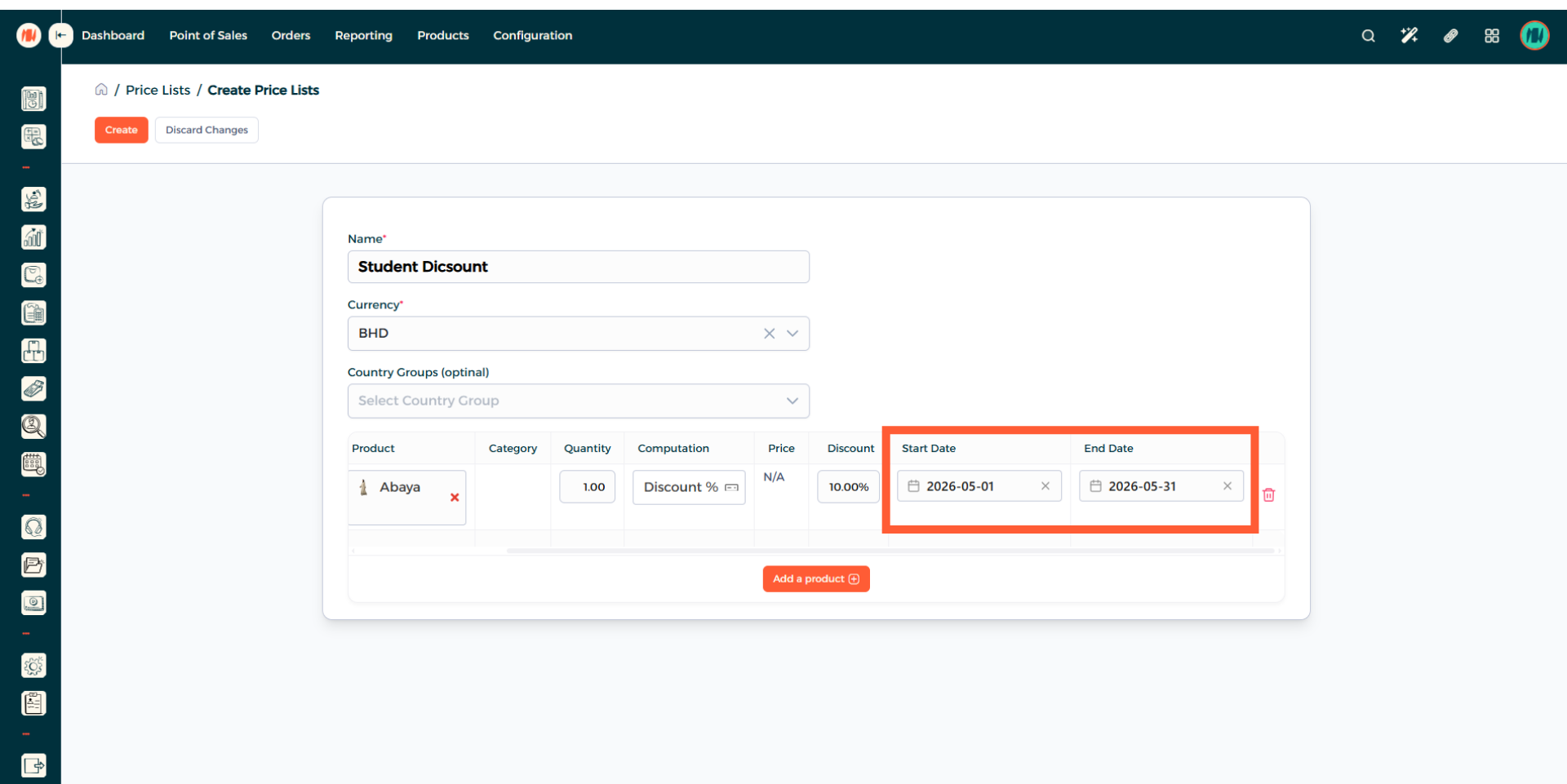
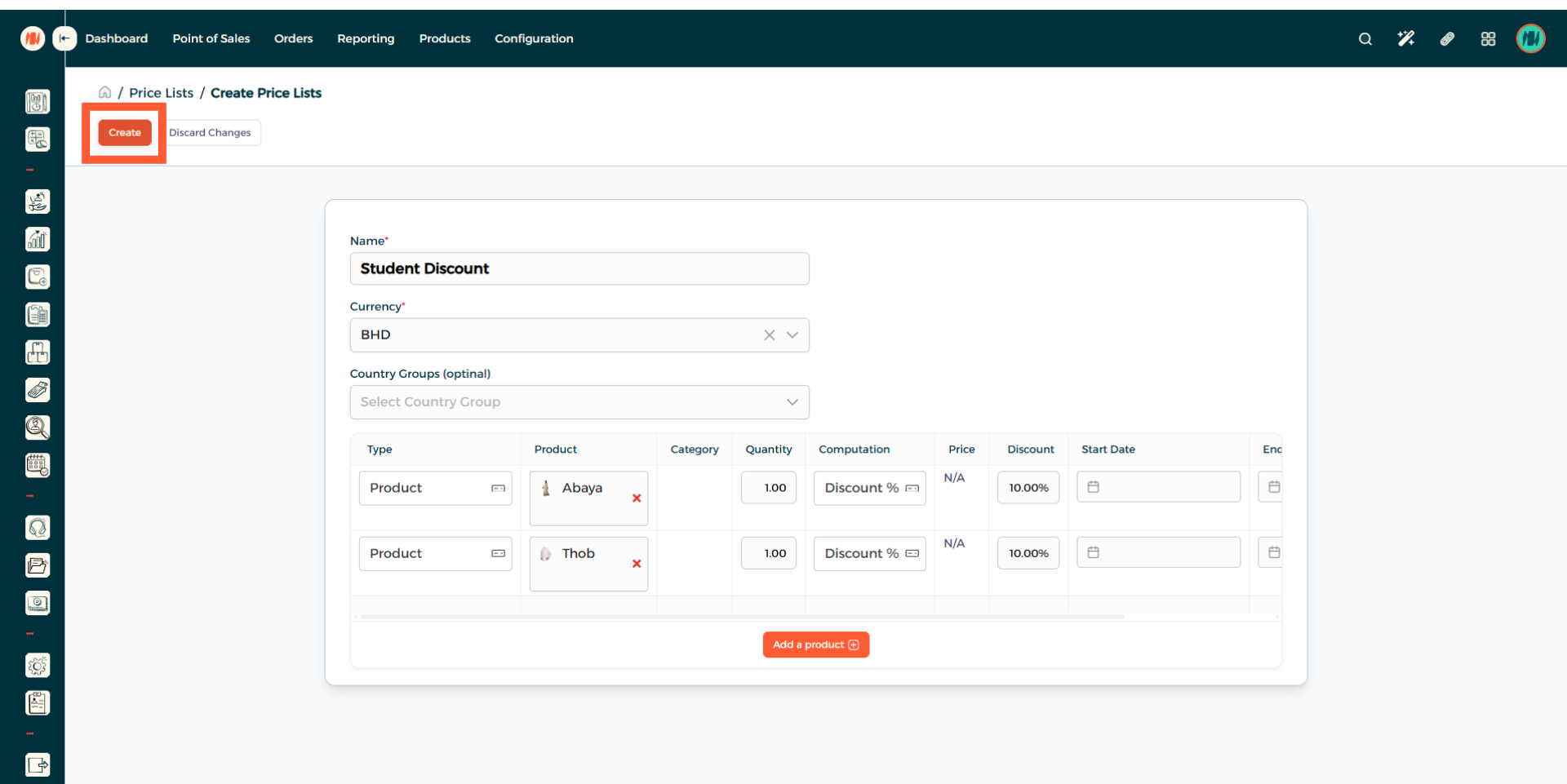
Step 10: Create Price List
When you added all your products and price rules. Confirm your details and go ahead and create your price list.
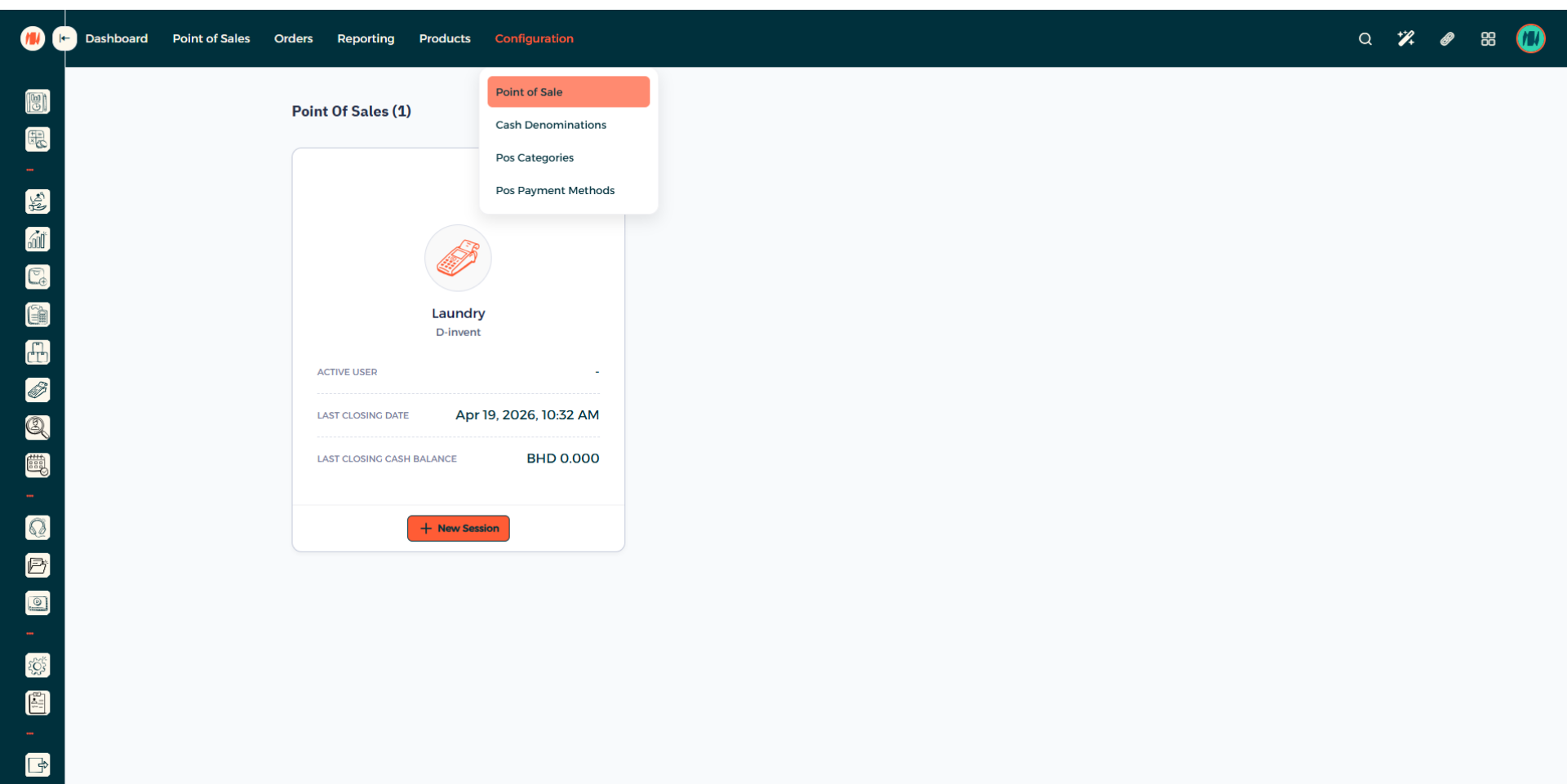
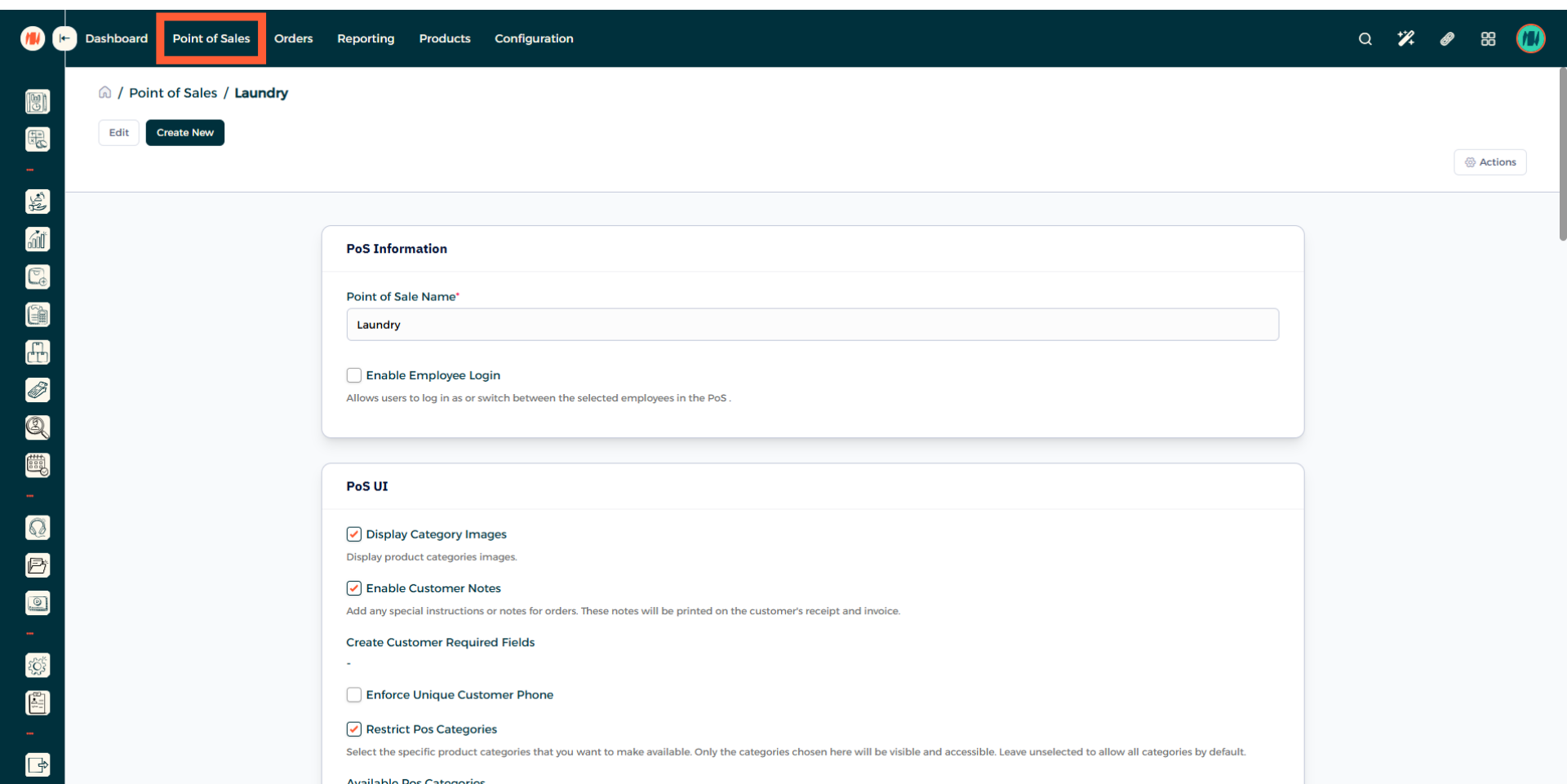
Step 11: Point of Sale Configuration
Now that you created your price list. Navigate to the Point of Sale configuration to apply it.
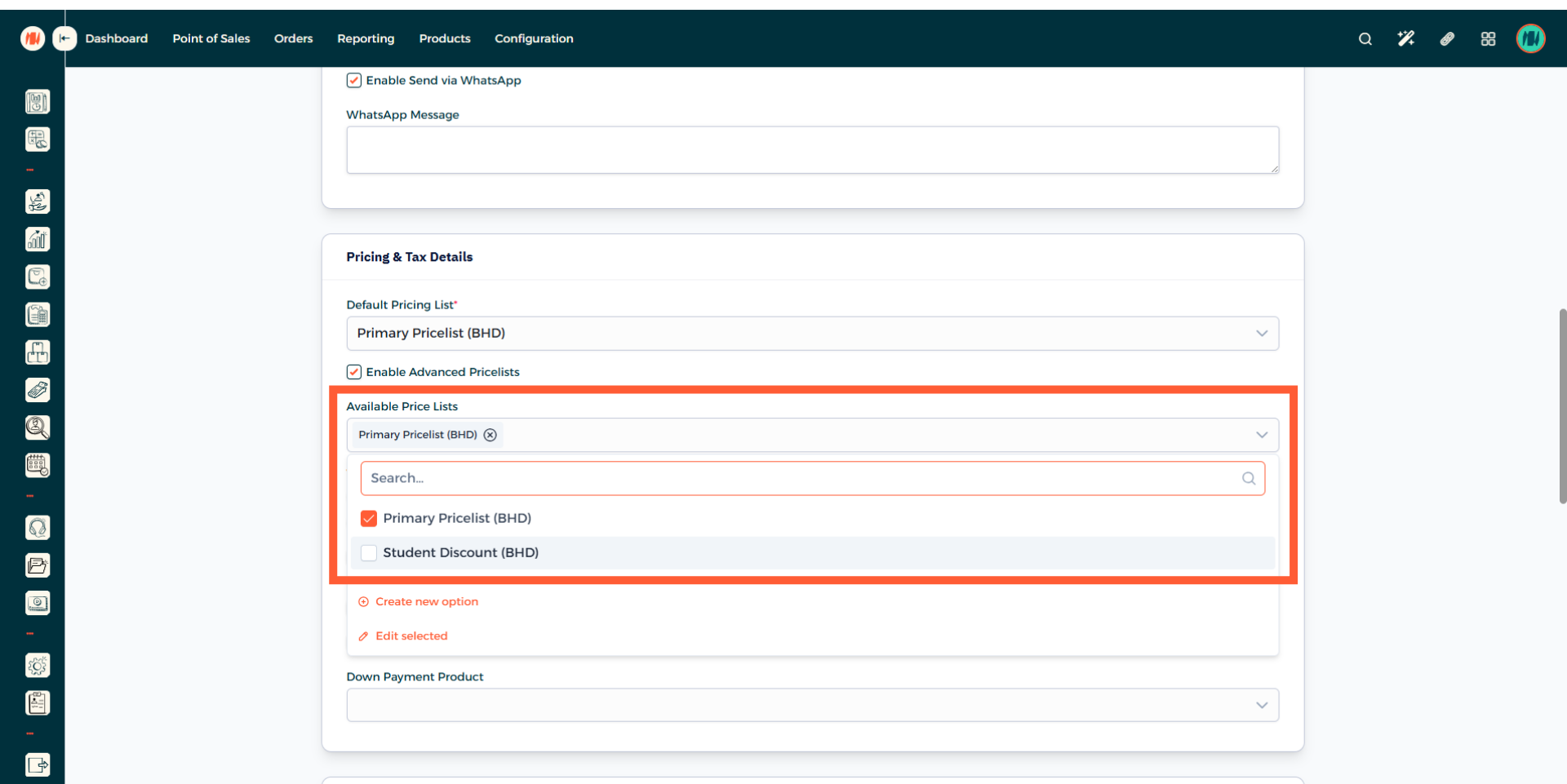
Step 12: Apply Price List to POS
Head over available price list and select the one you want to apply. Make sure to save your changes.
Step 13: Navigate to POS
Step 14: Choose Products
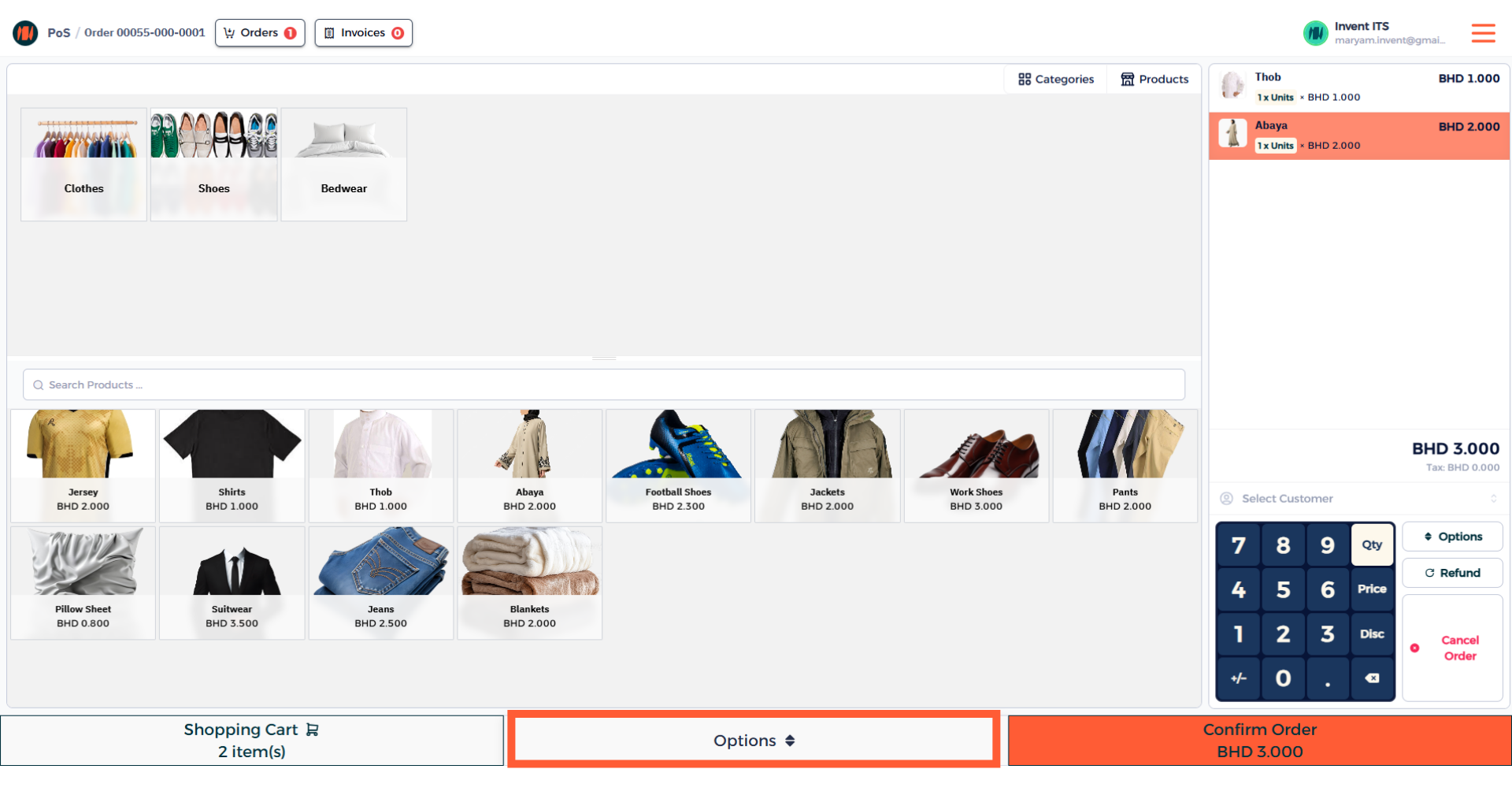
Select the products you want to apply the price list on. Then click options.
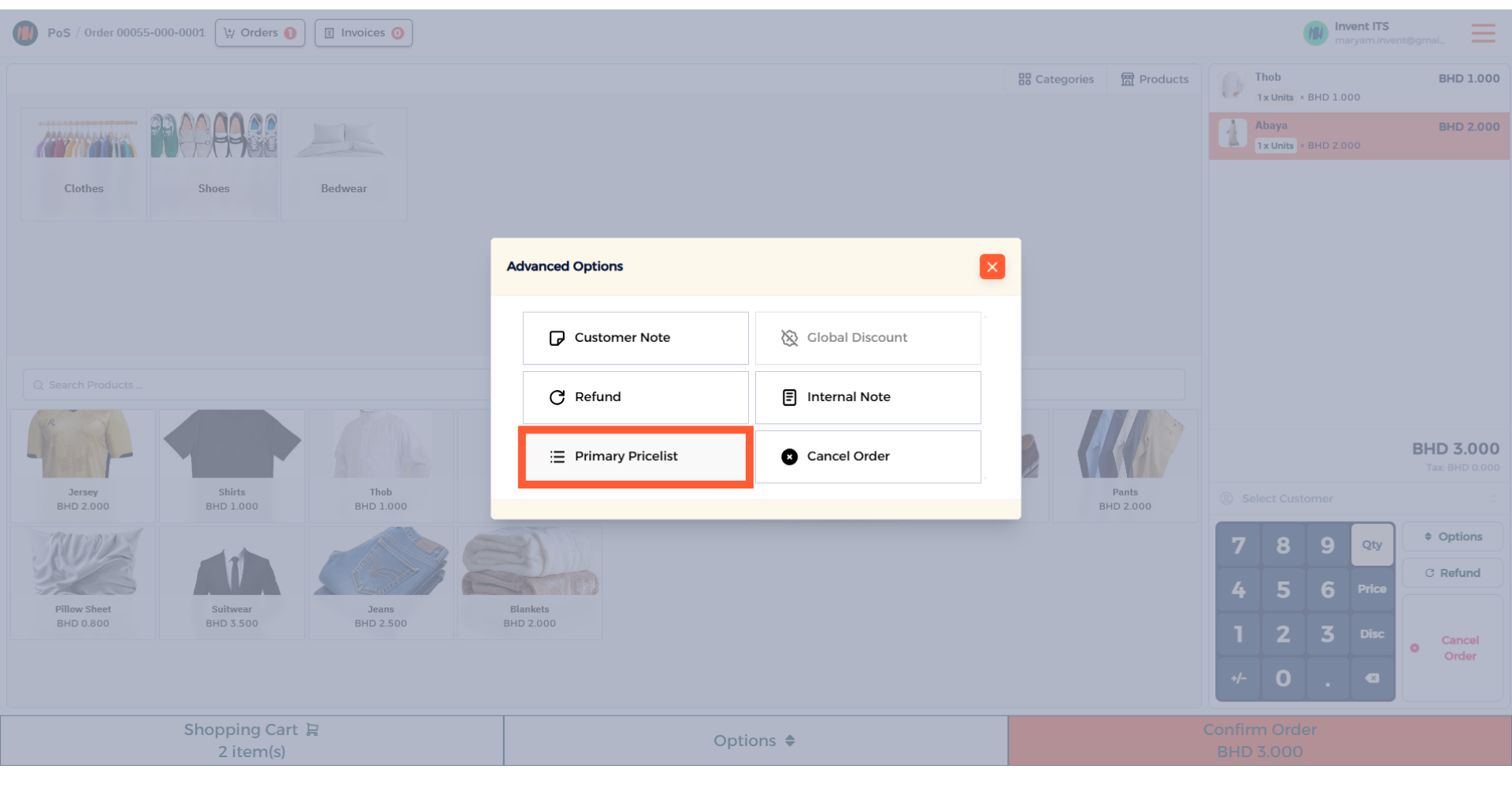
Step 15: Select Price List
In the advanced options section, click on primary price list then select it.
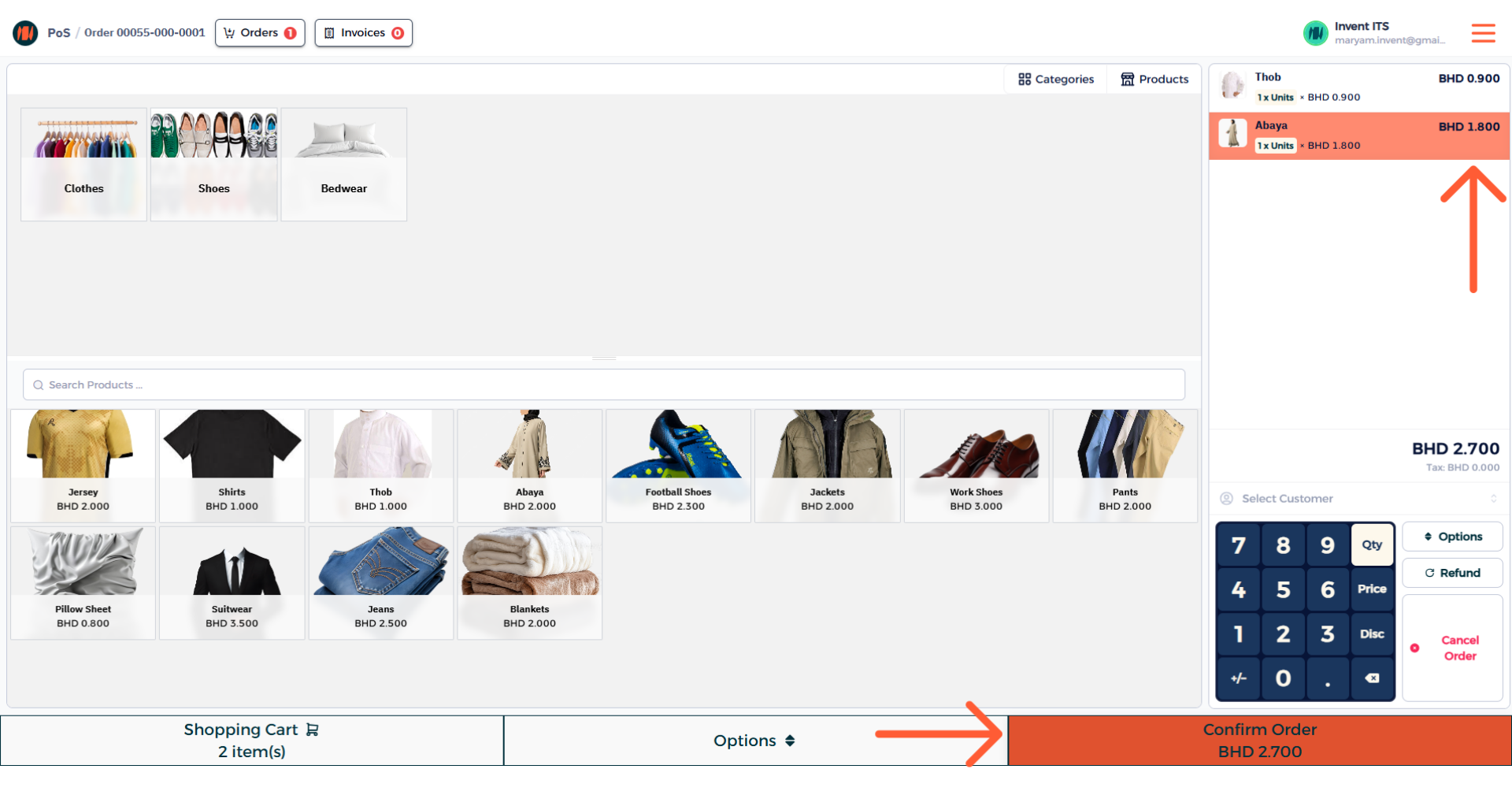
Step 16: Price List applied
After following those steps, you can see the price list was applied, now you can go ahead and confirm your order.
Notes & Tips
- Always double-check validity dates. This ensure the price list’s start/end dates are correct to prevent unintended pricing during promotions or transitions.
- A crucial tip is to use clear naming conventions. The usage of descriptively price lists can allow you to always select the right price list and speed up workflow.
- It is beneficial to assign by product groups when possible. The reason is to apply prices to groups to speed setup and keep lists manageable.
Frequently Asked Questions (FAQ)
Q: What is a Price List?
A: A Price List is a set of rules (fixed price or discount percentage) that are applied to products or services to determine their sale price.
Q: Can one product belong to multiple Price Lists?
A: Yes, a product can have prices in multiple Price Lists.
Q: How do I handle temporary promotional pricing?
A: Create a Price List, then add the products alongside the rule either fixed price or discount percentage. After that, just apply a date range.